Turn on suggestions
Auto-suggest helps you quickly narrow down your search results by suggesting possible matches as you type.
Cancel
- Home
- :
- All Communities
- :
- Services
- :
- Esri Technical Support
- :
- Esri Technical Support Blog
- :
- Tips and Tricks for Disconnected Editing with Coll...
Tips and Tricks for Disconnected Editing with Collector for ArcGIS
Subscribe
7052
0
02-24-2016 03:11 AM


- Subscribe to RSS Feed
- Mark as New
- Mark as Read
- Bookmark
- Subscribe
- Printer Friendly Page
02-24-2016
03:11 AM
Interested in deploying a person or crew of workers to edit your authoritative geographic data in the field without needing a connection to the internet? We are too! Collector for ArcGIS is the perfect client for you if your mobile phone or tablet is an iOS, Android, or Windows device.
Collector for ArcGIS is a lightweight native application that makes offline field collection possible with an easy-to-use interface. While usage of the application is simple, there are several deployment options available which can make getting the initial grasp of Collector for ArcGIS somewhat complicated. Below is a list of some helpful tips and tricks to get you offline as quickly and as smoothly as possible.1. Collector for ArcGIS requires a unique identity.
Collector for ArcGIS requires authentication from a 'named user' account within your ArcGIS Online organization or Portal for ArcGIS.. The number of users is determined by the license level of your subscription. Administrators can invite additional users to the organization, or groups can be leveraged to share maps with users from other organizations.
To purchase additional users, contact Esri Customer Services or your Account Manager.Tip: You cannot use a public account to license Collector for ArcGIS.2. Collector for ArcGIS is dependent on a pre-configured web map.
Although you can download the application directly from the App Store, you will not be able to start using the application until a map is authored that contains at least one editing-enabled feature service. If you are the author of the map, it is best to get started by creating a web map in either ArcGIS Online or Portal for ArcGIS.Tip: If it's your first time creating a web map for use with Collector for ArcGIS, familiarize yourself with the following tutorials.3. The web map must be configured for offline use.Services hosted by ArcGIS Online or Portal for ArcGIS:Services hosted by ArcGIS Server: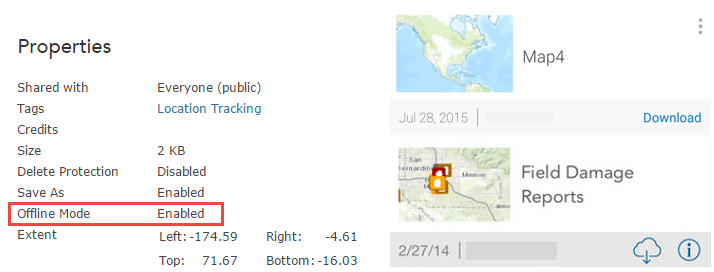 4. Synchronize as often as possible. Frequent synchronization reduces the amount of data that gets pushed back to the server at once, which reduces the chance of a synchronization failing.Tip: If you are using ArcGIS for Server and need to synchronize large amounts of data, consider increasing the upload size, which by default is set to 2 GB. You may also need to increase the upload size of your web server to accommodate large synchronizations.5. Use the strongest network connection available. Public WiFi, for example, is not a best practice for synchronizing because you cannot trust the source; the network bandwidth or restrictions may not be capable of processing the request. If possible,
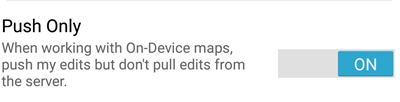
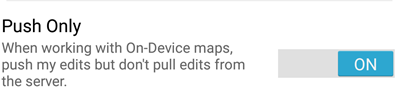
 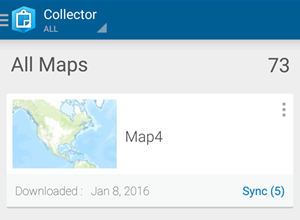 synchronize when connected to a trusted source, like the internal WiFi of your organization. Collector for ArcGIS sends 2 MB bundles of data at a time during the synchronization process, so the strength of the network connection becomes more important as the size of the data increases.Tip: If your offline data fails to synchronize successfully the first time, test it again using a different network.Trick: You can configure Collector for ArcGIS to only push edits up to the server when you synchronize, and to not pull down edits made by others while you are offline. This reduces the amount of data transferred, making it faster to share your changes and save on data transfer costs from cellular networks. If the edits being made by others are important to you, leave 'Push Only' synchronization disabled.
 6. Consider the data. Simply put: the more data, the slower the performance. That being said, sometimes performance decreases are less obvious than just the number of features in the data. For example, the number of fields, relationship classes, the projection, and the visibility scale can all affect performance. If you are looking to improve performance, you can hide fields, ensure the projection of the data matches the basemap, and set a reasonable visibility scale on the data or within the web map.
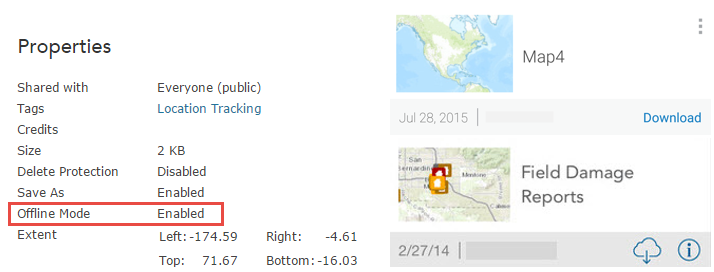
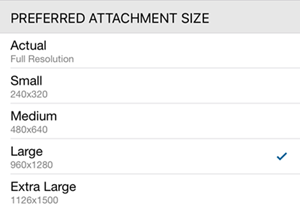
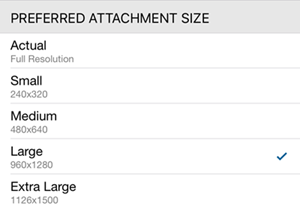 Tip: Keep in mind the number and size of photo attachments that you are collecting. Photo attachments cause the data to expand due to the size of each respective photo. When synchronizing many photos, it is especially important to have a strong network connection.Trick: You can limit the size of photos that you attach to features within Collector for ArcGIS on the Settings page.Tip: The next release of Collector will support new offline settings that authors can adjust in ArcGIS Online on the item properties pages of their web maps. These settings will allow map authors to specify what types of information field workers retrieve from the server for both editable and read-only layers. As a result, workers can sync less data, which can decrease the risk of sync failure.7. Test before deploying to the field! Create a sample web map and try collecting data and synchronizing the edits before taking the map into production. Collector for ArcGIS is supported on iOS, Android, and Windows; you may find that an issue is specific to the hardware or to the operating system of your mobile device. If you are unable to synchronize from your sample map, please contact Esri Technical Support.Related information:
Julia G. - Server Support Analyst
Collector for ArcGIS is a lightweight native application that makes offline field collection possible with an easy-to-use interface. While usage of the application is simple, there are several deployment options available which can make getting the initial grasp of Collector for ArcGIS somewhat complicated. Below is a list of some helpful tips and tricks to get you offline as quickly and as smoothly as possible.1. Collector for ArcGIS requires a unique identity.
Collector for ArcGIS requires authentication from a 'named user' account within your ArcGIS Online organization or Portal for ArcGIS.. The number of users is determined by the license level of your subscription. Administrators can invite additional users to the organization, or groups can be leveraged to share maps with users from other organizations.
To purchase additional users, contact Esri Customer Services or your Account Manager.Tip: You cannot use a public account to license Collector for ArcGIS.2. Collector for ArcGIS is dependent on a pre-configured web map.
Although you can download the application directly from the App Store, you will not be able to start using the application until a map is authored that contains at least one editing-enabled feature service. If you are the author of the map, it is best to get started by creating a web map in either ArcGIS Online or Portal for ArcGIS.Tip: If it's your first time creating a web map for use with Collector for ArcGIS, familiarize yourself with the following tutorials.3. The web map must be configured for offline use.Services hosted by ArcGIS Online or Portal for ArcGIS:Services hosted by ArcGIS Server:
- Feature: Stored in an Enterprise Geodatabase, GlobalIDs added, Versioning or Archiving enabled
- Tile: Export Tile operation enabled
 4. Synchronize as often as possible. Frequent synchronization reduces the amount of data that gets pushed back to the server at once, which reduces the chance of a synchronization failing.Tip: If you are using ArcGIS for Server and need to synchronize large amounts of data, consider increasing the upload size, which by default is set to 2 GB. You may also need to increase the upload size of your web server to accommodate large synchronizations.5. Use the strongest network connection available. Public WiFi, for example, is not a best practice for synchronizing because you cannot trust the source; the network bandwidth or restrictions may not be capable of processing the request. If possible, synchronize when connected to a trusted source, like the internal WiFi of your organization. Collector for ArcGIS sends 2 MB bundles of data at a time during the synchronization process, so the strength of the network connection becomes more important as the size of the data increases.Tip: If your offline data fails to synchronize successfully the first time, test it again using a different network.Trick: You can configure Collector for ArcGIS to only push edits up to the server when you synchronize, and to not pull down edits made by others while you are offline. This reduces the amount of data transferred, making it faster to share your changes and save on data transfer costs from cellular networks. If the edits being made by others are important to you, leave 'Push Only' synchronization disabled.
 6. Consider the data. Simply put: the more data, the slower the performance. That being said, sometimes performance decreases are less obvious than just the number of features in the data. For example, the number of fields, relationship classes, the projection, and the visibility scale can all affect performance. If you are looking to improve performance, you can hide fields, ensure the projection of the data matches the basemap, and set a reasonable visibility scale on the data or within the web map.
 Tip: Keep in mind the number and size of photo attachments that you are collecting. Photo attachments cause the data to expand due to the size of each respective photo. When synchronizing many photos, it is especially important to have a strong network connection.Trick: You can limit the size of photos that you attach to features within Collector for ArcGIS on the Settings page.Tip: The next release of Collector will support new offline settings that authors can adjust in ArcGIS Online on the item properties pages of their web maps. These settings will allow map authors to specify what types of information field workers retrieve from the server for both editable and read-only layers. As a result, workers can sync less data, which can decrease the risk of sync failure.7. Test before deploying to the field! Create a sample web map and try collecting data and synchronizing the edits before taking the map into production. Collector for ArcGIS is supported on iOS, Android, and Windows; you may find that an issue is specific to the hardware or to the operating system of your mobile device. If you are unable to synchronize from your sample map, please contact Esri Technical Support.Related information:
- Collector Disconnected Editing and Sync Blog
- Prepare data for offline use
- Offline maps and versioned data
Julia G. - Server Support Analyst
Labels
You must be a registered user to add a comment. If you've already registered, sign in. Otherwise, register and sign in.
About the Author
Platform Engineer
Esri Professional Services
Labels
-
Announcements
70 -
ArcGIS Desktop
87 -
ArcGIS Enterprise
43 -
ArcGIS Mobile
7 -
ArcGIS Online
21 -
ArcGIS Pro
14 -
ArcPad
4 -
ArcSDE
16 -
CityEngine
9 -
Geodatabase
25 -
High Priority
9 -
Location Analytics
4 -
People
3 -
Raster
17 -
SDK
29 -
Support
3 -
Support.Esri.com
60
- « Previous
- Next »