Turn on suggestions
Auto-suggest helps you quickly narrow down your search results by suggesting possible matches as you type.
Cancel
- Home
- :
- About JuliaGuard

JuliaGuard
Esri Contributor
since
08-04-2014


06-25-2026
26
Posts created
0
Kudos given
0
Solutions
30
Kudos received
Turn on suggestions
Auto-suggest helps you quickly narrow down your search results by suggesting possible matches as you type.
My Ideas
(0 Idea Submissions)Latest Contributions by JuliaGuard
|
POST
|
Hey Felix and Robert, There's a way to do this now using out-of-the-box widgets in Web AppBuilder; you will need both the Search & the Situational Awareness widgets in your application. 1. In the search widget, type in your XY coordinates. When the location is found on the map, choose the option to set the search result as the Incident Location for the Situational Awareness widget. 2. In the configuration of the Situational Awareness widget, enable the option to Save for the point layer where you want to be able to input an absolute XY in order to add a new point. 3. When the XY is located on the map and set as the Incident Location, you can use the 'Save' functionality to apply the edit directly to your hosted feature service Here are a couple of screen shots that might help:
... View more
01-06-2017
09:36 AM
|
0
|
0
|
1269
|
|
BLOG
|
Ever wonder where the Support Analyst you are speaking with is from? Or what their journey to Esri entailed? Last year I had the pleasure of working with a few Support analysts to gather migration data from willing participants in order to create a map that reflects the diversity and spatial journey of Support Services staff as they made their way to Esri. Data for this project was collected using GeoForm, processed in ArcMap using Spatial Analysis Tools and rendered in ArcGIS Pro. Cool fact: the "lines" you see on the map are actually very small polygons created with the Buffer tool from the original line dataset; we did this to create the rainbow-looking symbology. This map, on the other hand, shows the same data using a different approach. Support Services has main offices in both Redlands and Charlotte, so we separated the data display by region and then used a flow mapping technique to concentrate the patterns of high traffic. Inspired? You can show off the origin stories of your organization too; all you need is a little planning and some help from ArcGIS! See attachments to download a full size PDF of the maps above.
... View more
05-20-2016
11:29 AM
|
4
|
0
|
1662
|
|
BLOG
|
Tips for disconnected editing with Collector for ArcGIS | Support Services Blog
... View more
02-24-2016
12:14 PM
|
0
|
0
|
811
|
|
BLOG
|
1. Collector for ArcGIS requires a unique identity. Collector for ArcGIS requires authentication from a 'named user' account within your ArcGIS Online organization or Portal for ArcGIS.. The number of users is determined by the license level of your subscription. Administrators can invite additional users to the organization, or groups can be leveraged to share maps with users from other organizations. To purchase additional users, contact Esri Customer Services or your Account Manager.Tip: You cannot use a public account to license Collector for ArcGIS.2. Collector for ArcGIS is dependent on a pre-configured web map. Although you can download the application directly from the App Store, you will not be able to start using the application until a map is authored that contains at least one editing-enabled feature service. If you are the author of the map, it is best to get started by creating a web map in either ArcGIS Online or Portal for ArcGIS.Tip: If it's your first time creating a web map for use with Collector for ArcGIS, familiarize yourself with the following tutorials.3. The web map must be configured for offline use.Services hosted by ArcGIS Online or Portal for ArcGIS:Services hosted by ArcGIS Server:
 4. Synchronize as often as possible. Frequent synchronization reduces the amount of data that gets pushed back to the server at once, which reduces the chance of a synchronization failing.Tip: If you are using ArcGIS for Server and need to synchronize large amounts of data, consider increasing the upload size, which by default is set to 2 GB. You may also need to increase the upload size of your web server to accommodate large synchronizations.5. Use the strongest network connection available. Public WiFi, for example, is not a best practice for synchronizing because you cannot trust the source; the network bandwidth or restrictions may not be capable of processing the request. If possible, 4. Synchronize as often as possible. Frequent synchronization reduces the amount of data that gets pushed back to the server at once, which reduces the chance of a synchronization failing.Tip: If you are using ArcGIS for Server and need to synchronize large amounts of data, consider increasing the upload size, which by default is set to 2 GB. You may also need to increase the upload size of your web server to accommodate large synchronizations.5. Use the strongest network connection available. Public WiFi, for example, is not a best practice for synchronizing because you cannot trust the source; the network bandwidth or restrictions may not be capable of processing the request. If possible, 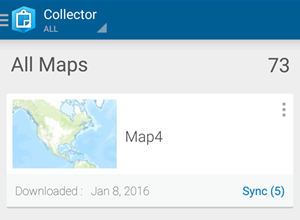 synchronize when connected to a trusted source, like the internal WiFi of your organization. Collector for ArcGIS sends 2 MB bundles of data at a time during the synchronization process, so the strength of the network connection becomes more important as the size of the data increases.Tip: If your offline data fails to synchronize successfully the first time, test it again using a different network.Trick: You can configure Collector for ArcGIS to only push edits up to the server when you synchronize, and to not pull down edits made by others while you are offline. This reduces the amount of data transferred, making it faster to share your changes and save on data transfer costs from cellular networks. If the edits being made by others are important to you, leave 'Push Only' synchronization disabled. synchronize when connected to a trusted source, like the internal WiFi of your organization. Collector for ArcGIS sends 2 MB bundles of data at a time during the synchronization process, so the strength of the network connection becomes more important as the size of the data increases.Tip: If your offline data fails to synchronize successfully the first time, test it again using a different network.Trick: You can configure Collector for ArcGIS to only push edits up to the server when you synchronize, and to not pull down edits made by others while you are offline. This reduces the amount of data transferred, making it faster to share your changes and save on data transfer costs from cellular networks. If the edits being made by others are important to you, leave 'Push Only' synchronization disabled. 6. Consider the data. Simply put: the more data, the slower the performance. That being said, sometimes performance decreases are less obvious than just the number of features in the data. For example, the number of fields, relationship classes, the projection, and the visibility scale can all affect performance. If you are looking to improve performance, you can hide fields, ensure the projection of the data matches the basemap, and set a reasonable visibility scale on the data or within the web map. 6. Consider the data. Simply put: the more data, the slower the performance. That being said, sometimes performance decreases are less obvious than just the number of features in the data. For example, the number of fields, relationship classes, the projection, and the visibility scale can all affect performance. If you are looking to improve performance, you can hide fields, ensure the projection of the data matches the basemap, and set a reasonable visibility scale on the data or within the web map. Tip: Keep in mind the number and size of photo attachments that you are collecting. Photo attachments cause the data to expand due to the size of each respective photo. When synchronizing many photos, it is especially important to have a strong network connection.Trick: You can limit the size of photos that you attach to features within Collector for ArcGIS on the Settings page.Tip: The next release of Collector will support new offline settings that authors can adjust in ArcGIS Online on the item properties pages of their web maps. These settings will allow map authors to specify what types of information field workers retrieve from the server for both editable and read-only layers. As a result, workers can sync less data, which can decrease the risk of sync failure.7. Test before deploying to the field! Create a sample web map and try collecting data and synchronizing the edits before taking the map into production. Collector for ArcGIS is supported on iOS, Android, and Windows; you may find that an issue is specific to the hardware or to the operating system of your mobile device. If you are unable to synchronize from your sample map, please contact Esri Technical Support.Related information: Tip: Keep in mind the number and size of photo attachments that you are collecting. Photo attachments cause the data to expand due to the size of each respective photo. When synchronizing many photos, it is especially important to have a strong network connection.Trick: You can limit the size of photos that you attach to features within Collector for ArcGIS on the Settings page.Tip: The next release of Collector will support new offline settings that authors can adjust in ArcGIS Online on the item properties pages of their web maps. These settings will allow map authors to specify what types of information field workers retrieve from the server for both editable and read-only layers. As a result, workers can sync less data, which can decrease the risk of sync failure.7. Test before deploying to the field! Create a sample web map and try collecting data and synchronizing the edits before taking the map into production. Collector for ArcGIS is supported on iOS, Android, and Windows; you may find that an issue is specific to the hardware or to the operating system of your mobile device. If you are unable to synchronize from your sample map, please contact Esri Technical Support.Related information:
Julia G. - Server Support Analyst |