Turn on suggestions
Auto-suggest helps you quickly narrow down your search results by suggesting possible matches as you type.
Cancel
- Home
- :
- About TimothyHales

TimothyHales
Esri Notable Contributor
since
04-10-2014


01-15-2026
2859
Posts created
965
Kudos given
226
Solutions
2130
Kudos received
Turn on suggestions
Auto-suggest helps you quickly narrow down your search results by suggesting possible matches as you type.
My Ideas
(3 Idea Submissions)Latest Contributions by TimothyHales
|
POST
|
You will need to delete the symbol from the Style Manager (Tools menu > Styles > Style References). You can find the symbol under <username>.style. Organizing style contents The Style Manager
... View more
06-06-2011
05:54 AM
|
0
|
0
|
1729
|
|
POST
|
What format are the input images? If it is a highly compressed format, then the rasters are being uncompressed through processing and the output format does not have the same quality of compression.
... View more
06-03-2011
04:17 AM
|
0
|
0
|
2312
|
|
POST
|
If you were able to get two iterators into the model, how do you plan to specify which raster1 is subtracted from which raster2. You might be better off running this tool in batch mode. This will allow you to specify which rasters are used to subtract from each other.
... View more
06-01-2011
04:48 AM
|
0
|
0
|
905
|
|
POST
|
You might try the Iso Cluster Unsupervised Classification tool to reclassify the image. Depending upon the output, you may need to reclassify the output to combine like values that represent a polygon area. Then convert the output of the reclassification to a polygon. I am not sure how accurate the output may be as the quality of the input raster is a key factor.
... View more
06-01-2011
04:37 AM
|
1
|
0
|
6216
|
|
POST
|
How are you saving your georeferencing transformation information; are you choosing 'Update Georeferencing' or 'Rectify'? Also what happens when you add the raster to a new map document? Georeferencing a raster dataset Fundamentals for georeferencing a raster dataset
... View more
06-01-2011
04:25 AM
|
0
|
0
|
3519
|
|
BLOG
|
In order to clip the data, you have the options to clip the features individually or set up a batch clip. However, there's a more efficient way. With the iterator functionality available in ArcGIS 10, a simple model using the Iterate Feature Class iterator and the Clip tool can provide an efficient way to extract the subset of data. Within ModelBuilder add the Iterate Feature iterator (Insert Menu > Iterators > Feature Classes) and the Clip tool. Connect the iterator output feature class as the input to the Clip tool. 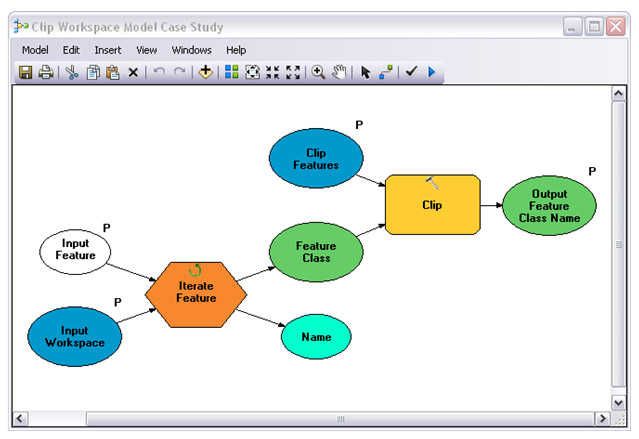 Below are the parameters that can be specified for each of the components.
For the clip output feature class, you can use a variable based upon the name being generated from the iterator. An example of this can be seen in the interface below with the percent symbols. 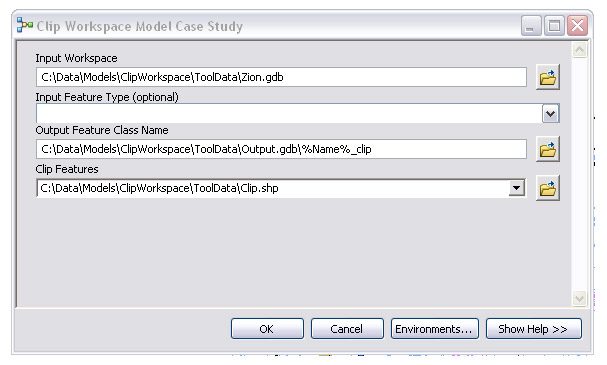 Examples of inline model variable substitution Examples of inline model variable substitutionBased upon the variable for the output feature class name, the output of the model keeps the original name with ‘_clip' added on. 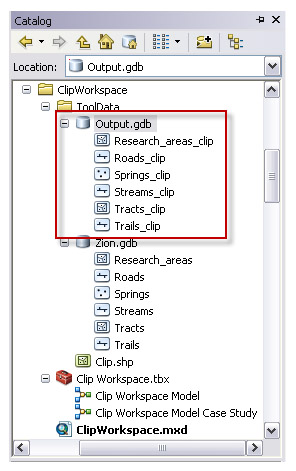 After setting up the model and defining the desired parameters, this process can be accessed from your toolbox to easily clip a workspace or feature dataset for any project requiring you to work with only a subset of you master data. The above model example can be downloaded from the ArcGIS Geoprocessing Model and Script Tool Gallery: Clip Workspace.Timothy H., Support Analyst - Geodata Raster Group, Esri Support Services |