- Home
- :
- All Communities
- :
- Services
- :
- Esri Technical Support
- :
- Esri Technical Support Blog
- :
- A quality screen shot is worth a thousand words
A quality screen shot is worth a thousand words

- Subscribe to RSS Feed
- Mark as New
- Mark as Read
- Bookmark
- Subscribe
- Printer Friendly Page

Here in Support Services, we love it when our customers send in a screen shot of the error message or other dialog box being returned or any other unusual behavior that appears. Unfortunately, all too often, what we get, we simply cannot read.
To take a screen shot of only the dialog box and/or window:
- Make sure that the item you want to capture is the active window. For instance, if you want to take a screen shot of only the dialog box with the error message, be sure to click on the dialog box to make it active before completing Step 2.
- Press ‘Alt + PrtScn’ – this just captures the window that is active at the time, not the entire desktop.
- Paste the screen shot into a Word document or some other text editor and attach the doc to the email being sent. This way you are ensured that the image will not be truncated or lost due to sending it directly in the email message.
The following screen shot was taken using the method described above. The second screen shot is of the same error message, where the user has dual monitors, taken the way a lot of us are used to doing it.
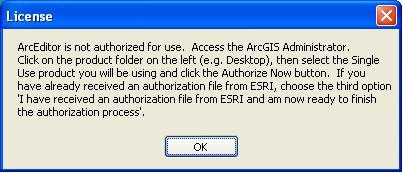
With a screen shot that is taken using ‘Ctrl + PrtScn’, it is almost impossible for the Support Analyst to read the error, as it captures the entire desktop.
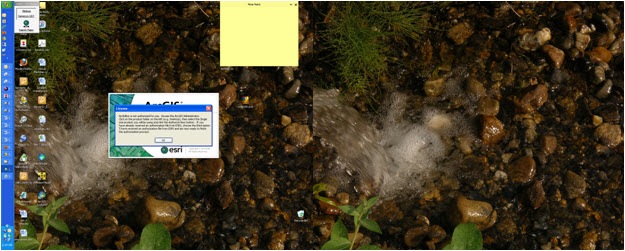
Of course, there are other tools and/or software that can be used to capture particular parts of your screen, and I am sure there are other ways to take quality screen shots, but today, I just wanted to share this quick and easy screen shot tip, that anyone can use, with you. Thank you for helping us to better help you.
Please leave any comments in the 'Comment' section below this post. NOTE: You must be logged in to your Esri Global Account to leave comments on blog posts.
- Don G., Esri Support Analyst - Implementation group, Esri Support Services
You must be a registered user to add a comment. If you've already registered, sign in. Otherwise, register and sign in.
-
Announcements
70 -
ArcGIS Desktop
87 -
ArcGIS Enterprise
43 -
ArcGIS Mobile
7 -
ArcGIS Online
21 -
ArcGIS Pro
14 -
ArcPad
4 -
ArcSDE
16 -
CityEngine
9 -
Geodatabase
25 -
High Priority
9 -
Location Analytics
4 -
People
3 -
Raster
17 -
SDK
29 -
Support
3 -
Support.Esri.com
60
- « Previous
- Next »