
TimothyHales
Esri Notable Contributor
since ‎04-10-2014
50 Badges Earned
Pathfinder Pathfinder
View All Badges Earned
‎01-15-2026
2859 Posts created
965 Kudos given
226 Solutions
2130 Kudos received
cancel
Showing results for 
Show  only  | Search instead for 
Did you mean: 

My Ideas

(3 Idea Submissions)

Latest Contributions by TimothyHales

POST
0
0
2786
POST
0
0
2786
POST
0
0
839
BLOG
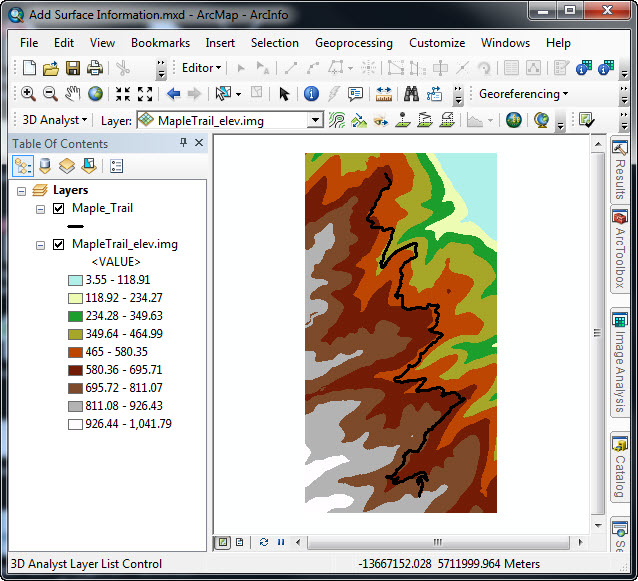
First you must gather a polyline file for the trail and an elevation raster for the area of interest.Add-Surface-Information-MXD.jpg

3DToolbox.jpgThen use the Add Surface Information Tool which is found in the 3D Analyst Toolbox.

This tool takes the input surface and interpolates the heights for the features by converting them to 3D in the background.  It then calculates the 3D properties for these features and writes the property values as attributes to the input feature class.

From the Add Surface Information tool dialog input these required parameters:
  • Input Feature Class: Hiking Trail Polyline Layer
  • Input Surface: Elevation Raster
  • Output Property: Select desired properties to be calculated
AddSurfaceInformationTool.jpg

Once the Add Surface Information tool completes the calculation process, the selected Output Properties are appended to the input feature table.ProcessedTable1.jpg

With this information you are now able to properly plan your hiking trip.  In addition to this hiking example, there are a several other applications for this concept such as for use with bike paths, pipelines, streets, and drainage areas.Timothy H. – Raster/3D Support Analyst
-->
1
4
13960
POST
0
0
2393
POST
0
0
1405
POST
0
0
2512
POST
0
1
13241
POST
0
0
563
POST
0
0
640
POST
0
0
839
POST
0
0
1086
POST
0
0
7958
BLOG


If you have chosen to evaluate or purchase an extension and found that you were unable to activate the extension on your machine, then there are a couple areas to check.

Check that the extension has been installed (Customize > Extensions)


The extension will be listed in this dialog if has been installed. An empty list means no extensions have been installed.image002.jpg

If the extension has not been installed, then you will need to modify the ArcGIS Desktop installation to include the extension.
  1. Open Programs and Features (Add/Remove Programs) from the Control Panel.
  2. Right-click the ArcGIS Desktop 10 > Uninstall/Change.
  3. Navigate to ArcGIS Desktop 10 Setup > Modify.
  4. Select the extensions to be installed by changing the drop down menu status beside each one.
  5. Click Next to follow the remaining installation instructions.(Note that the system may request that you provide the installation media.)image004.jpg


Once you have confirmed that the extension has been installed, activate the extension (Customize > Extension).

Check that the extension can be activated


Activating an extension from the Extensions window will allow that functionality to be available.Note that you must activate the extension in each product that you use (ArcMap, ArcCatalog, ArcScene, etc).image006.jpg If you are unable to activate an extension and get an error message that the license is not currently available, please check the ArcGIS Administrator to see if the extension is available on your existing system or through the license manager. The license may already be checked out by another user, or it may not be authorized for use on the machine. Related LinksAdding additional installation featuresAbout evaluating ArcGIS Desktop extensionsViewing license availabilityAuthorizing ArcGIS single use products and features Timothy H. - Raster/3D Support Analyst
-->
0
0
8203
POST
2
0
2036
Activity Feed