Turn on suggestions
Auto-suggest helps you quickly narrow down your search results by suggesting possible matches as you type.
Cancel
- Home
- :
- About TimothyHales

TimothyHales
Esri Notable Contributor
since
04-10-2014


01-15-2026
2859
Posts created
965
Kudos given
226
Solutions
2130
Kudos received
Turn on suggestions
Auto-suggest helps you quickly narrow down your search results by suggesting possible matches as you type.
My Ideas
(3 Idea Submissions)Latest Contributions by TimothyHales
|
POST
|
Here is a resource for Comparing interpolation methods.
... View more
02-25-2013
03:41 AM
|
0
|
0
|
5075
|
|
POST
|
Yes, a good reboot sometimes does the trick. Thanks for the update.
... View more
01-24-2013
04:36 AM
|
0
|
0
|
1059
|
|
POST
|
You statement looks fine. You may have any issue with your software installation. Are you able to run simple statements such as: "ab_buffer" * 2? Are there multiple version of Python installed? You can look for the C:\Python26 or Python27 folders. Version 10.0 = Python 2.6 and 10.1 Python 2.7 If there are multiple versions, uninstall the extra one.
... View more
01-23-2013
03:57 AM
|
0
|
0
|
1059
|
|
POST
|
ArcReader is for .pmf files that are created with the ArcGIS Publisher extension. This is usually unique to a user's project that they want to share with someone that does not have ArcMap. About starting Publisher
... View more
01-16-2013
07:25 AM
|
0
|
0
|
613
|
|
POST
|
How are you setting up the base heights? Are you using the option for elevations from features with the field as the expression? About defining the z-value for a layer You could also use Feature to 3D by Attribute to see if that feature class will display any differently.
... View more
12-26-2012
07:07 AM
|
0
|
0
|
691
|
|
BLOG
|
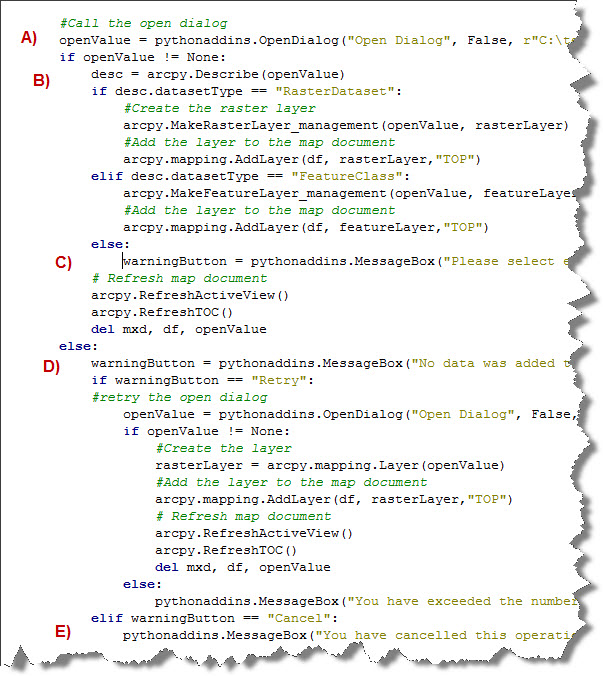
The OpenDialog and Save Dialog functions return two different values depending on how the user interacts with the dialog. When the user selects a dataset and clicks either Open or Save, it returns the full path of the dataset chosen. If the Cancel button is clicked it returns 'None'.  Value being passed to a print statement when clicked. The MessageBox function works in a similar way; however, it returns the string value representing the message button pressed. For example, when the Ignore button is clicked it returns 'Ignore'.Below is a sample python add-in with comparison between the code and the dialogs: A) The Open Dialog opens. B) A file is chosen, and the Open button is clicked. The file is added to the map. C) The Cancel button is clicked which opens the Warning Message. D) The Retry button is clicked which reopens the Open Dialog. E) The Cancel button is clicked which opens a final Warning Message. 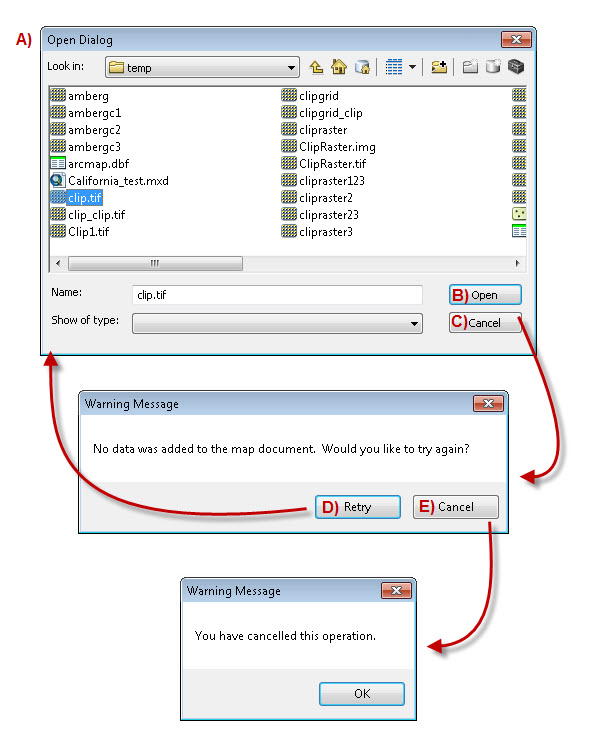
The above sample add-in is available on ArcGIS.com: Dialog Windows and Messages Timothy H. – Senior Support Analyst |