|
BLOG
|
Updated February 11, 2020 Story maps are popular. Their visual, interactive nature makes them a great medium to share interesting information about a place or topic and spark discussion on real-world issues. To make a classic story map, you start with a web map. There are lots of ways to make a web map and just as many ways to make a story map. In fact, if you're using the new ArcGIS StoryMaps, you may or may not use a web map—that choice is up to the storyteller. This post shows a simple process to make a classic story map. The KISS principle is my preferred approach whenever possible; overcomplicating things makes it hard to get stuff done. I found a simple way to make a web map. Here's a simple four-step process to craft a story map. It goes like this: Choose your story topic. Plan and execute your data strategy. Create a web map. Share the web map as a story map. Step 1: Choose Your Story Topic A story communicates something. Being concise is one key to effective communication, so for a story map, it's essential to choose a discrete topic and useful to narrow the topic down to a core message. Learning a new skill is often easier (and more fun) when you practice with a project that's personally interesting. Once you've mastered the skill, you can apply it to work projects. Visitors to the Esri Training Center in Redlands get a printed piece listing local restaurants (with a map of course). That piece inspires an interesting story map topic (to me). The core message (inspired by the 3/50 project) is, despite being a fairly small town, Redlands has an impressive selection of local dining options. If you need help choosing a topic, the Story Map Gallery is a great source for inspiration. Step 2: Plan and Execute Your Data Strategy "Data strategy" may sound complicated, but all it means is decide which layers and attributes to include. It's important to choose only the most relevant layers—overloading a map with extraneous data muddies your story (remember, be concise). For this practice project: Layers: Restaurant locations and a basemap for context are all that's needed. Attributes: Restaurant name, address, description, and a web page URL. Basemap: One of the free high-quality ArcGIS Online basemaps will work great. To execute the strategy, assemble the data and choose a geographic data format. The format depends on the tools at your disposal. If you use ArcGIS Pro or ArcMap and ArcGIS Enterprise, you can author and publish GIS services that are built from feature classes, imagery, or other geographic data. The advantage of using a service is that, as the underlying data changes, updating a web map is easy (you just republish the service, then refresh the map). If you don't have access to tools to create a service, you can use the easy-button method: add data stored in shapefiles, text files, CSV files, or GPX files to the ArcGIS Online map viewer. You can also manually draw features in the map viewer. Since this example showcases only 14 restaurants, it's easy to create point features to represent the restaurants. I'll just create a shapefile, then add it to the map viewer (here's another useful learning strategy: practice with manageable datasets; otherwise, you risk getting derailed by data challenges). When creating a shapefile for use in a web map, select the WGS 1984 geographic coordinate system and the Web Mercator Auxiliary Sphere projected coordinate system, the same coordinate systems used by commonly available basemaps. This will improve web map performance. The map viewer requires that shapefiles be zipped (for small datasets that don't have detailed geometry, just zip the DBF, SHP, SHX, and PRJ files). Step 3: Create a Web Map When the data is ready, add it to the map viewer to create a web map. Go to www.arcgis.com and sign in to your ArcGIS Online organizational account or public account. Click Map at the top of the window. Zoom to the area of interest and choose a desired basemap from the gallery. Click Add > Layer from File. Browse to the data file and add it. Depending on your data, you may choose to use generalized features or keep the original features. For a small number of simple points, keep the original features. You can display point features on the map with a single symbol, as a heat map, or with unique symbols based on an attribute value. For this practice story map, each restaurant should have a unique symbol. I can easily accomplish this by selecting the Unique symbols drawing style, then choosing the attribute to show. For the attribute, I'll choose Name and then click the Options button to select the symbol colors, shape, and size. After making the selections, click OK in the Options pane, then Done in the Change Style pane. If you want to adjust the symbology later, in the Contents pane mouse over the layer name, click the small down-facing arrow next to it, then click Change Style. If the story map will include a legend, make sure your layer names are easily understood. You can rename a layer in the Contents pane by clicking its down arrow, then clicking Rename. With the symbols configured, it's time to configure the pop-ups. When you click a feature on the map, you see a pop-up window with a default display of attributes. You can easily change the defaults to suit your story map needs. In the Contents pane, click the layer down arrow, then click Configure Pop-up. In the Configure Pop-up pane, the pop-up title is already set to the Name attribute, which is good. To customize the pop-up contents, in the Display drop-down list, choose "A custom attribute display," then click Configure. In the Custom Attribute Display dialog box, click the Add Field Name [+] button and choose the attributes you want shown in the pop-up. You can order and format them as desired. A nice feature is the ability to link an attribute to a web page. In this example, there's an attribute that stores URLs. I can use the custom attribute functionality to display the same link text in all the pop-ups instead of individual (and long) URL strings. Here's how: In the dialog box, select the attribute that contains URLs, then click the Create Link button. In the Link Properties dialog box, select and drag the attribute up to the URL field. Enter link text (e.g., "View web page") in the Description field. Click Set, then OK. After configuring the pop-up content the way you like, save your pop-up changes, then save the web map. You will be prompted to enter a title, tags, and summary. This information will be propagated to the story map, so give it some thought. Step 4: Share the Web Map as a Story Map Now you have the story map foundation. ArcGIS Online provides a collection of web application templates (including classic story map templates). Using a template simplifies the work. To use a template, you have to share your web map. In the map viewer, click Share. If you have an ArcGIS Online public account, you need to share with everyone. If you're using an ArcGIS Online organizational account (or free trial) and you have permissions to share content, you can share the map with everyone or with an existing group. Click Make a Web Application. Browse through the available templates. You can preview how your web map will look in different templates by clicking the down arrow next to Publish and clicking Preview. If you like a template layout overall but want to make some changes to enhance your story map, you can download the template and use the readme file instructions to configure the changes. You will need access to a web server (and some basic HTML and JavaScript skills). If you like a template as-is, click Publish. In just a short amount of time, I have a link to a simple story map I can share with the world. More importantly, I've developed skills I can use in the future to create story maps on other topics. Telling stories has always been an essential way humans communicate and share knowledge. A story told through an accessible GIS map lens is a new way to communicate, and a powerful medium to share geographic knowledge that informs and influences. Related post: Commonsense Tips for Story Map Data Want to learn more tips, techniques, and best practices to make story maps AND get hands-on practice? Check out Creating Story Maps with ArcGIS.
... View more
04-09-2013
07:30 AM
|
1
|
6
|
21422
|
|
BLOG
|
We've said before that the process to create a certification exam is rigorous and time-consuming. In fact, we get a lot of questions about how exam questions are developed. Who writes them? Who validates them? Why does it take so long? To answer these questions, here's a high-level overview of our exam development process. Like many IT certification programs, we use a third-party consultant for test development. For each certification, we hold a series of workshops, one of which is the question development workshop. To this workshop, we invite a group of subject matter experts (SMEs) from across Esri, psychometrician facilitators from the consultant, and facilitators from our certification team who monitor consistency. The group gets together in a room to write and review questions, collaborate on appropriate wording and scenarios, and debate each question's merits for measuring specific knowledge. For each item, a committee of 5-7 SMEs has to agree on both its technical accuracy and its congruency to the skill being measured (to make sure it tests what it's supposed to test). After the workshop, the collection of questions undergoes a psychometric review, a copyedit, a style edit, and is then assembled into the beta exam question pool. When the beta period is over, the psychometricians analyze the results and select questions that are proven to reliably measure the skills and knowledge a qualified candidate for the certification has. When you take an exam at a testing center, you are presented with 95 or so questions from a larger pool of the final questions. So that's the overview of how certification exam questions are created. Now here's an inside view from one of the many smart people who's participated in the exam development process. Nana Dei, geodata development technical lead with Esri Support Services, acted as a subject matter expert for the Enterprise Geodatabase Management Associate exam. In an intensive four-day workshop, Nana wrote, researched, collaborated, debated, and discovered that creating exam questions is easier said than done. What knowledge and experience did you contribute to the exam development process? Nana: I’ve worked on a number of databases since early 2000 including MySQL and Oracle, which led me into SQL Server and ArcSDE. After joining Esri in 2008, I started working on SDE geodatabases, which helped me build a stronger foundation and in-depth knowledge into the workings of a geodatabase. This knowledge helped me effectively communicate and assess questions and answers in the exam development process. Describe your experience with question writing. What was it like to have your questions debated during the process? Nana: Placing myself in the shoes of the test taker was one of the things I thought about while writing questions. A question can be easier or difficult depending on how it is phrased. When writing a question, I thought about a test taker taking the exam under time constraints and feeling pressure. How would they react when reading this question and answering it? It was great to have the other SMEs think out loud during the question writing stage. Debating the questions was fun. It was important to gather different perspectives on particular concepts. It helped me modify the question or come up with stronger answers. What were your expectations going into the certification development process and how did they change as the workshop progressed? Nana: Initially, I thought it would be easy to write questions. Finding the correct answer to a question was pretty easy, but coming up with incorrect answers for each question was difficult for me. I think I spent a lot of time coming up with [psychometrically acceptable] wrong answers. Has the experience of participating in the workshop influenced how you do your work today? Nana: It taught me to be more conscious about not having any ambiguity when explaining a concept or scenario, to be clear and not leave things open to interpretation. In the geodatabase world, there are multiple ways to reach a destination; each method may have slightly different modes of operation even though they will all lead to the same destination. It is always important, I feel, to be on the same page with the person I am discussing a situation with. If we are not on the same page, the entire knowledge transfer will not be effective. Knowing what you know about the exam development process, what would you say to those who want to achieve certification? Nana: Study for the exam. Leave no stone unturned. Ensure that you know and understand the concepts being tested. What was the most valuable or rewarding part of being a contributing subject matter expert? Nana: During the exam development process, it was rewarding to have other SMEs value my input. I really enjoyed the collaboration with different SMEs. The input by all members of the team made it feel as if we were unified in our approach to reach the goal. The fact that I went through the exam development process and demonstrated my knowledge in the technology—you have to have a level of knowledge to come up with possible scenarios, questions, and answers—was very rewarding. After the exam development process, I feel other employees see me as a go-to person for that specific technology. What value you do you see in Esri technical certification? Nana: I think it’s a very good indicator that one is familiar with that technology and that a person can effectively communicate in that subject area when called upon to explain a concept or give help in a specific scenario. It would look good on a resume when applying for jobs because it shows the person really cares about personal growth in that area. The technology changes over the years, and we need to keep up.
... View more
03-19-2013
09:48 AM
|
0
|
0
|
1362
|
|
BLOG
|
Lacking the ability to publish a map service myself, I opted to go the minimalist route—that is, use the ArcGIS Online map viewer. If you have access to an ArcGIS Online organizational account, you can map your data right inside Excel using Esri Maps for Office. A viable alternative for those without an organizational account is to add a .csv file (text file of comma-separated values) to the map viewer and save the map to their ArcGIS Online public account. An Excel spreadsheet is easily saved as a .csv file. To be mapped, the spreadsheet must have fields that store location data—latitude and longitude values, GPX coordinates, or addresses. I wanted to visualize the locations of individuals in the U.S. who attended the Creating Hosted Map Services with ArcGIS Online live training seminar. Understanding the geographic distribution of our viewers is useful to evaluate seminar broadcast times. All I had to do to create a web map was follow these easy steps.Step-by-Step Example
![]() Point features can be drawn on the map with a single symbol, unique symbols based on an attribute, or as a heat map. To quickly see the point distribution, I'll choose to use a single symbol for all the features. Clicking Select under Location (single symbol), then Done displays the points on the map. In less than two minutes, I'm visualizing my data as points on a pretty map. I can click each point and see the associated data from the Excel spreadsheet in a pop-up. Easy. Except... I only want to show certain columns, and I don't like the names of those columns. I also decide I'd like to symbolize the points by self-reported industry. I can address all of these issues right in the viewer.
In the symbol preview, I notice an industry category named Other. For my purposes, Other is the same as no data. It's easy to change the Other symbol label.
So, in just a few more minutes, I've mapped viewer distribution and self-reported industry. Next, I'll configure the pop-ups.
Now when I click points on the map, I see only the information of interest. I also notice something. When I zoom in to a large scale, the Topographic basemap gets very detailed. Building footprints and local streets display. Some of my symbol colors blend into the basemap features. Switching to the Light Gray Canvas basemap is a quick solution. This basemap, with its subdued colors and less detail at large scales, is a better backdrop for my data. ![]()
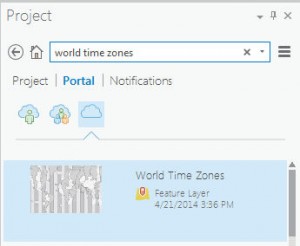
Finally, I want to show time zones on the map. I don't have a layer of time zones but I'll search ArcGIS Online content to see if anyone has shared this data.
In less than 20 minutes, I've "mappified" my Excel data and added context to it. To generate a link to the map that I can embed in a web page, e-mail, or social media post, I just need to save the map to my public account, add a title, some tags, and a brief description, then share the map.
Related posts: |