- Home
- :
- All Communities
- :
- User Groups
- :
- Experience Builder Custom Widgets
- :
- Blog
- :
- Advanced Draw Widget Improvements: Import, Export,...
Advanced Draw Widget Improvements: Import, Export, Save Drawings, Tool Tips, Snapping, Measurements


- Subscribe to RSS Feed
- Mark as New
- Mark as Read
- Bookmark
- Subscribe
- Printer Friendly Page
Advanced Draw Widget Capabilities
https://github.com/brianmcleer/draw-advanced-widget
This widget release builds upon contributions by @JeffreyThompson2 , @RobertScheitlin__GISP , and @AdrienHoff11 , incorporating all functions from prior iterations while adding significant new capabilities across two main areas, the Draw tab and My Drawings tab.
This release builds upon these prior releases:
Additional Draw Widget Improvements (4/10/2025)
Re-designed Draw widget (11/21/2023)
Draw Widget EB 1.7.0 (1/28/2022)
Draw Tab Enhancements
Measurement System
A comprehensive measurement system providing professional-grade accuracy and real-time calculations:
Real-time calculations – Automatic area, perimeter, length, and coordinate calculations that update as graphics are modified.
Multiple unit support – Distance units (kilometers, miles, meters, nautical miles, feet, yards) and area units (square kilometers, square miles, acres, hectares, square meters, square feet, square yards).
Custom unit definitions – User-defined distance and area units with conversion factors.
Coordinate display – XY coordinates, Lat/Long coordinates, and spatial reference WKID information.
Advanced measurements – Circle radius calculation and individual line segment measurements for complex shapes.
Intelligent processing – Geodetic vs planar calculations based on spatial reference, with automatic label management.
Configurable controls – Individual toggles for length, area, perimeter, radius, and segment displays.
Tooltips
Real-time measurements – Live tooltips with length, area, perimeter, radius, and coordinate updates as drawing progresses.
Configurable units & precision – Custom unit support and decimal rounding controls.
Smart placement & display – Automatic positioning and styling for clear visibility.
Interactive integration – Adapts to active drawing tools and user interactions like resizing and editing.
Coordinate display – Optional X/Y, Lat/Long, and WKID information for points.
Segment labels – Supports segment-specific tooltips for polylines.
Error handling – Fallbacks for unsupported geometries and projection warnings.
Performance optimized – Efficient rendering with minimal impact on performance.
Snapping
Advanced snapping functionality for precise drawing alignment:
Multi-layer snapping – Detects all visible snappable layers with recursive layer hierarchy search.
Comprehensive layer support – Includes feature layers, graphics layers, CSV, GeoJSON, WFS, and sublayers.
Smart functionality – 15-pixel snap tolerance, self-snapping, and temporary disable via Ctrl/Cmd key.
Automatic optimization – Layer loading and efficient snapping management with user feedback.
Drawing Tool Improvements
Reorganized layout – Two-row button arrangement with logical grouping (Point/Line/Freehand Line/Text top row; Rectangle/Polygon/Freehand Polygon/Circle bottom row).
Enhanced feedback – Clear indicators for "Drawing Mode," "Edit Mode," and "No Drawings Yet."
Dual-tab interface – Seamless sync between "Draw" and "My Drawings" tabs.
Text Tool Enhancements
Expanded font library – 11 font families including Alegreya, Josefin Slab, Merriweather, Montserrat, Noto Sans/Serif, Open Sans, Playfair Display.
Advanced styling – Real-time preview, enhanced rotation, multi-line support.
Sophisticated effects – Text outline/halo with size and opacity controls, font family selector.
Layer Management
Dynamic controls – Toggle visibility of the drawing layer in the map layer list.
Customization – Custom layer naming with collapsible settings panel.
Configuration options – Toggle between show/hide modes for the graphics layer.
My Drawings Tab
Storage & Data Management
Local storage integration – Saves drawings in browser with user consent management.
Session continuity – Remembers drawings across sessions on the same device/browser.
Load options – Detects existing drawings with options to load or start fresh.
Import/Export – JSON file-based backup and restore.
Drawing Organization
Selection system – Individual and bulk selection with checkboxes.
Sorting options – Sort drawings manually, by name, type, or creation date.
Search and filter – Easy navigation through large drawing collections.
Editing Capabilities
Name editing – Inline renaming of drawings.
Symbol modification – Edit drawing symbols and styles.
Text styling – Full text formatting including alignment, color, font, and decorations.
Copy/duplicate – Clone drawings for reuse.
User Experience Features
Confirmation dialogs – For single and bulk deletions.
Visual feedback – Selection highlighting and map interaction.
Accessible design – Tooltips, keyboard navigation, screen reader compatibility.
Responsive layout – Mobile-friendly with touch support.
Advanced Operations
Undo/Redo system – Full action history management.
Bulk operations – Multi-select delete, export, and modification.
Error handling – Robust error feedback and handling.
Performance optimization – Efficient rendering and memory management.
Features Not Currently Supported By ESRI Draw/Measure Widgets
- XY Point Locations
- Make Your Own Units of Measure
- Measure Line Segments and Radius
- Snapping Is An Easy-to-find User Option
- Users Can Control The Number Of Decimal Places in Measurement
- Users May Add/Remove Measurements After Drawing
- Measurement Text Style Is Controllable
- Point Symbol Rotation
- Accurate Text Previews
- User Options For Choosing the Name of the Drawing Layer and If It Displays in Map Layer List
- Save Drawings To Local Storage and Retrieve Them in a Future Session
- List of Drawings For Easy Management
Changelog
Advanced Draw Widget Capabilities
https://github.com/brianmcleer/draw-advanced-widget
This widget release builds upon contributions by , , and , incorporating all functions from prior iterations while adding significant new capabilities across two main areas, the Draw tab and My Drawings tab.
This release builds upon these prior releases:
Additional Draw Widget Improvements (4/10/2025)
Re-designed Draw widget (11/21/2023)
Draw Widget EB 1.7.0 (1/28/2022)
Draw Tab Enhancements
Measurement System
A comprehensive measurement system providing professional-grade accuracy and real-time calculations:
Real-time calculations – Automatic area, perimeter, length, and coordinate calculations that update as graphics are modified.
Multiple unit support – Distance units (kilometers, miles, meters, nautical miles, feet, yards) and area units (square kilometers, square miles, acres, hectares, square meters, square feet, square yards).
Custom unit definitions – User-defined distance and area units with conversion factors.
Coordinate display – XY coordinates, Lat/Long coordinates, and spatial reference WKID information.
Advanced measurements – Circle radius calculation and individual line segment measurements for complex shapes.
Intelligent processing – Geodetic vs planar calculations based on spatial reference, with automatic label management.
Configurable controls – Individual toggles for length, area, perimeter, radius, and segment displays.
Tooltips
Real-time measurements – Live tooltips with length, area, perimeter, radius, and coordinate updates as drawing progresses.
Configurable units & precision – Custom unit support and decimal rounding controls.
Smart placement & display – Automatic positioning and styling for clear visibility.
Interactive integration – Adapts to active drawing tools and user interactions like resizing and editing.
Coordinate display – Optional X/Y, Lat/Long, and WKID information for points.
Segment labels – Supports segment-specific tooltips for polylines.
Error handling – Fallbacks for unsupported geometries and projection warnings.
Performance optimized – Efficient rendering with minimal impact on performance.
Snapping
Advanced snapping functionality for precise drawing alignment:
Multi-layer snapping – Detects all visible snappable layers with recursive layer hierarchy search.
Comprehensive layer support – Includes feature layers, graphics layers, CSV, GeoJSON, WFS, and sublayers.
Smart functionality – 15-pixel snap tolerance, self-snapping, and temporary disable via Ctrl/Cmd key.
Automatic optimization – Layer loading and efficient snapping management with user feedback.
Drawing Tool Improvements
Reorganized layout – Two-row button arrangement with logical grouping (Point/Line/Freehand Line/Text top row; Rectangle/Polygon/Freehand Polygon/Circle bottom row).
Enhanced feedback – Clear indicators for "Drawing Mode," "Edit Mode," and "No Drawings Yet."
Dual-tab interface – Seamless sync between "Draw" and "My Drawings" tabs.
Text Tool Enhancements
Expanded font library – 11 font families including Alegreya, Josefin Slab, Merriweather, Montserrat, Noto Sans/Serif, Open Sans, Playfair Display.
Advanced styling – Real-time preview, enhanced rotation, multi-line support.
Sophisticated effects – Text outline/halo with size and opacity controls, font family selector.
Layer Management
Dynamic controls – Toggle visibility of the drawing layer in the map layer list.
Customization – Custom layer naming with collapsible settings panel.
Configuration options – Toggle between show/hide modes for the graphics layer.
My Drawings Tab
Storage & Data Management
Local storage integration – Saves drawings in browser with user consent management.
Session continuity – Remembers drawings across sessions on the same device/browser.
Load options – Detects existing drawings with options to load or start fresh.
Import/Export – JSON file-based backup and restore.
Drawing Organization
Selection system – Individual and bulk selection with checkboxes.
Sorting options – Sort drawings manually, by name, type, or creation date.
Search and filter – Easy navigation through large drawing collections.
Editing Capabilities
Name editing – Inline renaming of drawings.
Symbol modification – Edit drawing symbols and styles.
Text styling – Full text formatting including alignment, color, font, and decorations.
Copy/duplicate – Clone drawings for reuse.
User Experience Features
Confirmation dialogs – For single and bulk deletions.
Visual feedback – Selection highlighting and map interaction.
Accessible design – Tooltips, keyboard navigation, screen reader compatibility.
Responsive layout – Mobile-friendly with touch support.
Advanced Operations
Undo/Redo system – Full action history management.
Bulk operations – Multi-select delete, export, and modification.
Error handling – Robust error feedback and handling.
Performance optimization – Efficient rendering and memory management.
Features Not Currently Supported By ESRI Draw/Measure Widgets
- XY Point Locations
- Make Your Own Units of Measure
- Measure Line Segments and Radius
- Snapping Is An Easy-to-find User Option
- Users Can Control The Number Of Decimal Places in Measurement
- Users May Add/Remove Measurements After Drawing
- Measurement Text Style Is Controllable
- Point Symbol Rotation
- Accurate Text Previews
- User Options For Choosing the Name of the Drawing Layer and If It Displays in Map Layer List
- Save Drawings To Local Storage and Retrieve Them in a Future Session
- List of Drawings For Easy Management
Changelog
8/03/26:
- Draw Advanced Widget is now compatible with Experience Builder Developer Edition 1.21, including support for the new pnpm dependency install.
7/21/26:
- Fixed BUG reported and fixed by @ncramer11 where "Keep All (Merge)" was clearing the map before the new drawings got saved, so it silently dropped them instead of merging. This patches handleMergeDrawings to save the new drawings into storage first, then merge."
- Add live measurements to segement labels thanks to idea from @JacobHildebrand
- Add function to preset circle size before creation.

7/14/26:
- Fixed GeoJSON export writing fully transparent graphics as opaque — transparency (alpha 0) is now preserved. Thanks to @ncramer11 for the fix.
7/1/26:
- Fixed triangle and curve tools not switching into Drawing Mode (Identify now disables correctly during those draws).
- Matched the "Send All (#)" count formatting on the Labels and Identify buttons.
- Cleaned up label capitalization across the UI.
- Security: hardened the settings XML import (CodeQL fix).
6/25/26:
- Added an outline-only buffer option. Buffers can show just the outline with no fill.
- Buffer custom color now has separate fill and outline colors. Pick each one independently.
- Buffer geometry is now included in every export format (GeoJSON, shapefile, KML, and EB Draw), not just the parent attributes.
- Added developer-configurable buffer defaults in settings: distance, unit, opacity, and color.
- Added configurable measurement label templates for polyline and polygon labels.
- Added settings import and export as XML. Save a widget configuration to a file and load it into another application to copy settings between experiences.
- Standardized the settings panel on Jimu UI and made accessibility improvements throughout.
6/24/26:
- Simplify downloads on blogpost. Most recent version will be kept on blog post. V1, V2, V3.1 and V3.2 can be found on GitHub link at top or directly at https://github.com/brianmcleer/draw-advanced-widget/releases
6/23/26:
- Added true curves line draw option: Bezier curve, arc segment, and endpoint arc that were added in JavaScript API 5
- Added triangles to draw options
- Fixed bug to disable or enable arrows on already created lines
6/9/26: Cleaned up the packaging based on standardization ideas from @SunshineLuke90 blog post, so the required modules now install automatically with the standard client install. No more need to run separate npm install commands for the shapefile dependencies. Thanks to everyone who has downloaded, tested, and sent feedback.
Bug Fixes:
- Fix bug where a polygon buffer would reload as a circle around the polygon center instead of following the polygon edges (happens on page refresh, or when drawing before loading previous drawings).
- Fix bug where buffers on complex or self-overlapping shapes, including shapes with crossing segments, produced odd results, whether drawn or copied from a layer.
- Fix bug where buffers would not merge when features were copied from a map layer and merged before buffering.
- Fix bug where using a buffer as a selection returned the wrong areas, which also cleans up selections sent to Mailing Labels and Identify.
- Fix bug where Identify was not disabled when the Copy To Draw option was turned off.
- Fix bug where segment labels were lost after reloading drawings from a previous session.
- Fix bug where segment labels went away when clicking a drawing on the map or in the My Drawings list.
- Fix bug where measurement and segment labels grouped in the middle of a graphic after resizing or reloading. Labels now stay along their segments.
- Fix bug where duplicate, overlapping labels showed up while dragging a drawing.
- Fix bug where multi-line text did not survive a GeoJSON export and re-import.
- Fix several memory leaks from event listeners that were not being cleaned up.
Note: drawings saved before these fixes may have old data and are best redrawn. New drawings will reload fine.
5/5/26:
Minor bug fix to version 4.0 that resolves issue with merging multiple buffered features.
5/1/26:
Version 4 released: Supports integration with Identify By Query widget by @JeffreyThompson2
Add enhancement from idea from @ncramer11 to support multiple lines numbers for text.
| Version | Highest Supported DE Version | Notes |
| draw-advanced_V2 | 1.19 | Version 2, no custom npm modules required |
| draw-advanced_3.1 | 1.19 | Version 3, custom npm modules required, compatible with 1.19 and earlier |
| draw-advanced_3.2 | 1.20 | Version 3, custom npm modules required, compatible with 1.20 |
| draw-advanced_4.0 | 1.20 | Version 3, custom npm modules required, compatible with 1.20. Supports integration with custom Identify widget |
4/01/26: DE 1.20 version available
3.1 = DE 1.19
3.2 = DE 1.20

3.2 Enhancements
- Import/Export JSON to be compatible with OOTB Draw Widget Import/Export function.
3.2 BUG Fixes
@ncramer11 reported 2 bugs and both have been resolved
- When adding a text graphic, the preview is duplicated. It seems that the text is being displayed in both a horizontal and vertical orientation.
- When editing text that has already been placed on the map, the 'label text' field defaults to a print file name.
3/26/26: DE 1.20 broke something in this widget, need to troubleshoot
2/26/26: No updates to widget, but recent February 26 update to AGOL OOTB EB Draw widget added import/export JSON files. These JSON files are compatible to be imported into this widget. This widget does not currently support an export from this widget into the OOTB EB Draw Widget.
2/24/2026: 3.1 Released:
Enhancements
Lock Drawing / All to prevent editing when locked
Measurement On/Off for one or all in My Drawings
Copy one vs multiple features at once
- Select multiple by selecting with clicks, or by drawing by rectangle or polygon
- Option to merge all features into one before pasting it into My Drawings
Send drawing graphic to Mailing Labels as selection
More control in settings to enable/disable tools/functions of widget
Bugs
Fix bug where when drawings are in prior session and user makes new drawings before loading, add to existing will wipe out prior drawings.
Fix bug where local storage does not always remember manual sort order upon reload
2/12/2026: BUG Fix: @KamilNovák reported an "issue with importing SHP files that use regional coordinate systems, specifically EPSG:5514. After importing such SHP data, nothing is displayed on the map, and it is also not possible to change the symbology of the imported graphics." This has been resolved. Thank you for reporting and testing @KamilNovák.
2/05/2026: V3 Released
Required Optional Dependencies for V3 for shapefile import
and export (install on client folder):
npm install --save @mapbox/shp-write
npm install shpjs jszip --save
npm install shapefile
Enhancements:
Settings:
Allow users to store drawings per applications or globally

My Drawings Tab:
UI overhaul/new features to My Drawings are main updates of V3:
- WCAG/Tooltip Audit
- Import/Export supports KML and zipped shapefile now, while still maintaining GeoJSON and legacy JSON format.
- New sort option: Manually move drawings so that order in map reflects order in list. Useful for example if a solid fill polygon is drawn after a point, point can be dragged to be on top of polygon. (idea from @Marshal on 6/20/25)
- Filter list by name to only show items in list from user text input
- Copy Features from map layers
- Grid styling
- Linear unit-based grid option
- Drawing notes and labeling
- “In View” option to display drawings in list only in visible map extent
- Collapse/Expand function to collapse or expand drawing details
- Zoom All to zoom to all drawings (credit to @GeoguichetGeoguichet credited in updated manifest
- Hide All – turn off drawings (redundant from map layers, uses may not enable to show in layers list or may not have layer list open all the time)
- Labels – Label drawing name, notes (see below on notes), or both.
- Single Drawings:
- Label by name, notes, or both
- Notes – dialogue box appears to store notes on drawing. This is exported as a field, could be useful in shapefile for users to populate their own field.
- Visible – individual control visibility for drawings
- Zoom To – zoom to single drawing extent
- Move Up / Move Down – Move drawings up or down in list and that is how they will draw on map
Draw Tab:
- Under enable snapping, added enable grid (with contributions from @GeoguichetGeoguichet )
- Under Enable Buffer, add Label Buffer with a basic label with a leader line
- Copy/Paste from selected feature on map layer (idea from @HeatherWidlund on 1/21/26)
Bug Fixes:
@JoshuaHouse sent a DM about vertices not being able to be edited in Draw tab. Updated so that double clicking a graphic with either draw tab or my drawings tab active allows to edit vertices of line or polygon.
@GeoguichetGeoguichet on blog post reported issue with objects renaming. This has been resolved so that if a point is created it will go Point 1, Point 2, Point 3, a polygon it will go Polygon 1, Polygon 2, Polygon 3, etc.
@GeoguichetGeoguichet on blog post reported issue with import of points with picture symbols did not retain picture symbols. This has been resolved (tested before/after using Outdoor Recreation symbology set)
@adamsimple on blog post reported issue that it looks like there is a compatibility issue with ExB 1.19. The widget is attempting to access a legacy theme property. This has been resolved.
@KevinHitchcock reported that when length labels turned off and segment labels are on, “Total:” shows with no units reported. This has been resolved.
10/27/2025:
Bug fix: When going from Draw to My Drawings with a tool selected, the tool will stay active so you can still draw graphics when on the My Drawings Tab. The ZIP has been updated to resolve this bug.
10/15/2025: Version 2 released
Buffer
- Add buffers to drawings including points, lines, polygons, and circles.
- Configure buffer distance, unit, and opacity interactively.
- Buffers update automatically when the parent drawing is reshaped or moved.
- Buffers can be removed individually or cleared all at once.
- Buffers are included in import and export operations.
Line Arrows
- Add arrowheads to line drawings to indicate direction.
- Arrowheads can be toggled on or off while drawing or after creation.
- Works with both straight and freehand line tools.
- Arrow styling integrates with existing line symbol settings.
Import/Export (GeoJSON)
- Drawings can be imported from or exported as valid GeoJSON files.
- Import GeoJSON created from other GIS tools or previous sessions.
- Export GeoJSON for use in other applications, including ArcGIS Online and ArcGIS Pro. Note: For KML/KMZ, a third party or additional ArcGIS Pro geoprocessing operation will be needed (https://mygeodata.cloud/converter/, https://mapshaper.org, or others may be a viable option).
- Maintains geometry and attributes for consistent round-tripping.
- When importing into ArcGIS Pro single drawings in a GeoJSON file, use the JSON to Features geoprocessing tool and ensure the valid geometry is selected in the Geometry Type drop-down (text not supported).
- When importing into ArcGIS Pro with multiple drawings in a GeoJSON file, use the Batch Import Data geoprocessing tool. This supports importing multiple geometry types from a single GeoJSON file (text not supported).
- Legacy JSON files from previous versions of the widget can still be imported for compatibility.
Measurement Label Editing
- Measurement labels can be repositioned by dragging.
- Text properties such as size, color, font, halo, bold, italic, and underline can be adjusted.
- Updates are applied instantly to labels on the map.
- Supports editing labels for points, lines, polygons, and circles.
- Improves map readability and customization without redrawing geometries.
Measurement Label Improvements – Special thanks to @MattiasEkström for assistance on this portion
- Segment labels for lines and polygons can now be rotated to match the orientation of the underlying segment.
- Users can toggle between oriented labels (aligned with the line or polygon segment) and straight horizontal labels.
- Rotated labels dynamically follow the shape of the line as it is edited.
- This improves readability on curved or angled segments and provides more control over how measurements are displayed.
Delete All (My Drawings)
- A new Delete All button has been added to the My Drawings panel.
- Allows users to quickly remove all drawings at once.
- Includes a confirmation step to prevent accidental deletion.
UI Updates
Known Issues
- Circles Aren't Real - Circles generated by this Widget are actually 60-sided polygons and there is no good way to tell how a drawing was created after the fact. As far as this Widget is concerned, any polygon with exactly 60-sides is a circle. If you create your own polygon with exactly 60-sides or distort a circle so that it is no longer circular, it will be treated as if it is a circle and calculate a radius.
- Freehand Line Segments - Technically, freehand line segments work fine, but they generate too many labels to be useful. For reasons similar to the circle problem above, there wasn't a good way of disabling the line segment option for freehand drawings, but it's a bad idea to use them.
- Make Your Own Units Will Clear Your Default Unit Selection - After creating or editing your units in the Builder, your selected default unit will be cleared. You may need to select a unit of measure other than your desired choice, save Experience Builder and then switch back to your desired choice and save again. This issue is semi-intentional for the following reasons:
- I could not get Experience Builder to recognize changes to the unit list and unlock the save button.
- The default unit is passed as the index of an array, so creating or deleting units could result in the incorrect unit being selected or an out-of-range error.
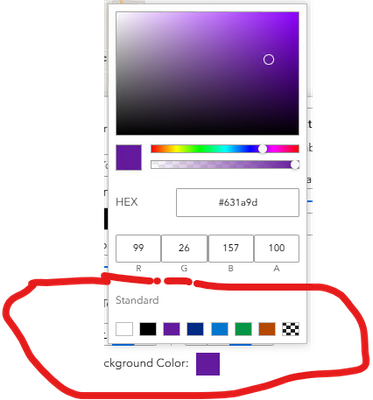
- Text Color Problems -
- When first selecting a Background Color, you must first change to one of the Standard Colors. After selecting a Standard Color, all of the options will work.
- When first selecting a Background Color, you must first change to one of the Standard Colors. After selecting a Standard Color, all of the options will work.
You must be a registered user to add a comment. If you've already registered, sign in. Otherwise, register and sign in.

