This next semester, your students won’t even need to create their own maps or think critically about their work. Esri added in an ‘easy’ button, in the form of AI Assistants. With agentic workflows, you can just hit ‘go’ and send your students out onto the campus green!

Obviously... that's not the case. There are a lot of amazing AI tools and functionality available, but they need to be used with clear foresight and intention, to ensure they align with your classroom objectives.
AI Assistants are here across a wide-range of Esri’s tools and they can be easily worked into the classroom in some really fun and engaging ways. This blog is going to explore 2 ways that you can use the AI Assistants, the first being Esri’s Documentation, and the 2nd with scripting in the Map Viewer.
These tools can easily be incorporated into either introductory or advanced classes/coursework. The most exciting aspect of this technology, are the ways that it can be used to ‘push’ higher level inquiry and explorations, from spatial fundamentals, up to advanced scripting and cartography.
Getting Started
First things first, to use the AI Assistants across ArcGIS, you need to enable them. Currently, the only way to use the AI Assistants is with an ArcGIS Online organization wide boolean toggle. It’s currently a big ‘Yes or No’ for all users. Administrators have the ability do this from Organization, Settings, AI Assistant settings, which you can see a screenshot of below:
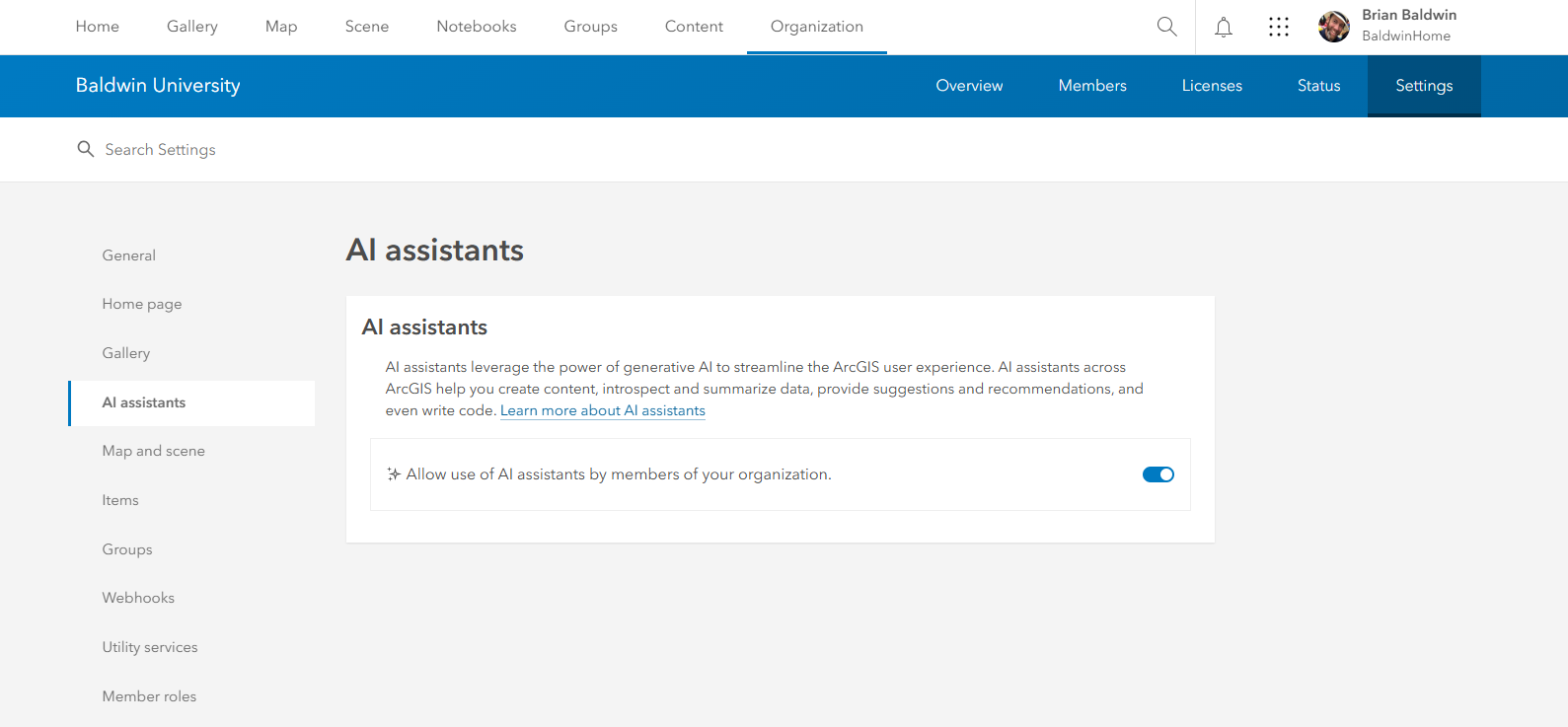
There has been a lot of feedback provided to the product teams that a more ‘granular’ level of control/access would be preferable. I don’t have a timeline yet, but I can foresee this capability staying at the global level, but some finer grain control also being available and configurable for user roles.
Without this toggle being enabled, a user will not have access to any of the following examples I am about to walk through and highlight.
"What’s a GIS?" "What's a buffer?"
The most basic classroom use case for the AI Assistants, will probably come in the form of the documentation assistants. The goal with these, is to provide a natural language way for users to ask questions.
When a user is logged into their organization (which has the AI Assistants enabled), they will then have the ability to interact with the documentation assistant.
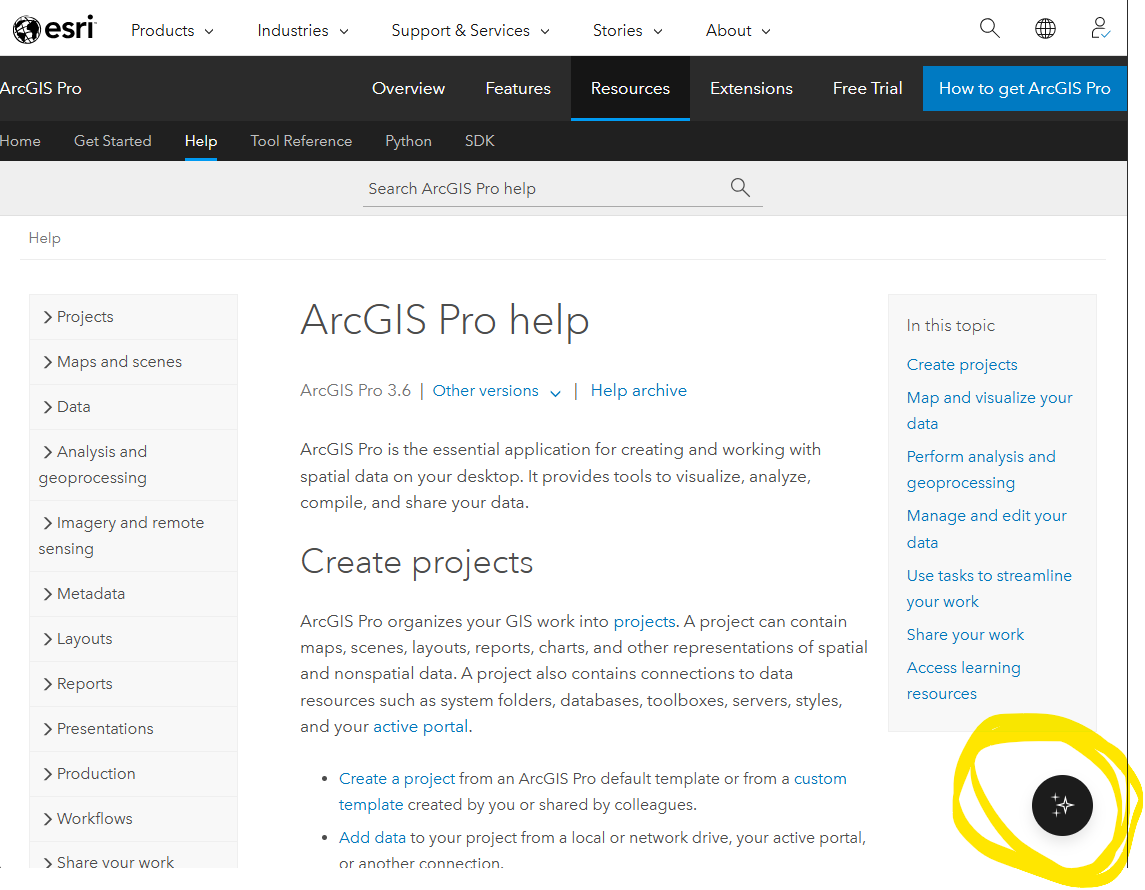
What are some of the ways that students can interact with and use this tool?
I think a great example of this is really just a quick comparison…
In the search bar, I entered in a basic query: ‘how do I create a buffer?’, and the results that I get back are… far from optimal.
The result is shown below. It includes a link to the Maplex Label Engine??? Huh???
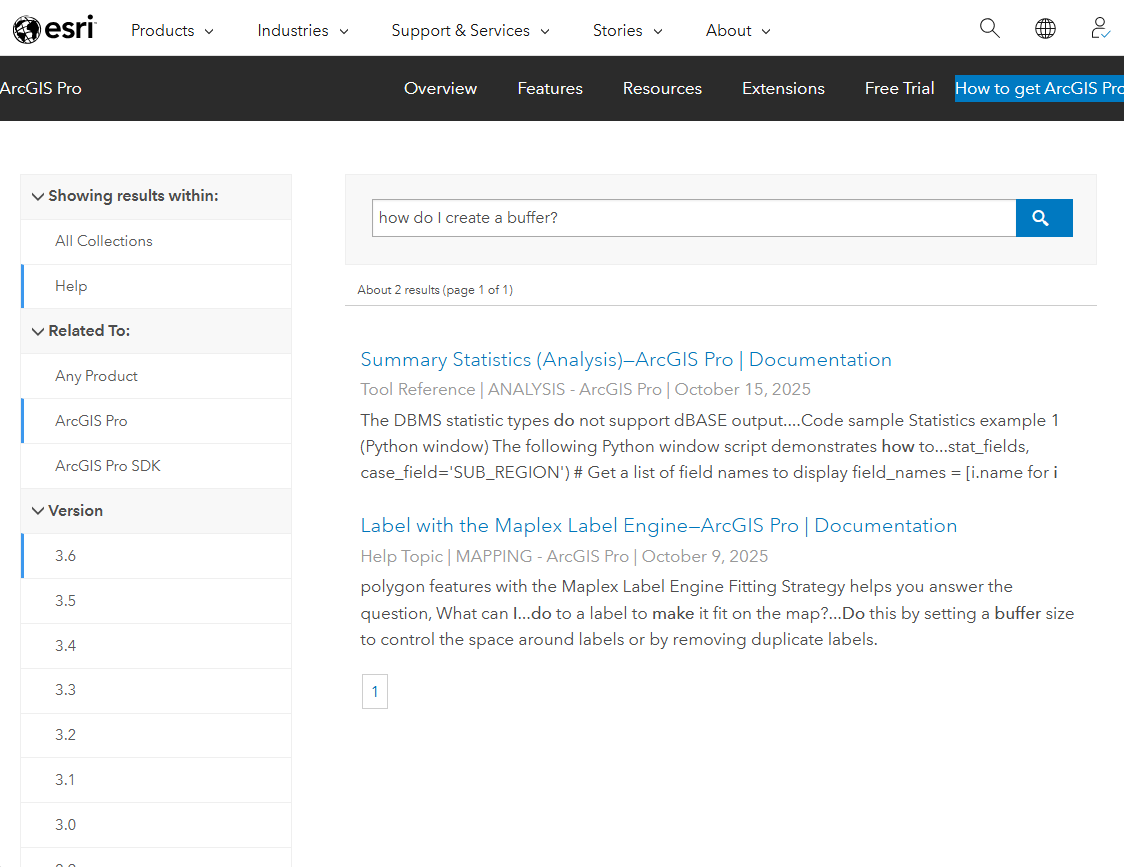
To be fair, there is a lot of great content in the Esri documentation (not to mention ArcNews, ArcWatch, Esri Blogs, etc.), but it can be really hard (and frustrating) for users to find exactly what they are looking for.
If I ask the same question of the Documentation Assistant, it returns a clear set of instructions:
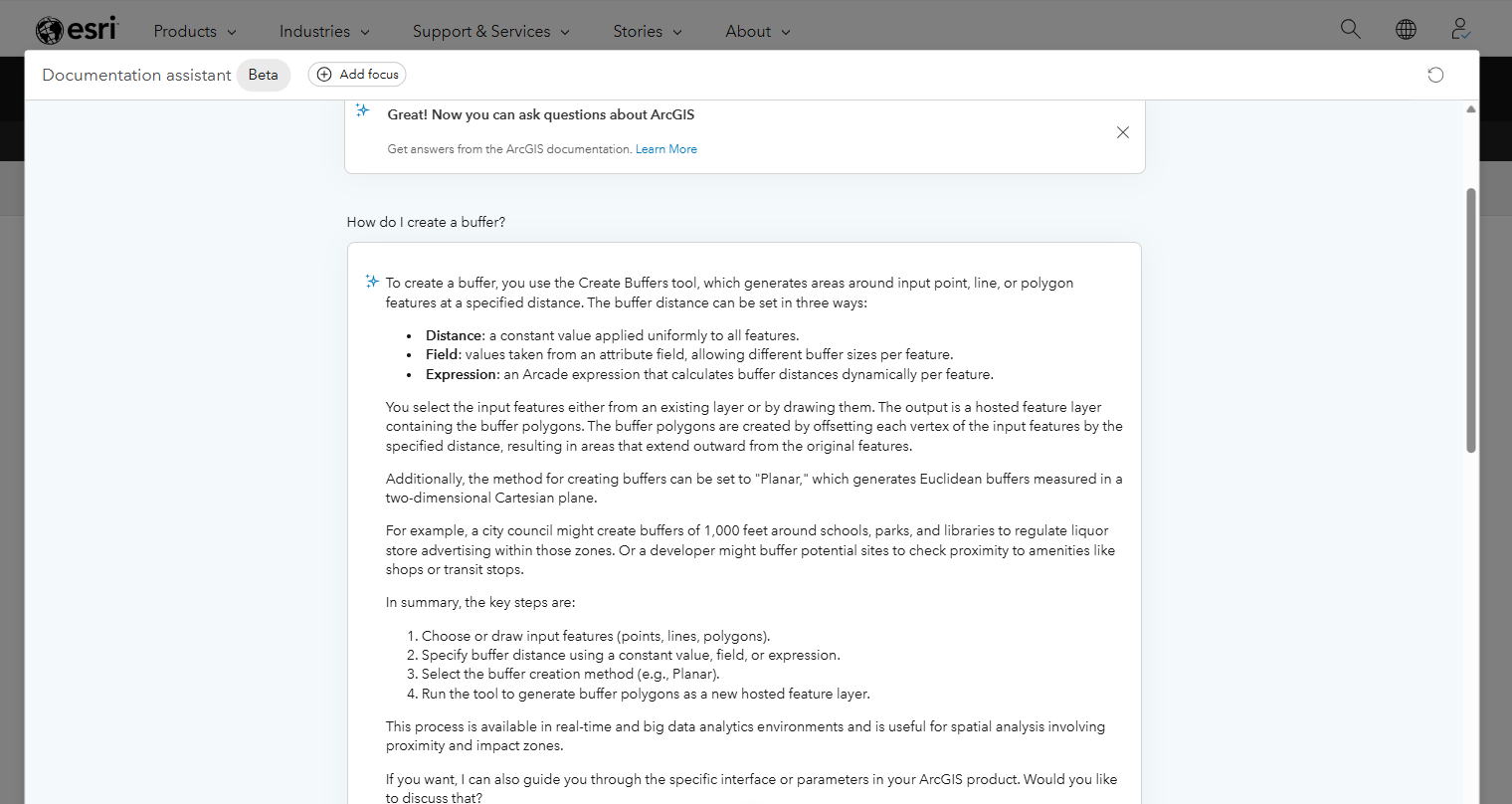
I also asked a follow-up question, ‘Can I do this in ArcGIS Online? Show me how.’ This also provided a clear, step-by-step guide for performing the buffer operation.
If students are working on labs or trying to figure out some basic GIS process, I think the documentation assistants can be a real asset for instructors and TA’s. I know that I have answered a lot of 11th hour questions related to some pretty basic stuff (where I had hoped students would use each other or discover an answer through documentation or message boards).
The other aspect of the results that I appreciate is the list of references. With each response, a list of references and links where users can find lessons, blogs, and other documentation related to the query is returned.
Something important to note, is that the assistant will provide results that fall outside of Esri Documentation, so blogs by John Nelson, Heather Smith, and other thought leaders at Esri can also be included in results. Which I think is great!
Coding Jumpstart
One of the places that I am the most excited about, are the coding assistants. When I look at my own uses of LLMs, this has been the most consistent and helpful place for using these tools.
I think it’s important for students to understand and grasp how coding works and understand some of the foundational elements of coding and scripting, we have obviously already passed a placed where students need to understand how to code from scratch – it’s simply not the case anymore.
I have been excited about Arcade for years now, because there is so much potential and value in how users can employ the scripting language for structuring data, getting pop-ups, dynamically modifying styles, but for students with no background or experience in scripting, it can be really daunting.
The best example of this is with the Map Viewer. I still see thousands (maybe an exaggeration) of examples that use the default styles, which is most often the fields list. This is just painful.
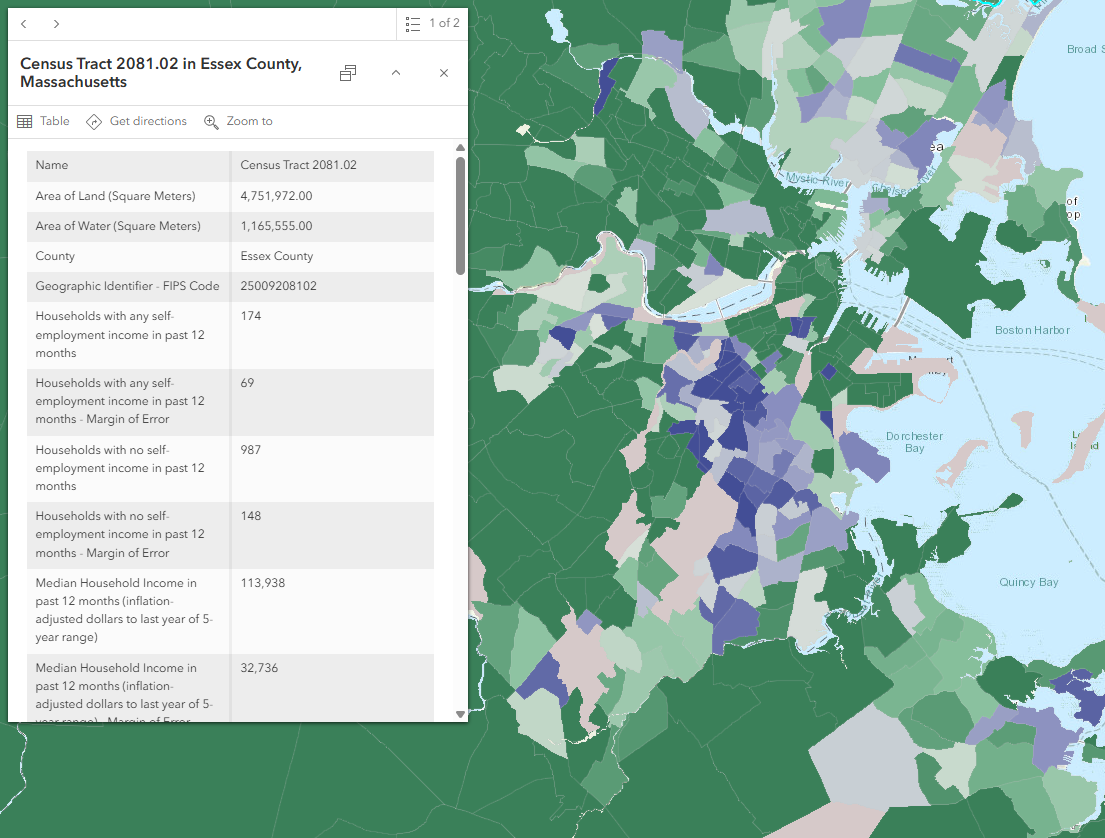
For me, the coding assistants will allow you to dive deeper with students more quickly. “What information are we trying to present in the map?” “What is the purpose of the map?” “Does this pop-up help us?” “How could we improve it?”
Rather than having students struggle with Javascript syntax… they can start using natural language to design an impactful result.
From the MapViewer, when I go to edit my pop-up, I have the ability to add an Arcade element:
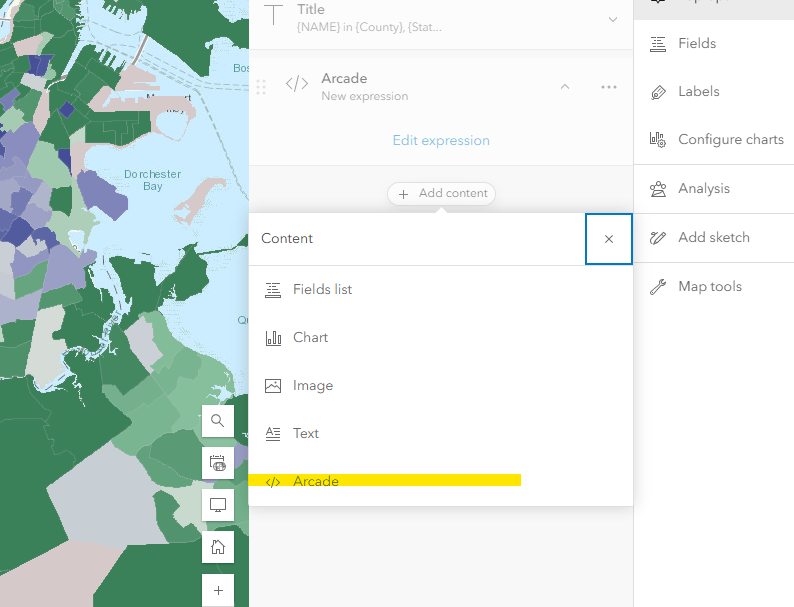
Users that feel more comfortable, can use the Profile variables and Functions tools, to build out their script. The Arcade window will provide inline suggestions, report errors, and in general, is a really easy to use user interface.
But, there is also a newer option on the right-hand side, which gives users the ability to use the AI Assistants:
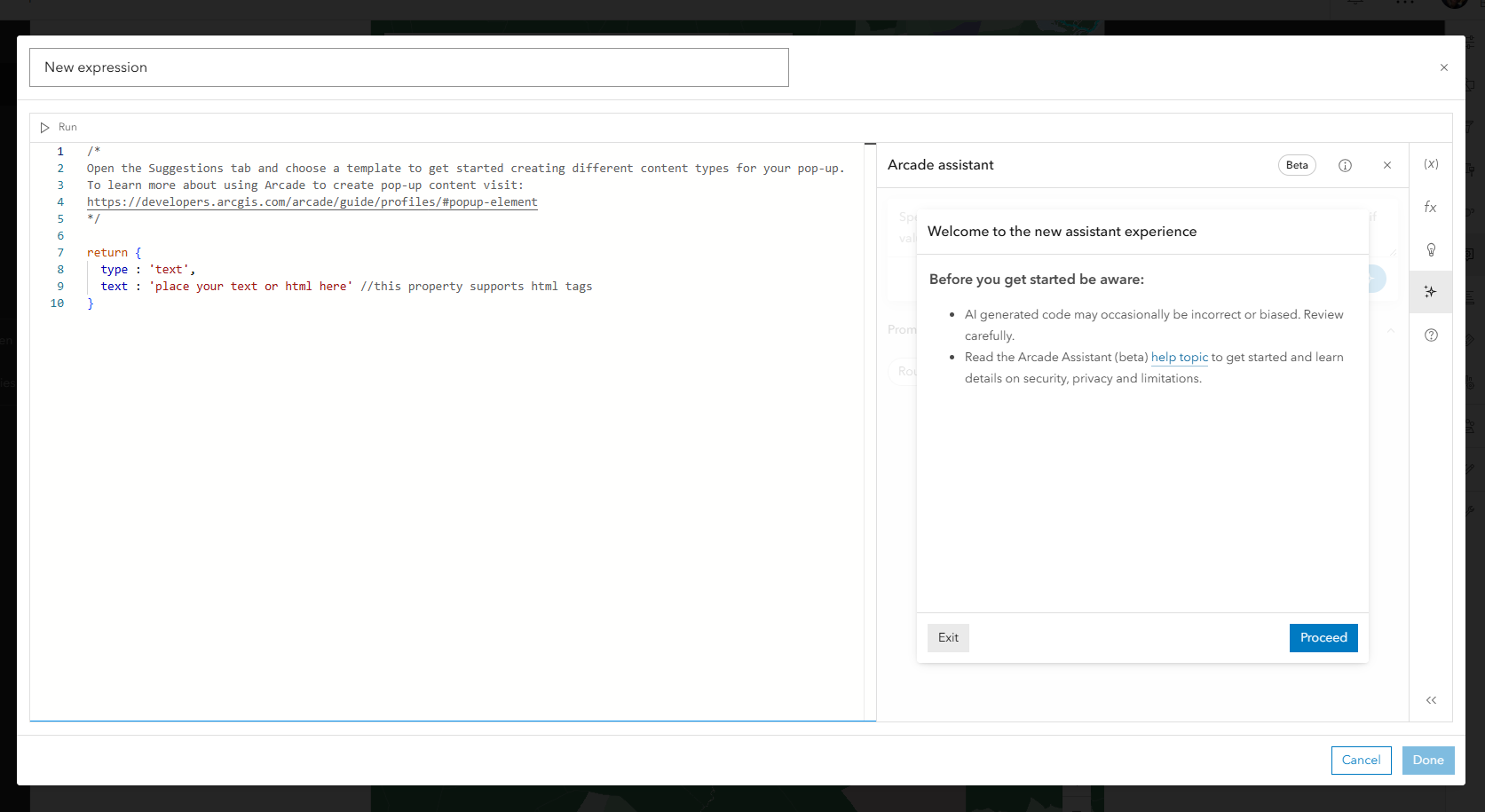
I have had a lot of success with this tool and have been really impressed with the results.
With all of these tools… the caveat is that you need to understand your data and have the ability to interpret the results.
In the following example, I created a pop-up that included a bar chart with different categories broken down by age, normalized by the total population. My prompt was the following: “Create a BAR CHART showing the breakdown for the different age brackets for those in poverty - with all of the numbers displayed as a percentage normalized by the total population”
Some things to note with this prompt. I was not very clear about the columns and fields to use. I didn’t provide specifics for the values to be returned (number of places, etc. ). There are probably a dozen other ways that this prompt could have been improved, which offers a great opportunity for a comparison of prompts and results between students. What prompt resulted in the best outcome? How many iterations did the best results take? Did students refine their results with their own knowledge of CSS and HTML? Did they take their results to a different LLM?
Here is my result:
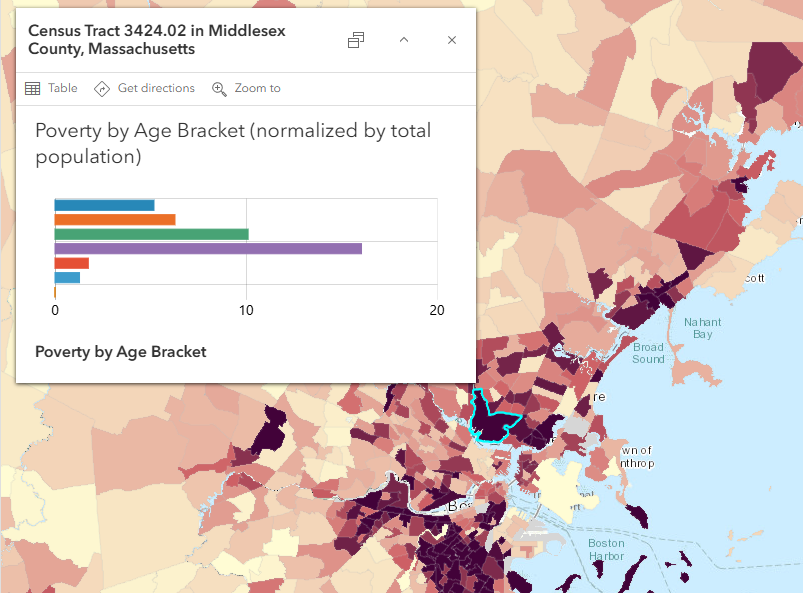
The point being, the coding assistants can streamline a lot of the ‘grunt’ coding work for students, but they don’t erase the need for critical thinking. To be honest, I tried this same prompt on a dataset that didn’t include any poverty data. Initially, it returned an error, but after pushing it some more, it returned a result that generated a bar chart… that was meaningless. It looked ‘nice’ on the surface, but I still needed to assess the validity of the results and dive into the attributes and code to understand what was taking place.
Conclusion
There are currently AI Assistants available for coding, documentation, for Business Analyst, for StoryMaps, for Survey123, etc. It seems like there is an update or a new feature added to these tools everyday. As noted in the beggining of this blog, you need to enable these tools across your organization to gain access to them, but after you do, they provide a wealth of opportunities for pushing your students learning and engagement in novel ways.
As you start your planning for the spring semester, please reach out and let us know if you plan on including these tools in a course! We would love to hear about the creative ways that you plan on including Esri's AI Assistants in the classroom.
