One of the questions that comes up regularly from international customers is whether Esri offers versions of its Utility Network Foundations that have been translated into different languages. The short answer is that all the Utility Network Foundations available on solutions.arcgis.com are only provided in English (US). However, the tools are included with the foundations that make it easy for a customer or business partner to translate these models using the techniques described in the Renaming an item in an asset package article.

The purpose of this article is to provide an overview of a process that allows you to quickly translate the contents of an asset package. There are several benefits to using this approach:
- The rename table doesn’t alter any of the underlying table names, field names, or database values. This means that solutions that expect specific values from this data model will not be affected by the aliases.
- The process is easier to iterate on because the aliases are changed as part of the deployment process.
If you want to alter the underlying table names, field names, and values stored in the database, this approach will not achieve that.
Create a rename table
The first step of this process is to create and populate a rename table in your asset package. A comprehensive description of this process is described in the Renaming an item in an asset package article, but for this article we will keep things simple.
1. Run the Create Rename Table tool from the Utility Data Management Support toolbox
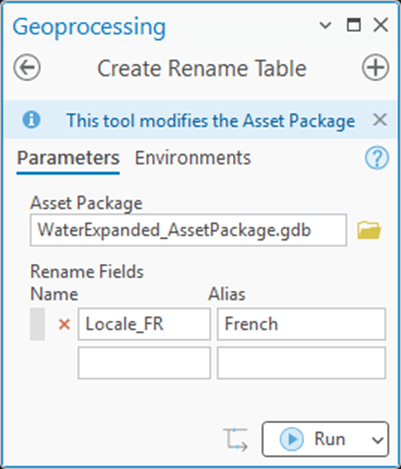
Add one or more Rename Fields to represent the new alias(es) you wish to use.
2. Click Run
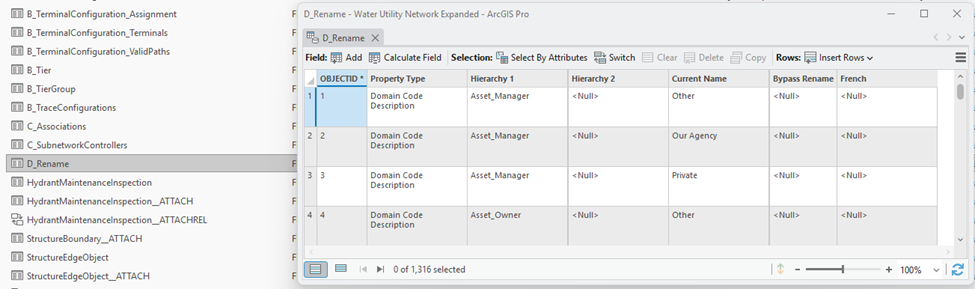
When the tool completes, your asset package will then contain a D_Rename table that you can use to rename the description/alias of anything in your model.
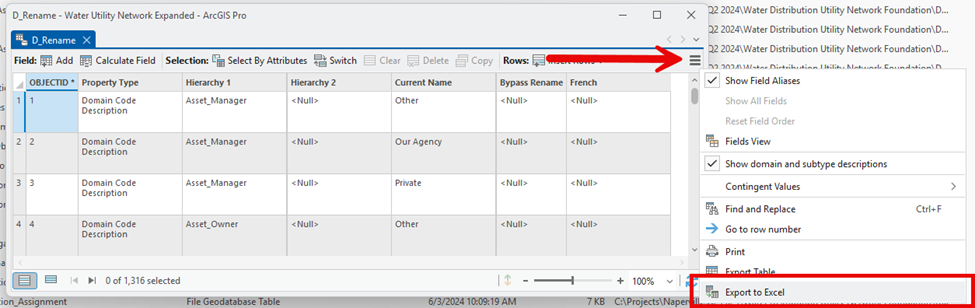
The next step is to get this information out of ArcGIS Pro and into a format that you can send off for translation and review. One convenient way to achieve this is to use the Export to Excel Geoprocessing tool, which you can find a shortcut for on the Attribute Table.
3. Use the burger button on the D_Rename table to display the context menu to export the contents to Excel.
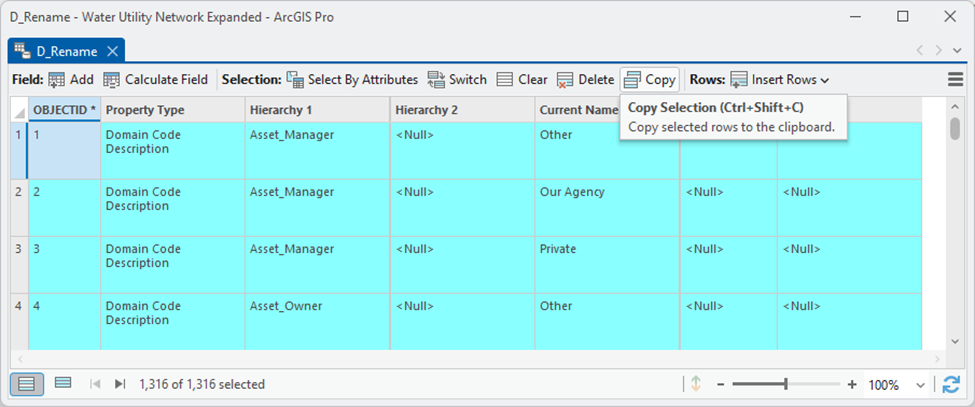
If you don’t want to use an Excel file you can also select all rows in the table and use the Copy Selection command to copy/paste the rows into a document of your choice.
In this example, the content has been pasted into a basic text editor.

4. Translate all the values in the Current Name column to a new value
You can perform this translation manually or use one of a variety of free and paid services for this purpose. Keep in mind the following:
- To re-import the values, you will need to remember the ObjectID of each value. This is discussed in the next section
- Certain properties have restrictions on length and special characters
- Once you’ve deployed the new database you may find you need to adjust some values
All these considerations show that this will be an iterative process. You will need to manually review the values within the context of the application or data model and adjust.
Importing renamed values
Once you have a document containing the new values, you need to then update the rename configuration column in the D_Rename table of your asset package. The easiest way to do this is to use copy and paste, but this requires the order of the rows in the asset package and the table you are copying from to be identical. This is why it’s important that the document has the original object id from the asset package.
The process is as follows:
1. Select the column that contains the new descriptions you want to use (Do not select the column header.)
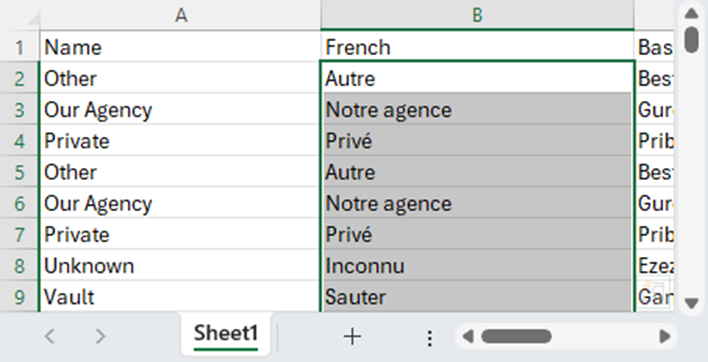
2. Copy the selection to your clipboard
3. Place your cursor in the new column of the D_Rename table
If you are only pasting a subset of the values from the translated document the cursor must be placed in the correct row of the document. The table view will ignore your current selection, even if you have the view filtered to the currently selected rows.
4. Paste the selection into the table
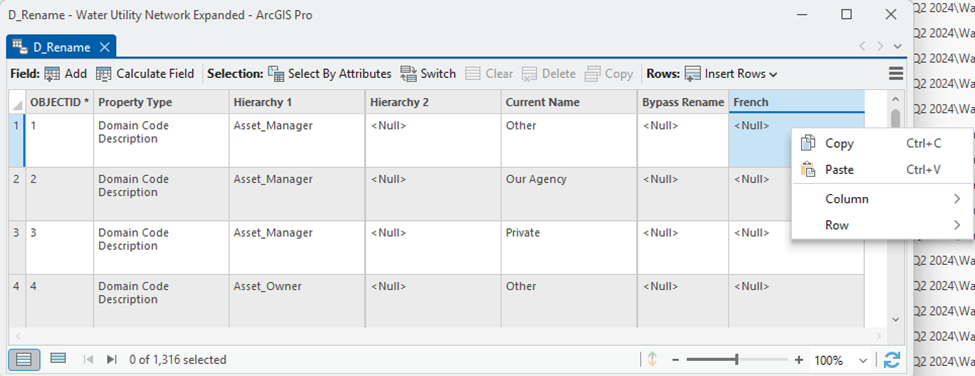
You can use the keyboard shortcut or the paste command on the context menu to ensure you are pasting the values in the correct location.
ArcGIS Pro will automatically parse the pasted rows into the new column. If you find that the data isn’t coming across properly, it may be that the order of items in your source document is different, or that the application the data was copied from isn’t properly formatting the data on the clipboard.
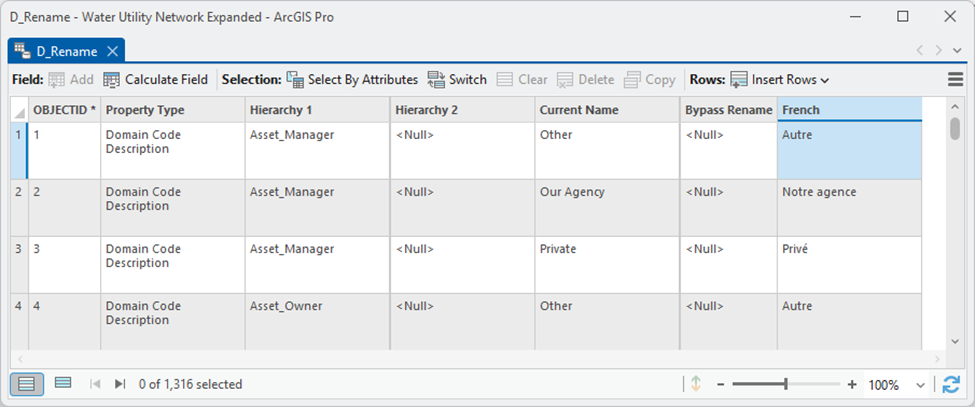
5. Save your edits.
Now that you’ve populated the D_Rename table, it’s time to verify the results.
Deploying a translated foundation
Once the D_Rename table is populated, you need to deploy the asset package to see the translated description. The easiest way to do this is to use the Asset Package to Geodatabase tool to create a local geodatabase using the descriptions in the rename table. To perform the following steps, you first need to install the UN Package Tools for the ArcGIS Pro installation where you will be deploying the asset package.
1. Open the Asset Package to Geodatabase tool
2. Select the Asset Package that has the populated D_Rename table
3. Expand Asset Package Options
- Leave the box next to Load data checked if you want to review the coded value descriptions.
- Uncheck the box next to Post Process, this will make the process run faster without affecting your ability to review the results.
- Select your new descriptions for the Rename using parameter.
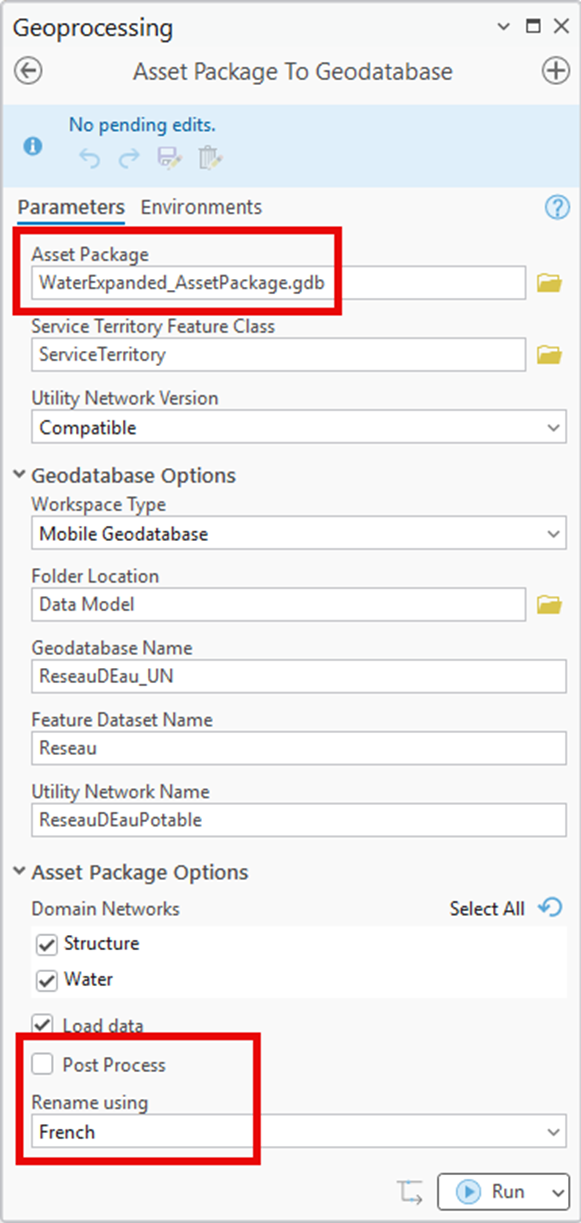
4. You may also want to adjust several other parameters, depending on your situation.
• Folder Location
• Geodatabase name
• Feature Dataset Name
• Utility Network Name
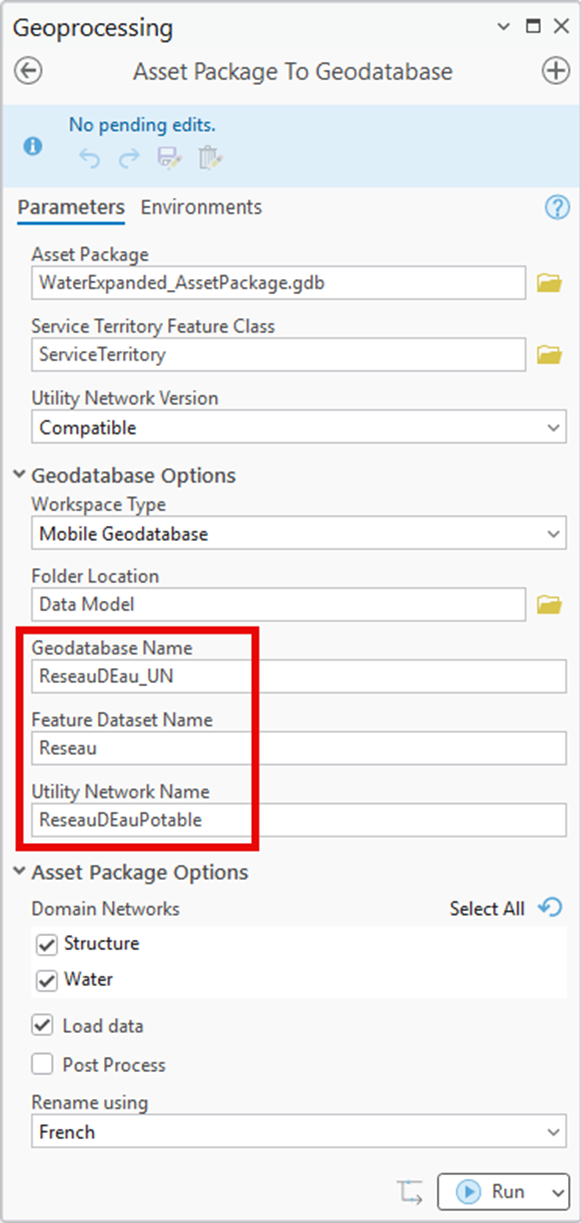
5. Click Run.
6. Review and resolve any errors reported with the D_Rename table.
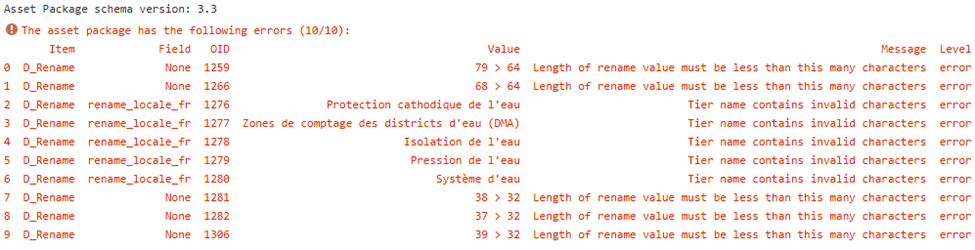
If this is your first time using these descriptions, you may see errors in the D_Rename table about values being too long or containing invalid characters. Review each of these errors and make the requested changes. Repeat this process until the asset package deploys without any errors.
7. Once the tool successfully runs, review the results in ArcGIS Pro.
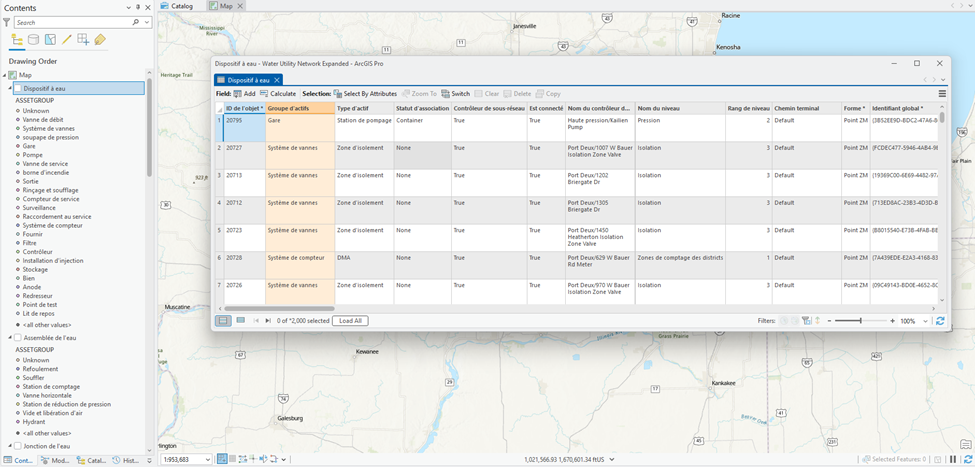
The easiest way to do this is to add the data in the newly staged geodatabase to a new map. If you open an existing map, you may still see the original field aliases on layers and the original coded value descriptions in your contents pane.
Conclusion
You’ve learned how to effectively use the D_Rename table to customize the aliases in your utility network foundation. You learned several techniques you can use to export and import the values in this table for translation purposes. You also learned about some of the considerations for the length of translated values and special characters you will need to consider when performing translation.
Now that you’ve read this article you are well equipped to begin translating your own data models, whether they use a utility network foundation or another industry standard data model provided by an Esri business partner.
Before you spend too much time creating your own model, you should always check with the Esri Distributor in your region to see if they, or another business partner, have already created a localized version of the data model you’re interested in. Localizing a data model is more than just translating values from one language to another, it also considers regional or local standards or regulations and norms. If there is already a localized version of the model that takes this into account this can save you a lot of time and effort.