- Home
- :
- All Communities
- :
- Products
- :
- ArcGIS Survey123
- :
- ArcGIS Survey123 Questions
- :
- Re: Survey Thumbnail
- Subscribe to RSS Feed
- Mark Topic as New
- Mark Topic as Read
- Float this Topic for Current User
- Bookmark
- Subscribe
- Mute
- Printer Friendly Page
Survey Thumbnail

- Mark as New
- Bookmark
- Subscribe
- Mute
- Subscribe to RSS Feed
- Permalink
How do I add a survey thumbnail in Connect? I can preview it under the settings - general tab but when I publish the survey it goes back to the default.

- Mark as New
- Bookmark
- Subscribe
- Mute
- Subscribe to RSS Feed
- Permalink
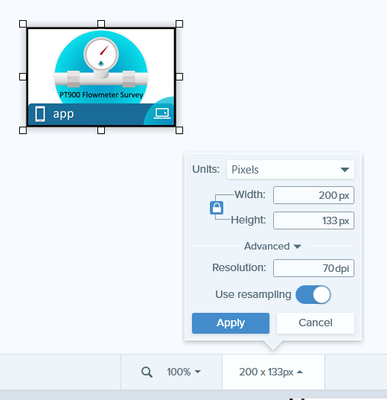
I was having a similar issue today with the new survey123 and survey123 connect. 117 KB is somewhat of a large file size. I used @Anonymous User 's suggestion and used an image editor (Snagit) to optimize the image size for an AGO thumbnail (200x133 pixels). I also dropped down the dpi to make the file size smaller and load faster. My jpg file for the thumbnail is now 12 KB. I've attached the image settings and the image. Also, don't use a png. It is over kill. png files are for print quality while jpg is used for webapps, screens, thumbnails.



- Mark as New
- Bookmark
- Subscribe
- Mute
- Subscribe to RSS Feed
- Permalink
Hi Eric,
Does the issue happen with other surveys you have with the same account?
I'd suggest to contact Tech Support to log an issue so that they can troubleshoot it with you to narrow down the actual problem.

- Mark as New
- Bookmark
- Subscribe
- Mute
- Subscribe to RSS Feed
- Permalink
Hello Eric,
Have you tried the following -
Within an image editor or capture program open the thumbnail you want to use.
Open up Connect
Tap on "Files" - note the path to your survey folder
Close out of Connect
Within the image editor/capture program complete a "Save As" and navigate to this folder
Click on the "Site Evaluator.png" file and specify that you want the file to be a "png" formatted image and click "Save".
This should overwrite the existing thumbnail with the new one.
Open Connect and see if the thumbnail is present on the main dialog of Connect.
That has worked for me in the past and since you are using AGO, then you also want to make sure that your thumbnail is on a small canvas like Philip suggested. I have had to use ArcMap with a data frame that has the image loaded into it, then switch over to the layout view, make the data frame size to 1" by 2" window and zoomed to the image (you might have to zoom into and out with the layout tool to get the desired sharpness of the image), then I would use the MS Snippet Tool to capture the image and save it directly to the Survey folder overwriting the Survey's existing "png" file.
I have attached an image that has three different images in 3 different data frames that I used to create this from ArcMap. I use this for our Field survey that allows our biologist to track endangered bats that they have installed a small radio tracking tag to.
Good Luck!
Mike

- « Previous
-
- 1
- 2
- Next »
- « Previous
-
- 1
- 2
- Next »