To set the scene:
In the ArcGIS for Power BI visual, we connected to a hosted feature layer hosted on our ArcGIS Portal. This layer shows municipality boundaries and contains a unique ID for each one. In Power BI, a table contains this unique ID, as well as a numeric field with a population count.
Once the join layer has been setup through this unique ID, I added the population count and the map now shows the municipalties with a color classification based and label representing the population count as expected.
But this is where it goes wrong:
When I filter the dataset, certain municipalities are filtered away (as expected). However, the colors/labels do not change. Only when I make a change to the config of the join layer (does not matter what) and click "Update join", the labels and colors will match the current population counts based on the current filters. New changes after this are again ignored.
I assume this would be a bug? Or is there any workaround?
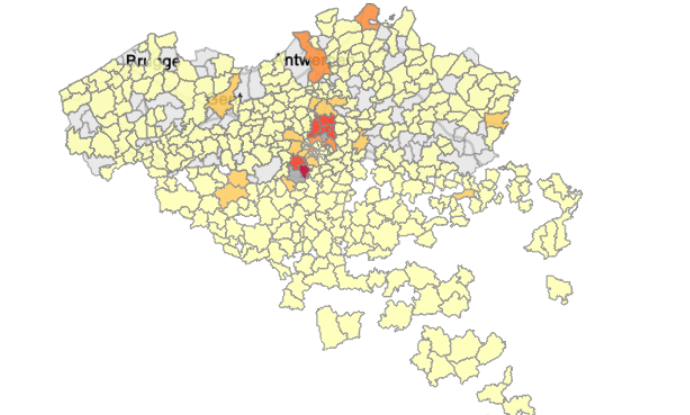
To provide some visual context. The "holes" on the map are municipalities which have been filtered out as expected. However, the summation of the population count (colors) can't be affected by filtering the report.
@NaZhang_Esri Any ideas on this?
Thank you for your question!
Could you please provide more details on your comment here?
"Once the join layer has been setup through this unique ID, I added the population count and the map now shows the municipalties with a color classification based and label representing the population count as expected."
Where did this "population count" data go? Did you add to any of the field wells?
Much appreciated for the clarification on this so that I can see if I reproduce this on my side. 😊
Hi @NaZhang_Esri thank you. Here some details on the configuration:
Sidebar
In the visual sidebar, two field wells have been filled:
- Color >> Population count
- Join layer >> Unique municipality ID
Both population and municipality ID are fields in the table. The municipality ID's are used to join to the features stored in the hosted layer.
Visual > Analysis > Join layer
In the visual itself, under Analysis > Join layer the following has been configured:
- Select fields >> Both Power BI data and Feature layer contain the municipality ID
- Result layer >> Join operation (Select first row only), Fields to append (Join layer fields = municipality ID and Other fields = Population count)
- Interaction behavior >> Filter
Visual > Layers > Symbology
In the visual itself, under Layers > Symbology, the following has been configured:
- Active layer >> The join layer, Population count and Color.
- Symbol type >> Color
To reiterate: slicers do correctly filter municipalities, however colors on the map (population count) does not update based on slicers. Only when I make a change to the config of the join layer (does not matter what) and click "Update join", the labels and colors will match the current population counts based on the current filters. New changes after this are again ignored.
A possibly important additional note:
The "Feature layer" > "Power BI data" relationship is one to many.
In the Power BI table, each municipality has multiple rows for different categories of the population. The colors on the map should show the sum of population values for all the rows which are selected through the category slicer.