- Home
- :
- All Communities
- :
- Products
- :
- ArcGIS Experience Builder
- :
- ArcGIS Experience Builder Questions
- :
- Re: Increase Icon Widget Size in Widget Controller
- Subscribe to RSS Feed
- Mark Topic as New
- Mark Topic as Read
- Float this Topic for Current User
- Bookmark
- Subscribe
- Mute
- Printer Friendly Page
Increase Icon Widget Size in Widget Controller


- Mark as New
- Bookmark
- Subscribe
- Mute
- Subscribe to RSS Feed
- Permalink
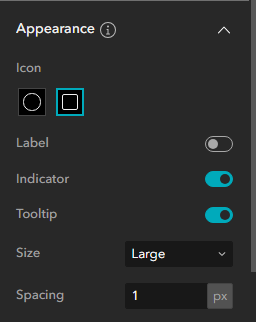
I am unable to increase the size of the widget icons on the widget controller. When I open the settings and change the size under appearance, it only increases the spacing between the widgets, not the size of the icons. I am currently using Developer Edition 1.15.
This article seems to be the most related but looks to be how to change the size for an icon on a custom widget within a widget container, not all icons within the container.
Set to small:


Set to large:

Solved! Go to Solution.
Accepted Solutions

- Mark as New
- Bookmark
- Subscribe
- Mute
- Subscribe to RSS Feed
- Permalink
Hope this is related to what everyone needs help with:
To resize a widget in a widget controller:
1.) Click the Widget Controller
2.) Under the "Appearance" section of the Content tab of the Widget Controller settings, change the Size to "Custom".
3.) Increase/Decrease the Icon Size as desired. Button Size/Spacing seem to be very similar to each other and can be modified after you set the right size of your icons (be sure to modify the Widget Controller size in your page to give your self the room to play with the sizes.


- Mark as New
- Bookmark
- Subscribe
- Mute
- Subscribe to RSS Feed
- Permalink
It looks like your widget controller is placed in a container that has the same background colour as your controller icon's background colour. Try using a different icon background colour in the Advanced settings of the widget controller settings panel.
Changing the size of the widget controller will modify the padding of widget icons, but the icon size will always stay the same. ExB doesn't support changing icon size at the moment.
- Mark as New
- Bookmark
- Subscribe
- Mute
- Subscribe to RSS Feed
- Permalink
Hope this is related to what everyone needs help with:
To resize a widget in a widget controller:
1.) Click the Widget Controller
2.) Under the "Appearance" section of the Content tab of the Widget Controller settings, change the Size to "Custom".
3.) Increase/Decrease the Icon Size as desired. Button Size/Spacing seem to be very similar to each other and can be modified after you set the right size of your icons (be sure to modify the Widget Controller size in your page to give your self the room to play with the sizes.
- Mark as New
- Bookmark
- Subscribe
- Mute
- Subscribe to RSS Feed
- Permalink
Thank you , it looks like this was introduced in the October '25 AGOL update / 1.19 DE update and I was able to implement it a few months back. I was able to get my widgets to match more closely to my header size.

