Setting Up A Group Filter And Filters That Are Filtered

10745
8
03-08-2024 08:46 AM
JeffreyThompson2
MVP Frequent Contributor
9 8 10.7K

The February 2024 ArcGIS Online update just dropped and I'm excited. It's got some big changes to Experience Builder. Select Widget! URL Parameters! Big improvements to Map Layers and Near Me! And perhaps most exciting of all, Group Filters! (And if you are on a 10.X version of Enterprise with SSO authentication, you will actually be able to use Developer Edition 1.14, unlike the cursed version 1.13.)

Let's go through the steps to make a Group Filter. During my testing, I discovered a neat (new?) option that also filters the filters, but there was a trick to setting it up, so we will go over that, too.

For this demonstration, I will be using a map with two copies of the same data, a polygon layer of the parks of Arlington, TX. We will make filters for Zip Codes and Golf Courses. Four of these parks are golf courses and the city of Arlington has 12 zip codes, so not every zip code has a golf course.

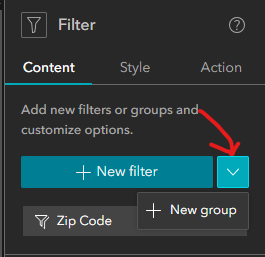
First, we'll do zip codes. I will start by dragging a Filter Widget into my project. And hit this carot to make a Group Filter.
JeffreyThompson2_0-1709913438241.png

Press the Select Data button, then highlight all the data sources you want to filter, Orange Stripe and Blue Stripe for me. You'll need to press the X up top when you're done.

JeffreyThompson2_1-1709913624174.png

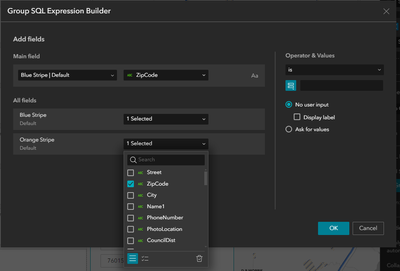
Now click the Group SQL Expression Button and select Zip Code in the Main field. Next, I will need to select Zip Code in my other layer.
JeffreyThompson2_2-1709914296572.png

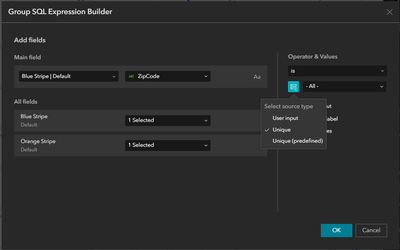
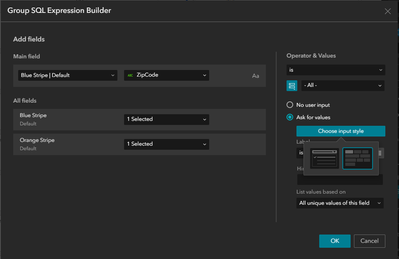
Under Operator & Values, I will use the Select Source Type Button to switch to Unique values. And hit the Ask for Values option.
JeffreyThompson2_3-1709914443557.png

This Choose Input Style Button lets you choose between a dropdown menu or a set of buttons. I generally favor buttons as they are better for user experience and accessibility.
JeffreyThompson2_4-1709915002267.png

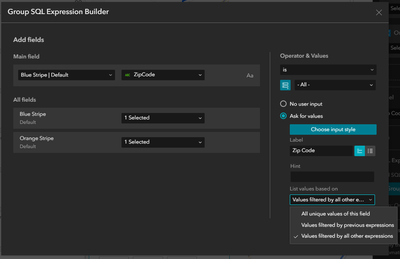
I'll set the label to Zip Code to clarify to the user what these buttons are. Then, I'll go to the List Values Based On dropdown. This is how I'll filter my filter.
JeffreyThompson2_5-1709915254743.png

There are three options here All Unique Values of this Field will always show all of the zip codes in the layer. I have not found a functional difference between the other two options, but they will reduce the number of possible zip codes when other filters are used.

Here is the trick to making the filtered filters work: the other filters must be on a seperate Filter Widget.

So I drag in a new Filter Widget and set it up to filter Golf Courses.

As my application opens, I see 87 parks in two data layers and twelve zip codes.

JeffreyThompson2_6-1709915826847.png

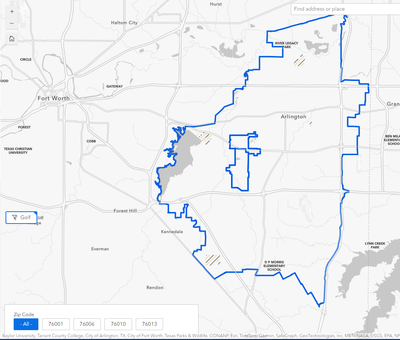
I turn on my golf filter and both data layers filter down to four parks and my zip code filters also reduce to the four zip codes with golf courses.
JeffreyThompson2_7-1709916041106.png

Annoyingly, 12 zip codes, 4 golf courses and 2 data layers are all the right number of syllables to fit into the Twelve Days of Christmas, so now that's stuck in my head and in yours now, too.

8 Comments
JeffFranzen1
Occasional Contributor

Jeffrey - nice work.

If your data all lives on one layer is it still possible to use group filter for cascading effect? (I have Division, Region, Chapter, County, City as subsets) but all on one layer.

Been looking for way when user selects a region only the options for that region’s specific subsets.


Thanks


JeffreyThompson2
MVP Frequent Contributor

@JeffFranzen1 Yes, the filtering filters should work within the same data layer.

Depending on exactly what you have in mind, you may need to guide your users through a specific filtering order. I can't think of a great way to accomplish that within the Experience Builder framework. The best I can currently come up with is to explicitly label Step 1, Step 2, etc.

DarraghOSullivan
Frequent Contributor

I had found the separate Filter Widget method for filtering the filters, but it is not great for styling ... more things to move about depending on screen size etc, so I was really hoping for a single Filter Widget solution to this. Hopefully it might come soon ... 

TimothyHoeflich
Occasional Contributor

I've been tasked with developing a proof of concept, duplicating a desktop-based "property browser" which was delivered by a contractor some years ago.  With my other work being based in AGOL, initially I considered Web AppBuilder , Dashboards, and Instant Apps as the most direct development options.  However, ArcGIS Web AppBuilder will retire in the fourth quarter of 2025 and Experience Builder appears to be the replacement.

The central function of our "property browser", must be a "pick list" or category selector which drives the filtering of ~354,000 parcels in a polygon feature set.  This "pick list" or category selector must accommodate ~1,500 appraisal areas which are assigned to each parcel record.  Our "property browser" must allow the user to select which parcels are displayed, grouped by a single appraisal area, or by multiple appraisal areas.

I got this set up quickly in AGOL Dashboards, but I can’t do it fully in Experience Builder. This limit within Experience builder can be seen in the attached image.So what is the magic cut-off number?So what is the magic cut-off number?

I could use some help in navigating ESRI’s tech support world in order to determine:
1. Is the limitation with group filters in Experience Builder, as described above and unchangeable?
2. What are our other options, within ESRI, to have the functionality that we need in an application develop environment?

JeremyDew
Occasional Contributor

@JeffreyThompson2 Any ideas why I am not seeing the "List values based on" option when setting up a Group SQL Expression? I just updated to 1.16 Dev Edition but see the same behavior going back to 1.14. I must be missing something but can't seem to figure this one out

JeremyDew_0-1733851022651.png


JeffreyThompson2
MVP Frequent Contributor

@JeremyDew Here are some things to keep in mind:

  1. The Select Source Type option must be set to Unique.
  2. You must have at least two separate Filter Widgets in your project. 
  3. This option appears to only be available for certain data types. (just Text Fields, maybe?)
JeremyDew
Occasional Contributor

Thanks @JeffreyThompson2. Seems to work when adding another filter widget. I had added another one previously but didn't think it was going to work since the "List values based on" option in the Group SQL Expression window. 

AaronKoelker
Frequent Contributor

@JeffreyThompson2 @JeremyDew I'm seeing the same issue Jeremy was, where the "List Values Based on" dropdown is missing from the Group filter options. But there must be another restriction out there in addition to what Jeffrey suggested, because I've got the source type set to "Unique", there are multiple filter widgets on the page, and I'm using a TEXT field across all layers. The option still doesn't show up, however, and I've run out of settings and configuration to check against. Anyone have any other ideas? 

Edit: This was answered in a comment on another post. The dropdown was removed in later versions because it wasn't doing what the user might expect it to: Ability to filter multiple layers based on a common field

Contributors
About the Author
A frequently confused rock-hound that writes ugly, but usually functional code.