- Home
- :
- All Communities
- :
- User Groups
- :
- Experience Builder Tips and Tricks
- :
- Blog
- :
- Making a Dropdown Menu
Making a Dropdown Menu


- Subscribe to RSS Feed
- Mark as New
- Mark as Read
- Bookmark
- Subscribe
- Printer Friendly Page
Once upon a time, this blog had a YouTube video by @MichaelGaigg describing how to hack a Sidebar Widget into a dropdown menu. Sadly, that video has been lost to the sands of time. Here is my attempt to recreate the method (and create a new variant) having seen the video once about six months ago.
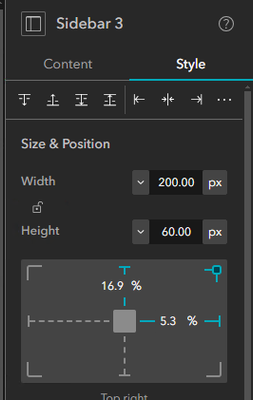
- Add a Sidebar Widget. In the Style Tab, switch to px and set the width and height, as you'll get better results if the Sidebar stays a consistent size. You'll want the width to be about equal to the length of text. You want to set the height as low as you can. (This is a design decision. Do you need to display all your options at once or not? How much interactive space can you give up to this menu?) Then add about 20px to your number.
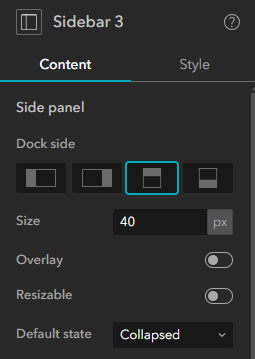
- In the Content Tab, set the Dock Side to open down (third choice from left), Size to the number you picked above, Overlay and Resizable to off, and Default State to Collapsed.
- In the collapsible side of the Sidebar (should be labeled First, if you have set the Dock Position as shown above), add a List Widget and connect it to the data you want in your menu. (Depending on what you are doing, you might also use a Text Widget containing a set of links or a set of Button Widgets*. You may also need to use a Column Widget to help with the styling.) If you are using a List widget, you will want to go to the Action Tab > Data Action and disable data actions.
- Go back to the Sidebar Settings Panel under the Content Tab and style the collapse button. This part is pretty subjective, so play around with the options till it looks right. I think setting the Style to the more rectangular option looks better for this application. I set the Width to the entire width of my Sidebar and the Position to Center. Using a Width about 1/5th the width of the Sidebar and Position Right is also a good choice.
- Finally, add a Text Widget to the always open side of the Sidebar with some text to describe why the user should press that arrow. Here's my result.


Note: I've given my Text Widget a blue background, not because I think it looks good but as a reminder that you should be aware of The Sidebar Problem. All that area is not interactive.
Alternate Method
Here is another way to do this that is slightly easier to pull off. Currently, it is not possible to do in any version of ArcGIS Enterprise, but it is coming soon in Enterprise 11.3.
- Follow steps 1-3 as above.
- In the Sidebar Settings Panel under the Content Tab, turn the Collapse Button off.
- In the always open side of the Sidebar, drop in a Button Widget and give it some explanation text. Also give it an arrow icon with Position Right.
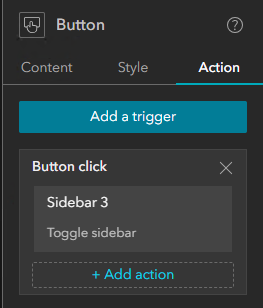
- In the Action Tab, select Add A Trigger > Button Click > Your Sidebar > Toggle Sidebar.
Here's how this looks.


If you wanted to get real fancy with it. Maybe you could put your button in a Section Widget and have your button change itself to a different button with different text and an up arrow.
*Oh and if you are going to make a set of Buttons inside your dropdown menu, maybe make them also close the Sidebar.
Alternative Method 2: The Sweet Sound of an Accordion
Since this article is suddenly popular again, let's add another method that wasn't a choice when this article was first written. And it's probably the best way to do this. I am working in ArcGIS Online. You should be able to do this back to Enterprise 11.5, but some of the finer refinements might be missing. This time we aren't using a Sidebar which means we can eliminate The Sidebar Problem™.
- Add an Accordion Widget. In the Style Tab, set the Height to Auto. (This should fix the issue of non-interactive space from The Sidebar Problem™.)
- In the Accordion, add a Column Widget. Alternative Alternative Method: If your choices are linked to some Data, use a List Widget instead.
- Rename your Column Widget to be the text that describes your menu. Set the Height of the Column Widget to Auto and, in the Background Options, give it a Fill Color.
- Add some Text or Button Widgets for your choices. (Buttons can't close an Accordion, so small downside here.) You may want to use Auto Height again here.
- To style my Accordion, I used the fourth Quick Style choice, then I changed up the Expand and Collapse Button (so they made more sense), set the Toggle Position to End, and set the Panel Padding to 0.

And here's how the end product looks:


You must be a registered user to add a comment. If you've already registered, sign in. Otherwise, register and sign in.

-
ArcGIS Dashboards
1 -
ArcGIS Enterprise
1 -
ArcGIS Experience Builder
5 -
ArcGIS Online
1 -
Embed
1 -
Menu
1 -
Search
1 -
section
1 -
views
1