In Experience Builder (ExB), the Dynamic Content feature within the text widget allows you to create data-driven, interactive content. While it's a powerful tool, it doesn’t yet offer the same ease and flexibility that ArcGIS Dashboards provides—especially for features like dropdown filters.
As someone who values visual impact and quick, insightful data for users, I’ve integrated indicators into many of my applications. Dashboards’ indicators are far more refined and user-friendly compared to ExB’s options. Esri has suggested that the dynamic content in ExB’s text widget could help replicate the functionality of Dashboards indicators. However, after experimenting, I realized the gap is much larger than I expected. A key limitation is the inability to easily filter Dynamic Content—for example, to only show incidents in “City A” or, in my case, monitor a specific tree species in my city.
To address this limitation, I found a simple workaround: build the indicators in Dashboards and embed them into Experience Builder. Below, I’ll share my process using a real-world example from my city’s Tree Viewer.
Our city is actively addressing challenges with Ash trees and wanted an easy way to track the number of Ash trees left in our inventory. My dataset has a field for species, containing hundreds of different tree types. When I tried to create an indicator in ExB to filter for Ash trees, I realized I couldn’t do it directly. Here's how I worked around this limitation.
Step 1: Create Your Indicator in Dashboards
- Open ArcGIS Dashboards and create a new indicator.
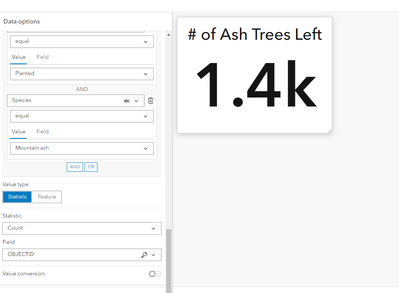
- Add a filter to isolate the data you want to track. In my case, I filtered for planted trees and every type of Ash tree in our inventory.
- Configure the indicator to show the count of Ash trees only.
- Customize the appearance to highlight the key number in an impactful way.
The result? A perfect indicator showing just the data I needed. This was something I couldn’t achieve natively in ExB!
Here’s what my Dashboards indicator looked like:
 Laura_4-1732050217838.png
Step 2: Embed Your Dashboards Indicator into Experience Builder
- Open your existing Experience Builder project (or create a new one).
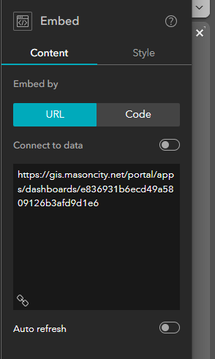
- Add an Embed Widget to your layout.
- Use the URL option in the widget settings and paste the URL of the Dashboard containing your indicator.
 Laura_5-1732050240549.png
Step 3: Check Sharing Settings
Before you publish your app, ensure your Dashboard’s sharing level matches the intended audience of your ExB app. For example:
- If your ExB app is public, make sure the Dashboard is shared publicly.
- If it’s for internal use, ensure both the app and the Dashboard are shared within your organization.
The Result
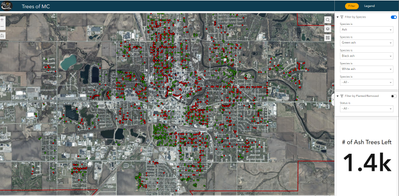
Now, my Ash tree indicator seamlessly appears in my Tree Viewer application! Users can see the current count of Ash trees at a glance, with the refined design and filtering functionality of Dashboards embedded directly into Experience Builder.
 Laura_6-1732050325673.png

