Esri Software Security & Privacy Blog - Page 3

cancel
Showing results for 
Show  only  | Search instead for 
Did you mean: 

Latest Activity

(34 Posts)
RandallWilliams
Esri Regular Contributor

In the last blog I wrote, I described ways to test desktop apps, operating systems, and Java installs to validate they were correctly sending requests to ArcGIS Online in order to validate that your apps will continue to function after TLS 1.0 and 1.1 are no longer supported after April 16, 2019.

Some users have expressed concern related to their mobile apps – older Android or iOS devices may not natively have support for TLS 1.2 enabled. Android fully supports TLS 1.2 starting at Android 5 (Lolipop), but custom Android apps may have enabled support for TLS 1.2 for Android 4.1.

Starting an iOS 9, Apple introduced App Transport Security, which enforces TLS 1.2 for most apps – but it’s possible that some vendors may have globally disabled or created domain exceptions for this feature.

All that’s well and good, but for the person who’s responsible for making sure apps are going to work, what does this mean? Is there a painless way that an app or device’s TLS 1.2 compatibility can be quickly validated?

Happily, the answer is yes, and just like in the last blog, we can use the Fiddler web debugging proxy to validate!

Because Fiddler won’t run natively on a mobile OS, there’s a bit of setup we need to do before we can validate.

First, go ahead and install Fiddler on a Windows machine. While there is a beta version of Fiddler for Linux, we’ll test with Windows.

Once it’s installed, we’ll need to gather some information set some options.

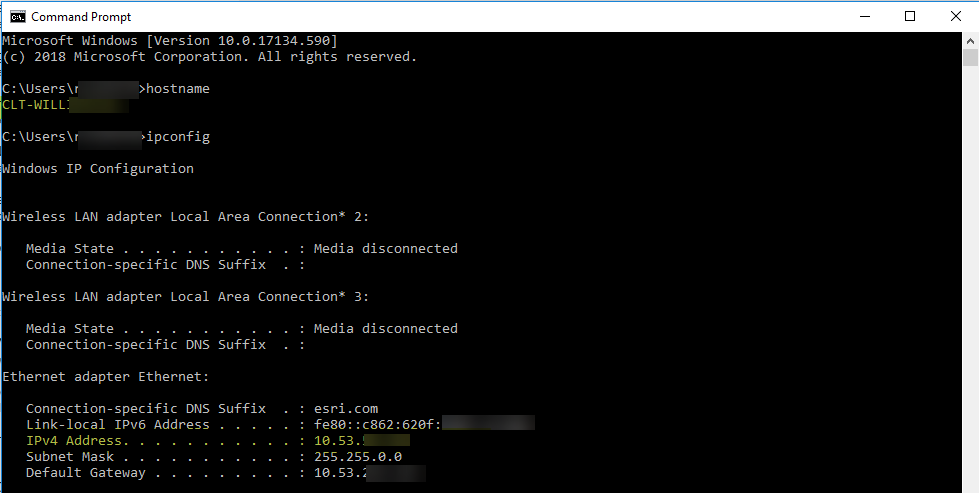
Next, if you don’t already know it, you’ll want to take note of your Windows machine hostname and IP address. You can get those details by opening a Windows console and entering the HOSTNAME and IPCONFIG commands like in the example below (details redacted to protect the innocent). These details will be used later.

Figure 1: Ipconfig and Hostname

IPCONFIG AND HOSTNAME COMMANDS

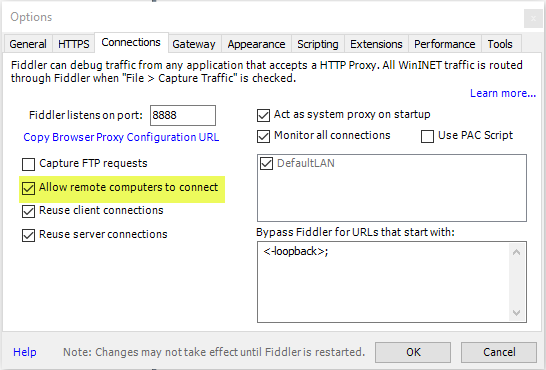
Once you have those details, open Fiddler and navigate to tools>options. Enable the option to allow remote computers to connect and keep the rest of the results.

Figure 2: Fiddler Connections options

Fiddler connection options

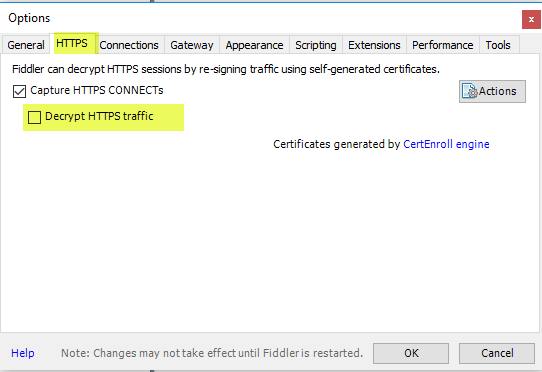
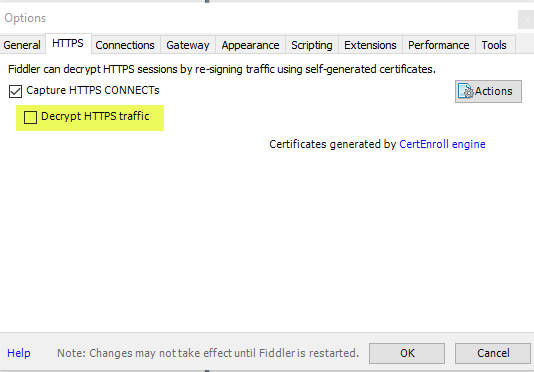
Next, click the ‘HTTPS’ tab. By default, the ‘Decrypt HTTPS traffic’ option is unchecked, but if you’ve used Fiddler to debug HTTPS traffic already, this option may be enabled.

Figure 3: Fiddler HTTPS options

fiddler https options

Next, you’ll want to configure your mobile device to push your web traffic through the Fiddler proxy.

To do this, your mobile device will need to use WIFI and be on the same local network as your Windows machine.

I have an iOS device I’m testing with, but the instructions for configuring your device to use a proxy should be similar.

Your favorite search engine should be able to assist with specifics.


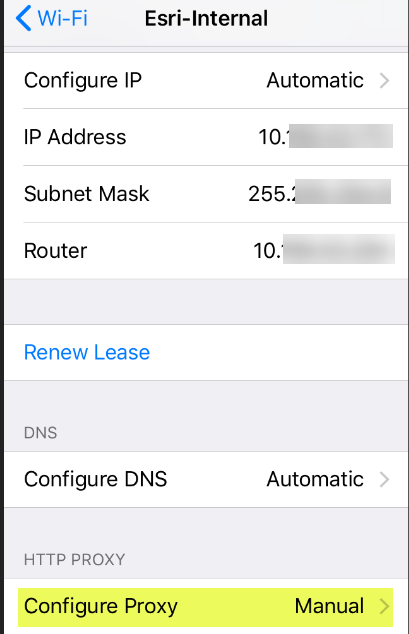
In my case, once I’ve joined the WIFI, I click on the WIFI connection and scroll down to ‘Configure Proxy’


Figure 4: WIFI proxy configuration

configure device to use proxy

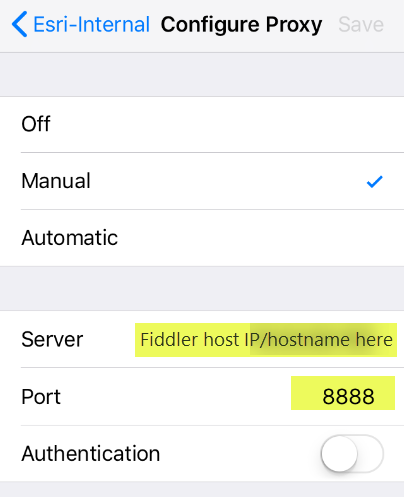
Once in the ‘Configure Proxy’ dialog, enable ‘Manual’ configuration, and populate the Server and Port settings.

Populate the ‘Server’ value with the hostname or IP address of the machine where Fiddler is running. By default, Fiddler listens on port 8888.

Figure 5: WIFI proxy configuration

device proxy config

Once that’s complete, you’re ready to test! Open your app and connect to your test resource.

Assuming your’re watching the Fiddler console, you’ll start to see your WIFI traffic being routed through the Fiddler proxy.

Click on one of the sessions that was captured that represents the endpoint you’re connecting to. In my case, I’m connecting to an internal ArcGIS Enterprise instance I maintain.

After you’ve selected a session, in Fiddler, click on the ‘Inspectors’ tab, and then the ‘Headers’ subtab. You’ll want to have a quick check to make sure that the Client is your mobile browser or app instead of a desktop browser or app. Typically Esri clients indicate “Esri” or “ArcGIS” for the user-agent.

Figure 6: Confirm user-agent in Fiddler Headers tab

review user-agent

After you’ve checked the user-agent and are sure you’re reviewing the correct traffic, click the ‘TextView’ tab. Just like before, you can review the TLS version that the client is using.

Here I’m satisfied that my iOS browser is creating sessions to my server using TLS 1.2.

Figure 7: TLS version in Fiddler TextView tab

fiddler textview tab

Hopefully this workflow can help users who require an additional level of validation with mobile apps they use.

more
1 0 2,906
RandallWilliams
Esri Regular Contributor

As has been announced, Esri will soon remove support for TLS 1.0 and TLS 1.1 on ArcGIS Online. Esri has provided test endpoints that users can work with to check that their applications will continue to function as expected.

However, in some cases users have questions about legacy or custom apps or may want to understand how their apps behave when abstracted away from the tools that Esri has provided.

Fortunately, you can test your apps prior to the current cutoff date April 16, 2019 without the test endpoints Esri has provided. To do this, we’ll use the Fiddler web debugging tool.

Fiddler is a powerful web debugging tool that allows users to view and manipulate web sessions, and also gives us a LOT of insight into what’s happening under the hood.

Let’s compare a patched instance of ArcGIS Desktop against an unpatched instance so that we can see the difference first hand.

First, we’ll want to download and install the Fiddler tool.

Once installed, we’ll want to take the default options.

If you’re already familiar with Fiddler, open the Options dialog, click the HTTPS tab, and uncheck the ‘Decrypt HTTPS Traffic’ option.

default fiddler settings

Next, configure your app. If you’re working with ArcGIS Desktop or an application that uses .Net to manage outbound internet (WinINET), fiddler should configure Internet Explorer’s proxy options for you. If you’re testing a JAVA app, your app will need to support the ability to use an outbound proxy and be configured to do so. By default, Fiddler listens on the localhost interface on port 8888.

In this case, since I’m comparing ArcGIS Desktop, I know that I don’t need to configure an outbound proxy for this test to work.

For this test, I’ll compare the ArcGIS Online search capability in ArcCatalog.

  • Open ArcCatalog
  • From the File menu, click ‘sign in’ 
  • From the Windows menu, click the ‘Search’ option:

search

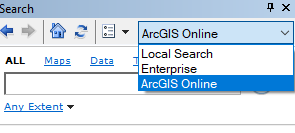
  • In the Search pane, select ‘ArcGIS Online’

online

  • Open Fiddler
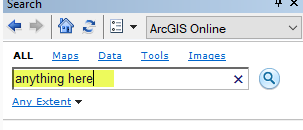
  • Enter a term in the Catalog search box. Anything will do.

anything

  • Click the magnifying glass to search.
  • Check Fiddler. Select a session in fiddler:

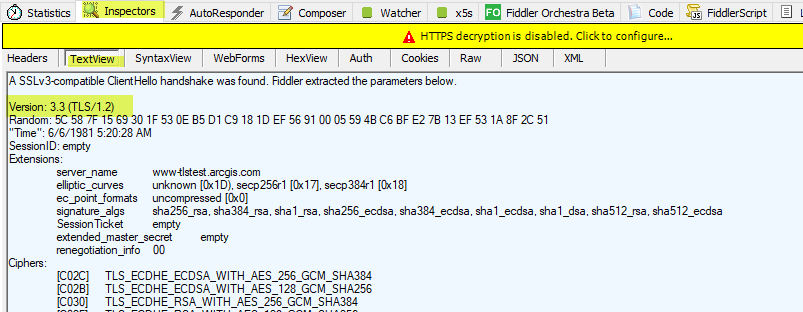
  • On the right side, under the ‘Inspectors’ tab, click the ‘Textview’ subtab. Check for the TLS version:

  • Note that I can see that I’m using TLS 1.2 in my outbound communication – which makes sense, my instance of ArcGIS Desktop is patched!!
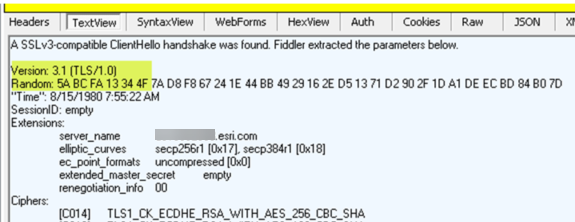
  • But what if it’s unpatched, or I don’t know, or I’m curious, or I’ve modified this workflow slightly to test some app OTHER than ArcGIS Desktop? What will that look like? In that case, Fiddler won’t tell us that the app is using TLS 1.2. Instead, it’ll state something else in this case, TLS 1.0.

Hopefully this helps provide some ideas as to how you can test and troubleshoot your own applications, as well as potentially validate some of ours. 

Best,

Randall

more
9 3 3,753
RandallWilliams
Esri Regular Contributor

ArcGIS Data Store 10.6.1 Security Update 1 Patch released!

This patch resolves a security vulnerability, within the intranet, that allows remote code execution using elevated privileges on the operating system on which the tile cache data store is installed and configured.

Description

Esri® announces the ArcGIS Data Store 10.6.1 Security Update 1 Patch. This patch addresses a security vulnerability within the intranet that allows remote code execution using elevated privileges on the operating system on which the tile cache data store is installed and configured. Esri strongly encourages all customers with ArcGIS Enterprise to install this patch at the earliest possible opportunity. It deals specifically with the issues listed below under Issues Addressed with this patch.

The ArcGIS Data Store 10.6.1 Security Update 1 Patch cannot be uninstalled from the tile cache data store using the patch remove utility. As such, see the uninstall instructions to reset the ArcGIS Data Store to the pre-patch state if needed.

Esri recommends users working with older versions of ArcGIS Enterprise upgrade to 10.6.1 to apply this patch. A fix for this issue is built into ArcGIS Enterprise 10.7.

more
0 0 570
GregoryBrown2
Deactivated User

ArcGIS Online organization administrators can use the ArcGIS Online Security Advisor for an easy to use summary of their ArcGIS Online’s organization’s security settings and to review their activity logs. The security settings are presented using color coding and descriptions to help understand the impact of the settings.  The activity logs provide administrators with the ability to understand who did ‘what’ to ‘which item’, which is a frequent request we see to the Software Security and Privacy Team.

Regards,

Esri Software Security & Privacy Team

AGO Security Advisor - https://arcg.is/ago-advisor

more
2 0 1,217
PeterBuwembo
Esri Contributor

A new security patch for Portal for ArcGIS is out.  The patch is available versions of portal 10.6.1, 10.5.1, 10.4.1, and 10.3.1 and is a cumulative security patch for all issues available for the Portal version. Check out the new blog post by Michael Young below for details: Portal for ArcGIS Critical Security Patch - Elevation of Privilege Vulnerability 

Recommendation: 

Everyone should install this patch

Pete

more
1 5 1,118
RandallWilliams
Esri Regular Contributor

Check out this blog from Michael Young‌ discussing upcoming security improvements revolving around TLS in the ArcGIS Platform, including insight into what's coming after the ArcGIS Online TLS updates coming in February.

2019 ArcGIS Transport Security Improvements 

Take-away's include:

February 2019 – ArcGIS Online TLS 1.0 & 1.1 deprecation

Upcoming ArcGIS Enterprise 10.7 – TLS 1.0, 1.1, and HTTP disabled by default

June 2019 – ArcGIS Online HTTP deprecation + HSTS enforcement

And MORE!

--Randall

more
0 0 550
RandallWilliams
Esri Regular Contributor

Important Update for ArcGIS and TLS

Esri is committed to providing strong security for the ArcGIS platform by using the latest industry standards and best practices for security protocols. To meet these industry expectations, we are making an important update to ArcGIS Online on April 16, 2019 that is likely to affect most ArcGIS software and custom solutions. With this change, we are enforcing the use of TLS (Transport Layer Security) version 1.2 only and will remove support for earlier TLS versions 1.0 and 1.1.
 
More details about Esri’s support for TLS, including patches and instructions for updating software, can be found by visiting support.esri.com/en/tls.
 
Who is affected?
Users of most ArcGIS software or custom solutions using Esri technology may be affected by this planned update to TLS protocol v1.2.
 
What do I need to do now?
Go to the Esri TLS Support page for more information and specific actions you may need to take in advance of this update.

Visit the GeoNet ArcGIS Platform and Transport Layer Security (TLS 1.2) Forum‌ to ask questions, view additional information and connect with Esri staff subject matter experts. 
 

more
5 30 7,144
RandallWilliams
Esri Regular Contributor

Our team is frequently asked questions regarding privacy in our software. 

Recently, a student asked a question regarding ArcGIS Maps for Power BI. Specifically, his organization required a risk assessment to be completed to understand what, if any, data is transmitted to ArcGIS Online. 

Happily, Scott Ball‌ provided a thorough answer to this question in his blog here:

FAQ - Data Security in ArcGIS Maps for Power BI

As this space matures, we'll be aggregating similar privacy and security resources from various Esri Teams and referencing them via this space. 

--Randall

more
1 0 918
RandallWilliams
Esri Regular Contributor

What is Multi-Factor Authentication (MFA)?

Multi-Factor Authentication (or MFA/2FA) is a feature that allows a user to provide two distinct pieces of evidence to a software solution to prove that you are who you say you are. Evidence includes supplying two of three factors at login time: something you know (like a password), something you have (like a smart card or soft token supplied via an app) or something you are (like a fingerprint or some other biometric marker). Credentials must be from two of these three factors – for example, providing two passwords is not considered MFA. In ArcGIS.com, multifactor authentication is implemented by requesting a verification code in addition to an ArcGIS Online organization name and password at login time.

Why should my organization use MFA?

Multi-Factor Authentication helps protect you and your organization by adding an additional layer of security to the login process, making it substantially more difficult for an unauthorized user to impersonate an authorized user when logging into ArcGIS Online. When MFA is enabled and configured, an unauthorized user needs to have both your username and password combination, and also access to your mobile device (which is assumed also requires a PIN or some biometric marker to access). Security Experts report that MFA is considered one of the top five best online security practices cu... Using MFA can help prevent unauthorized access or changes to your ArcGIS Online organization, and can also help to prevent unauthorized modification or deletion of your organization’s content.

How is MFA implemented in ArcGIS Online?

Organizations can take advantage of this additional authentication and configure their organization to allow members to enable multifactor authentication on their ArcGIS O.... To use this feature, organization members need to have an ArcGIS account and a mobile device with a supported authentication app installed on it.

In ArcGIS Online, two administrators must exist in the organization to configure MFA. This requirement is to help support the potential use case of an administrator themselves losing access to their own device and authentication app. It is strongly recommended that ArcGIS Online administrators enable MFA for their accounts, if not for all ArcGIS Online organization accounts.


https://www.nist.gov/itl/tig/back-basics-multi-factor-authentication

https://www.usenix.org/system/files/conference/soups2015/soups15-paper-ion.pdf

more
3 15 7,822
RandallWilliams
Esri Regular Contributor

On November 2, 2018, ArcGIS Online's signing and encryption certificates have been updated. 

ArcGIS Online has a new SAML signing and encryption certificate available. This certificate is necessary when an organization has enabled signed requests or encrypted assertions. The previous SAML signing and encryption certificate is due to expire on November 14th, 2018 and it is necessary to take action to ensure that your organization can continue to use your Enterprise Identity Provider (IDP). SAML enterprise logins that use the old certificate for signed requests or encrypted assertions will continue to work until Nov 13, 2018.

Action: Users who have enabled the advanced options 'Enable Signed Requests' and/or 'Encrypt Assertion' will need to obtain the new ArcGIS Online Service Provider metadata file and associate it with their Identity Provider before November 14, 2018.

Customers using these advanced options who do not upload the updated ArcGIS Online metadata file containing the new certificate before this date will receive an IDP specific error when they attempt to sign into ArcGIS Online with an Enterprise account.

To obtain the updated metadata file:

a. Login to www.arcgis.com with your administrative credentials
b. Click on "Organization" then "Settings" then "Security"
c. Scroll down to "Enterprise Logins" then click the "Get Service Provider" button.

   - This action will download the metadata needed for your IDP.


An email containing the following text has already been sent to ArcGIS Online Organization Administrators:

"ArcGIS Online will be updating its SAML signing and encryption certificates on November 13th, and we need you to take action to ensure your organization can continue to use your Enterprise Identity Provider (IDP).

This certificate is necessary when an Organization has enabled signed requests or encrypted assertions.

To enable your IDP to discover our new certificates, you will need to re-register ArcGIS Online as your trusted services provider.

The process for this varies by the SAML identity provider used, but tutorials on how to do this can be found in our documentation within the section titled 'Register ArcGIS Online as the trusted service provider'.

Esri has documented this process for these popular Identity Providers:

ADFS
NetIQ
Okta
OpenAM
Shibboleth
SimpleSAML


If you have any questions, please contact technical support."

Esri Support Services has released a KB article describing this issue. See:

Problem: ArcGIS Online SAML Authentication signing and encryption certificate renewal 

more
1 7 1,545
118 Subscribers