Select to view content in your preferred language

Survey123 Tricks of the Trade: Download survey data (with attachments)

37667
56
02-08-2022 03:53 PM
IsmaelChivite
Esri Notable Contributor
15 56 37.7K


Do you want to download survey data, including photo attachments? This blog describes, step by step, how you you can do it.

Before we start


Before we start, let me point out that there are handy Export tools in the Survey123 website. They let you export your survey data as a CSV, Excel, KML, Shapefile or File Geodatabase. You can choose to export all your survey records, or just a subset.
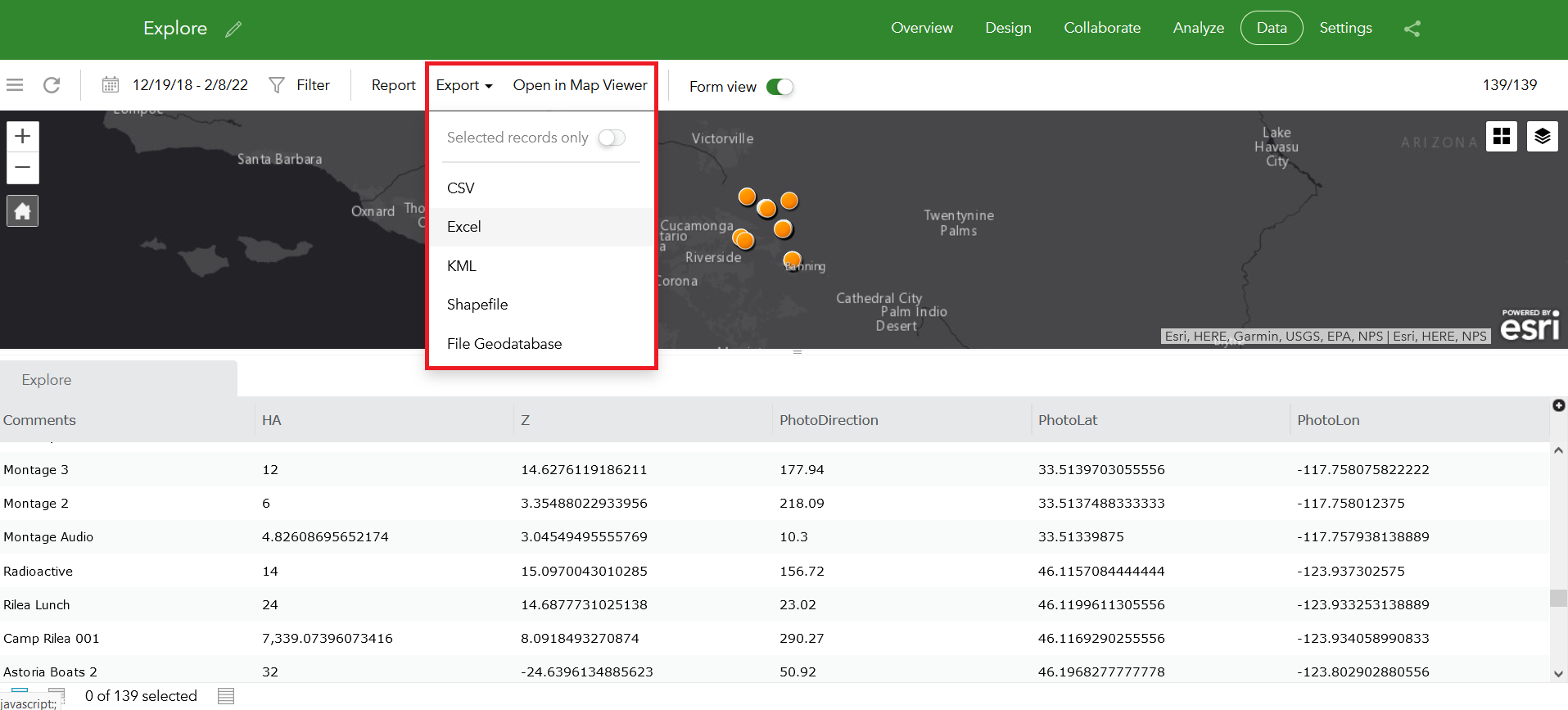
IsmaelChivite_0-1644364619710.png

You can also export your survey data from the item details page of your survey's layer item.
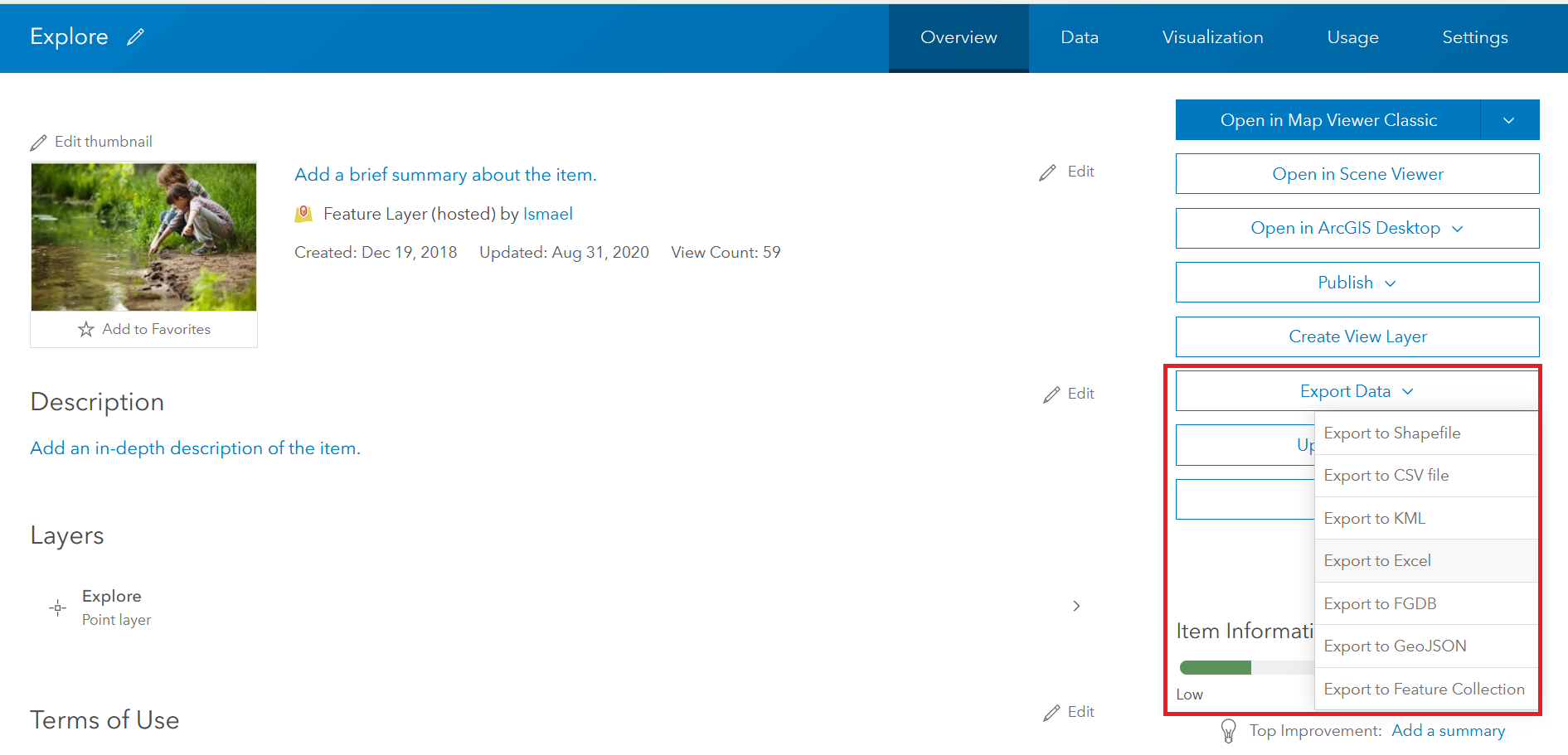
IsmaelChivite_1-1644364719900.png

The only caveat with these export methods is that you can't download your photo attachments. Technically, you could get your images through the file geodatabase format, but what if you want to export your data and have all your photos in their original format in a folder?   That's what this blog post is about.


It is going to take a Python script and ArcGIS Pro


Downloading your photos and documents in their original format requires a Python script and ArcGIS Pro. I will describe how to do it step-by-step. Even if you do not have experience with Python, you will be able to do this.

The Python script was developed by @ZacharySutherby  Zach loves Python and he is always looking for new ideas to automate common Survey123 tasks. The script is part of the Survey123 developer documentation.

Download data and attachments
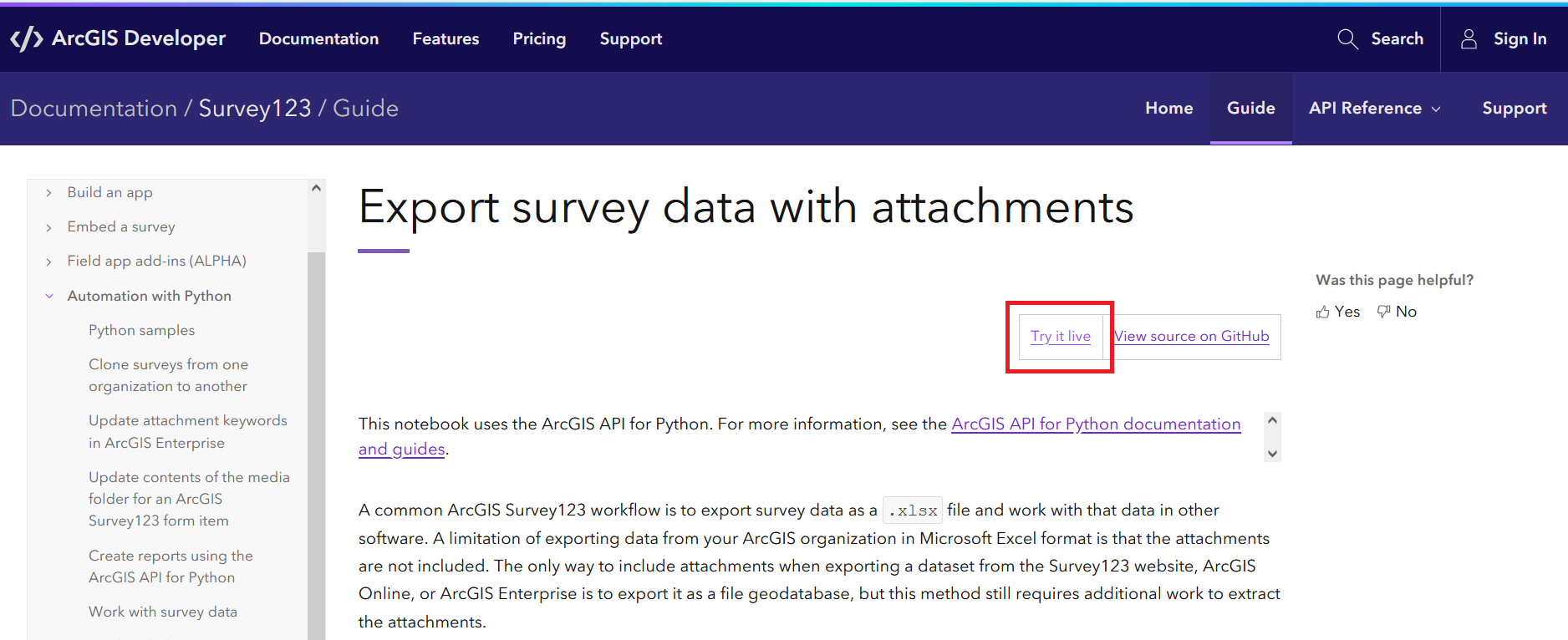
 

IsmaelChivite_0-1644356382310.png

  • Click on the Download button and place the .ipynb file into a well-known location on your computer
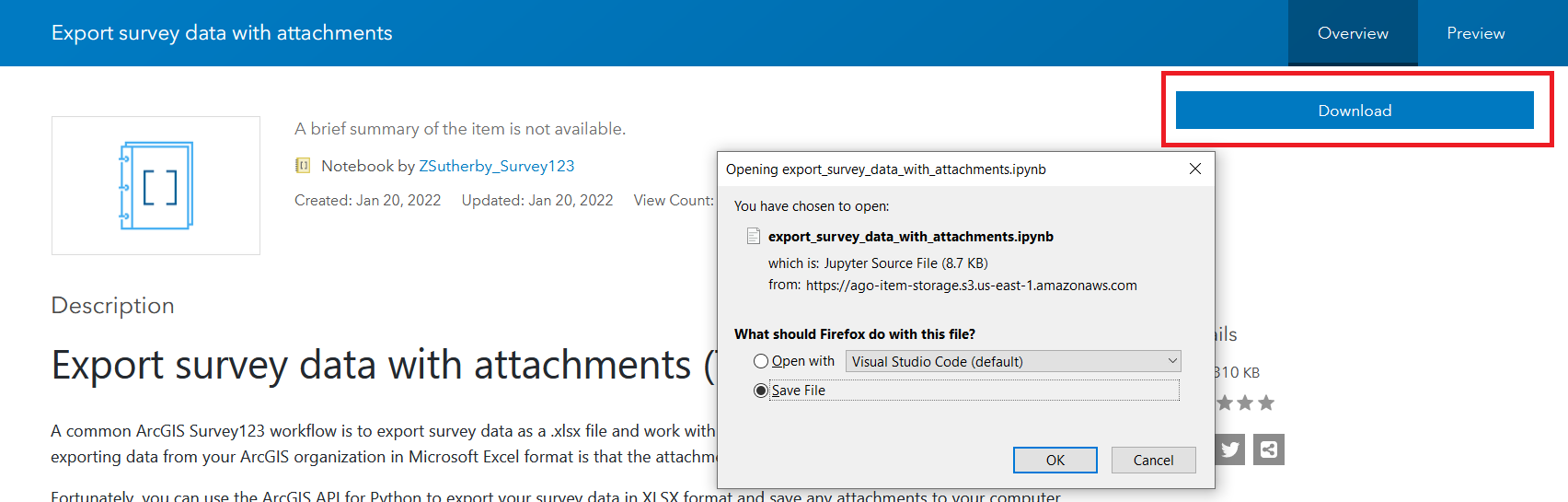
IsmaelChivite_1-1644356588848.png

  • Next, open a New project in ArcGIS Pro
  • In ArcGIS Pro, sign in to your ArcGIS Online or ArcGIS Enterprise organization, if not already
  • Open the View ribbon and make sure the Catalog Pane is visible
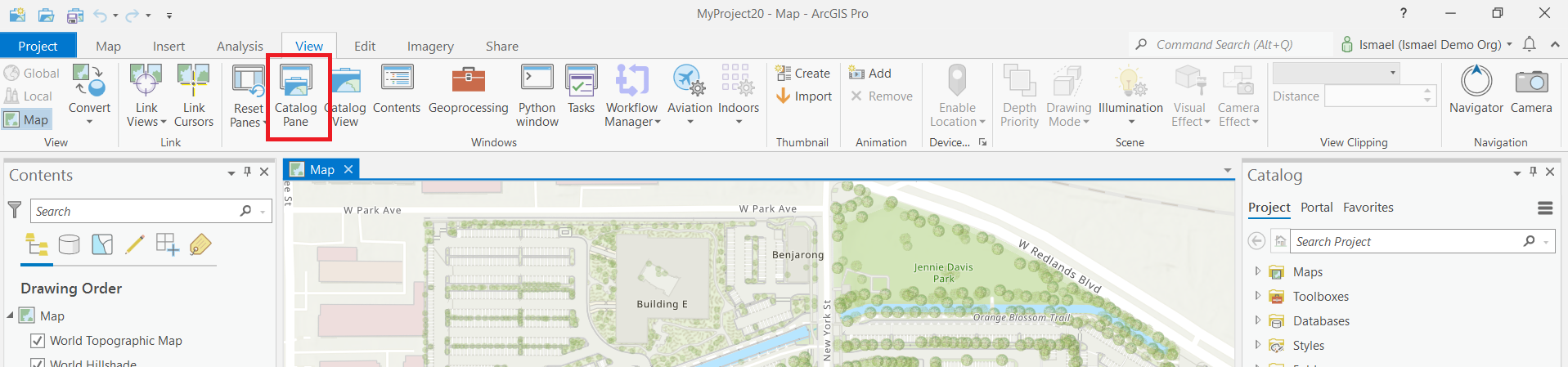
IsmaelChivite_2-1644356815273.png

  • Open the Analysis ribbon, expand the Python menu and add a new Python Notebook.
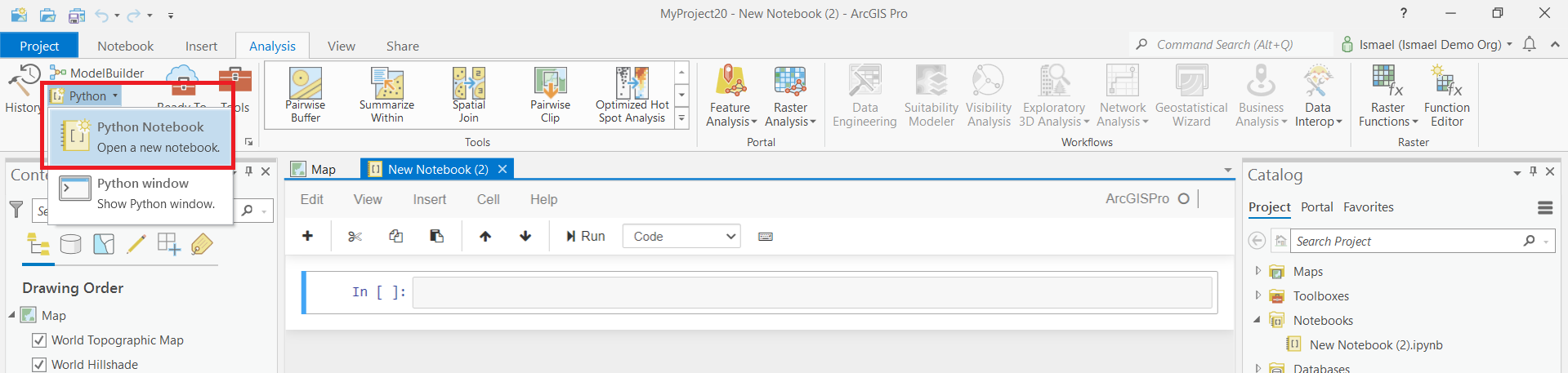
IsmaelChivite_3-1644356974266.png

  • From the Catalog pane, right click on the Notebooks category and click on Add Notebook

IsmaelChivite_4-1644357164811.png

  • Use the Add Python Notebook dialog to browse for and select the .ipynb file you downloaded before
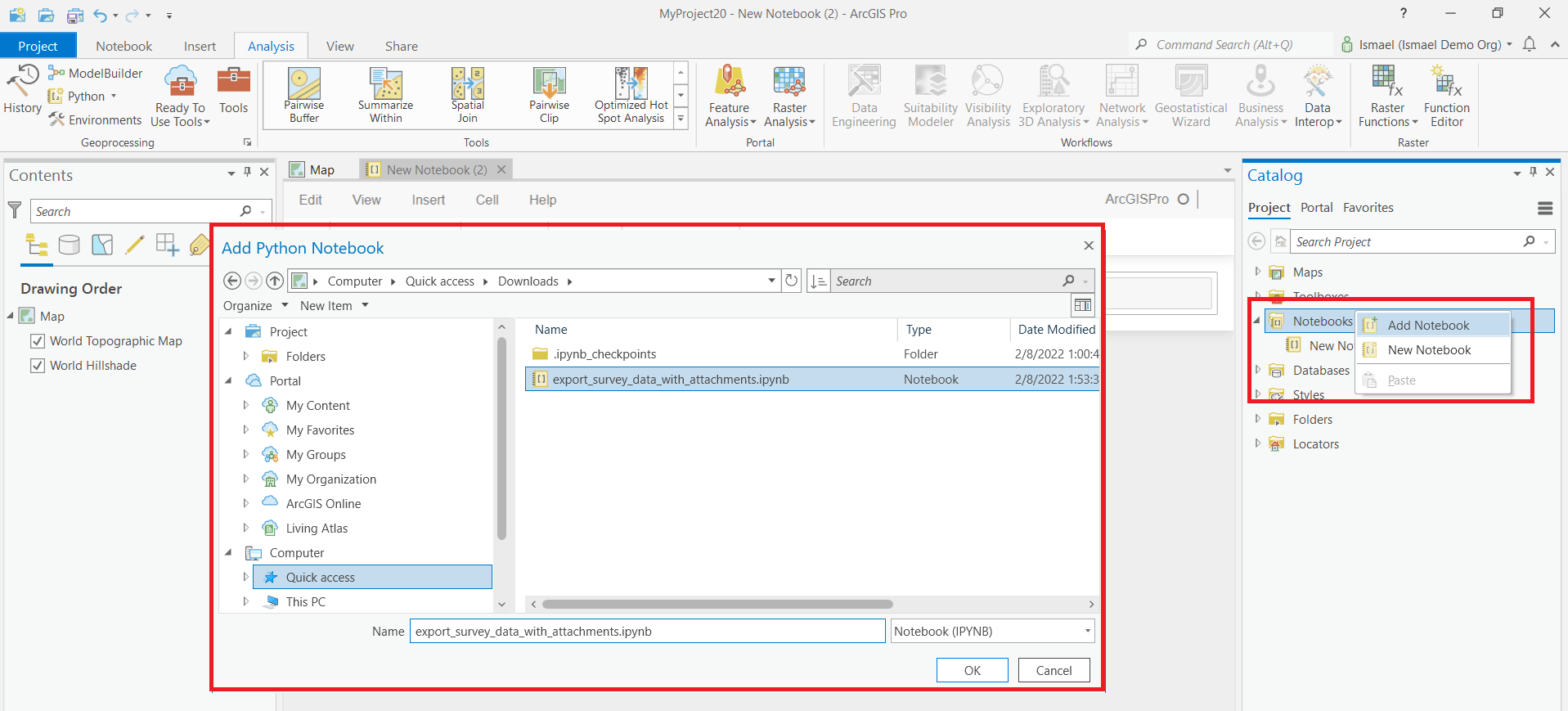
IsmaelChivite_5-1644357408312.png

  • Double-click on the export_survey_data_with_attachments.ipynb notebook
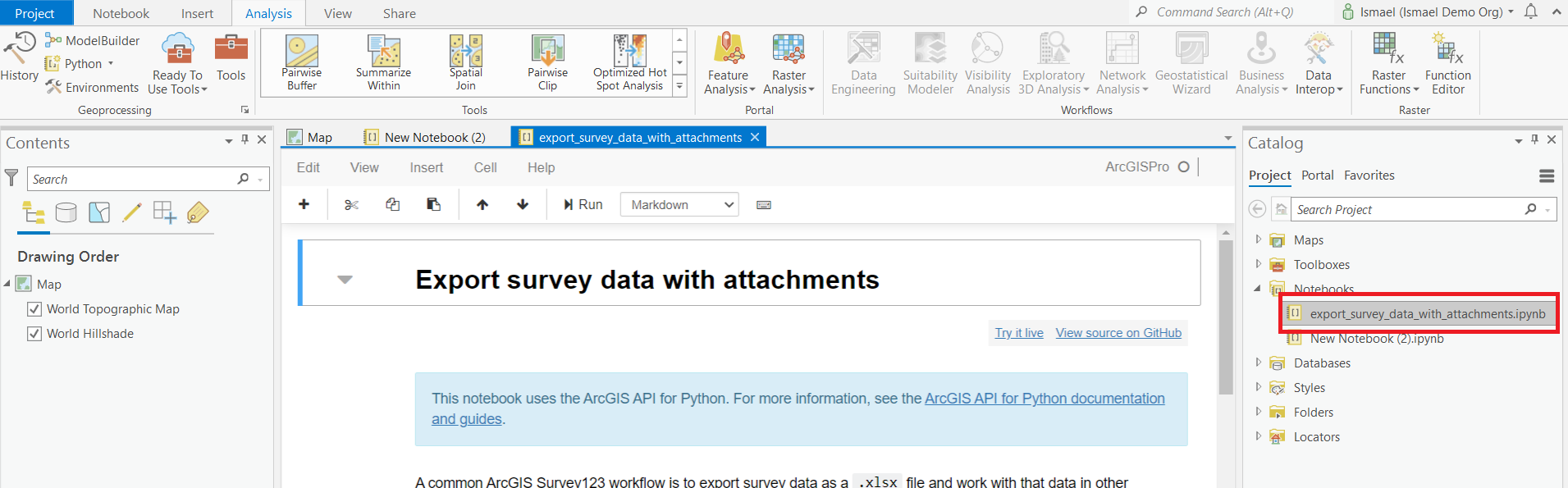
IsmaelChivite_6-1644357490443.png

At this point, the notebook will open. With a few minor changes it will be ready to run.

  • Scroll down until you see the second code cell, as shown in the screenshot below
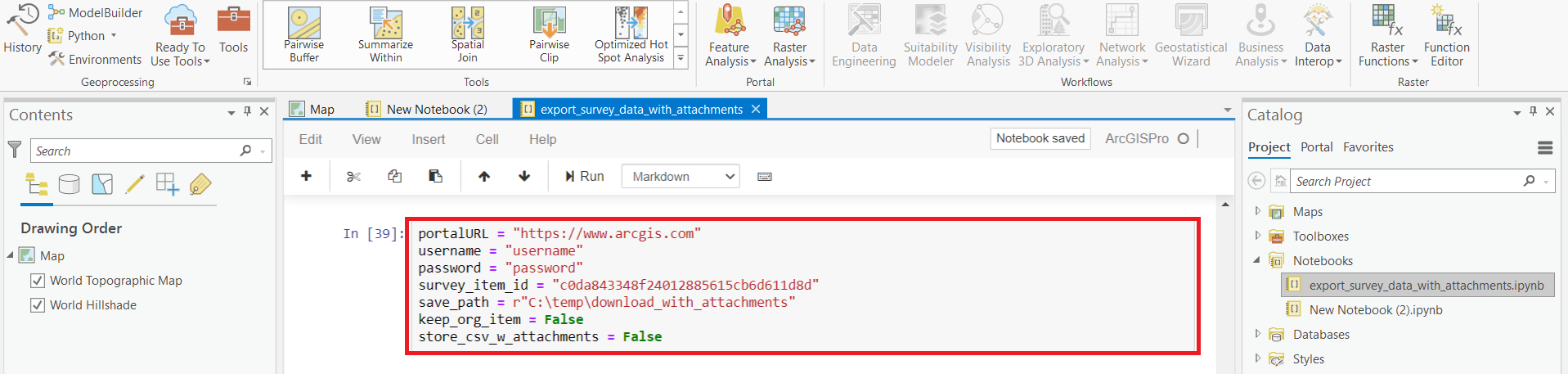
IsmaelChivite_7-1644357712424.png

  • Since you are already signed in, you can ignore the first three parameters (portalURL, username, password)
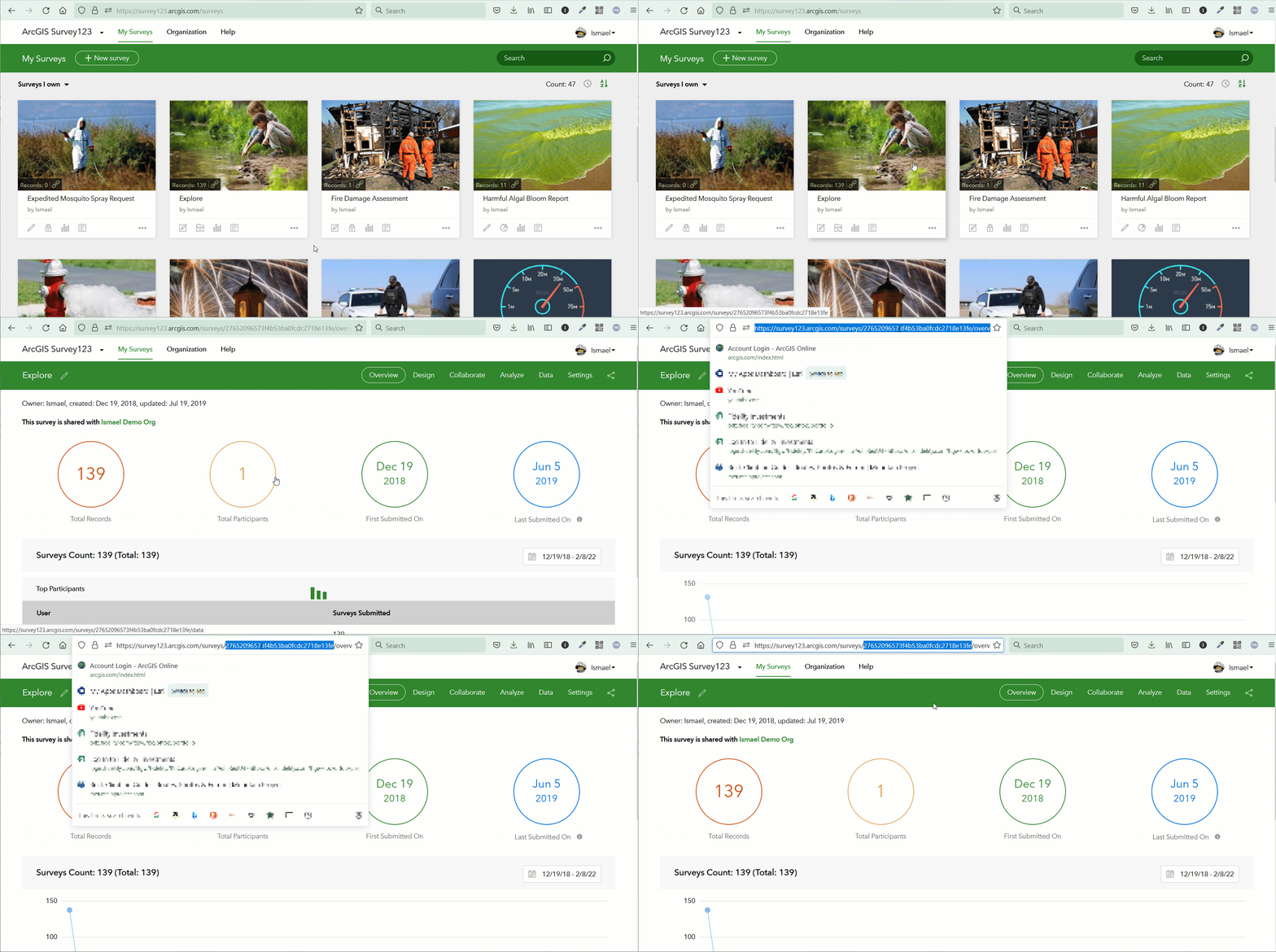
  • The survey_item_id uniquely identifies the survey for which you want to download data. Here is how you get the survey_item_id value:
    • In a web browser, sign in to survey123.arcgis.com
    • From the survey gallery, click on your survey
    • Get the survey ID as specified below

GetSurveyID.gif

  • Now, take your survey_item_id and replace it in the Python code
  • Change the save_path parameter so it targets an existing directory in your own computer
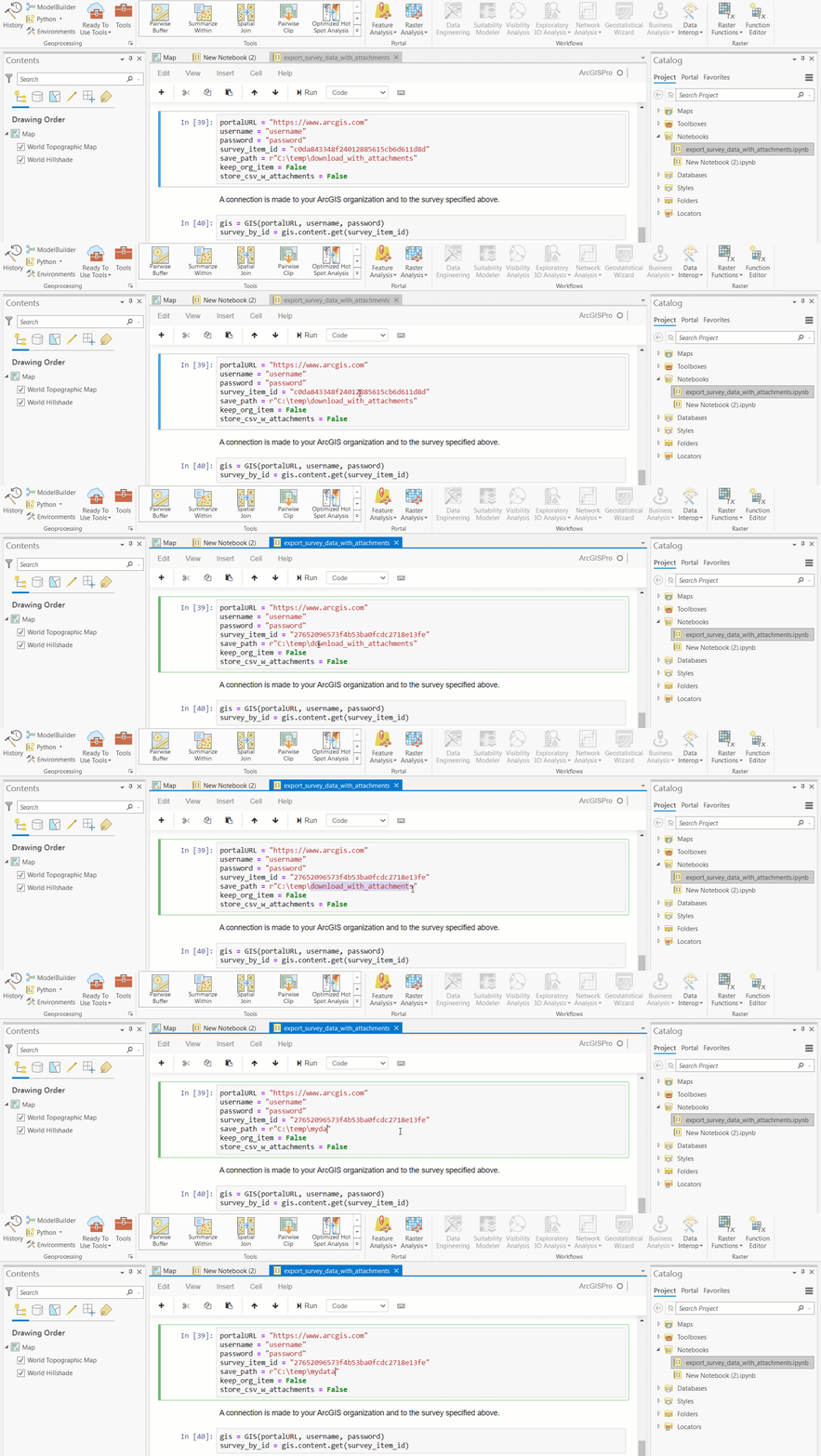
setSurveyID.gif

Earlier, I asked you to disregard the portalURL, username and password parameters. If you ignored me and set those up, then you can skip the next instruction.  If you left the portalURL, username and password parameters unchanged, then follow the next step

  • In the gis = GIS (portalURL, username, password) line, replace the contents within the brackets with "pro". That is, leave it as: gis = GIS ("pro").  This will essentially reuse the current login information within ArcGIS Pro to run this script and access your survey's data
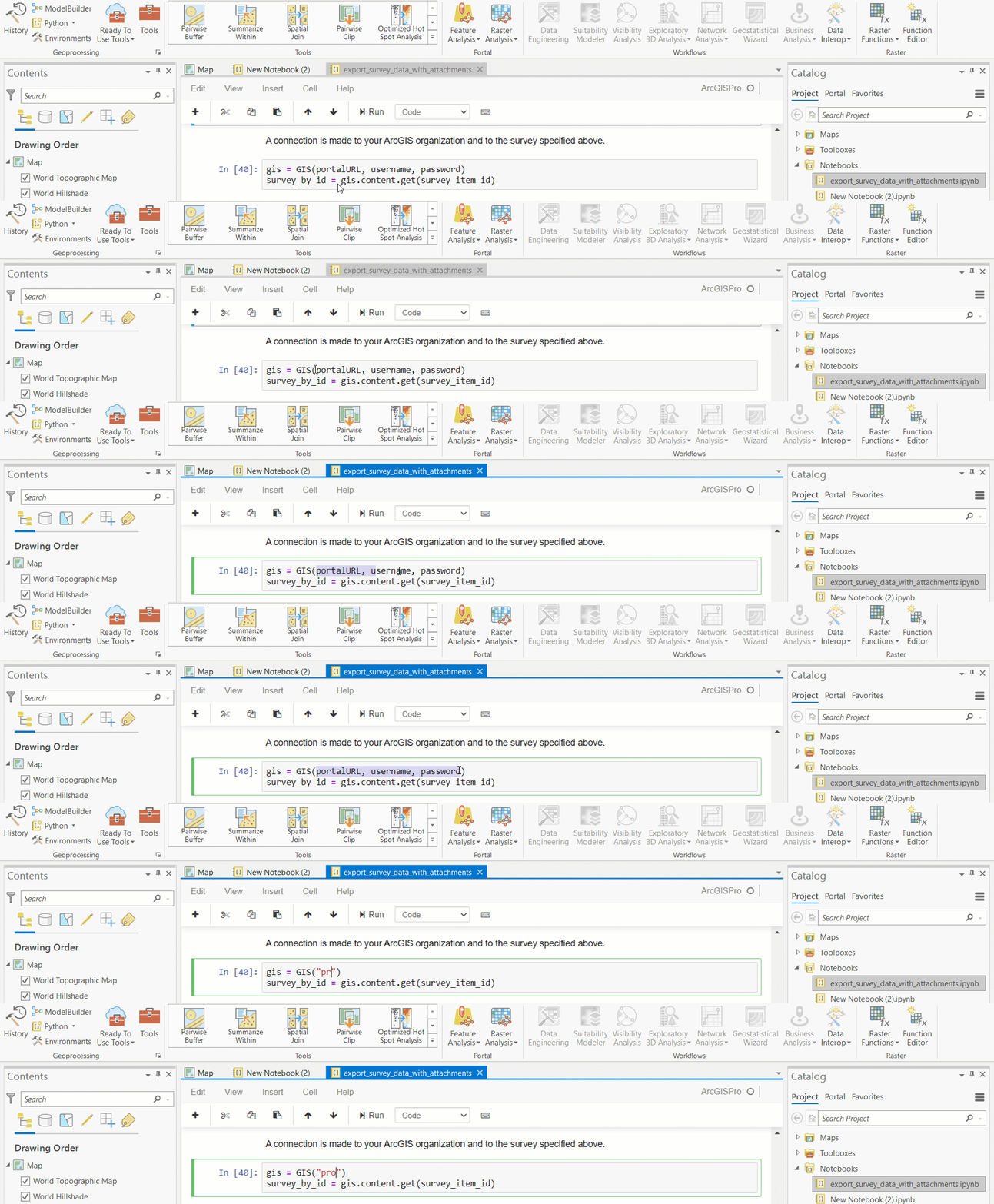
loginPro.gif

  •  You are now ready to run the script!
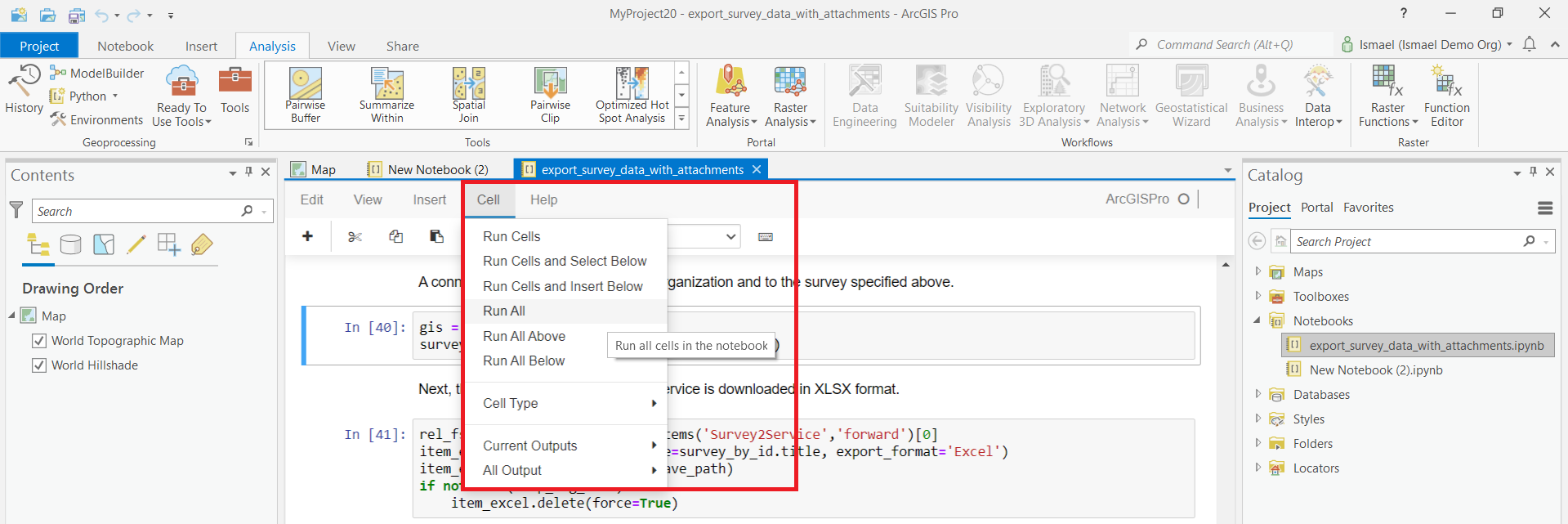
  • Open the Cell menu and click Run all

IsmaelChivite_0-1644363172124.png

The script takes about 20 seconds to initialize. Be patient.

  • While the script runs, open the target folder and observe how data is downloaded.
    • You will see a spreadsheet created. It contains the records from your survey.
    • You will then see a second spreadsheet describing what attachments correspond to each record. Note that you could have multiple files (attachments) associated with one record.
    • Finally, a folder will be created for your attachments.The script will download photos, signatures as well as audio files any other type of document attached in this folder.
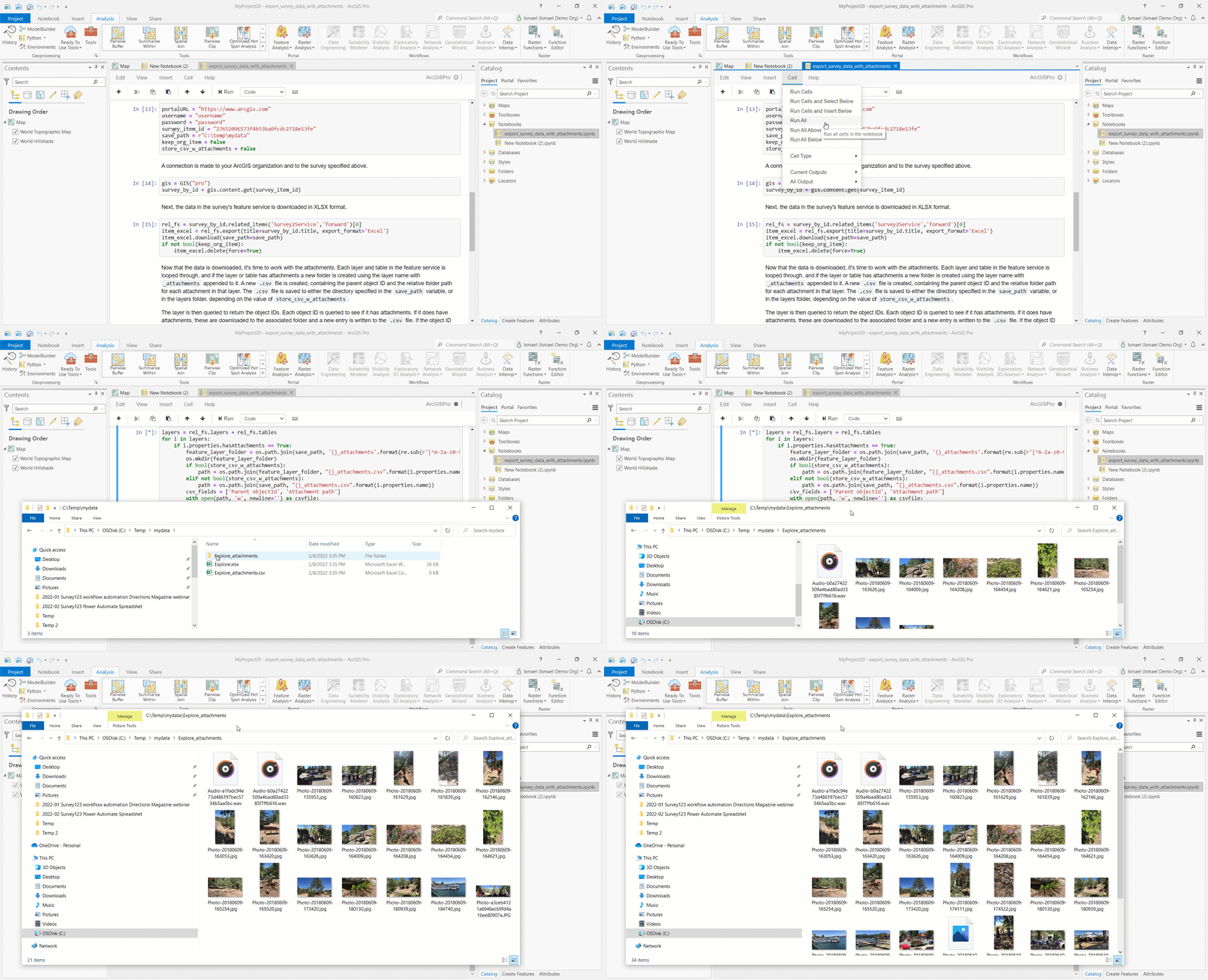
run.gif


The script has a few other parameters that you can tweak. It is all superbly documented so I do not anticipate you will run into any issues with them.

More scripts


This is one of many scripts available through the Survey123 developer documentation.  I encourage you to explore and play with other scripts. You will find samples to programmatically create reports, move surveys across organizations and more.

Many thanks to @ZacharySutherby and the Survey123 documentation team for their great work with this. If you have ideas for new scripts, post your comment below.




56 Comments
DougBrowning
MVP Esteemed Contributor

You set the popup in the map with photos then you can view them in the map to the right in Excel.  (So add a map not the feature service it self).

FourCornersMapping
Frequent Contributor

@ZacharySutherby @DougBrowning I might be missing something obvious. I need to re-relate the resulting table and attachments to a copy of the original feature layer. The original related table exported from S123 has a "ParentGlobalID", and I was expecting the csv that is a result of this script to do the same. But the csv that is produced by the script has a "Parent objectId" field listing consecutive integers starting from 1. How do I relate this table and the attachments back to a copy of the original feature layer? Or alternatively how would I modify the script to write the "ParentGlobalID" (as well as the photo's record's GlobalID) as an attribute?

FourCornersMapping
Frequent Contributor

This is what I ended up with, which worked well if a little clunky.

In the end, I need to create an Attachment Viewer Instant App, so I need a layer with attachments, not related records. Also, I wanted to have a "backup" of the data from a Survey123 survey, instead of working with the original feature layer.
 
Here was my workaround, the steps of which you can likely do programmatically rather than piecemeal:
  1. Run the script in the Notebook. The script creates: 1) a spreadsheet containing the records from the survey containing two sheets: the attribute table of the feature layer and the related photo table, 2) a csv describing what attachments correspond to each record, and 3) a folder for the attachments (photos, in my case).
  2. I used XY Table to Point to create a feature class from the xy values of the attribute table sheet (in the spreadsheet).
  3. Using the Add Join tool, I joined the related photo table (from the spreadsheet) and the attachment csv by the ObjectID and Parent objectId fields, in that order. 
  4. Finally I used the Add Attachments tool with the input dataset being the XY Table to Point results, and the match table being the joined table from the previous step. The input join field is the GlobalID and the match join field is ParentGlobalID. The match path field is one of the fields created by the script in the attachment csv ("Attachment path"), and the working folder is the directory set up by the script (i.e. C:\Users\etc).
  5. Boom. Eat a sandwich, drink a beer, continue with your life.
I hope this helps some others in the same boat.
PinPointTrim
New Contributor

Posting this to see if anyone have any ideas as I am still a beginner with Python. The export survey data script Export survey data with attachments | ArcGIS Survey123 exports all of the attachments but within my Survey123 I'd like to just export a subset (in this case date ranges, my column name is SurveyDate) I tried to modify the query line but it seems like I am supposed to define "SurveyDate" parameter somewhere in the code. Not sure what I am doing wrong. Any ideas would be helpful Thanks.

mmoore
by
Occasional Explorer

This script works well, but is there a way to export images for an individual survey as opposed to all entries?

Never mind, see (updated, thanks DougBrowning) python script below:

from arcgis.gis import GIS
import os
import tkinter as tk
from tkinter import simpledialog

# ---------------------------------------------------------
# CONFIGURATION
# ---------------------------------------------------------
portal_url = "https://www.arcgis.com"       # or your ArcGIS Enterprise URL
survey_item_id = "YOUR_SURVEY_FORM_ITEM_ID"
target_objectid = 12345                     # the entry you want
output_folder = r"C:\temp\survey_download"  # where attachments will be saved

#Pop-up log in
root = tk.Tk()
root.withdraw()  # Hide the blank Tk window

username   = simpledialog.askstring("Username", "Enter ArcGIS username:")
password   = simpledialog.askstring("Password", "Enter ArcGIS password:", show="*")
# ---------------------------------------------------------

gis = GIS('pro')
survey_item = gis.content.get(survey_item_id)

# Feature service behind the survey
feature_service = survey_item.related_items("Survey2Service", "forward")[0]

# Usually attachments live in the main layer (index 0), adjust if needed
layer = feature_service.layers[0]

# Create folder if needed
os.makedirs(output_folder, exist_ok=True)

# Query for this single record
result = layer.query(
    where=f"objectid = {target_objectid}",
    return_ids_only=True
)

object_ids = result.get("objectIds", [])

if not object_ids:
    print("No entry found with that objectid.")
else:
    oid = object_ids[0]
    atts = layer.attachments.get_list(oid)

    if not atts:
        print("This entry has no attachments.")
    else:
        for att in atts:
            layer.attachments.download(
                oid=oid,
                attachment_id=att["id"],
                save_path=output_folder
            )
        print(f"Downloaded {len(atts)} attachment(s) to: {output_folder}")


DougBrowning
MVP Esteemed Contributor

You should use 

gis = GIS('pro')

that pulls your credentials from Pro that is logged in on that same computer.  Never hardcode your username and password for security.  Also works for MFA.

Also there is now a toolbox for this  https://pro.arcgis.com/en/pro-app/3.4/tool-reference/data-management/export-attachments.htm 

You can use https://pro.arcgis.com/en/pro-app/3.4/tool-reference/data-management/select-layer-by-attribute.htm before then feed the export tool from Select By Attribute. 

Hope that helps