Survey123 is an easy way to create new surveys or replace existing paper-based surveys because of the flexibility of its functionality.
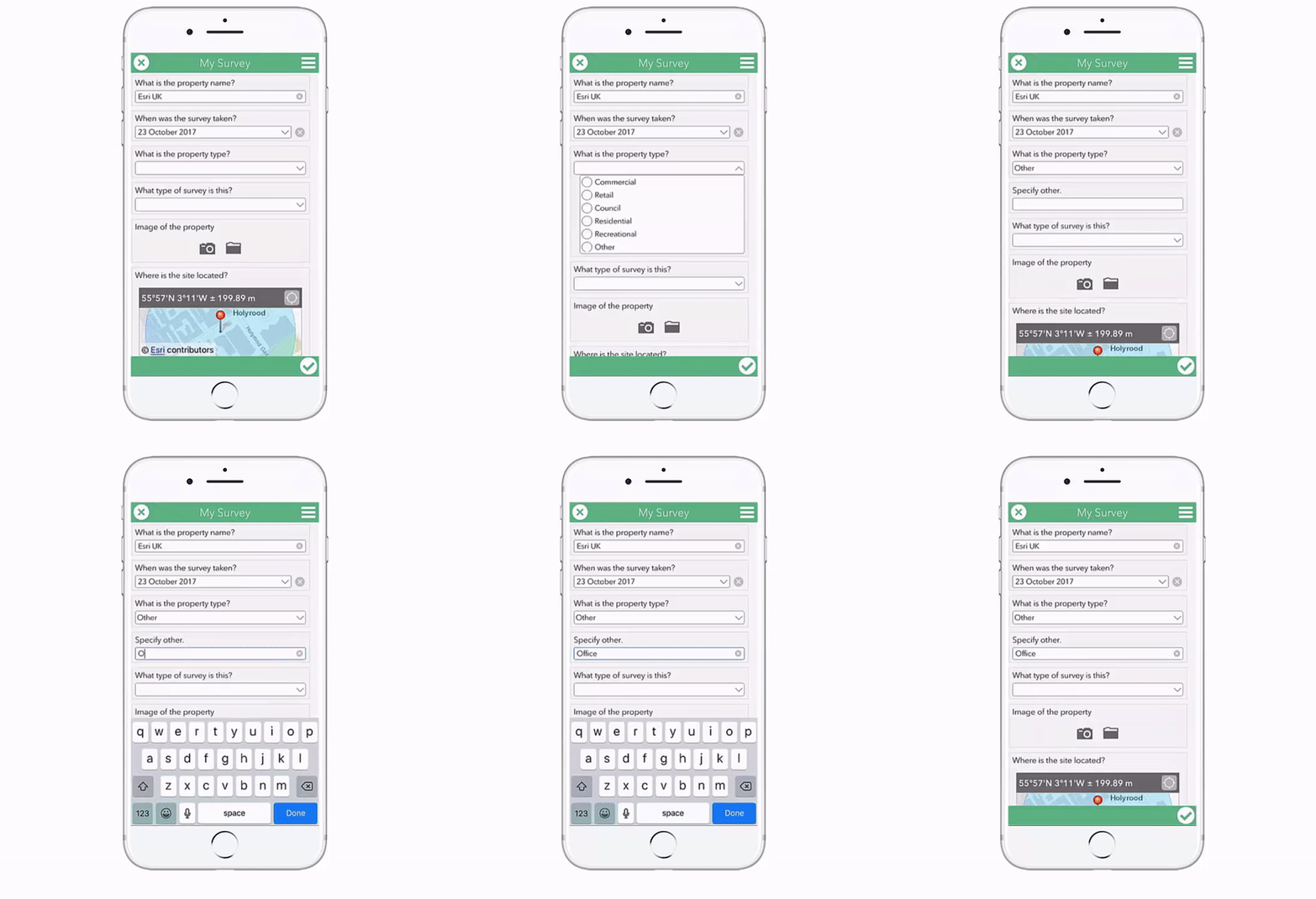
One example of this flexibility is the ability to allow users to enter an Other value as an answer to a multiple choice question if the answer they need is not in the list. This has been implemented for the question What is the property type?:
In the background, Survey123 creates a new field to hold this Other value entered by the end user. The default name of this field is the name of the select_one field followed by ‘_other’, and the alias for this field is ‘Specify other.’.
This means you aren’t able to define your own alias to the question in the survey and, if this is repeated functionality, you can end up with multiple fields with the alias ‘Specify other.’.
I'm going to show you an alternative method of setting up an Other option using the question What type of survey is this?. This post assumes you have a survey set up using the Survey123 Connect for ArcGIS desktop application, with at least one select_one type question. If you need some help setting up a Survey123 survey, check out the help videos and pages.
1. Find the select_one question you want to implement Other for:
Great Post Carmel, I have found no matter how many choices I give my users they are always able to find a new exception to my select_one lists, I have been using the "other" value for a while to accommodate this. Since the 2.4 release added the ability to set a field type to null (seejames tedrick's blog post https://community.esri.com/groups/survey123/blog/2017/10/26/the-power-of-nothing) I've been able to take this a step further and make things a bit cleaner on the database end by putting all responses in a single column rather than one column for the select_one and a second for the "other" text field. Basically I set both these fields to type = null and then calculate with a conditional statement into a hidden field the value of the select_one if <> 'other' and the 'other' text field if select_one = 'other'. See below:
Hi Brent,
Excellent, glad you've found that functionality too! I've documented in a post on our site (Making Other Work Harder in Survey123 Results — Esri UK ) which will also be published to GeoNet soon
It's such a useful step in making your results usuable post survey!
Thank you for these helpful tips. These tips work perfectly in Select_One questions but I am having issues in Select_Multiple ones. If I choose only the "other", it automatically appears the text box to describe the other item. If I choose multiple options (including other), the text box disappears and I have no option to insert the description of the item.Have you got any solution for this type of questions?Thank you for attention.
Hi Jorge,
Answers in select_multiple questions are returned in a comma separated list like:
Red, Green, Other
so, an entry in the Relevant column like ${name} = 'Other' is true if only 'Other' is selected. Using the Selected function allows us to overcome this, something like:
selected(${name}, 'Other’)
or based on the blog above:
selected(${SurveyType}, 'Other')
This also works for select_one questions if you wanted to have a consistent formula in your form!
Carmel
Hi Carmel,
Thank you for your prompt reply and for helping me to solve this issue in my survey.
I have just tested it and it is working perfectly.
Thank you.
Best regards,
Jorge
I am really glad to have found this blog, as I encountered a similar issue as Jorge. So I tried to combine your answer to that of Brent above, and I encountered a problem in the if statement. The way it is written now in Brent's response, it will include in the SurveyType either the SurveyTypeTemp or the SurveyTypeOther. But when I want to apply it in a Select_Multiple question, I want them both, not one or the other. One attempt that I tried: if(selected(${SurveyTypeTemp}, 'Other'), ${SurveyTypeOther} and ${SurveyTypeTemp}, ${SurveyTypeTemp}) failed, because it only included the SurveyTypeTemp, including the word Other, and not the value of the Other. What is the proper way to combine the two: SurveyTypeTemp and SurveyTypeOther in the if statement?
Thanks, Amos
Hi Amos,
Are you able to attached your Survey123 spreadsheet so I can understand better what you're trying to do?
The only way I see to attach items is for picture, but I thought it would be better that you see all the columns in a live document, so I am including below a link where the survey is copied. The survey is still work in progress, but the rows in which I have tried to implement the discussion in this blog topic are in rows 9,10,11. The idea is that normally the crew in the field will tick 2 of the names provided through the choices, but in some rare cases, there might be an additional person joining, whose name is not included in the list in the choices (too many options). So on such cases, in the select_multiple observers, I want the crew to tick the two people + the button "other", and when they fill in the name of the "other", the name will appear in the same column as the two crew members, named "observers", and not in a separate column.
In rows 25-27 I have implemented the same idea, but there it was a select_one type of question, so it was easy for me to follow the suggestions here, and it works fine - the "other" is entered in the same column as the bush.
Chameleo2 draft
Many thanks,
Amos
OK, I figured now how to include the value of "other" in the same column as all names in a Select_Multiple question:
referring to the Survey123 spreadsheet linked above
in row 10, col. relevant, I write:
selected(${observers_temp}, 'other’) and (${EntryType}='start')
and in row 11, col. calculation:
if(selected(${observers_temp}, 'other'), concat(${other_observer},",", ${observers_temp}), ${observers_temp})
and it works.
thanks for your post, very helpful.
How can I make this work with select_one_external?
I have a very long list of name code for sampling site (I used select_one_external) but I want I have an option so the survey users can add a new name code for a new sampling site.
Thanks for your help.
Cheers,
Federico
Signed in members can post, follow updates, and more. New here? Register a free account.
Find useful guides, FAQs, and documents to help you navigate and make the most of Esri Community.