Select to view content in your preferred language

Map Viewer strips 'object-fit' property for img tags

224
3
Jump to solution
3 weeks ago
MappyIan
Frequent Contributor

I have a popup configured to show an image 100px by 100px.  The images aren't all square so I'm trying to get the image to be cropped using the 'object-fit' property of the <img> tag.  The relevant snippet of ARCADE code is included below:

if ($feature.thumbnailimageurl != null){
  image = "<img src='" + $feature.thumbnailimageurl + "' alt='Photograph of " + studyspacename + "' width='100px' height='100px' style='float:right; padding-left:5px; overflow:clip; object-fit:cover;'/>"
}

However, using the Dev Tools to inspect the source of the map it seems that Map Viewer is stripping off the 'object-fit' property as the <img> tag in the popup is rendered as follows:

<img src="https://edinageo.maps.arcgis.com/sharing/rest/content/items/7e43551055214d9abb9623560c7bea90/data" alt="Photograph of Law School Library" width="100px" height="100px" style="float:right; padding-left:5px; overflow:clip;">

Note that the 'object-fit' property is not there.

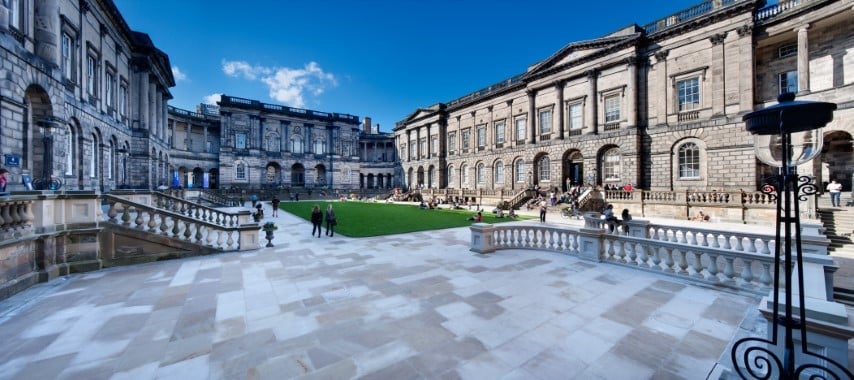
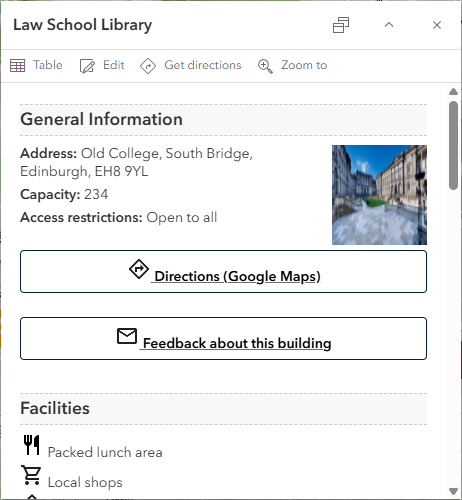
Consequently any of the images that are not roughly square look horrible as they get squished to 100px by 100px.

Is this a known limitation in Map Viewer (annoyingly using the exact same code in Experience Builder to display the image in a Card Widget works fine)?  Is there a documented list of supported properties anywhere?  Is there a workaround?  Any help would be greatly appreciated as it's not feasible to resize all my images to be square as they're used in other live services where the aspect ratio doesn't matter.

Original image:
MappyIan_3-1765533309340.jpeg


How it displays in Map Viewer: [note the image is squashed horizontally]
MappyIan_4-1765533374727.png


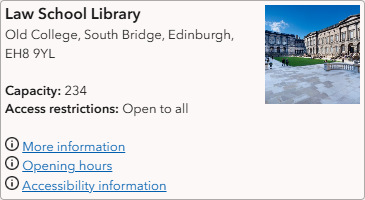
How it displays in a Card Widget in Experience Builder: [note the image is not squashed at all and is cropped retaining the central section (this is what I'm trying to replicate in Map Viewer)]
MappyIan_5-1765533500272.png


0 Kudos
1 Solution

Accepted Solutions
NicoleJohnson
Frequent Contributor

@MappyIan, you may want to check out Supported HTML—ArcGIS Online Help | Documentation. I haven't built anything as fancy as your pop-ups, so maybe someone with more experience can chime in, but it doesn't look like that's a supported attribute of the img tag.

In Experience Builder, you can set images to "fit" or "fill," and I'm guessing that has something to do with why you're seeing a difference. 

View solution in original post

3 Replies
NicoleJohnson
Frequent Contributor

@MappyIan, you may want to check out Supported HTML—ArcGIS Online Help | Documentation. I haven't built anything as fancy as your pop-ups, so maybe someone with more experience can chime in, but it doesn't look like that's a supported attribute of the img tag.

In Experience Builder, you can set images to "fit" or "fill," and I'm guessing that has something to do with why you're seeing a difference. 

MappyIan
Frequent Contributor

Hey @NicoleJohnson, thanks for the reply.  The link to the 'Supported HTML' page is super helpful.  The thing that gets me is that the 'object-fit' property is not listed in the CSS Properties section of the page, yet it's clearly supported in Experience Builder as it behaves as desired.  Maybe I should just be grateful that it works in ExB if it's not supported and stop complaining!

0 Kudos
MappyIan
Frequent Contributor

I've submitted this as an 'idea'.  If you think this would be useful, please give this idea some kudos:

https://community.esri.com/t5/arcgis-online-ideas/add-support-for-object-fit-css-property/idi-p/1673... 

0 Kudos