ArcGIS Maps for Adobe Creative Cloud Blog - Page 7

cancel
Showing results for 
Show  only  | Search instead for 
Did you mean: 

Latest Activity

(70 Posts)
ClintLoveman
Deactivated User

A new post to our YouTube playlistrecording of a Q&A webcast which followed Esri's "Mapping Your Path to Great Design" presentation at Adobe MAX 2017. This webcast was focused on technical points and demonstrations in an interactive question and answer style session covering topics such as:

- Install & Login

- Complementary login vs. ArcGIS Online access

- Defining Map Extents (mapboards)

- Finding and adding data

- Symbol replacement

- Downloading maps

more
2 0 510
SarahBell
Esri Contributor

At last month’s Adobe MAX 2017, I had the opportunity to present  how easy it is to make data-driven maps in the new Version 1.1 of the ArcGIS Maps for Creative Cloud (M4CC) extension m4cc Creative Cloud Mapping.The audience was fantastic! One of the things I really appreciated about this audience was that the majority was made up of designers who did not come from a cartography background, yet they still were eager to integrate maps in their great design work. Their keen eye for design can produce spectacular looking maps.

Top 10 Destinations map

Here is the demo that I shared to make a Top Ten Locations map with the M4CC extension in Illustrator:

Below is Expedia’s list of the ten busiest Labor Day destinations, which can also be found in this article by PR Newswire.

  1. New York
  2. Las Vegas
  3. Los Angeles
  4. Orlando
  5. Chicago
  6. Seattle
  7. San Francisco
  8. Denver
  9. Dallas
  10. Atlanta

While this list is informative on its own, a map of these Top 10 cities could add some useful visual context for this article’s readers. Here is how I turned this list of cities into a “Top 10 Locations” map.

Step 1 - Create a CSV file of the ten cities

The first quick step was to recreate this list of 10 cities in a program like Excel, and then save as a Comma Separated Value – or CSV – file. In the article, the list is ordered where 1 is the most visited city, and 10 is the 10th-most visited city. But since I wanted to put the cities as points on a map, and then make the city points’ sizes based upon some sort of rank column in the CSV file, I flipped this order as follows: Since New York city needs to be the biggest point, I’ve flipped the order of this Rank column, so that the most visited city has the highest rank, the second most visited city has the second highest rank, and so on. Then I saved the CSV file, and closed it.

Step 2 - Define the map area by drawing a mapboard

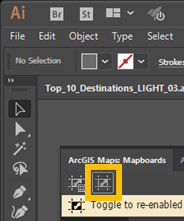
In Illustrator, you can open the M4CC extension (Windows –> Extension –> ArcGIS Maps for Adobe Creative Cloud), and go to the Mapboards tab to define your map area by zooming and panning in/out until you are happy with the map, and then clicking on the mapboard tool to draw your extent over the area you want to map.  Since this list of destinations is all in the lower 48 United States, that is where I defined my mapboard.

Mapboard tool

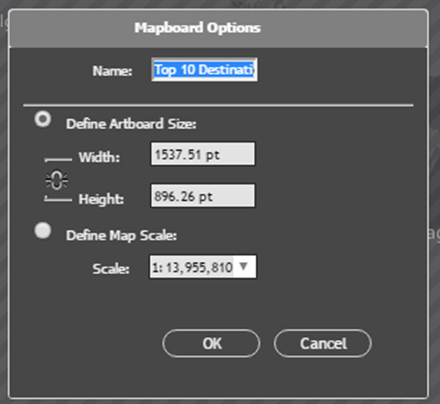
I was prompted to name my mapboard and had options to change the map dimensions and map scale. Note that changing the dimensions and scale can change your map’s extent. If this occurs, you can also manually readjust the extent again.

Step 3 – Add some layers to the map

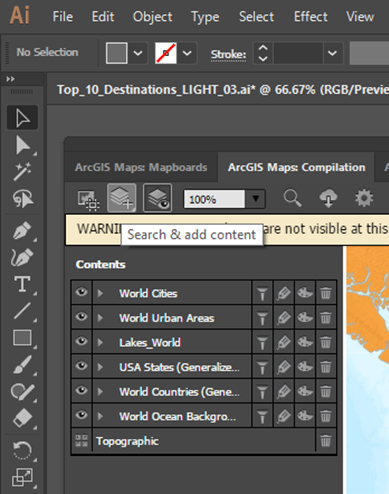
By clicking on the Compilation tab, I added layers that fit the purpose of my map. For my demo at Adobe MAX, I chose the option Overwrite from Map from the Choose and Add Layers button. I selected a web map called “Political Map” which contains country boundaries, US state boundaries, and a few other layers. The image below shows the Choose and Add Layers button as well as the layers that come with this map added to my Compilation. I deleted “World cities,” “World Urban Areas,” and “Ocean Background” from my contents since I didn’t want those layers in the downloaded map. Here is a helpful piece on on adding data to the Compilation window.

Add Layers

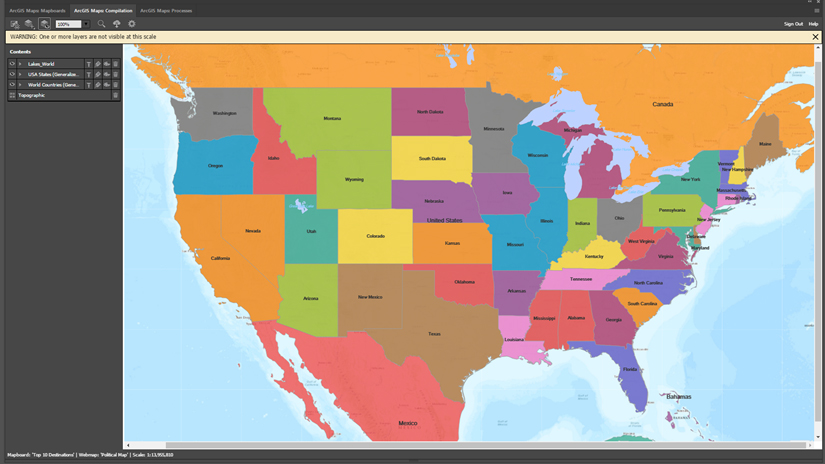
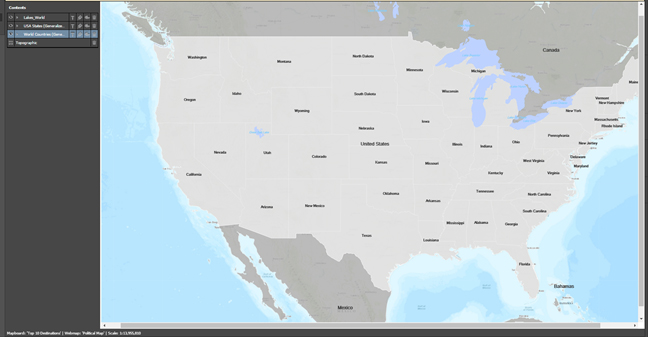
Now my map and contents looked like this image below (click to enlarge). Since I also needed to add that CSV file from step 1 to this map before I download, I wanted to make the cities in this CSV file easier to see. You can do some pre-styling to your map in this extension before downloading into Illustrator.

Default style of the added map layers

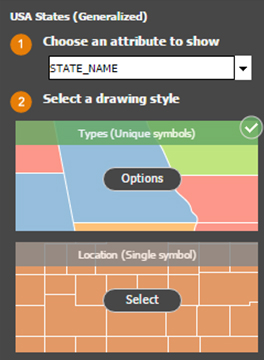
  • Click on the painter’s palette symbol in the layer name of any layer in the Contents to symbolize in Illustrator. This will allow you to symbolize by an attribute (which is covered in step 5), or just choose to symbolize by location so that each feature in the layer will have the same symbol. For changing the colors of the states to a neutral gray, I chose the ”Location (Single symbol)” option (see first image below), then clicked “Options”, to chose a light gray from the color options that appear. I did the same thing for the World Countries layer. Now my map looks like the second image below:

Making the map layers neutral/gray in with M4CC style options

Step 4 – Add the CSV file that you created

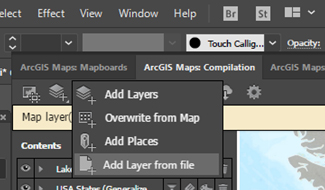
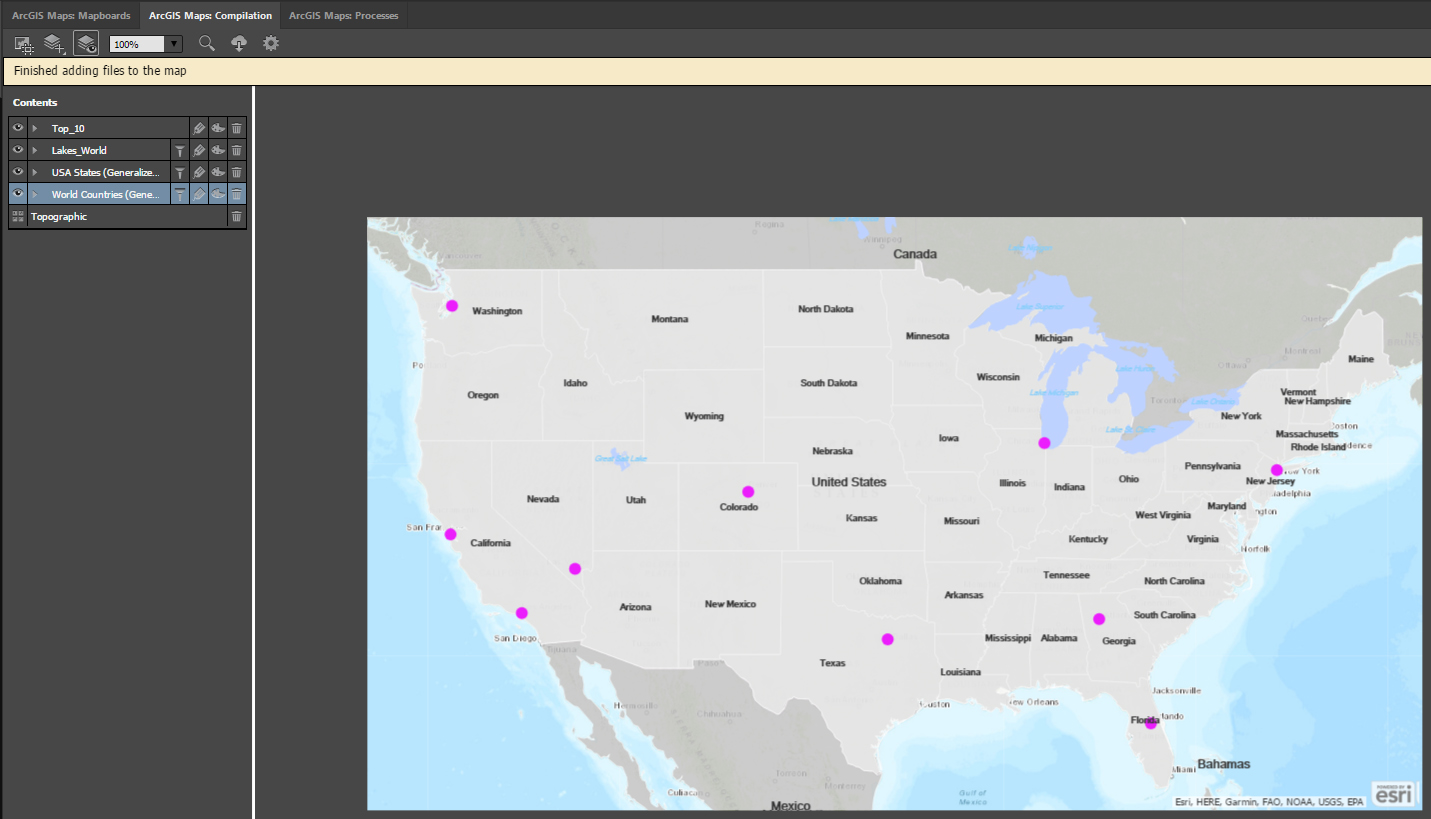
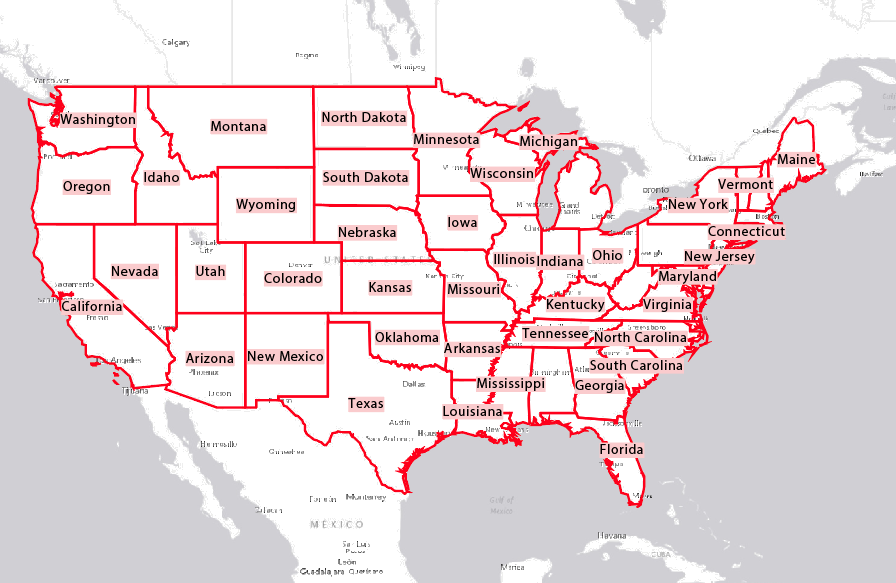
To add my CSV file from step 1, I used the “Search and Add Content” button. This time I chose “Add Layer from file.” This option will allow you to browse to the location where you have saved .TXT files, .CSV files, and zipped shapefiles to add to your map. Then just select your file and click “Open.” For my list of Top 10 Cities, ArcGIS  automatically knew where these large cities are located. The second image below (click to enlarge) illustrates the automatic placement after adding the CSV file to the map.

Add CSV File via "Add Layer from File" in the "Search & Add Content" dropdown

City points automatically added to map

All the cities are the same size point. So I accessed ArcGIS Online’s Smart Mapping tools to symbolize this layer based upon the data.

Step 5 – Graduated Symbology

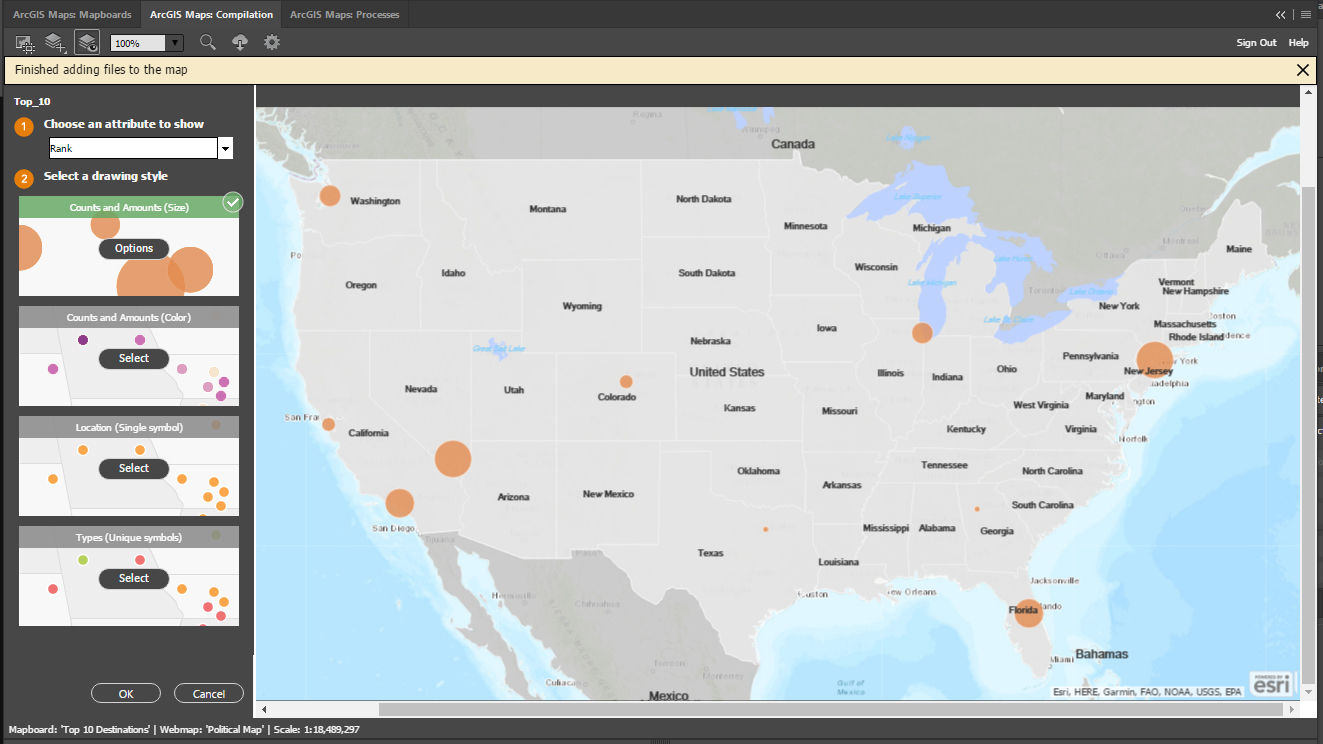
I clicked the Change Style button (painter’s palette) on the new city points layer to bring up the ArcGIS Smart Mapping options for this layer. Since the cities’ sizes should be based upon the magnitude of visitation during Labor Day, the “Rank” column from the Choose an attribute to show dropdown was selected. This indicates that the points will be symbolized by that attribute. The image below (click to enlarge) shows the default graduated symbology that is automatically applied by choosing to symbolize by the “Rank” column.

Default graduated symbols based on "Rank" column

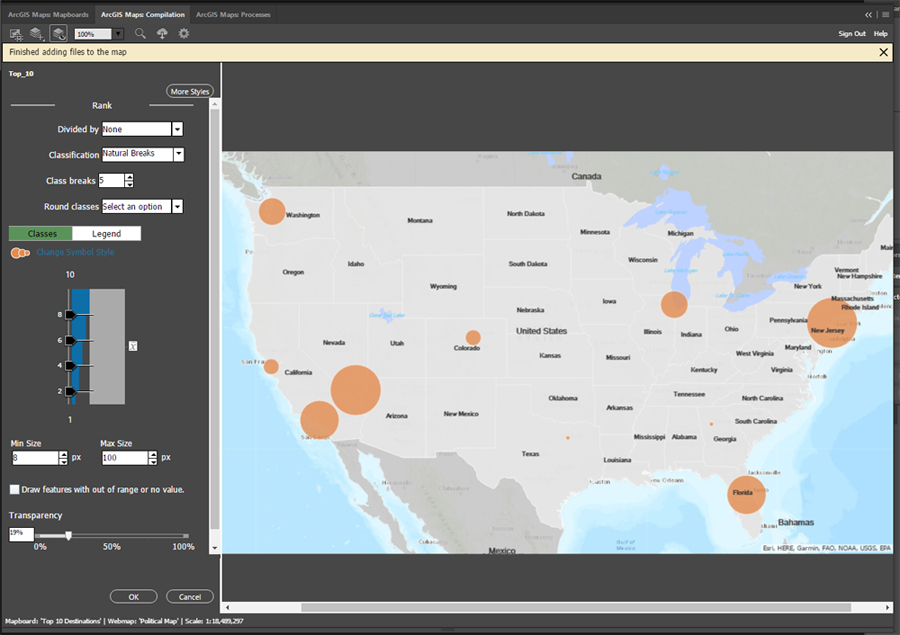
The difference in symbol size between the least visited city and most visited city is not that large. To make it absolutely clear, I chose to increase the difference in these symbols’ size by choosing the Options from Counts and Amounts (Size) in the image above.

The options that appear allow for some pretty detailed statistical symbology. Users can choose to add or subtract the amount of class breaks, which will give them more (or fewer) categories by which their data can be symbolized. I left this as the default amount, which was 5. Users can also change the minimum and maximum sizes of their graduated symbology. I kept the minimum at 8 pixels, and increased the maximum to 100 pixels.

Custom graduated symbology size

Step 6 – Adding Labels to the new graduated symbology

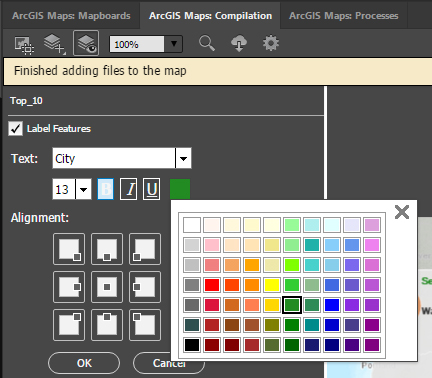
This extension allows you to add labels to your map. These labels will be downloaded with your map as easily editable text. To label these graduated symbols, I just clicked the Manage Lables button next to the cities’ layer “Top 10.” By default, the “City” column from the CSV file’s data is used to create labels, which is great since that column contains the city names. To make these city labels easily differentiated in my downloaded map, I changed the color of these labels in this Manage Labels window by clicking the color icon.

Optional Step – Change the projection

Mappers can choose from many different projections with the M4CC extension. Since my map is over the contiguous United States, I chose the USA Contiguous Albers Equal Area Conic from the map settings options’ Map Projection dropdown. To change the map projection, just click on the Settings button in the top toolbar of the compilation window. Give the extension a moment to reproject your data depending on the amount.

Note:If you still have a raster basemap in your contents, it will be removed from your map once you reproject your map.

map settings button

Map settings window

Step 7 – Download and apply your design skills!

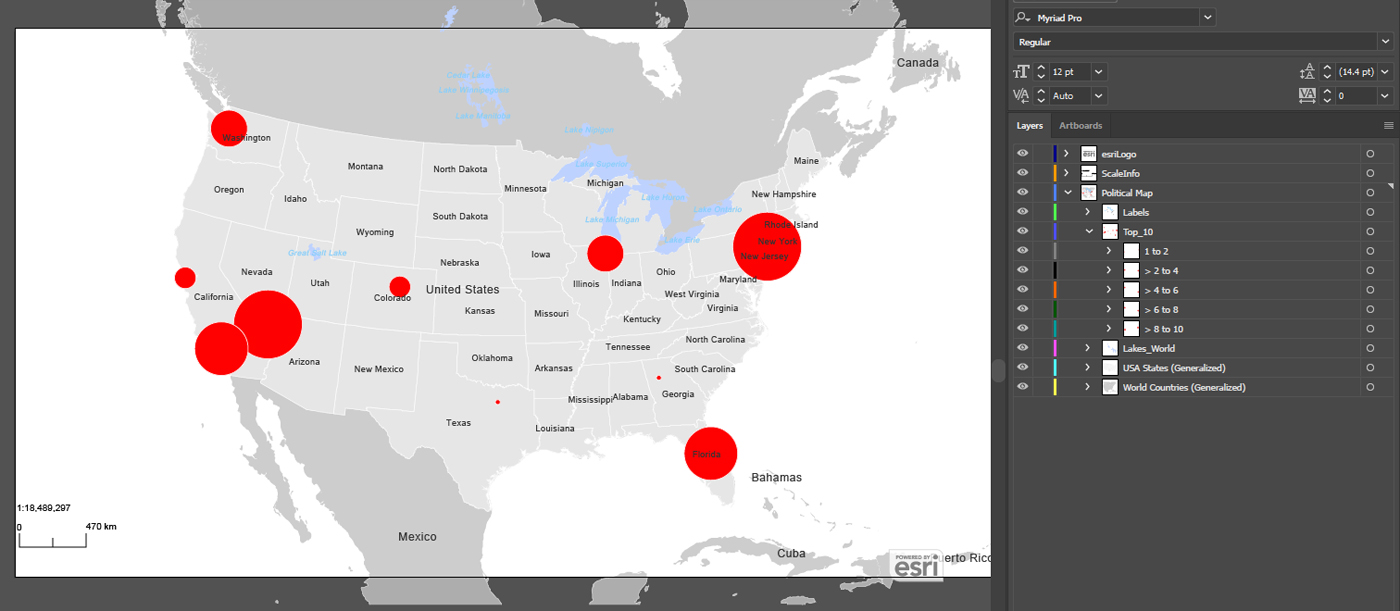
Once I was done with step 6, my map was ready to download into Illustrator. I also did the optional step of reprojecting. To download my map, I just clicked the Sync (cloud icon seen in the optional step above) button. Here is the results of my download prior to adding any design in Illustrator:

downloaded map in Illustrator before custom design

Notice that the “Top_10″ layer is categorized by the categories that I defined in step 5. This organization can be really useful for design efficiency, especially if you have many symbols to manage.

Here is the final result that I shared with the Adobe MAX 2017 audience:

@Top 10 Destinations map@

more
1 0 4,082
NancyMorales1
Frequent Contributor

The new Get Started with ArcGIS Maps for Adobe Creative Cloud learn lesson is out! Learn how to download data from ArcGIS  and use it in Adobe Illustrator! Edit your map in the Adobe work space to use an advanced suite of design tools.

more
1 4 2,732
ClintLoveman
Deactivated User

ArcGIS Maps for Adobe Creative Cloud 1.1 has been released via the Adobe Add-On site. This release includes the following new features:

  • Illustrator and Photoshop CC 2018 install and support
  • Complimentary access using email address
  • Login using enterprise information systems
  • Add and modify existing layer labels
  • Add and modify existing filters (definition queries)
  • New Data options:
    Worldwide large-scale vector content
    Adding local csv and txt files
    Interactively search and add places by name or address (geosearch)
  • Greater level of precision when setting zoom/levels of detail (map scale)

Check out the features: What's New in ArcGIS® Maps for Adobe® Creative Cloud® 1.1 - YouTube 

more
2 0 1,143
SarahBell
Esri Contributor

Whenever you open a document in Adobe Illustrator that contains a font that is not on your computer, Illustrator will warn you The document uses fonts that are currently not available on your computer. You have the option to locate the missing font on your computer, sync the font, or close and move forward to the .ai file. The .ai file will use Adobe's default font, Myriad Pro, and highlight the text in pink to show you the text where fonts and glyphs are substituted with Myriad Pro. This blog post shows you how to hide the pink warning highlight from your text in your .ai document.

Pink highlighted text in Illustrator due to missing font

When downloading a map into Illustrator using the ArcGIS Maps for Adobe Creative Cloud extension, the font is oftentimes already on your operating system. In the event that you are downloading a map that contains a font your system doesn't have, your map's text will be highlighted like the labels in the map above.

Remove Pink Highlights from your text

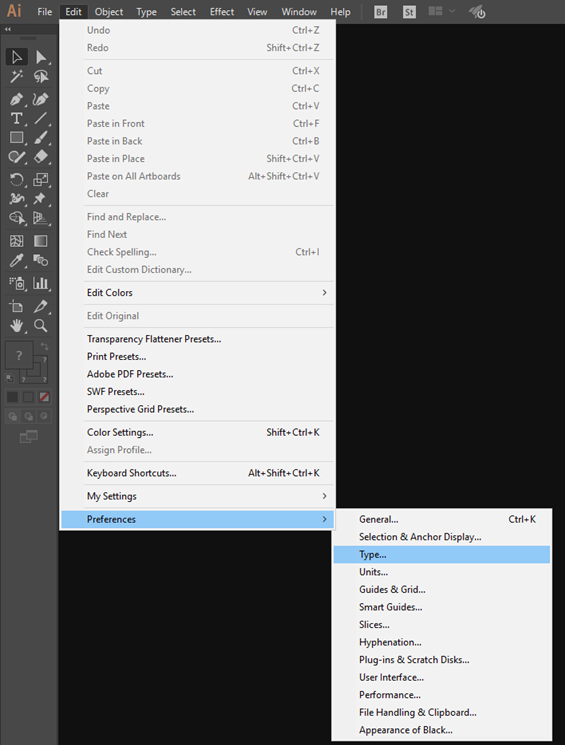
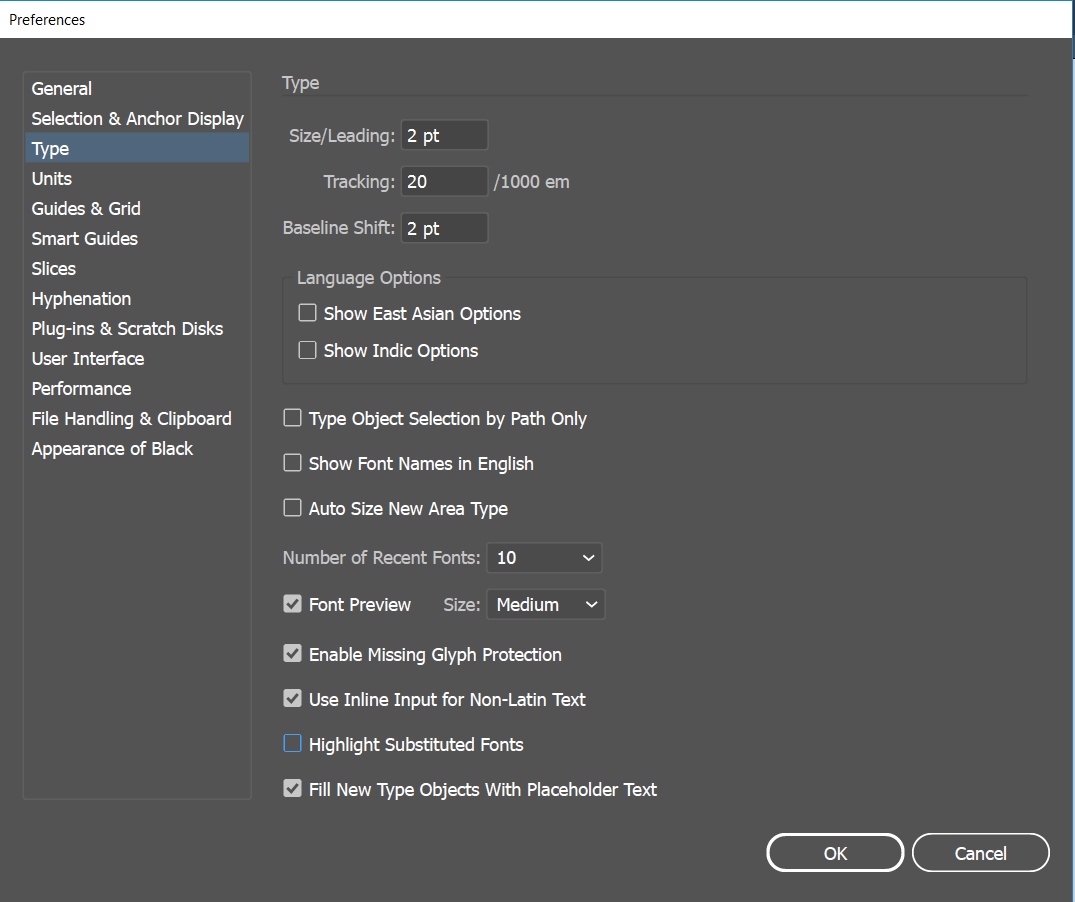
With the .AI file open, go to the Edit menu, and select Preferences ->Type like the first image below. In the Preferences window, deselect Highlight Substituted Fonts, shown in the second image below. This will remove the highlights from your text.

In your 

Fix pink highlighted text due to missing font in Illustrator

To turn back on the highlights, check the box next to the Highlight Substituted Fonts again.

more
1 0 36.3K
SarahBell
Esri Contributor

At last month's Esri User Conference, we got to show our first release of ArcGIS Maps for Adobe Creative Cloud to a lot of people. Two of the most frequent questions we got were: 1) What type of data can this application access?, and 2) Can I see some samples made with this application? So, I am writing this post which provides map samples made entirely from data that was downloaded from  - or uploaded into - Maps for Creative Cloud into Illustrator and Photoshop, listing the source for each dataset. Enjoy!

Climbing legend Fred Beckey's first ascents, first routes, and first winter ascents in the path of the 2017 Solar Eclipse

First ascents and first climbing routes by Fred Beckey in the path of the 2017 Solar Eclipse

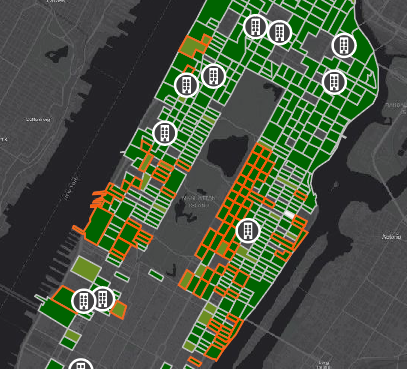
This map is inspired by the upcoming 2017 North American Solar Eclipse. Fred Beckey is a living legend. At 94 years old, the Seattle-based climber has more first ascents than any other climber in North America. Not surprisingly, some of those FAs fall within the solar eclipse's path. The map above was made with shapefiles that were added to the Maps for Creative Cloud extension. This new feature is convenient for mappers who want to compile data from ArcGIS Online as well as data that they may have locally. Shapefiles need to be in a zipped folder, and then they can be added to the map in the Compilation Window along with data from ArcGIS Online. Another new feature of the Maps for Creative Cloud extension allows you to reproject your maps, like I have with this Fred Beckey map. For more information on how to add content to your map with this extension, including shapefiles, check out this useful page.

North American Pacific Northwest's Salish Sea

North America

The Salish Sea map was made with the following layers, all downloaded from ArcGIS Maps for Adobe Creative Cloud:

  • Natural Earth (vector data downloaded into Illustrator)
  • World Hillshade (raster data downloaded into Illustrator)
  • World Ocean Basemap (raster downloaded into Illustrator)

Boston's Beacon Hill neighborhood map, in a Norwegian mid-century folk art theme

Boston

The theme for this map was inspired by all the Nordic folk art that surrounded me as a kid. The data comes from the City of Boston, and was all added to the Maps for Creative Cloud extension by searching in the ArcGIS Online option, and downloaded into Illustrator. The ponds, trees, ducks, and hospitals were added manually in Illustrator after download. The traffic signal symbol is a custom symbol in one of my personal Illustrator symbol libraries. This point dataset's symbols were all automatically replaced in one step during download, which saved a lot of time! To find out out to automatically replace point symbology in one fast step with this extension, watch this video.

Follow me @cerebellumaps

more
7 0 3,176
SarahBell
Esri Contributor

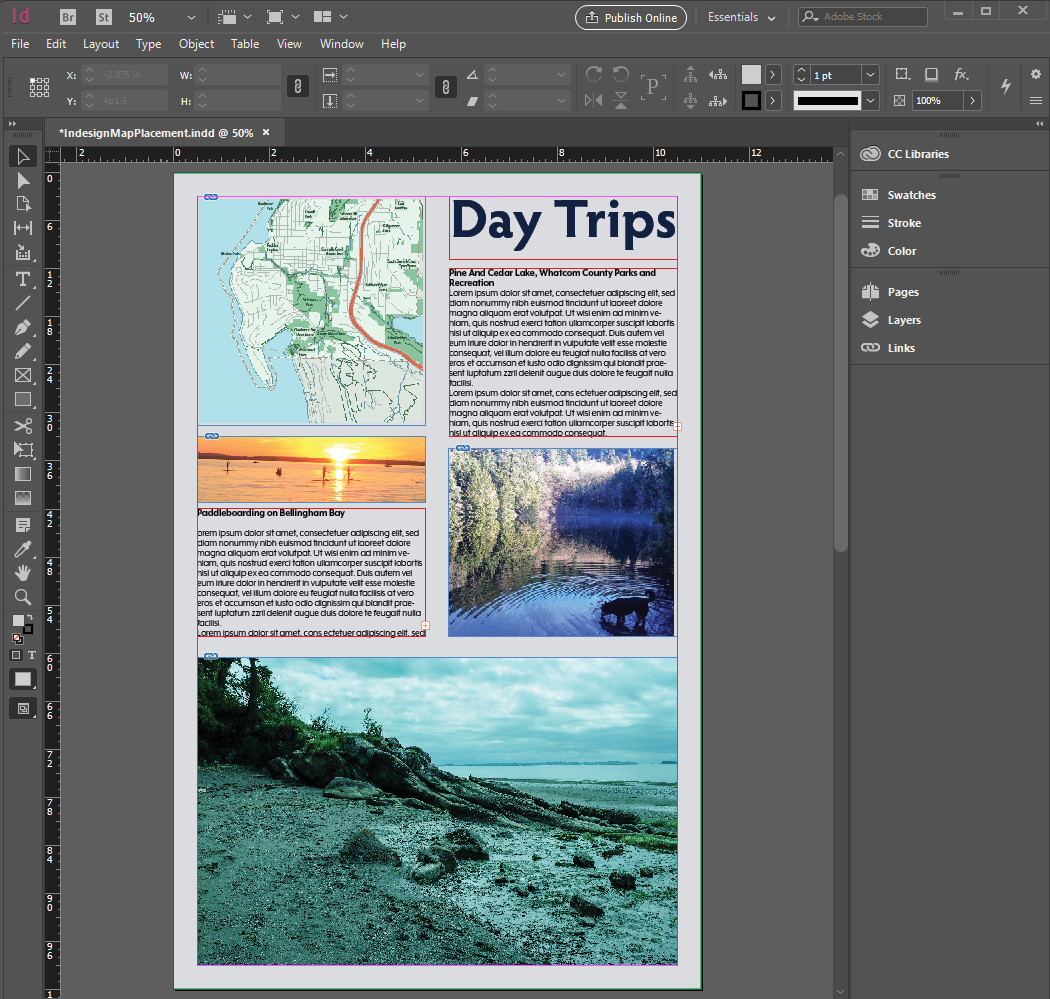
Many designers prefer to do their layouts in Adobe© InDesign©. When a map is part of your final layout, ArcGIS Maps for Adobe Creative Cloud is a seamless solution for integrating your custom designed maps into your final product. This post describes the easy steps for placing your Illustrator- and Photoshop-designed maps into your InDesign layout.

Determine the size of the final map

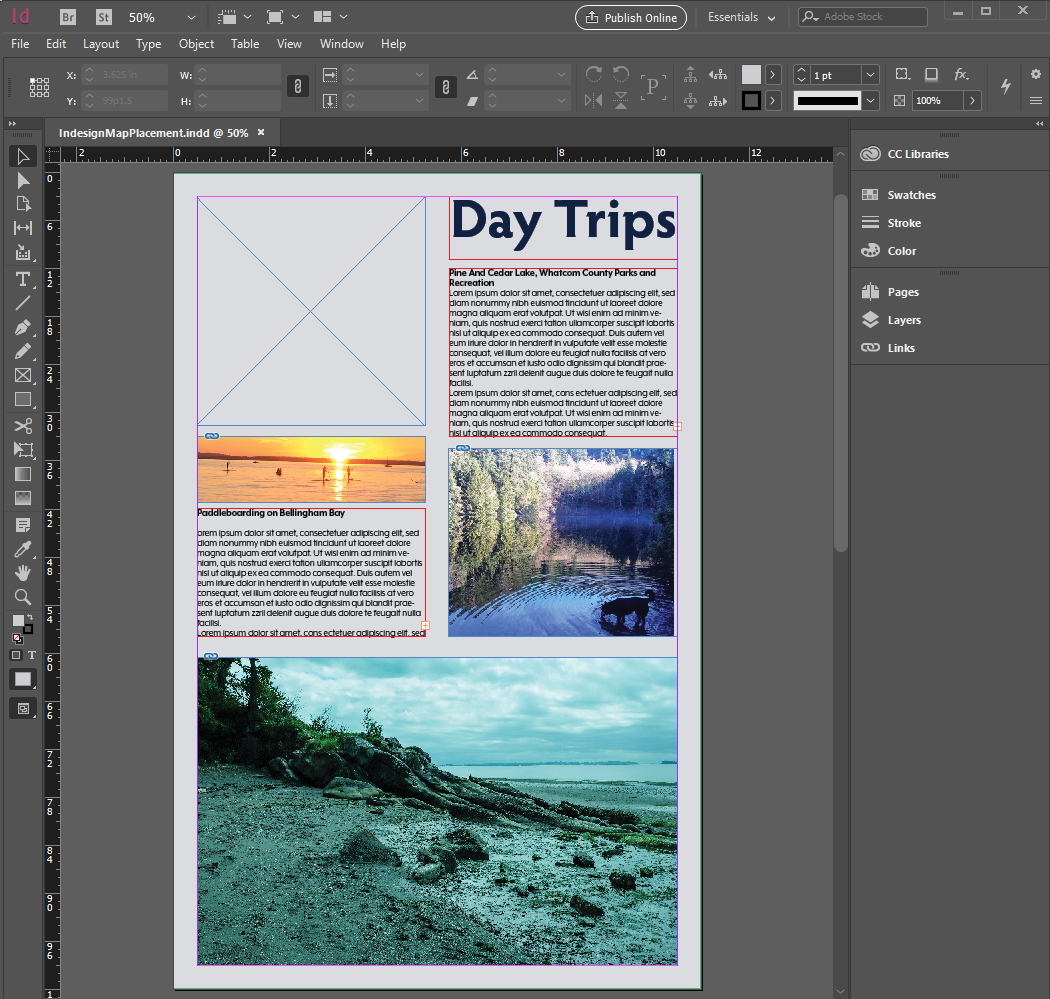
If you are designing a map that will be used in an InDesign layout, the best starting point is to determine the exact size in the layout where the map will be placed. You can place a rectangle frame where the map will be positioned, and use that as the guidelines for your map's final size. In the example layout below, I have placed a 4.77 in. x 4.77 in. rectangle frame, which is exactly the size I want my map to be in my final product.

ArcGIS Maps for Adobe Creative Cloud© in InDesign©

Create your map using ArcGIS Maps for Adobe Creative Cloud

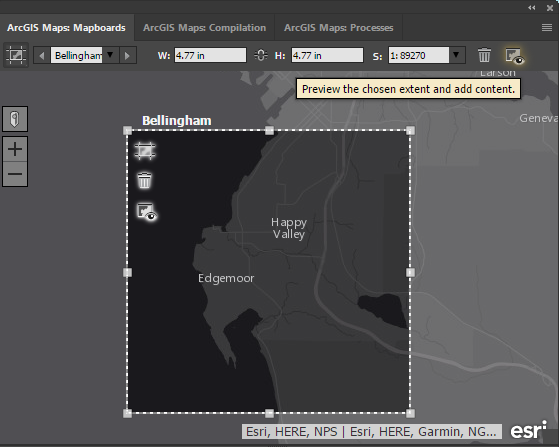
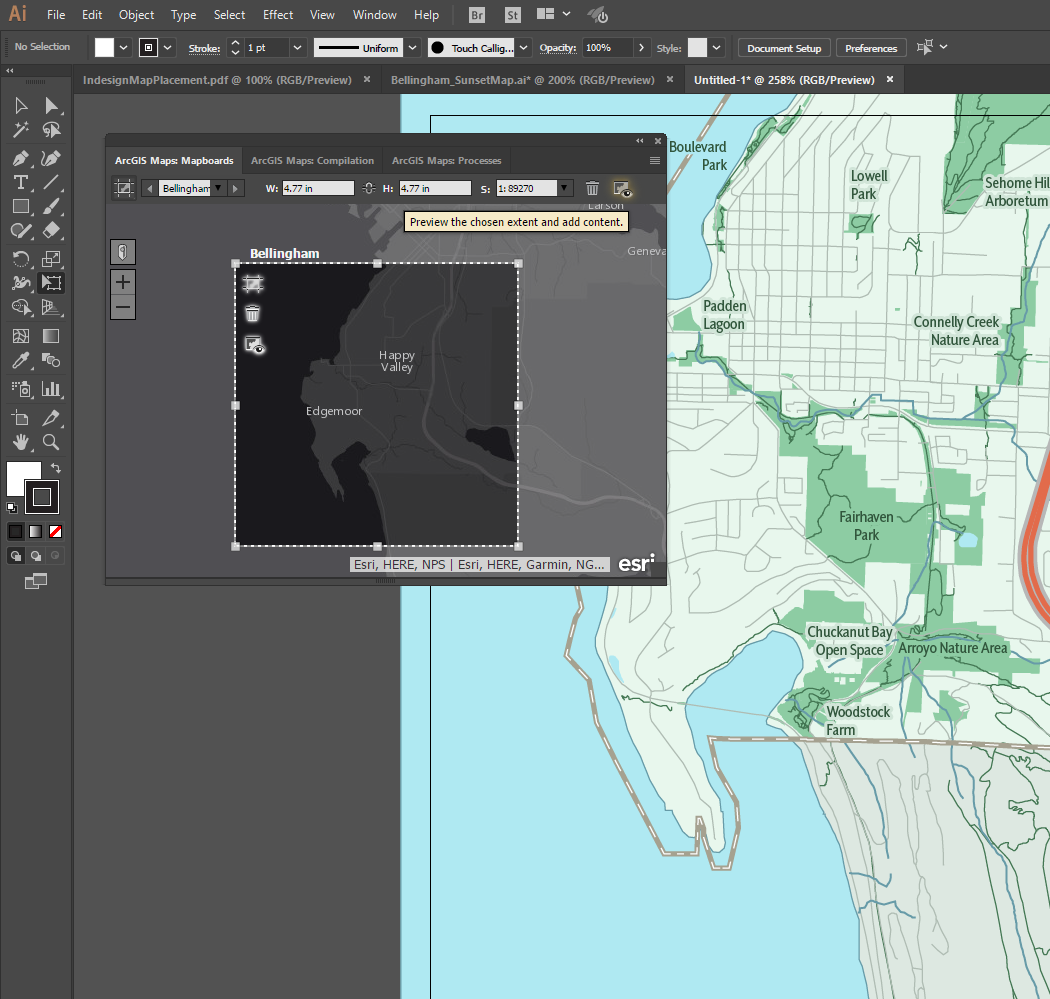
Once you have determined the size of your map, open the Maps for Creative Cloud extension in Photoshop or Illustrator, and make a mapboard of the same size in Illustrator© or Photoshop© by drawing a mapboard over the area. Then adjust the values for width and height to match your determined map size. Add map data and design your map as usual. For more useful tips on using the Maps for Creative Cloud extension, visit the comprehensive help page, and YouTube channel.

ArcGIS Maps for Adobe Creative Cloud in InDesign

ArcGIS Maps for Adobe Creative Cloud in InDesign

Place your map file into InDesign

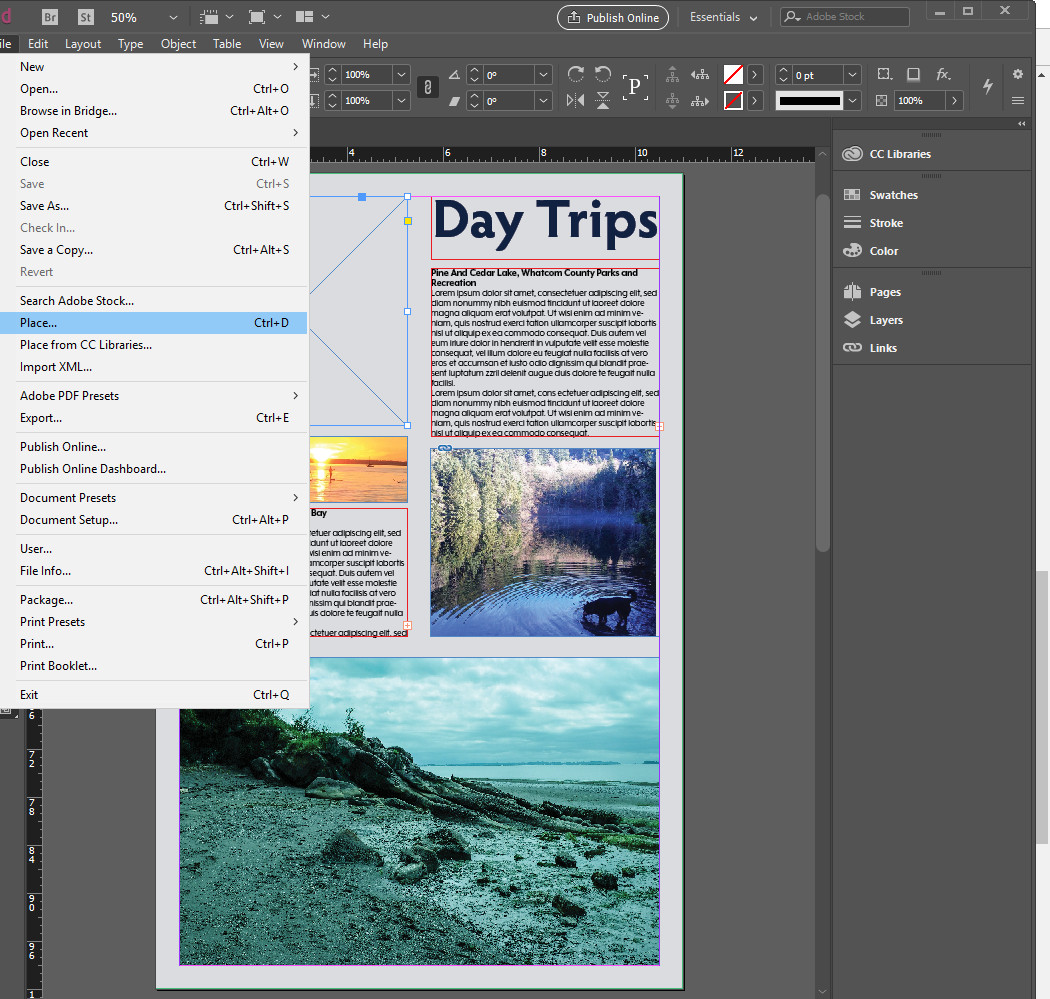
After you have created your map, and saved it you can now place it into your InDesign layout. Select the rectangle frame where you will be placing your map, and from the File drop-down menu, select Place. Then browse to the map that you created in Photoshop or Illustrator, and select it. NOTE: The map might appear pixelated in your InDesign layout, however it should resolve in the final PDF. 

ArcGIS Maps for Adobe Creative Cloud in InDesign

ArcGIS Maps for Adobe Creative Cloud in InDesign

more
4 1 5,716
ClintLoveman
Deactivated User

Hope to see you there...see an overview of the app and maybe a preview of the features coming in the next release.

https://userconference2017.schedule.esri.com/schedule/1203736520 

more
0 0 349
ClintLoveman
Deactivated User

Welcome and thanks for joining ArcGIS Maps for Adobe Creative Cloud group on GeoNet! To get started we invite you to first review the group features on the overview page and familiarize yourself with the group info, admins and GeoNet 101 information in the left column.


As you explore the group, you’ll also find tools to connect and collaborate so we encourage you to use them to share files, create blogs, ask/answer questions and read the latest blogs posts and join discussions.


Next, we’d like to get to know you, so we invite you to post a comment below to say “hello" and introduce yourself and share what features you use in the 1.0 release. We are also very interested to hear from you what workflows and features you’d like us to add in future releases.


We’re excited to connect and collaborate with you and we look forward to seeing your contributions.

more
4 1 693
ClintLoveman
Deactivated User

We are very excited to announce the initial release of ArcGIS Maps for Adobe Creative Cloud!

 With ArcGIS Maps for Adobe Creative Cloud, design and communication professionals have access to data-driven maps right inside Adobe Photoshop and Illustrator. Quickly find street, political, and physical features, man-made and natural event layers, satellite images, and many more maps. Download your selection directly into Adobe Illustrator or Photoshop as editable vector layer or high-resolution images. Customize your maps so they standout with your branding, your company’s color palette, or your unique cartographic style.

The ArcGIS and Adobe integration opens GIS up to an expanding group of design- and communications-focused users, who can now make direct use of spatial information. Cartographers can have the best of both worlds, too, since they can now work in Adobe and ArcGIS simultaneously.

What you can expect in ArcGIS Maps for Adobe Creative Cloud

ArcGIS Maps for Adobe Creative Cloud 1.0 release supports the following features:

  • Define map extents geographically or by using your Adobe application’s preferences. 
  • Preview and load geographic content from your ArcGIS Online organization directly into Adobe Illustrator or Photoshop.
  • Access community-contributed content from the Living Atlas of the World.
  • Maintain editable vector artwork layers with descriptive names inside of Illustrator.
  • Produce maps with your design and branding using the familiar Adobe tools.
  • Adding shapefiles
  • Support for Map Projections
  • Support of web map labels to Adobe Illustrator text
  • Custom DPI output of images
  • Scale bar added to map on sync
  • Smart map styling

How to get your copy of ArcGIS Maps for Adobe Creative Cloud

ArcGIS Maps for Adobe Creative Cloud will be available this May via the Adobe Add-ons Marketplace to both Mac and PC users for Adobe Photoshop version 16.1 and newer and Adobe Illustrator version 19.2 and newer.

User’s with an Adobe Creative Cloud subscription can download and use the full version of the ArcGIS Maps for Adobe Creative Cloud app at no additional cost with any ArcGIS Online Level 2 account. For most Beta 2 users, ArcGIS Maps for Adobe Creative Cloud will automatically update and will be available to you immediately upon release. If you’re a current Adobe Creative Cloud subscriber but you don’t have an ArcGIS Online subscription, you can sign up for a free trial.

For additional information about ArcGIS Maps for Adobe Creative Cloud, please refer to the following resources:

more
6 2 1,501
122 Subscribers