

- Subscribe to RSS Feed
- Mark as New
- Mark as Read
- Bookmark
- Subscribe
- Printer Friendly Page

A question on the forums recently popped up that I thought maybe I could explain better in blog post form rather than a single reply. How do I migrate from legacy Dojo to modern Dojo AMD style? That's a valid question, and one I struggled with when Dojo 1.7 was released. You can refer back to the Migrating to 3.0 in the docs to get an idea of the changes.
I think at this point, people are familiar that dojo.declare is now a module called dojo/_base/declare, but it's how to use AMD bits that causes some confusion.
I think some of the hurdles is just wrapping your head around AMD. I had some brain twisting moments with it at first, as I wasn't sure when to use require or when to use define or how to work with modules. My initial struggles were with requirejs and I had no mentor to really help me out, but I scraped through docs and google groups postings to figure it out, so when Dojo 1.7 was released with the AMD loader, I was better prepared.
Let's break it down to it's simplest form and what you will see in most examples on the ArcGIS Developers site.
require(["esri/map", "dojo/domReady!"], function(Map) {
  var map = new Map("map", {
    center: [-118, 34.5],
    zoom: 8,
    basemap: "topo"
  });
});
There is the dreaded require method. If you have ever worked in C++/Java or similar languages you may be familiar with the main() function. This is the function that occurs when an application starts up, it's where the party gets started. The require method is the main function of AMD. So somewhere in the ArcGIS API for JavaScript modules downloaded via CDN when you add the script tag to your page is a JavaScript file called map.js in a folder called esri that looks like this.
define(['dependency1', 'dependency2'], function(dependency1, dependency2) {
  var Map;
  /*magic unicorn stuff*/
  return Map;
});
The require method will go look for that file and load it asynchronously to your application. When it is done loading, the function in your application is then called, the stuff that defines what a Map is (very existential) is returned from the function. Notice the that this module has it's own dependencies, and in the function they are loaded in the order that they are asked for. THIS IS IMPORTANT. Order matters. These dependencies could functions or objects, or maybe strings. Below is a diagram from my book that may help you out.
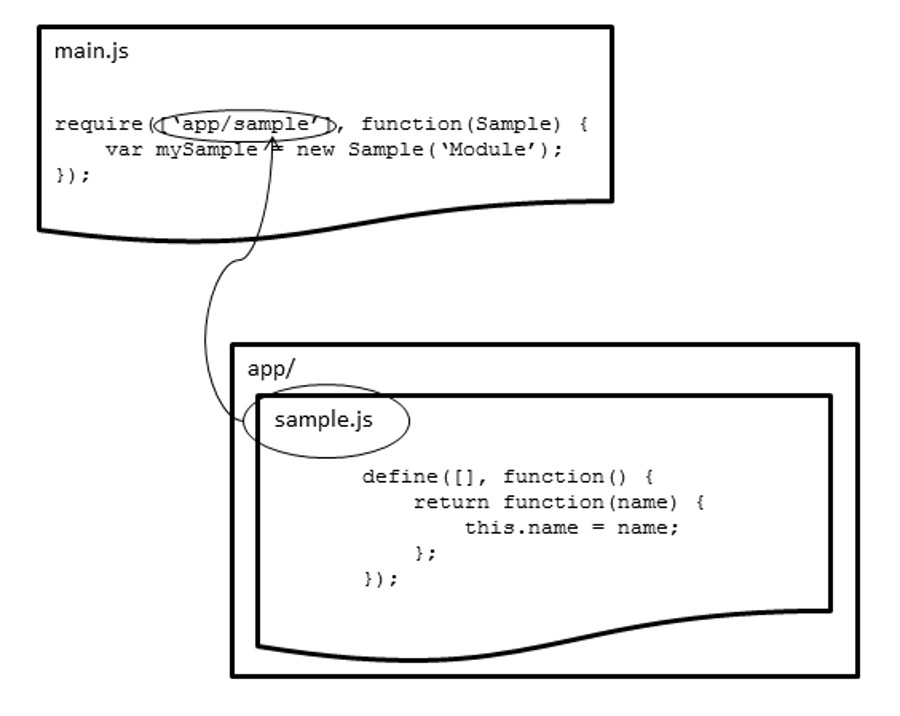
In my book, I use a file called run.js that does the require method defining my dojoConfig and a main.js that actually starts doing the work. That just happens to be my style, but it's not the definitive style.
Some people get tripped up by the use of main.js and honestly, I did too at first. A good point of reference is the Advanced Modules tutorial from Dojo. I'll quote the important bit under Configuring the Loader.
- main (optional, default = main.js😞 used to discover the correct module to load if someone tries to require the package itself. For example, if you were to try to require "dojo", the actual file that would be loaded is "/js/dojo/main.js". Since we’ve overridden this property for the "my" package, if someone required "my", they would actually load "/js/my/app.js".
If we tried to require "util", which is not a defined package, the loader would try to load "/js/util.js". You should always define all of your packages in the loader configuration.
Here is a sample of what one of my dojoConfigs, my require entry point, may look like.
var pathRX = new RegExp(/\/[^\/]+$/)
  , locationPath = location.pathname.replace(pathRX, '');
require({
  packages: [{
    name: 'widgets',
    location: locationPath + 'js/widgets'
  }, {
    name: 'utils',
    location: locationPath + 'js/utils'
  }, {
    name: 'app',
    location: locationPath + 'js'
  }]
}, ['app']);
In the require method, the first parameter is the dojoConfig object, the second is the ['app'] dependency, this is my entry point. So according to the docs above, by simply asking for 'app', by default it will look for 'app/main.js'.
If all this is still too confusing, you can still just define a global dojoConfig object to configure your packages and do a plain older require to start your application. Something like this.
<body class="nihilo">
  <script>
    var pathRX = new RegExp(/\/[^\/]+$/)
      , locationPath = location.pathname.replace(pathRX, '');
    var dojoConfig = {
      async: true,
      isDebug: true,
      packages: [
        { name: 'xstyle', location: locationPath + '/bower_components/xstyle' },
        { name: 'mayhem', location: locationPath + '/bower_components/mayhem/dist' },
        { name: 'app', location: locationPath + 'js' }
      ],
      tlmSiblingOfDojo: false
    };
  </script>
  <script>require(['app/start'], function() {})</script>
</body>
Hopefully that clears some stuff up a bit.
You could learn a lot of this via the Dojo docs and especially the CDN Modules tutorial. This page covers some Legacy to Modern Dojo bits in depth. Here is a migration guide. Here is a legacy Dojo to AMD converter you can also try. I've never used it, but it could be a good starting point. I doubt it will work 100% with all Esri modules, but it's worth a shot.
I hope that helps out a bit if you are still struggling with migrating Legacy Dojo applications to modern Dojo. It may take some time to let it all sink in, but it will. For more geodev tips and tricks, check out my blog.
You must be a registered user to add a comment. If you've already registered, sign in. Otherwise, register and sign in.