- Home
- :
- All Communities
- :
- Products
- :
- Data Loading Tools
- :
- Data Loading Tools Blog
- :
- How to Install Database Clients for ArcGIS
How to Install Database Clients for ArcGIS


- Subscribe to RSS Feed
- Mark as New
- Mark as Read
- Bookmark
- Subscribe
- Printer Friendly Page
----------------------------------------------------------------------------------------------------------------
- 1. PostgreSQL Client - Windows
- 2. PostgreSQL Client - Linux
- 3. SQL Server Client - Windows
- 4. SQL Server Client - Linux
- 5. Oracle Client - Windows
- 6. Oracle Client - Linux
- 7. Oracle Instant Client on Linux - Important Remarks
- Connect to Oracle from ArcGIS Server
- 8. Oracle Instant Client on Ubuntu
----------------------------------------------------------------------------------------------------------------
----------------------------------------------------------------------------------------------------------------
1. PostgreSQL Client - Windows
PostgreSQL client files are installed with ArcGIS Pro and ArcGIS Server;
you do not need to install a PostgreSQL client or set environment variables to access the client.
ArcGIS Documentation:
Connect to PostgreSQL from ArcGIS Server on Windows
Connect to PostgreSQL from ArcGIS Pro
ArcGIS Requirements for PostgreSQL
What PostgreSQL database versions are supported by ArcGIS Enterprise and ArcGIS Pro?
----------------------------------------------------------------------------------------------------------------
2. PostgreSQL Client - Linux
PostgreSQL client files are installed with ArcGIS Pro and ArcGIS Server;
you do not need to install a PostgreSQL client or set environment variables to access the client.
ArcGIS Documentation:
Connect to PostgreSQL from ArcGIS Server on Linux
Connect to PostgreSQL from ArcGIS Pro
ArcGIS Requirements for PostgreSQL
What PostgreSQL database versions are supported by ArcGIS Enterprise and ArcGIS Pro?
----------------------------------------------------------------------------------------------------------------
3. SQL Server Client - Windows
Microsoft ODBC Driver for SQL Server on Windows - ODBC Driver for SQL Server | Microsoft Learn
Note: ArcMap 10.8.2 does not work with ODBC 18 and for those machines must install only the ODBC 17
Read my white paper - How to Install the SQL Server Client for ArcGIS?
ArcGIS Documentation:
Connect to Microsoft SQL Server from ArcGIS Server on Windows
Connect to Microsoft SQL Server from ArcGIS Pro
ArcGIS Requirements for Microsoft SQL Server
What SQL Server database versions are supported by ArcGIS Enterprise and ArcGIS Pro?
----------------------------------------------------------------------------------------------------------------
4. SQL Server Client - Linux
Microsoft ODBC 18 - "must follow the steps in the document below"
Install the Microsoft ODBC driver for SQL Server (Linux)
ArcGIS Documentation:
Connect to Microsoft SQL Server from ArcGIS Server on Linux
Connect to Microsoft SQL Server from ArcGIS Pro
ArcGIS Requirements for Microsoft SQL Server
What SQL Server database versions are supported by ArcGIS Enterprise and ArcGIS Pro?
----------------------------------------------------------------------------------------------------------------
5. Oracle Client - Windows
Notes:
- ArcGIS Pro and ArcGIS Enterprise install the 64 bits client
- ArcMap install the 32 bits client
- the same machine can have the 32-bits and the 64-bits client installed.
Read my white paper - How to Install the Oracle Database Client for ArcGIS?
Instant Client for Microsoft Windows (32-bit) - ArcGIS Desktop ( ArcMap & ArcCatalog )
Instant Client for Microsoft Windows (x64) - ArcGIS Pro & ArcGIS Server
expand the "Installation Instructions" for more information
ArcGIS Documentation:
Connect to Oracle from ArcGIS Server on Windows
Connect to Oracle from ArcGIS Pro
ArcGIS Requirements for Oracle
What Oracle database versions are supported by ArcGIS Enterprise and ArcGIS Pro?
----------------------------------------------------------------------------------------------------------------
6. Oracle Client - Linux
Instant Client for Oracle Linux
Instant Client for Linux x86-64 (64-bit) (oracle.com)
expand the "Installation Instructions" for more information.
ArcGIS Documentation:
Connect to Oracle from ArcGIS Server on Linux - Important !!! Read this documentation !!!
Connect to Oracle from ArcGIS Pro
ArcGIS Requirements for Oracle
What Oracle database versions are supported by ArcGIS Enterprise and ArcGIS Pro?
----------------------------------------------------------------------------------------------------------------
7. Oracle Instant Client on Linux - Important Remarks
A few more important remarks.
- Install Oracle Instant Client for Linux
Instant Client for Linux x86-64 (64-bit) (oracle.com)
- use the RPMs to install, avoid the .ZIP
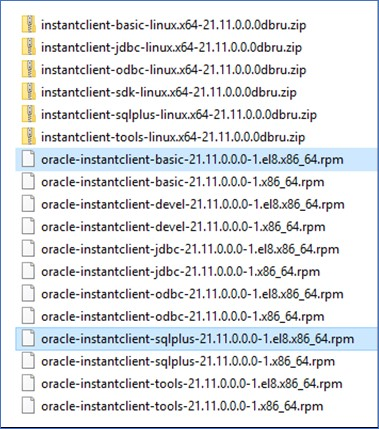
*OCI – Oracle Call Interface API
“basic” – all files required to run OCI, OCCI, and JDBC-OCI applications
“sqlplus” – SQL Plus command line tool for SQL and PL/SQL queries
“tools” – Data Pump, SQL Loader, Workload Replay tools
“jdbc” – additional support for internationalization under JDBC
“odbc” – additional libraries for enabling ODBC applications
“devel” – additional header files and example makefile for developing Oracle applications with Instant Client
- The RPMs package installs the files under /usr/lib/oracle/21/client64
- You need to install only the RPMs for “basic” and “sqlplus”
# su – root
# yum install oracle-instantclient-basic-21.11.0.0.0-1.el8.x86_64.rpm
# yum install oracle-instantclient-sqlplus-21.11.0.0.0-1.el8.x86_64.rpm
- There is no need to install any of the other RPMs like “tools”, “jdbc”, “odbc”, “devel”
- ArcGIS Software (ArcMap, ArcGIS Pro, ArcGIS Server) uses the OCI – Oracle Call Interface API to connect to Oracle Geodatabases
- ArcGIS Software (ArcMap, ArcGIS Pro, ArcGIS Server) does not use the RPM “odbc” package
- OCI is installed when the “basic” RPM package is installed
# yum install oracle-instantclient-basic-21.11.0.0.0-1.el8.x86_64.rpm
- the RPM “basic” will create the folder “lib” under /usr/lib/oracle/21/client64
- the RPM “sqlplus” will create the folder “bin” under /usr/lib/oracle/21/client64
- Oracle Instant Client Directory is /usr/lib/oracle/21/client64
- “lib” folder contains the OCI API libraries
- “bin” folder contains utilities like “sqlplus”
Connect to Oracle from ArcGIS Server
Connect to Oracle from ArcGIS—ArcGIS Server | Documentation for ArcGIS Enterprise
In the link above please read: Connect from ArcGIS Server | Set the LD_LIBRARY_PATH environment variable
- In the Linux User running the ArcGIS Server Service edit the .bash_profile
$ su – arcgis <== Linux User running the ArcGIS Server Service
$ vi .bash_profile
export PATH=/usr/lib/oracle/21/client64/bin:$PATH
export LD_LIBRARY_PATH=/usr/lib/oracle/21/client64:$LD_LIBRARY_PATH
:wq!
Note: PATH variable needs to include “/bin” in the directory path to be able to call “sqlplus”
- It is also necessary on Linux ArcGIS Server deployments to edit the file $<ArcGIS Server Home>/arcgis/server/usr/init_user_param.sh
If you are using the Oracle database Instant client libraries, you only need to uncomment and set the $LD_LIBRARY_PATH, for example:
#
# For connection with Oracle Instant Client
#
export LD_LIBRARY_PATH=/usr/lib/oracle/21/client64:$LD_LIBRARY_PATH
Save and close the script.
- For the changes you made in the init_user_param.sh file to take effect, you must restart ArcGIS Server.
To do this, run the stopserver.sh script, then run the startserver.sh script on each machine in the ArcGIS Server site.
./stopserver.sh
./startserver.sh
- Test the Oracle Geodatabase connection using SQL PLUS
$ su – arcgis <== Linux User running the ArcGIS Server Service
$ sqlplus /nolog
connect sde/<password>@mcsdboralnx7:1577/topo1.esri.com
show user_name
show con_name
exit
Now users can use
- ArcGIS Server Manager > Site > Data Store
or
- ArcGIS Pro > Add Data Store
- To add the data store using the Oracle Geodatabase Connection File
----------------------------------------------------------------------------------------------------------------
8. Oracle Instant Client on Ubuntu
https://docs.oracle.com/en/database/oracle/oracle-database/26/lacli/supported-ubuntu-distributions-f...
https://docs.oracle.com/en/database/oracle/oracle-database/21/lacli/supported-ubuntu-distributions-f...
https://docs.oracle.com/en/database/oracle/oracle-database/19/lacli/instant-client-install-linux.htm...
https://docs.oracle.com/en/database/oracle/oracle-database/19/lacli/install-instant-client-using-zip...
https://docs.oracle.com/en/database/oracle/oracle-database/19/lacli/install-instant-client-using-rpm...
To install Oracle Instant Client on Ubuntu 24.04 (Noble Numbat), follow these steps.
This process focuses on the ZIP file method, which is the most reliable way to avoid RPM compatibility issues.
1. Install System Dependencies
Ubuntu 24.04 replaced the old libaio1 package with libaio1t64.
Since the Oracle client specifically looks for libaio.so.1,
you must install the new package and create a symbolic link.
Update and install required tools:
sudo apt update
sudo apt install -y libaio1t64 unzip
Create the necessary symbolic link:
sudo ln -s /usr/lib/x86_64-linux-gnu/libaio.so.1t64 /usr/lib/x86_64-linux-gnu/libaio.so.1
2. Download the Instant Client
Go to the Oracle Instant Client Downloads for Linux page.
Required: Download the Basic Package (ZIP) (e.g., instantclient-basic-linux.x64-23.x.x.zip).
Optional: Download the SQL*Plus Package (ZIP) if you want a command-line interface to the database.
3. Extract the Files
It is standard practice to install Oracle software in /opt/oracle.
Create the directory:
sudo mkdir -p /opt/oracle
Unzip the basic package (replace the filename with your downloaded version):
sudo unzip ~/Downloads/instantclient-basic-linux.x64-23.7.0.25.01.zip -d /opt/oracle
/* Oracle Instant Client 19.30
unzip -q /tmp/instantclient-basic-linux.x64-19.30.0.0.0dbru.zip -d /opt/oracle
unzip -q /tmp/instantclient-sqlplus-linux.x64-19.30.0.0.0dbru.zip -d /opt/oracle
*/
This creates a folder like /opt/oracle/instantclient_23_7.
4. Configure Environment Variables
You must tell Ubuntu where to find the Oracle libraries and binaries.
Add the library path to the system configuration:
sudo sh -c "echo /opt/oracle/instantclient_23_7 > /etc/ld.so.conf.d/oracle-instantclient.conf"
sudo ldconfig
/* Oracle Instant Client 19.30
sudo sh -c "echo /opt/oracle/instantclient_19_30 > /etc/ld.so.conf.d/oracle-instantclient.conf"
sudo ldconfig
*/
Update your user profile to include the binaries in your PATH. Open your .bashrc file:
bash
nano ~/.bashrc
Append these lines to the end of the file (adjust the version number to match your folder):
export LD_LIBRARY_PATH=/opt/oracle/instantclient_23_7:$LD_LIBRARY_PATH
export PATH=/opt/oracle/instantclient_23_7:$PATH
/* Oracle Instant Client 19.30
export LD_LIBRARY_PATH=/opt/oracle/instantclient_19_30:$LD_LIBRARY_PATH
export PATH=/opt/oracle/instantclient_19_30:$PATH
*/
Reload the profile:
source ~/.bashrc
5. Verify the Installation
If you installed the SQL*Plus package, you can verify everything is working by typing:
sqlplus -v
You should see the version information without any "shared library not found" errors.
/* Oracle Instant Client 19.30
marc7777@ubuntu2404ora:~$ sqlplus /nolog
SQL*Plus: Release 19.0.0.0.0 - Production on Fri Mar 13 21:50:22 2026
Version 19.30.0.0.0
Copyright (c) 1982, 2025, Oracle. All rights reserved.
SQL> connect gis/****@mcsdboralnx.esri.com:1577/topo1.esri.com
Connected.
SQL> show con_name
CON_NAME
------------------------------
TOPO1
SQL> show user
USER is "GIS"
SQL> disconnect
SQL> exit
*/
You must be a registered user to add a comment. If you've already registered, sign in. Otherwise, register and sign in.