- Home
- :
- All Communities
- :
- Products
- :
- ArcGIS Pro
- :
- ArcGIS Pro Questions
- :
- TIP - Customize the Ribbon to apply transparency o...
- Subscribe to RSS Feed
- Mark Topic as New
- Mark Topic as Read
- Float this Topic for Current User
- Bookmark
- Printer Friendly Page
TIP - Customize the Ribbon to apply transparency on a desired level of an added Revit/IFC file

- Mark as New
- Bookmark
- Subscribe to RSS Feed
- Permalink
This actually simple solution I stumbled upon while working together with Esri Support to define an enhancement for ArcGIS Pro. And it can also apply to other ribbons.
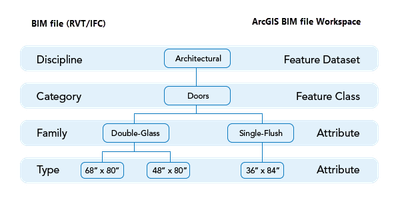
Default it is not possible to apply transparency on the level of a Discipline or when selecting the added Revit file in the TOC.
When you added a feature layer or made a group layer it is possible to apply transparency. When added a Revit/IFC model to ArcGIS Pro it is possible to apply transparency to Categories in a Discipline. You can select manually one or more Categories and apply a transparency to them. It is inconvenient when working a lot with Revit models in ArcGIS Pro and go over these steps manually every time.
Steps:
1. Select the Revit file in the TOC and right click on the tab ‘Manage’ > ‘Customize the Ribbon’
- Or without opening a project > Tab Project > Options > ‘Customize the Ribbon’
Stefan_Thorn_1-1654857733953.jpeg
2. Choose commands from: ‘List of Tabs’:
- Go to Feature Layer > Appearance > Effects (or any tab group that has ‘Appearance’ in it)
- In the right go to Building and select Manage
- Now add Effects to Manage and click OK
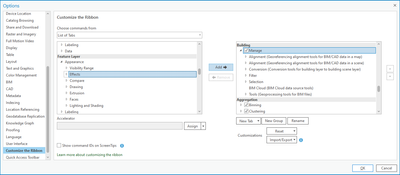
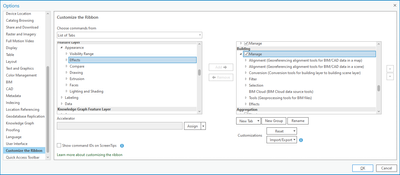
3. After customizing the Tab Building, when selecting each level of the added Revit file you can apply a transparency to that level. When you select a category also the ribbon Feature Layer will appear but that is default behavior.
- Revit file
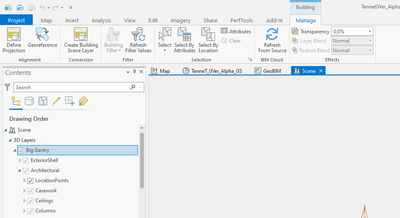
- Discipline/Feature Dataset
Stefan_Thorn_6-1654858029033.png
- Category/Feature Class
- i. Now also the Tab ‘Feature Layer’ will appear but can be ignored.
Stefan_Thorn_7-1654858047879.png
- i. Now also the Tab ‘Feature Layer’ will appear but can be ignored.
Success!
