The Attribute Transfer Tool behavior in ArcGIS Pro is not equivalent to the behavior of this tool in ArcMap Desktop. The tool behavior is only equivalent when the user's clicks on a single feature for both the source and the transfer targets, in which case no dialogs appear in either program. However, if the user ever clicks on more than one feature for either the attribute transfer source feature or destination feature in ArcMap Desktop, a dialog listing the features by their layer Display tab expression that provides access to a list of feature attributes appears to allow the user to select the exact feature they want to use as the source or destination feature. Clicking on more than one feature can occur when a user clicks on the boundary between two adjacent features in feature classes that aren't designed to have actual overlapping features and can't be avoided in feature classes that are designed to have overlapping features. An example of the dialogs that appear in ArcMap Desktop when more than one feature is clicked for either an attribute transfer source feature or destination feature is shown below:
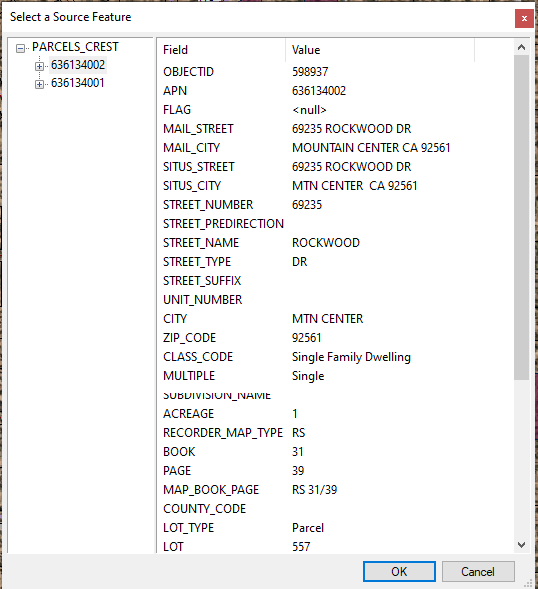
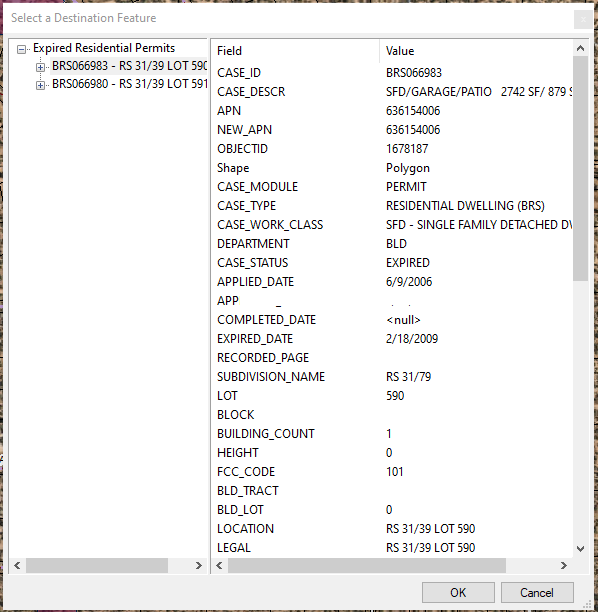
In ArcGIS Pro when the user clicks on more than one feature for the source or the target no dialogs appear and the tool always uses the feature with the lowest ObjectID to do the transfer. If the user didn't want to use the feature with the lowest ObjectID for either the source or the target, the tool behavior nonetheless does a transfer based on that rule and results in data corruption. The ArcGIS Pro version of the Attribute Transfer tool needs to provide an option for the user to choose the source or destination feature they want whenever they click on more than one feature that provides the same functionality that the ArcMap Desktop Attribute Transfer tool dialogs above provide.