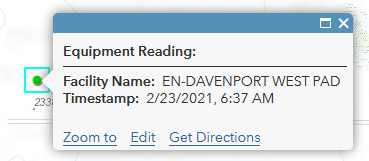
This document will walk you through how to hide a field in a pop-up using Arcade. You can use this to hide a field that contains a particular value, or if the field is blank/NULL.
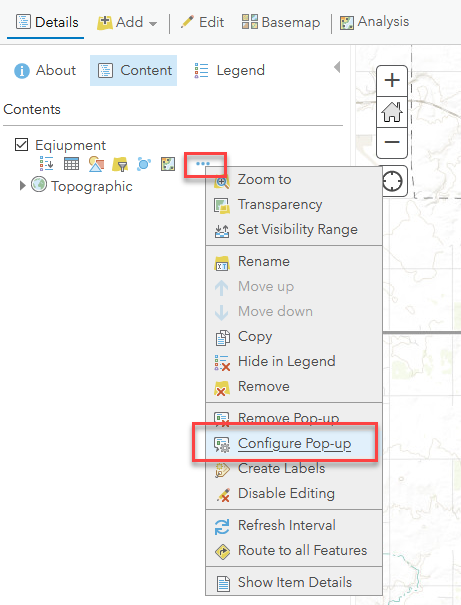
1. Create an Attribute Expression for the field you wish to hide by clicking the 3-dot button next to the layer within the Web Map > Configure Pop-up
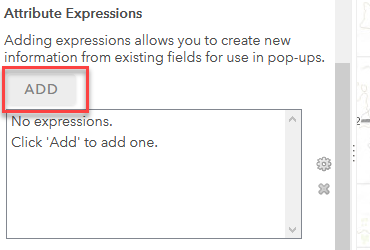
2. Scroll down to Attribute Expressions and click Add:
3. Specify an IIF statement for the field you wish to hide. For the trueValue, specify None. For the falseValue, specify inline. Here is an example:
IIF($feature["Meter_Meter_Flow"] == -999 || IsEmpty($feature["Meter_Meter_Flow"]), "None", "inline")
The above Arcade expression will hide the field Meter_Meter_Flow if the value is -999, or if the value is blank.
4. Under Pop-up Contents change the Display to A custom attribute display
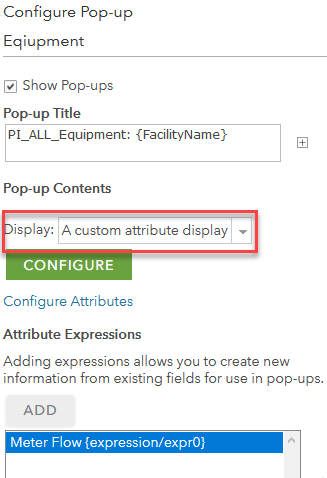
5. Click CONFIGURE
6. In the Custom Attribute Display dialog, add any fields you wish to show in the pop-up
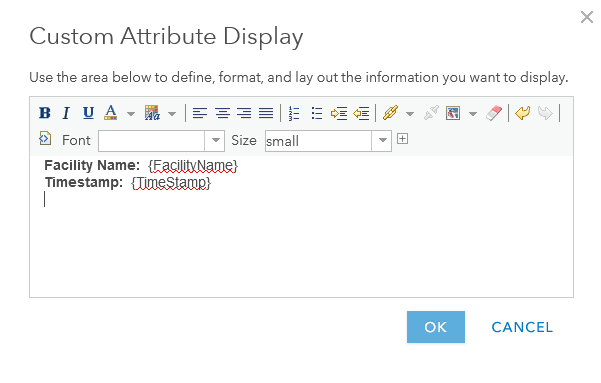
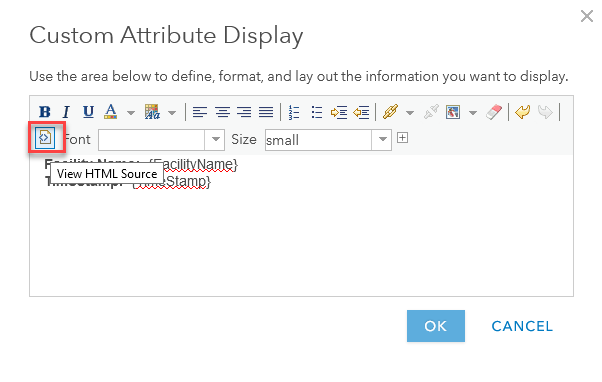
7. To hide a field, you will need to switch to View HTML Source. This will allow you to enter HTML code.
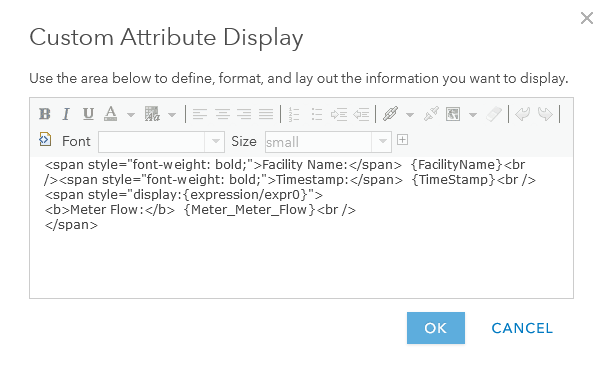
8. Specify the following HTML to hide the field:
<span style="display:{expression/expr0}">
<b>Meter Flow:</b>  {Meter_Meter_Flow}<br />
</span>The expression/expr0 above is the id of the Attribute Expression previously configured:
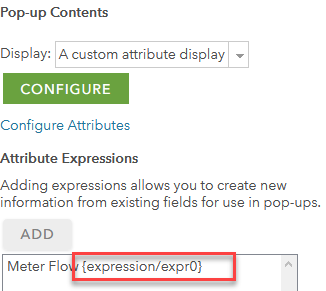
{Meter_Meter_Flow} on the second line represents the name of the field. This value will display if the IIF statement returns False. Here is how the Custom Attribute Display appears:
9. Click OK to close the Custom Attribute Display and OK again to close the Configure Pop-up panel
If the Meter_Meter_Flow field is not blank, and is not -999 it will display:
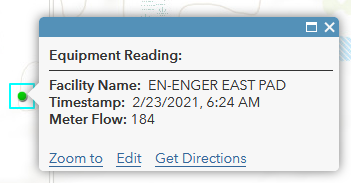
If it is, it will be hidden: