In this blog post we will walk through the process of accessing and using StreetMap Premium data and the corresponding license within a Spark-based computing environment using ArcGIS GeoAnalytics Engine for geocoding and/or network analysis.
In order to work with StreetMap Premium data in GeoAnalytics Engine, you must have licensed the data specifically for use in a scalable, Spark-based computing environment with GeoAnalytics Engine. These instructions assume that you already have purchased access to StreetMap Premium data for use with GeoAnalytics Engine and are ready to set up your computing environment to leverage that data for geocoding and/or network analysis.
Accessing StreetMap Premium data
Once you have purchased StreetMap Premium data to use with GeoAnalytics Engine, you will find the downloads for the purchased data in the My Esri portal for your organization.
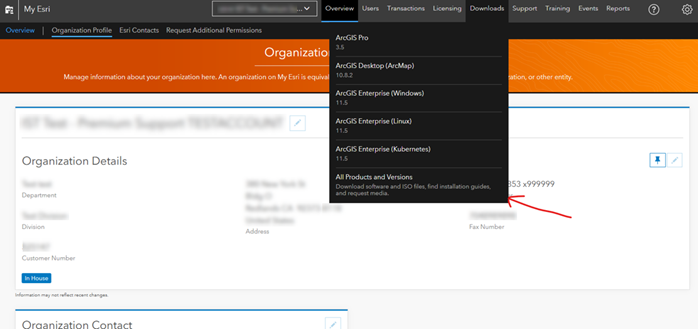
In My Esri, you will go to the Downloads tab and select “All Products and Versions.”
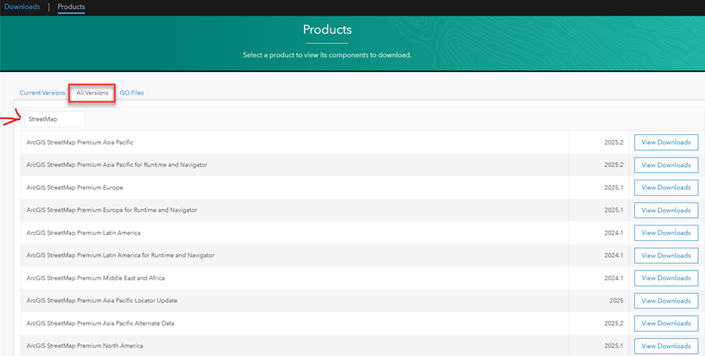
On the list of products, select the “All Versions” tab and search for StreetMap in the Quick Search Box
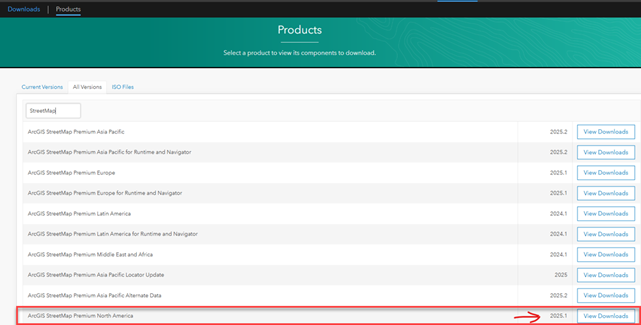
From here, you will select the appropriate geography and download the files. For instance, to select and download the data for North America, you will start by viewing the downloads for the region of interest. Depending on the products purchased by your organization you may see several options for StreetMap Premium data and would need to search through the list for your region of interest.
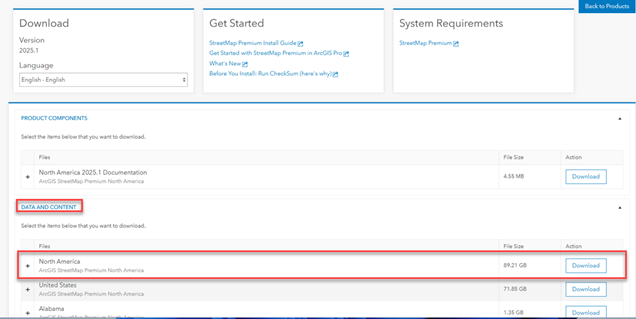
On the download page, you will download the data specific to the region from the Data and Content section of the download page. The data will be delivered as a mobile map package (MMPK):
When you have downloaded the data you will need to save it in a location that will be accessible to the Spark environment where you work with GeoAnalytics Engine. If you are using a local Spark environment, that would be on your local machine, and if you are using a cloud-hosted Spark environment (e.g., Azure Synapse, Databricks, AWS EMR, etc.) you will need to save the data in a location accessible to that cloud environment. The GeoAnalytics Engine documentation has additional information about locator and network dataset setup.
Finding the runtime licensing string
In order to use the StreetMap Premium data with the geocoding and/or network analysis tools in GeoAnalytics Engine, you will need to provide the runtime licensing string associated with your StreetMap Premium dataset.
The runtime licensing string will look something like this (note that this is just an example; your licensing string would have a valid string of characters for the date information and digital signature).
runtimesmpna,1000,rud823492765,<date info>,<digital signature>
Save this string by itself in a text file that will be accessible to your Spark environment. You will need to reference it in the Spark config when you start your Spark computing environment.
This string should have been included in the Sales Order email sent to the customer associated with the data purchase. If you do not have a copy of this email, check with your ArcGIS administrator or Account Manager to identify who received the emails related to your StreetMap Premium purchase.
Setting up your Spark environment to use StreetMap Premium data with GeoAnalytics Engine
Now we will look at the process of including the licensing string in your Spark environment for use with GeoAnalytics Engine geocoding and/or network analysis tools.
At this point, we are assuming that you already have your StreetMap Premium dataset (an .mmpk file) and your runtime license string text file in a location accessible to all nodes in your compute environment.
We will walk through two different examples: a local spark environment and a Databricks environment. While we only demonstrate the process with one cloud analytics environment (Databricks), the process will be similar in any Spark environment: you need to edit the spark.geoanalytics.smp.license.file configuration to reference the location of your licensing text string.
Local Spark
If you do not already have a local Spark environment set up to use GeoAnalytics Engine, follow the instructions for setup in the GeoAnalytics Engine developer documentation.
Edit the configuration in the script that you use to start your local computing environment so that it includes a line to reference the StreetMap Premium license file. Below is an example start up script for a local Spark environment. The reference to the StreetMap Premium license file is shown in red. Update to use the location of your file, and to point to the location of your GeoAnalytics Engine library files.
pyspark --jars C:\engine\geoanalytics.jar,C:\engine\geoanalytics-natives.jar^
--py-files C:\engine\geoanalytics.zip^
--conf spark.plugins=com.esri.geoanalytics.Plugin^
--conf spark.serializer=org.apache.spark.serializer.KryoSerializer^
--conf spark.kryo.registrator=com.esri.geoanalytics.KryoRegistrator^
--conf spark.driver.memory=5g^
--conf spark.geoanalytics.smp.license.file=C:\engine\smp_license.txt
When you start your local Spark environment and use StreetMap Premium data for your locator or network dataset, the license should be recognized.
Databricks
Start by saving your license file in a location that will be accessible to your Databricks cluster as it is starting up. For this example, I’ll access the license file from the Databricks File System (DBFS).
To reference the file in DBFS in my Databricks cluster configuration, I first need to copy the file into DBFS. I copied my file over using dbutils in a notebook.
dbutils.fs.cp("/Volumes/my_unity_catalog_volume/geoanalytics_engine/license_files/smp.txt", "dbfs:/FileStore/licensing/smp.txt")
Once the file is saved in an accessible location, you can edit the configuration for the computing cluster where you will be using the SMP data so that the Spark config includes a line to reference the license file. Below is an example of the additional config line referencing the smp.txt file shown above. Update to reference the location of your file. Note that if you are using DBFS, you will need to reference it using “dbfs:/FileStore/…” instead of “dbfs/FileStore/…”
spark.geoanalytics.smp.license.file dbfs:/FileStore/licensing/smp.txt
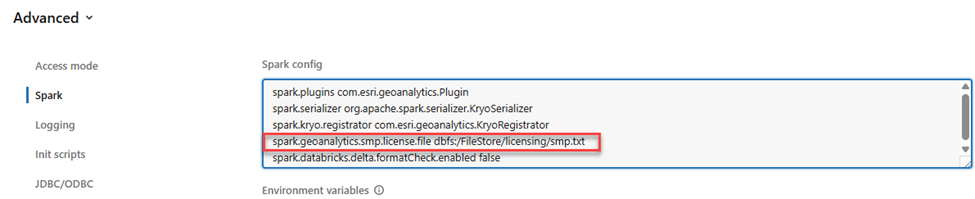
When you start your computing cluster and reference StreetMap Premium data for your locator or network dataset, the license should then be recognized.
Confirming data access and licensing
When your Spark environment is started, you can check that you have access to StreetMap Premium data and that the license file is properly recognized by trying to run any of the geocoding or network analysis tools.
For example, try running the sample code in the developer documentation for the geocode or create routes tools.
In these samples, update the location of the geocoding locator or network dataset to point to your StreetMap Premium dataset. Depending on the region(s) that your locator or network dataset covers, you may need to update the input data in the samples to reference locations that coincide with your StreetMap Premium dataset.
If your license string is not recognized, when running a tool you will see an error like this informing you that the Street Map data is not licensed:
Py4JJavaError: An error occurred while calling o99.runSql.
: com.esri.arcgisruntime.ArcGISRuntimeException: Unlicensed extension. ArcGIS runtime is not licensed to use the Street Map North America extension.
If you receive this error, check that your license text is valid and confirm that the file location is correctly referenced in the Spark config.
Conclusion
We hope that this post has been helpful to you for setting up your StreetMap Premium dataset(s) to use with GeoAnalytics Engine for your geocoding and network analysis workflows. If you have questions or comments, please feel free to leave them in the comment section below. We would love to hear from you about your experience with geocoding and network analysis with GeoAnalytics Engine.
Blog authored by Sarah Battersby, Product Manager for ArcGIS GeoAnalytics Engine, and Xirui Xu, Product Engineer for GeoAnalytics Engine.
