Turn on suggestions
Auto-suggest helps you quickly narrow down your search results by suggesting possible matches as you type.
Cancel
- Home
- :
- All Communities
- :
- Products
- :
- Data Management
- :
- Data Management Questions
- :
- Please help, should be simple enough! Re-associati...
Options
- Subscribe to RSS Feed
- Mark Topic as New
- Mark Topic as Read
- Float this Topic for Current User
- Bookmark
- Subscribe
- Mute
- Printer Friendly Page
Please help, should be simple enough! Re-associating sorted CAD drawings in ArcView..
Subscribe
1326
2
01-14-2012 04:29 PM

01-14-2012
04:29 PM
- Mark as New
- Bookmark
- Subscribe
- Mute
- Subscribe to RSS Feed
- Permalink
Hi guys;
I just started in my first GIS job after my MSc, and I'm the only GIS guy in the village so to speak - so forums like this will hopefully be my lifeline!
I've been charged with getting an ArcView 9.1 GIS our survey company was asked to build for a large house bulders here in Scotland. It's been basically mothballed for three years near enough due to the recession etc.
Basically, during that downtime there has been a server move and the file paths to all the data have changed.
There is a seperate mxd project file and assosiated CAD files and assosiated legal documents etc for each of the sites this company owns, which is well into the hundreds.
All the data as I say now exists on a different drive and therefore the project files cannot locate the data.
Basically, I need to know how to re-assosiate the hundreds of different .dwg CAD files with the project view. I've attached this screenshot to show you what a typical project file looks like:

Double clicking each layer and manually browsing to the data path would take weeks to do all the files. I can't drag and drop the cad files, this results in an error.
I can't 'Add Data' as while this DOES import the CAD drawings fine, it needs to be sorted out into points/lines/areas and named properly like in the above screengrab. I could do this manually of course but it would take days and days to re-sort things. The below photo is how the Add Data option brings in the drawings;
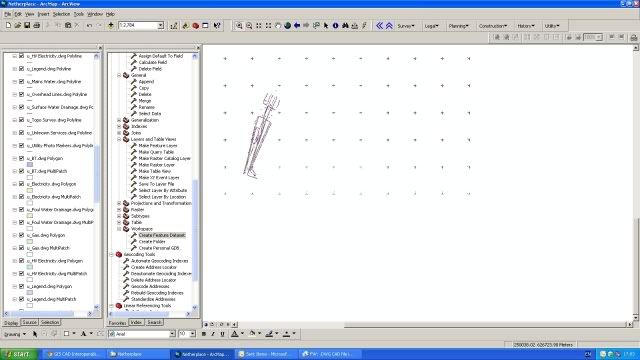
As you can see, the layer labels and symbology is not right. There must be a way of getting ArcGIS to know the new file paths without starting the project files over again and losing all the work that has been done, or manually going through every layer (there are in total many thousands of these!)
The MSc is of little help so far!
Thanks so much, I desperatly need some help on this one, even to tell me it can't be done or it needs a script written or somethig (I can't code to save myself, though I am learning!) How do I make these red exclamation marks go away in a more timely manner than going through each and every single layer manually?!
THANKS!
Murray
I just started in my first GIS job after my MSc, and I'm the only GIS guy in the village so to speak - so forums like this will hopefully be my lifeline!
I've been charged with getting an ArcView 9.1 GIS our survey company was asked to build for a large house bulders here in Scotland. It's been basically mothballed for three years near enough due to the recession etc.
Basically, during that downtime there has been a server move and the file paths to all the data have changed.
There is a seperate mxd project file and assosiated CAD files and assosiated legal documents etc for each of the sites this company owns, which is well into the hundreds.
All the data as I say now exists on a different drive and therefore the project files cannot locate the data.
Basically, I need to know how to re-assosiate the hundreds of different .dwg CAD files with the project view. I've attached this screenshot to show you what a typical project file looks like:
Double clicking each layer and manually browsing to the data path would take weeks to do all the files. I can't drag and drop the cad files, this results in an error.
I can't 'Add Data' as while this DOES import the CAD drawings fine, it needs to be sorted out into points/lines/areas and named properly like in the above screengrab. I could do this manually of course but it would take days and days to re-sort things. The below photo is how the Add Data option brings in the drawings;
As you can see, the layer labels and symbology is not right. There must be a way of getting ArcGIS to know the new file paths without starting the project files over again and losing all the work that has been done, or manually going through every layer (there are in total many thousands of these!)
The MSc is of little help so far!
Thanks so much, I desperatly need some help on this one, even to tell me it can't be done or it needs a script written or somethig (I can't code to save myself, though I am learning!) How do I make these red exclamation marks go away in a more timely manner than going through each and every single layer manually?!
THANKS!
Murray
2 Replies

01-18-2012
01:51 PM
- Mark as New
- Bookmark
- Subscribe
- Mute
- Subscribe to RSS Feed
- Permalink
Hi Murray,
congratulations on your job and you will find one day that something from your MSc does prove useful! I know in ArcGIS10, a simple right click on the layer will provide you with options including a Data tab and under that repair data sources will usually repair all the layers in the MXD if they are in the same directory. I am pretty sure that similar functionality is in 9.3.1 but I don't have an instance of that in front of me to confirm.
Cheers
Len
congratulations on your job and you will find one day that something from your MSc does prove useful! I know in ArcGIS10, a simple right click on the layer will provide you with options including a Data tab and under that repair data sources will usually repair all the layers in the MXD if they are in the same directory. I am pretty sure that similar functionality is in 9.3.1 but I don't have an instance of that in front of me to confirm.
Cheers
Len

01-19-2012
09:05 AM
- Mark as New
- Bookmark
- Subscribe
- Mute
- Subscribe to RSS Feed
- Permalink
Substitute the path in Windows.
If you have 100s of documents and many layers you can spend days and weeks updating data sources which is fine until someone changes the physical location of the data again.
What is the original path and where are the drawings located now? Can't you map the network drive in such a way that it appears as if all the drawings are still in the same location? If the drawings are still in the same folder structure as before then it is just a matter of substituting the drive. See SUBST.
Simple command and everything will work just as before. If you for some reason you do not want to keep the SUBSTituted path then move all the Map Documents to the server location where the drawing files are stored. BEFORE YOU DO THAT and still while you have a substituted path: Open each map document --> File --> Map Document Properties --> check Store relative pathnames to data sources. This way when your folder structures that contains the drawings moves anywhere, the document will always point to the relative path name. Once you open and change this for each map document you can remove the SUBSTituted path.
hope this helps.
If you have 100s of documents and many layers you can spend days and weeks updating data sources which is fine until someone changes the physical location of the data again.
What is the original path and where are the drawings located now? Can't you map the network drive in such a way that it appears as if all the drawings are still in the same location? If the drawings are still in the same folder structure as before then it is just a matter of substituting the drive. See SUBST.
Simple command and everything will work just as before. If you for some reason you do not want to keep the SUBSTituted path then move all the Map Documents to the server location where the drawing files are stored. BEFORE YOU DO THAT and still while you have a substituted path: Open each map document --> File --> Map Document Properties --> check Store relative pathnames to data sources. This way when your folder structures that contains the drawings moves anywhere, the document will always point to the relative path name. Once you open and change this for each map document you can remove the SUBSTituted path.
hope this helps.
