Group Owners and Inviters can now invite members to a group via email!
How to send email invites to new group members:
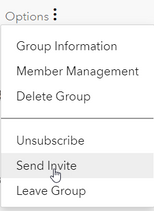
1. Click on Options Menu and select: Send Invite
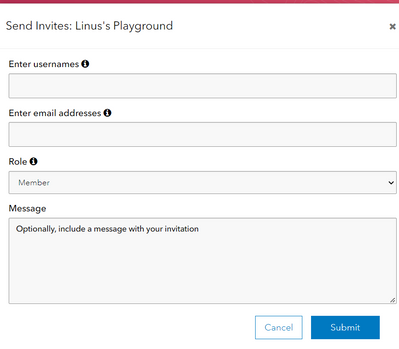
2. In the Invite pop-out window, add Enter email addresses (you can leave the username field blank)
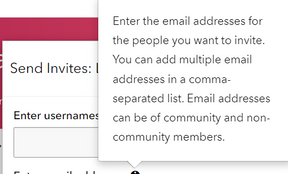
3. Click on the info icon for info on how to add email addresses and note that they do not have to be community members.
4. Here is an example of the email the will receive but with your name and group hub information.

5. From the email they can click to Join this group hub. If the email address is associated with a current Esri Community member account, it will allow them into the group.
If it is not associated with a current Esri Community member account it will send them to the Sign In page to create an account.
If they run into an issue with their account or sign in, they can email the community team at [email protected]
note: if they reply directly to the email it will send to the Esri Community team email inbox. If that happens we can forward the message to the sender of the invite for follow up. Unless, of course, it is an account issue that we can help fix, in which case we will attend to it.
Group Join Troubleshooting
For Public User Groups, no invitation or requests to join are needed to facilitate membership. Anyone can view content without membership and joining as an official member does not involve steps beyond opting in via the “Join Group” button on a User Group’s home page.
For Closed and Hidden User Groups, access is managed by membership. Esri Community must recognize that a user’s Esri Community account is an official member of a given group before it will permit entry. This is intended behavior to prevent unauthorized access.
This Troubleshooting FAQ can help users understand and navigate issues they may encounter while attempting to join or access Closed or Hidden User Groups.
Q: I attempted to join a User Group from an email invitation, but I’m seeing a message that I have to be logged in to request to join.
A: When a user sees the message that they must be logged in to send a request to join, this indicates that the user should log in (or create an Esri Community account first if they do not have one) and then try again.

Image: User Group information page with a message in an orange bar that indicates
the user needs to be logged in to send a request to join the User Group.
Q: I attempted to join a User Group from an email invitation, but I received an error message: “There was a problem with your invitation. You might try contacting the person who invited you to resolve the issue.”
A: An unresolved error has prevented the group join process from completing. In the event of a failure to join a Closed User Group via an email invitation, the user can use an alternate method to become a member of the User Group by (1) locating that group via the User Groups page or via the hyperlinked group name in your email invitation, and (2) use the “Send request to join” button on that page. This will notify Group Owners of your request so that they can review and either Approve or Deny your membership.

Image: User Group information page with a callout to a blue button that can
be used to request membership in the group.
In the event of a failure to join a Hidden User Group (these are not listed on the User Group page), please contact the Esri Community team: [email protected]
Q: I’ve sent a request to join a Closed or Hidden User Group and I’m still not able to get in.
A: Your invitation must be accepted by a Group Owner to be made an official member and before you can access the User Group. If a reasonable amount of time has passed since your request was made (we recommend waiting several business days), you may try privately messaging a Group Owner.

Image: User Group information page with a callout to the hyperlinked
usernames of the Group Owners.
Clicking on their username on the group information page will take you to their profile. From there, you can initiate a private Direct Message (button found on right-hand side) if you both have this feature enabled.
Q: I’m attempting to access a page in a User Group I already belong to, but am getting a message that the page is Hidden or Archived.

Image: Esri Community page with a banner reading "Hidden or Archived Page" and a
red ribbon with a message indicating the page is either no longer public or
the user does not have permission to view it.
A: When a member of a User Group sees this message, it may indicate that they are not currently logged into an Esri Community account that has membership in the Closed or Hidden User Group.
Because Closed and Hidden User Groups are private to members by design, the system must recognize members to grant them access, and it can only do that when they are logged into their Esri Community account that has specifically been given membership. For clarity, membership in Esri Community does not automatically mean membership in a User Group. A user must have both to access a given Closed or Hidden User Group.
Because Esri Community accounts are automatically logged out after a set time as a security measure, User Group members may encounter the Hidden or Archived page message while following a bookmarked page or an activity notification email to a post in that group without realizing that they are no longer logged in. To remedy this, simply log in and try again.
Q: I am a member of a Closed or Hidden User Group and am logged into my Esri Community account, but I still can’t access the group.
A: Esri Community permits users to have more than one account, and sometimes users will log into an account whose email address or other identifying credentials don’t match the email address they received their invitation to join the group at. Or, it may be that they are logged into an Esri Community account that is different than an account they own which does have access to the User Group.
To remedy this, either log into the Esri Community account that has membership or request User Group membership for your preferred account by (1) locating that group via the User Groups page or via the hyperlinked group name in your email invitation, and (2) use the “Send request to join” button on that page. This will notify Group Owners of your request so that they can review and either Approve or Deny your membership.
. . . . .
Still encountering issues and need help? Contact the Esri Community team: [email protected]


