- Home
- :
- Community Resources
- :
- Community Help Documents
- :
- How to Create, Review, and Post A Blog Article
- Subscribe to RSS Feed
- Mark as New
- Mark as Read
- Bookmark
- Printer Friendly Page
How to Create, Review, and Post A Blog Article
How to Create, Review, and Post A Blog Article
- About Blogs
- Blog Article States
- Who (roles) can do what with Blogs:
- How to Create, Review and Post a Blog
- Blog Draft, Review and Post Workflow
- Blog Dashboard Review
- Accessing Your Draft Blog
About Blogs
A blog post conveys information to the community in an article or story. It helps drive engagement through comments and allows readers to share their thoughts, opinions, or ask questions about the post. Examples of good blog posts include making an announcement, share an relevant story, providing thought leadership, or making your audience aware of news.
Blogs should not be used to only to share a single link without a summary or as a general request for collaboration with other community members. Also, If you plan to share updates on information that you will be regularly updating, a Document post might provide a better content option. Note that not all Esri Community roles permit Document posting.
If you are reposting information that is blogged elsewhere, (i.e. ArcGIS Blog), it is acceptable to post a link to the original blog (versus duplicating all the content), but add some context and a call to action if your goal is to generate discussion around the topic.
Blog Article States
In the blog publishing workflow, blog articles can be in one of four states:
- Draft: Article has been created or edited but isn't ready to be reviewed or published
- Awaiting Review: Article draft is ready for review
- Awaiting Publication: Article has been reviewed and is ready for approval and publication
- Published: Article has been published. If this article was a revision for an already-published article, this new version replaces the previous version in the community
Who (roles) can do what with Blogs:
Esri, Esri Place Managers, and Esri Ideas Managers roles
Have permissions to do the following:
- Create blogs
- Post directly (no review step required)
- Submit for Review, this allows others to review and arrange publication
- Add blog Co-Authors who share editing permissions
- Access Blog Dashboard to review pending blogs and post or schedule them to publish at a later time
- Edit Drafts
- Publish Drafts and Awaiting Review
- Place Managers should be reviewing the Blog Dashboard periodically to see if there are any drafts awaiting review
Note: This does not reflect User Group blog permissions where any member of the User Group can publish a Blog post.
MVP and BlogAuthor roles (a select set of customer community members that have been granted the permission to create blogs)
Have permissions to do the following:
- Create blogs
- Save drafts
- Edit their own drafts
- Add blog Co-Authors who share editing permissions
- Submit for Review, this allows others to review and arrange publication
- Access Blog Dashboard to review their own saved drafts and pending (or scheduled) blog articles
All other Community members (any non-Esri/non-MVP/Non-BlogAuthor member) this covers most of our community members
Have permissions to do the following:
- Read blogs
- Comment on blogs
- If you fall into this category and would like to become a blogger, you can make a request by messaging the Esri Community team at [email protected]
How to Create, Review and Post a Blog
To create a blog you first need the appropriate permissions (see above):
- In your place or group, go to your Blog board
- From your Blog board, select Create a post (or start a New Article)
- Enter the title of the blog in the Article Subject Line
Using an Article Teaser
- If you would like to create an introduction to your blog to interest readers to read the blog from the brief text displayed in the board feed, enter a brief Article Teaser
- Article Teaser text will not show up in the opening text of your blog once your blog is open
- Boards will display your blog body content in the Latest Activity Feed if no Article Teaser text is provided
Following the Article Teaser section, add your content in the Body of the post. When creating the body of the blog you can:
- Hover over the editing tools to view all the options
- Pull down the bottom right corner of the blog body to expand the text box
- You can click the Preview option (top right of Body box) to see how your blog will look once published
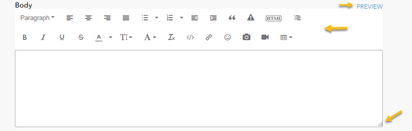
Additional Options
- Choose your option for Email me when someone replies. This option is selected by default. Uncheck the box if you do not want to receive an email
- Choose your Labels and enter applicable Tags
- Use the right-hand widget to add blog Co-Authors. Co-Authors are listed as Collaborators on the published blog post and share editing permissions
Blog Draft, Review and Post Workflow
If you have the BlogAuthor role, you first write the blog. Next, either click Save Draft to preserve your article in a draft state to continue working on later or use the Submit for Review button to send the article for review by an Esri Place Manager (let them know your article is ready via email or other communication as there is no automatic notification).
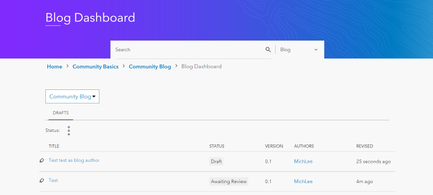
If you selected Save Draft, the draft is preserved. The version number of this draft is 0.1. The status appears on the top-right corner. In this example, the draft status is Draft. The View Draft History lists all the actions taken on the blog article until it is published.
The BlogAuthor can choose to click any one of the following buttons:
- Edit - To update the article.
- Submit for Review - To assign the article to the Place Manager for review.
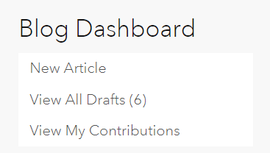
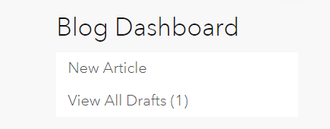
The BlogAuthor can view the status of their article in by locating the Blog Dashboard widget on the right-hand side of the associated blog board and selecting View All Drafts.
The article is now in the Awaiting Review state and waiting on a Place Manager or other authorized publisher to take action.
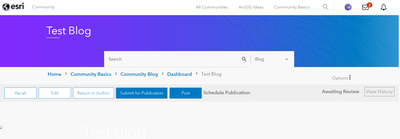
If you are Esri Staff (without Place Manager or Blog Publisher roles):
Save Draft if you want to continue working on your blog post at a later time, or want to allow others to edit and contribute.
Submit for Review: if you would like another member to review before publishing.
or you can bypass review and Post, it will immediately post in the Blog board
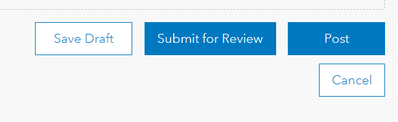
You have the additional option to schedule the publication of your blog. Enter the date and time you want the blog to publish.
From the published blog post, click the Options menu. In the Options menu, you can make additional choices.
Select Edit Article to edit your blog.
Select Delete Article to delete the blog.
Blog Dashboard Review
As a Place Manger you can access and take action on the blogs that are saved drafts or are awaiting review in the Blog Dashboard
Accessing Your Draft Blog
Return to the Place's Blog board where you created your blog.
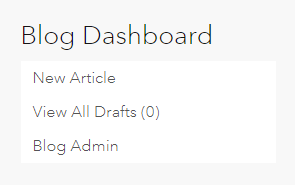
At the bottom of the right column in the Blog board, look for the Blog Dashboard:


@Anonymous User I've saved a draft of my blog post? I can't find it anywhere! Where do I access the draft to continue writing? Thanks.

Hi @LauraBowden, Return to the blog board (e.g. Training Blog) where you were creating the blog, and you will see a Blog Dashboard in the lower right column with a count next to View All Drafts. Click View All Drafts and you should see your draft post.


@Anonymous User What are the Labels used for?
Hi @JenniferCadkin,
Labels are used within a community to help categorize questions, blogs, ideas, documents that you write based on the themes or content in your post. Labels are unique to the places where content is posted in.
For example, in our Community Blog, you'll find labels for Community News, Community Updates, and Community Contest to narrow the subject matter.


Hi @SZ1990,
Welcome to Esri Community!
To gain Blog permissions, you must be an Esri staff member, MVP, or have the Blog Author role linked to your Esri Community profile. As you do not meet these criteria, you should not have the ability to submit a blog for review and looking at your profile, I do not see any drafts. Where were you attempting to publish a blog?
@BriannaEttley Yes I haven't met the criteria but found to get a chance to submit via industry story. The following message, I have received via email, "Submission Confirmation 38075 has been made to Share Your Industry Story"
Hi @SZ1990.,
Thanks for the additional information! Can you please send me a link to the page you submitted a blog? Was it through an Esri Community page?
@BriannaEttley esri.com/en-us/industries/share
The link which I used to share my article. Thanks for your guidance.
Hi @SZ1990,
The link you provided is not affiliated with Esri Community but Esri Industry Solutions - GIS Success Story Submission Portal.
Looking at their guidelines, you can send the team an email at [email protected]!

