Select to view content in your preferred language

Tools & Tips: Direct Messaging

1789
4
03-21-2024 09:00 AM
Labels (1)
DaraBurlo
Esri Alum
7 4 1,789

Esri Community’s Tools & Tips series provides a power-packed serving of “How-To” every month. These micro-sized guides make it easy to level up your platform knowledge and get more out of Esri Community. 

The value: Direct Messaging another member, allows you to connect with other members by taking a conversation offline for a more personal interaction. For example, you notice another member is posting about a hot topic in your field of interest and you want to learn more about other trends they may have been investigating.

How to do it: From a post or blog article, click on the member’s name and click ‘View Profile’. Scroll down to the ‘Contact Me’ section on the left-hand side. Click the ‘Direct Message’ button. This will open the ‘Create New Message’ form. The member’s username will already be auto filled in the ‘Send to’ field.  

Alternatively, click on the ‘envelope’ button DaraBurlo_3-1710954279673.pngin the top left corner of Esri Community. This will open up your Inbox. Click on the other ‘envelope’ icon DaraBurlo_2-1710954238957.pngbeside the ‘Inbox’ dropdown on the right-hand side of the screen. This will open the ‘Create New Message’ form. In the ‘Send to’ field, type or search for the member’s username(s). 

Optionally, check ’Send as Broadcast Message’ if it is being sent to multiple members and you’d like the message to be sent out individually to each member.  

From here, fill out the ‘Message Subject’ and ‘Message Body’. Once you have finished composing the message, click the ‘Send Message’ Button at the bottom of the form.  

The message will be sent to the recipient(s). If the user is subscribed to automated Community emails in their email settings, an email will be sent to the recipient notifying them of the message as well as a notification on the envelope button DaraBurlo_4-1710954334980.pngin the top left corner of Esri Community.  
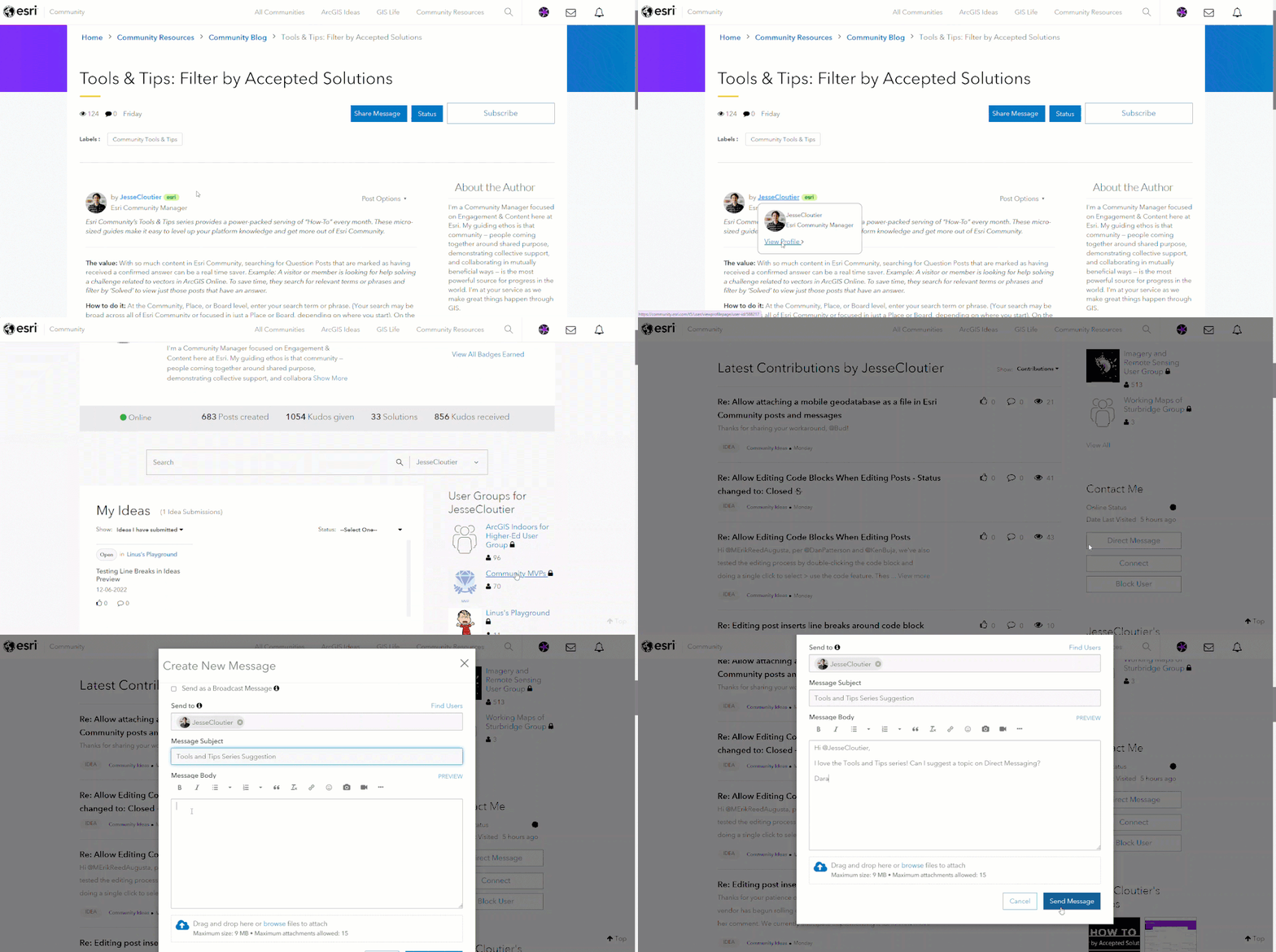
Tools and Tips - Direct Messaging.gif

Keep in mind: If a user has turned off email notifications, unsubscribed to automated community emails, turned off push notifications, turned off all real-time pop-up notification, or turned off all mobile notifications, the member may only see the notification when checking their notification feed. 

4 Comments
Bud
by
Legendary Contributor

What are the “push notifications” and “mobile notifications” you mentioned? Is there a Esri Community mobile app?

DaraBurlo
Esri Alum

The push notifications in the settings turns off all notifications (email, pop-ups etc.) Mobile notifications is in the list as default from the platform vendor as we do not have a mobile application that this applies to. Sorry for the confusion. Here is a screenshot of some of the settings I am referring to in this topic. You can find under My Settings > Subscriptions and Notifications > Notification Settings  

DaraBurlo_0-1711476705566.png


chenda94
New Contributor

Is this still functionality that's supported? There's a few members I was hoping to message but don't see the "Direct Message" button. Not sure if it's because my account is too new though.

JesseCloutier
Esri Community Manager

Hi @chenda94 and welcome to Esri Community! Yes, Direct Messaging others is still an available feature. You're right in guessing that the limitation you've run into is based on how new your account is. Brand new accounts are temporarily prevented from accessing this feature as a spam prevention measure. You'll find that Direct Messaging becomes available to you within a relatively short time-frame—check on it again in 24 hours now that you've been interacting.