Select to view content in your preferred language

Heterogeneous colors between rasters of mosaic dataset

484
5
02-05-2026 02:37 AM
AlixCL
by
Occasional Contributor

Hello,

I am working with georeferenced historical maps from the 19th century. These are 8-bit unsigned TIF files.

My goal is to create a mosaic in order to merge all the maps into a single raster, so that it can be published on an ArcGIS Enterprise and used in web maps.

I am encountering an issue with color homogenization between each map after creating the mosaic.

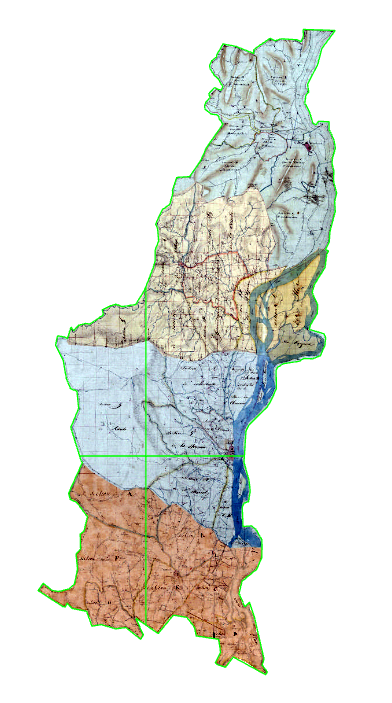
Here is what the maps look like before mosaicking (individual rasters):
AlixCL_0-1770285890761.png

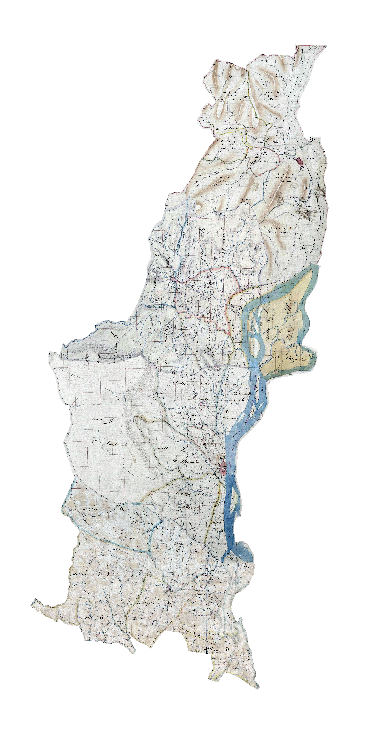
After mosaicking:

AlixCL_1-1770285974067.png

I am wondering why such a significant color shift occurs. The Color Balance function does not change the rendering, and adjusting the Stretch does not truly reduce the differences. 

I have also tried, without success:

- Modifying the minimum values to 0 and the maximum values to 254 for the rasters using Set Properties before mosaicking

- Using photo editing software (GIMP) and applying white balance

If anyone has encountered the same issue in the past, I would be happy to discuss it and receive some advice.

Thank you in advance for your help.

Alix CL

 

Tags (3)
0 Kudos
5 Replies
tikola
by Esri Contributor
Esri Contributor

The thing you see is a result of separate files individual scanning which has generated a separate pixel values in files. The good result you see is a result of Look Up Table based colors and you truly not see the actual pixels in it. The steps I would do are following

  1. first figure out is your file RGB or single band thematic raster - most likely it is RGB
  2. Then look the actual pixel values of your data compared to Look Up Table which in Esri terminology is Custom Stretch. You should see a clear difference in pixel values between images in this kind of visualization: tikola_1-1770299294322.png


  3. Then the task you need to do is somehow feed streched values as a mosaic input and that should output the correct result.

So in generally it is important to understand what is a true pixel value/color of a data and how software stretches that to display. So thing your eye sees may not be that actual pixel value but rather a software based visualization of it. All GIS/Remote sensing tools act in this way and it is user task to control that. Just guessing possible mosaic tool settings makes no sense you need to understand where problem lies and then trying to find right solution to problem.

So I am 99% sure that your actual files have a different pixel value levels as they are captured separately and putting them to single file shows you that difference in different shades of colors. Maps are scanned or something like that and each scanning has generated separate pixel value levels based on hardware settings.

0 Kudos
tikola
by Esri Contributor
Esri Contributor

Color balancing in generally is designed to aerial imagery style data and doing that to a map most likely fails. We are not seeing now a natural image but rather a thematic file where color balancing most likely fails. So your data is a very specific case of imagery and normal tools fails because of that.

0 Kudos
AlixCL
by
Occasional Contributor

Thank you very much @tikola for all this information! This really helps me understand how the system works.

You’re right, these are indeed RGB rasters. They come from different sources, were produced in different years, and each one has its own statistics.

I don’t quite understand how to “feed stretched values as a mosaic input”.

I really like the color rendering of the individual rasters (first image), and I would like the mosaic to display the same way. The corresponding stretch type is Percent Clip, but when applied to the mosaic, it produces the rendering shown in the second image above.

0 Kudos
tikola
by Esri Contributor
Esri Contributor

"I don’t quite understand how to “feed stretched values as a mosaic input”."

I have seen in some software sometimes a feature where output was generated from LUT values instead of real pixel values. So kind of feeding your visually good output as a mosaic input. I have not seen such function in ArcGIS but it also can be that I have not just seen it.

That is the real thing you now are looking but does such function exist - I do not know.

I got your point of first image as it represents the situation as you see it but unfortunately process has in some step adusted pixels in difficult way and you need now somehow fix that. Bascially some sort of export first visualization LUT values to actual pixel values is a tool that would make your trick now.

I know your problem and the thing I am missing is that I do not know do we have suitable tools in ArcGIS Pro to fix it. There I need also someone else who knows more in ArcGIS Pro image processing functions.

0 Kudos
AlixCL
by
Occasional Contributor

Sorry for my late reply.

After some thought, I will ultimately go with a simple Minimum–Maximum stretch. At least this way, I am sure that all pixel values from each raster are being displayed. Admittedly, the tones may still vary from one map to another, but at least these are the original colors.

Unfortunately, I no longer have the time needed to look for a solution to homogenize the colors, but I am sure that your idea regarding LUT values will inspire others!

Many thanks again for your help!

AlixCL

0 Kudos