- Home
- :
- All Communities
- :
- Products
- :
- ArcGIS Experience Builder
- :
- ArcGIS Experience Builder Questions
- :
- Attempted to Install Experience Builder - Develope...
- Subscribe to RSS Feed
- Mark Topic as New
- Mark Topic as Read
- Float this Topic for Current User
- Bookmark
- Subscribe
- Mute
- Printer Friendly Page
Attempted to Install Experience Builder - Developer v1.2 : failed at npm

- Mark as New
- Bookmark
- Subscribe
- Mute
- Subscribe to RSS Feed
- Permalink
I was tempted to poke around the Developers section of ArcGIS, in the hopes of perhaps fingaling my way to a widget that behaved the way I wanted it to.
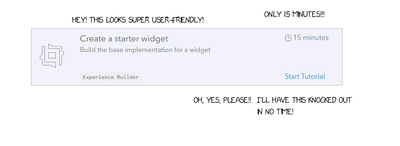
The requirements included your own installation of the ExB Developer Edition ~for which there is a handy video that purports to 'walk the viewer through the installation steps.' There's a bit of a gap in the instructions 37 seconds in.
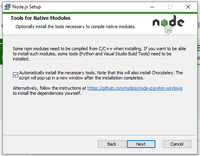
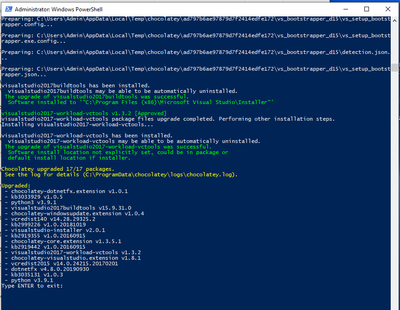
I have opened cmd prompts to "clean install" the client and server, but typing npm ci does nothing.
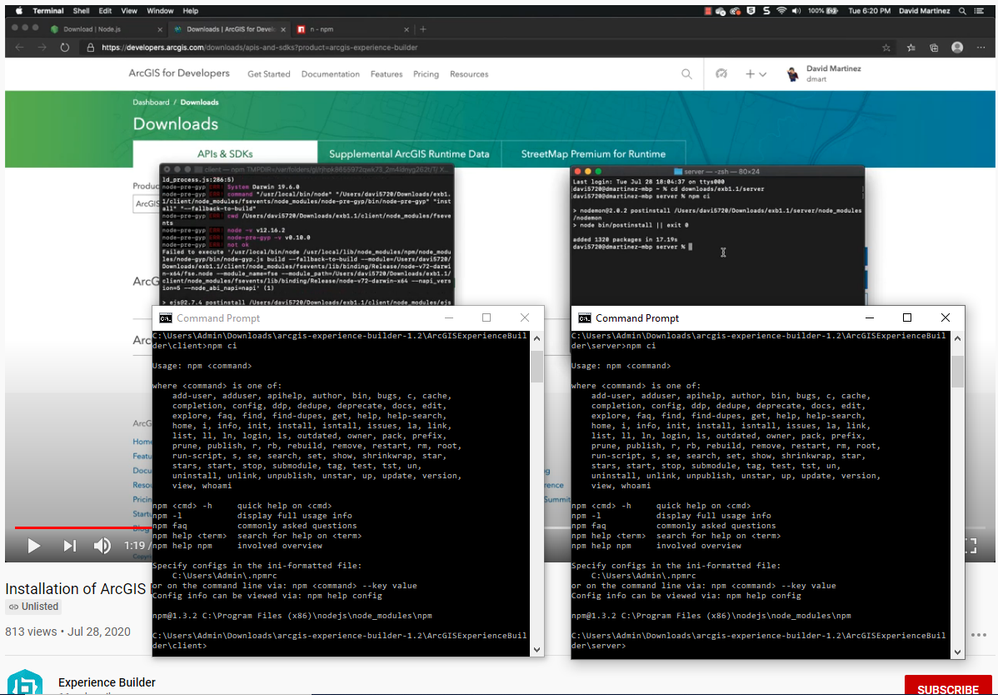
So, I'm stuck on Step #8 of installing the Developer Edition.
Any ideas re: how to proceed?
This is probably a rookie mistake, and we'll all have a good laugh later, but I'm no where near starting the 15 minute 'Create a starter widget' tutorial.
Solved! Go to Solution.
Accepted Solutions
.png "DavidMartinez")

- Mark as New
- Bookmark
- Subscribe
- Mute
- Subscribe to RSS Feed
- Permalink
It was, as I'd supposed, a newbie error. And it was your question that led me to the solution.
The failing cmd window printed:
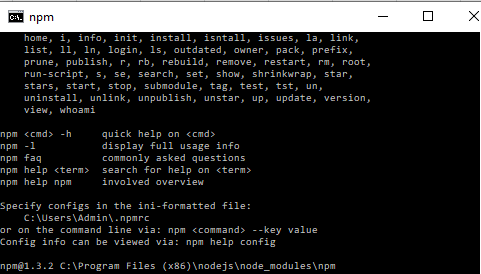
...clearly showing that it was trying to find nodejs in C:\Program Files (x86)\ and version 1.3.2
When I'd downloaded the newest version into C:\Program Files\
So I renamed the original nodejs folder to nodejs_old, and reinstalled the nodejs to the x86 folder.
Step #8 now works without a hitch.
- Mark as New
- Bookmark
- Subscribe
- Mute
- Subscribe to RSS Feed
- Permalink
Hey David,
What version of node do you have installed?
- Mark as New
- Bookmark
- Subscribe
- Mute
- Subscribe to RSS Feed
- Permalink
It was, as I'd supposed, a newbie error. And it was your question that led me to the solution.
The failing cmd window printed:
...clearly showing that it was trying to find nodejs in C:\Program Files (x86)\ and version 1.3.2
When I'd downloaded the newest version into C:\Program Files\
So I renamed the original nodejs folder to nodejs_old, and reinstalled the nodejs to the x86 folder.
Step #8 now works without a hitch.
- Mark as New
- Bookmark
- Subscribe
- Mute
- Subscribe to RSS Feed
- Permalink
Hi David,
Glad you got it working.
Cheers,
David

- Mark as New
- Bookmark
- Subscribe
- Mute
- Subscribe to RSS Feed
- Permalink
Can you try just install Node.js default option (not select like Chocolatey)? and run npm comments as administrator.


- Mark as New
- Bookmark
- Subscribe
- Mute
- Subscribe to RSS Feed
- Permalink
I have a similar issue when trying to do a new install Experience Builder Developer Edition 1.14. I have Node.js v 22.3.0 and it is installed in the x86 folder. When I run step 10 on the workflow below, the slash bar spins for a very long time and nothing reports. Has anybody else experienced this?
https://developers.arcgis.com/experience-builder/guide/install-guide/
