Frequently Asked Questions:
How can I interact my ArcGIS layers with the Power BI report?
You could directly interact your Power BI data layer with other Power BI visuals in your report by making selections on the features.
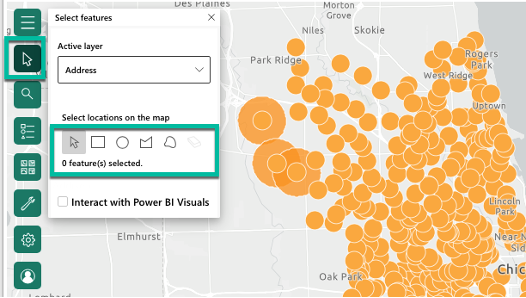
ArcGIS for Power BI - Select features: Power BI data layer
However, added reference ArcGIS cannot directly interact with other PBI data visuals in ArcGIS for Power BI. In order to interact your ArcGIS layers with other Power BI visuals, you could join Power BI data with the added ArcGIS layers by joining the common attributes from your Power BI data with your ArcGIS layer data.
Learn more about Join layers -
Join layers
Join your data to ArcGIS layers
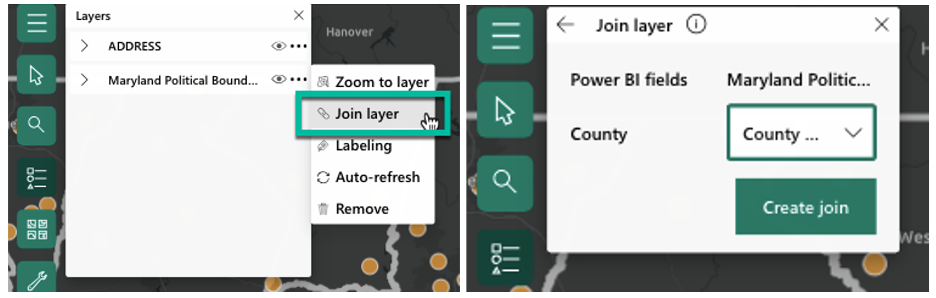
ArcGIS for Power BI - Join layer
In addition, if you want to directly select your ArcGIS layers within ArcGIS for Power BI, you could go to Select features tool, select the ArcGIS layer and uncheck Interact with Power BI Visuals. Then you could directly make selections on the ArcGIS layers. When you make selections, infographics cards will react to the selections and make analysis accordingly.
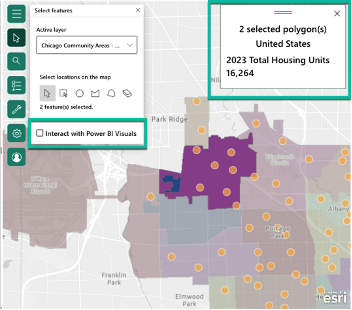
ArcGIS for Power BI - Select features: ArcGIS layers
Will there be any enhancements on Join layer?
We are currently working on Join layer enhancements. We are planning on having a release that is focused on these enhancements in Q4 2023/Q1 2024.
How can I Embed and Publish my report with ArcGIS for Power BI?
You can either embed or publish your report with ArcGIS for Power BI. The first thing is to sign in with your ArcGIS account. To ensure your report with ArcGIS for Power BI visual is good to go, please run a Validation check under Settings tool before you embed or publish your report. Only Coordinates (X, Y field wells) and Esri JSON (Location field well) will only be supported to embed and publish. And make sure your Basemaps, reference layers and infographics cards are public in order to pass the validation check.
Note: Currently, ArcGIS for Power BI will only support Coordinates (X, Y field wells) and Esri JSON (Location field well). We are working on enhancing Embed and Publish report experience. Please share your ideas if you have any on our Esri Community ArcGIS for Power BI Ideas board.
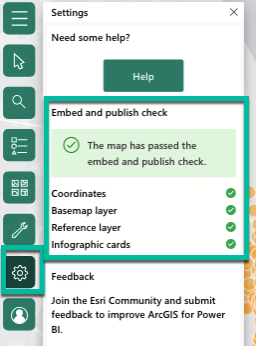
ArcGIS for Power BI - Embed and publish check
Learn more about Embed and Publish –
Share a map-enabled report
Publish a map-enabled report to the web
Embed a map-enabled report
Blog: Sharing reports in Power BI using ArcGIS for Power BI
What’s the update on Legend and Symbology?
You could map your data based on your needs:
Bivariate rendering – Dragging and dropping data to the Size and Color field.
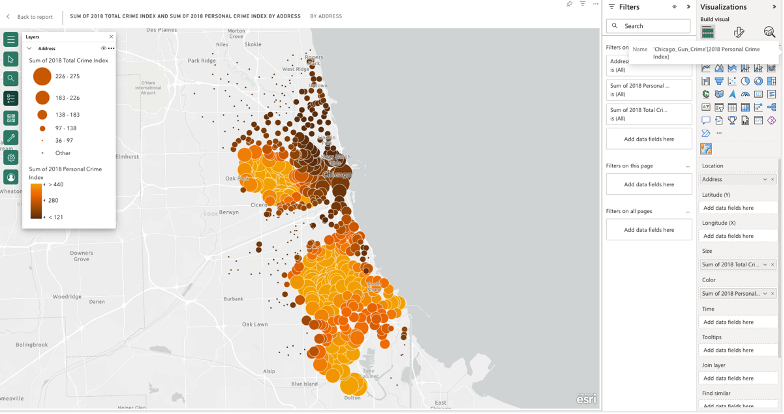
ArcGIS for Power BI - Size and Color
The legend will display in the Layer widget. You could dock the legend either on the left or right on your map, change the title and hide/show layers widget.
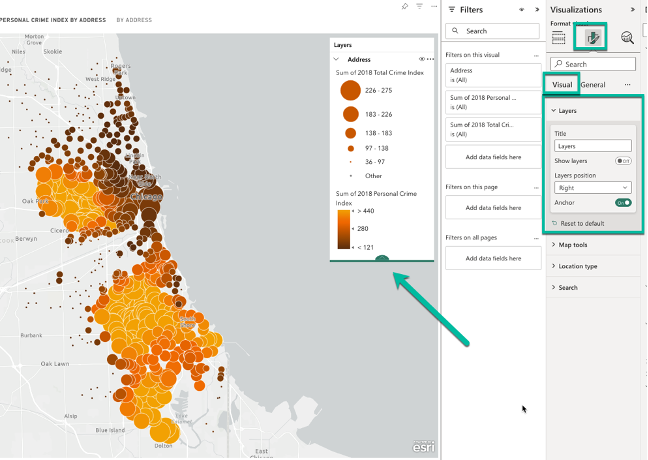
ArcGIS for Power BI - Legend
Here’s a blog about Layer styling in ArcGIS for Power BI with more styling options. We are looking to streamline these processes in a future release.
Can I map Polyline data? How can I get EsriJSON data to import to ArcGIS for Power BI?
You can map polyline data. However, the only way to map the line data is through EsriJSON format, which means dragging and dropping the geometry data to Location field well.
The geometry data format should follow the formats below:
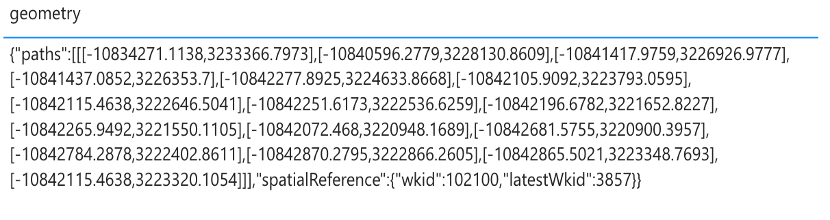
ArcGIS for Power BI - Supported EsriJSON format
One way to get EsriJSON format for lines/polygons is through Power Automate by using the ArcGIS connector: Get data from Feature layer.
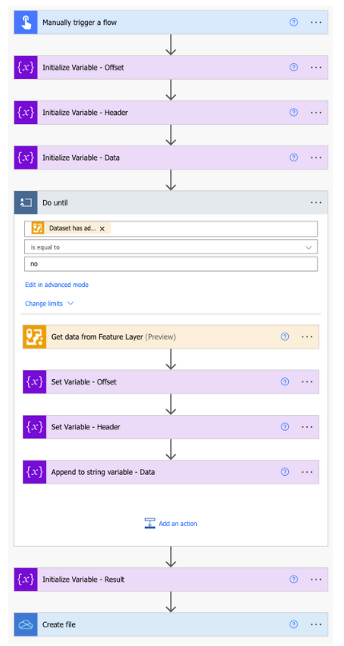
Here’s the detailed steps for how to create this workflow in Power Automate.
Using ArcGIS Connectors for Power Automate to get Custom Geometry in Power BI
How can I bring web service data through URL to ArcGIS for Power BI?
Currently, you cannot directly connect your ArcGIS data through a Web URL in Power BI. This is a limitation of Power BI itself and is not related to ArcGIS for Power BI.
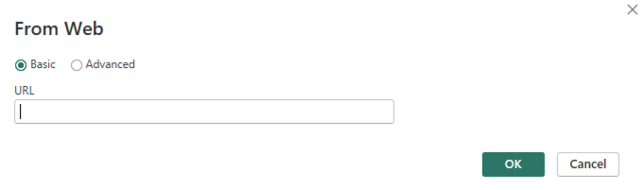
Power BI - Connection from Web
Can I use ArcGIS for Power BI in a disconnected environment?
ArcGIS for Power BI does not operate in a disconnected environment. If you are looking for obtaining access to the visual while behind a firewall, you will need to work with your IT/Network admins to allow access to Power BI Desktop and Power BI Online’s services. Learn more about System settings.
How can I sign out ArcGIS for Power BI? What if my token expired?
To sign out ArcGIS for Power BI or switch account, you will need to add a new ArcGIS for Power BI visual, sign in and then the credentials will be carried over to your report. This also applies when your token has expired. We will be enhancing this behavior later in Q4 2023/Q1 2024. This sign in process will be the same as it is in ArcGIS for SharePoint and ArcGIS for Excel.
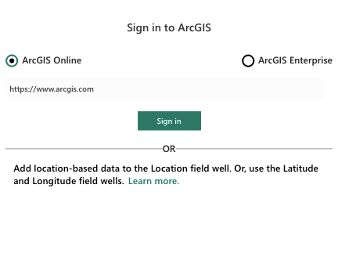
ArcGIS for Power BI - Sign in
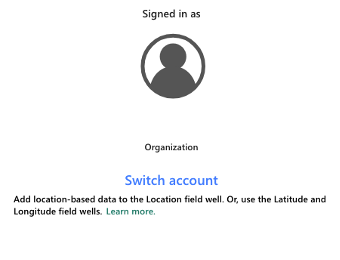
ArcGIS for Power BI - Switch account
Can I edit ArcGIS layers directly in ArcGIS for Power BI?
ArcGIS layers are working as reference layers to provide contextual information for your Power BI data in ArcGIS for Power BI, so they cannot be edited. For ArcGIS layers, you are able to hide/unhide the layer, zoom to the layer, enable labeling, auto-refresh for feature layer and remove the layer.
Does ArcGIS for Power BI consume my credits?
ArcGIS for Power BI does not charge your credits, no matter if you are an ArcGIS user or not. However, when using Power BI Report Server with ArcGIS Enterprise accounts, credits might be consumed. Learn more
Is there a way to close the popups?
Currently, you will see “two” kinds of popups. One is for the PBI data layer popup, the other is for the added ArcGIS reference layers.
To be accurate, the popup for your added Power BI data is “Tooltip”. The way how Tooltip works is that when you hover over the features, it will show up the data that you drag to the map. To make it disappear, you will need to move off the features. If you see the tooltip still shows on the map, it will disappear soon if you are not hovering over any features on the map. We are currently working on enhancing the tooltip for Power BI data layers. The new tooltip experience will handle these confusions.
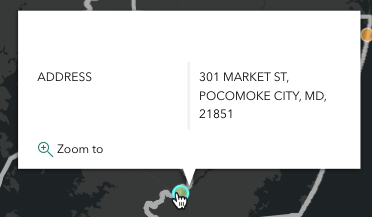
ArcGIS for Power BI - Tooltip for the Power BI data layer
The other popup will be triggered if you click on the features of the added ArcGIS layers. In the popup window, you will see the data attributes from the ArcGIS layers. You will be able to Zoom to the feature you click, dock and close the popup window.
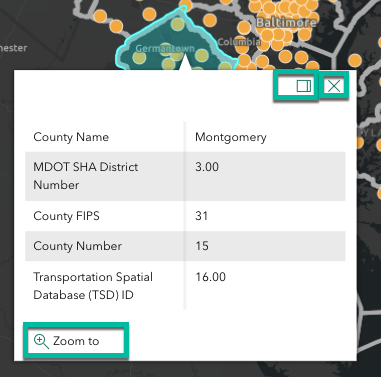
ArcGIS for Power BI - Popups for the ArcGIS layers
As a note, we are researching ways to make use of the native Power BI tooltips to enhance this experience. Our goal is to have this completed by Q4 2023/Q1 2024.
Where can I get resources on ArcGIS for Power BI when I am using it?
After you add data to ArcGIS for Power BI visual, you will see powered by esri on the bottom right. When you hover on it, it will display the version number that you are using for ArcGIS for Power BI. When you click on it, it will direct you to the ArcGIS for Microsoft 365 resources page and get more information on ArcGIS for Power BI, e.g. Documentation, Blogs, etc.
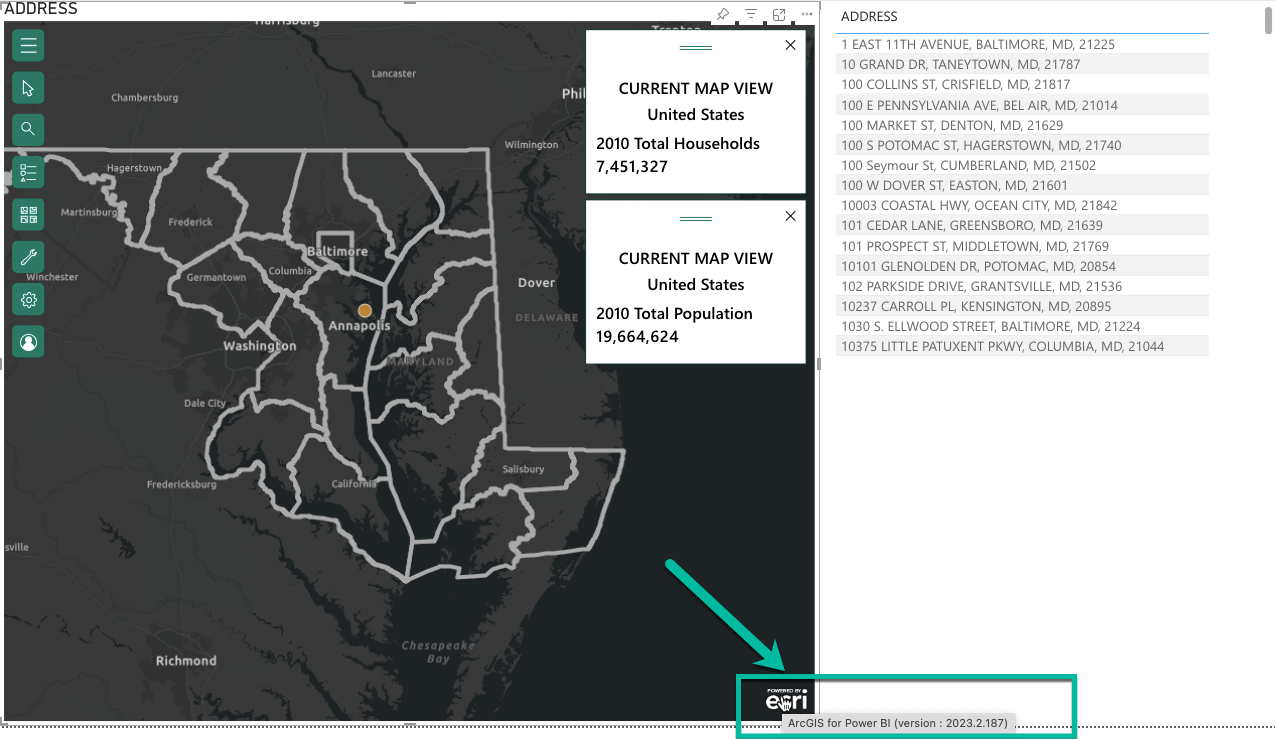
ArcGIS for Power BI - powered by esri
In addition, under Settings tool, you could get the ArcGIS for Power BI resources by clicking the Help button. You could also click Submit feedback to join ArcGIS for Power BI in Esri Community to ask questions, illustrate your ideas and check the latest change logs and updates.
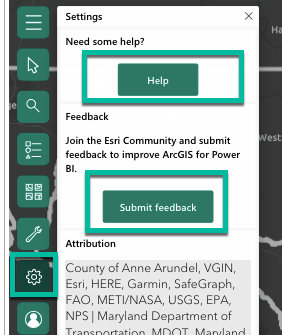
ArcGIS for Power BI - Settings