"Desktop Map App Development" SeriesPart8.
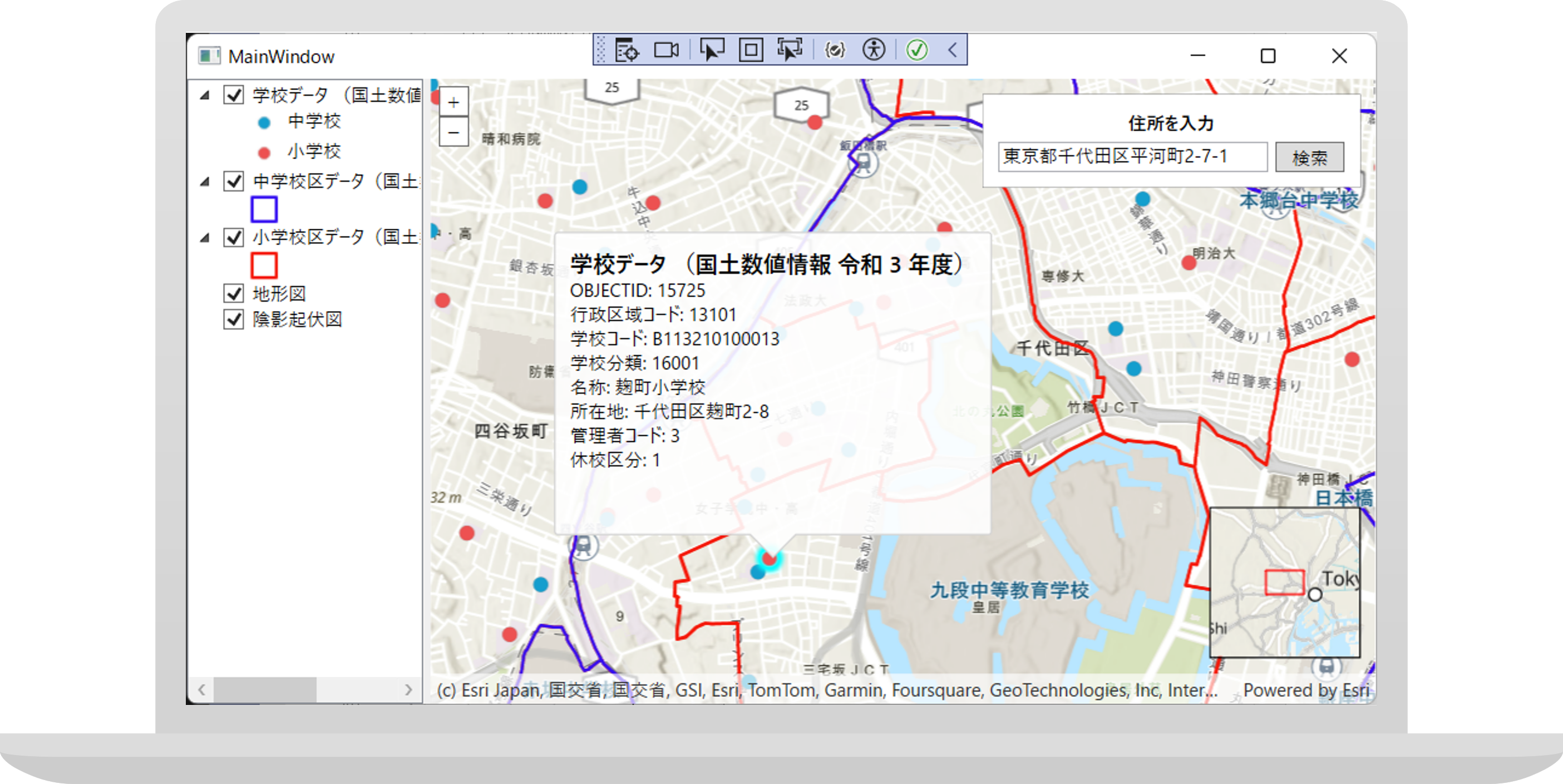
This time,Part7 we will add an overview map feature to the map app created in. Sample code for the features introduced in this article is available on Esri Japan GitHub .
ArcGIS Maps SDK for .NET Toolkit
ArcGIS Maps SDK for .NET (hereafter, SDK) basically does not provide UI components, so developers need to implement them themselves. On the other hand, an open-source toolkit called "GitHub ArcGIS Maps SDK for .NET Toolkit" is published, offering commonly used UI components in map apps such as basemap gallery, compass, legend, scale bar, etc. By using this toolkit, you can easily add UI components to apps developed with the SDKUI コンポーネントを簡単に追加することができます。ツールキットはオープンソースで公開されているため、ツールキットをカスタマイズして拡張することも可能です。今回はこのツールキットを使用して、アプリに概観図の機能を追加します。
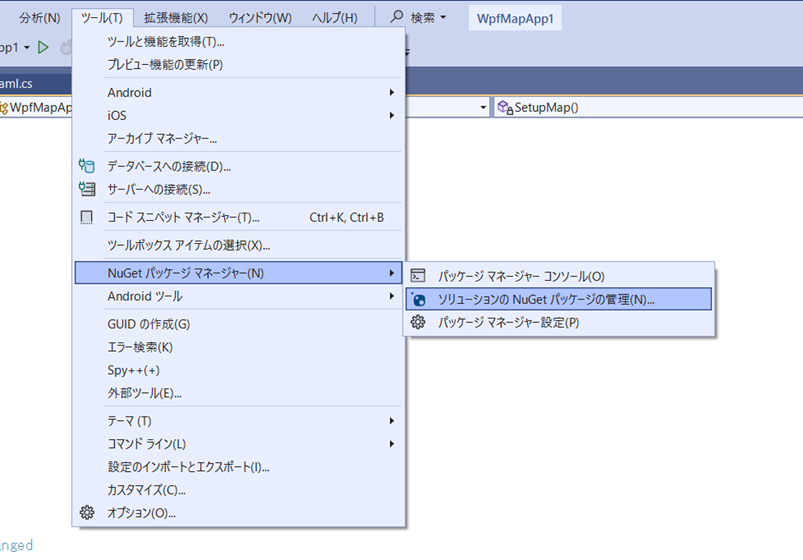
1. ArcGIS Maps SDK for .NET Toolkit の NuGet パッケージをインストールします。Visual Studio のメニューから [ツール] → [NuGet パッケージ マネージャー] → [ソリューションの NuGet パッケージの管理] をクリックします。
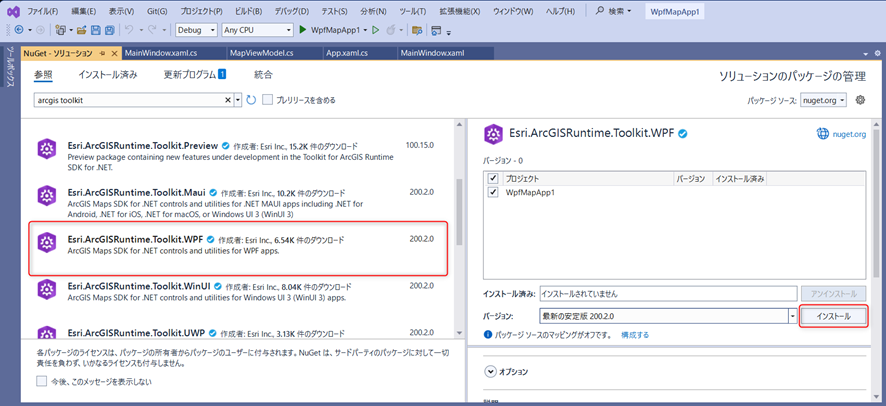
2. 検索ボックスに「arcgis toolkit」と入力して、「Esri.ArcGISRuntime.Toolkit.WPF」をインストールします。ツールキットのバージョンはプロジェクトで使用している ArcGIS Maps SDK for .NET のバージョンと同じバージョンにします。
3. MainWindow.xaml で概観図のコントロールを追加します。
MainWindow.xaml

<esri:OverviewMap x:Name="OverviewMapView" HorizontalAlignment="Right" VerticalAlignment="Bottom" Margin="10,10,10,30"/>
4. MainWindow.xaml.cs で、メインの MapView と概観図の MapView の表示位置が同期されるようにコードを追加します。
MainWindow.xaml.cs

public MainWindow()
{

   InitializeComponent();

   // メインの MapView と概観図用の MapView の表示位置を同期させる
   OverviewMapView.GeoView = MainMapView;
5. アプリを実行してみましょう。アプリの右下に概観図が表示され、マップを移動するのに応じて概観図の表示位置も更新されます。概観図の赤枠はマップの表示範囲を示しています。
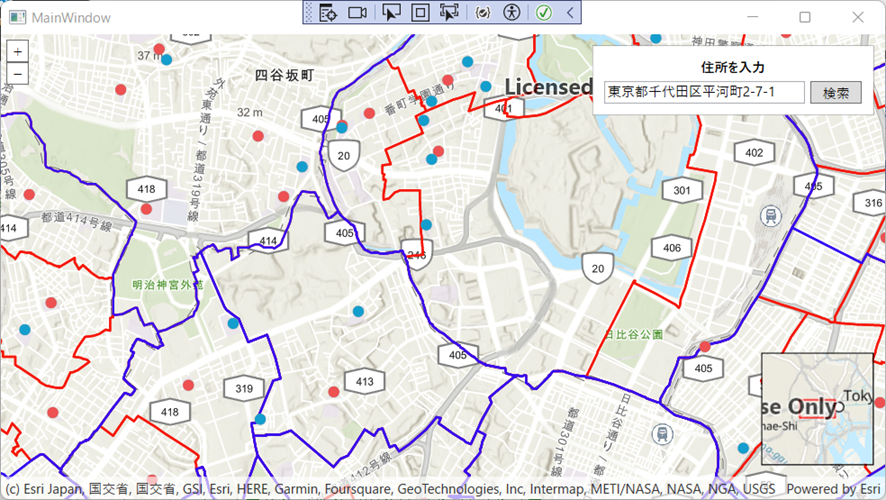
第8弾「概観図」ではオープンソースのツールキットを使用して、概観図を追加しました。ツールキットには、他にも機能が提供されているので、ぜひご活用ください。次回、第9弾ではレイヤー リストの作成方法を紹介します。
関連リンク