<\/HEAD>
Ao iniciar no ArcGIS Pro com contas do Google, pode ocorrer o erro "Script Error".<\/P>
 <\/P>
<\/P>
Solução 1:<\/STRONG><\/P>Clique em Iniciar do Windows> Procure o programa Executar (Run).<\/LI>Digite regedit na janela e clique em OK.  <\/LI>Procure a seguinte chave de registro:<\/LI><\/OL>HKEY_CURRENT_USER\Software\Microsoft\Internet Explorer\Main\FeatureControl\FEATURE_BROWSER_EMULATION<\/PRE>Adicione um novo valor DWORD (32 bits) para ArcGISPro.exe.<\/LI>Clique com o botão direito em FEATURE_BROWSER_EMULATION e clique em Novo> Valor DWORD (32 bits).<\/LI>Nomeie a chave como ArcGISPro.exe.<\/LI>Clique com o botão direito na chave e clique em Modificar.<\/LI>Modifique os dados da chave do valor para 2af9 e clique em OK.<\/LI><\/OL>https:\/\/support.esri.com\/en\/Technical-Article\/000022667<\/A><\/P>
Solução 2:<\/STRONG><\/P>Configuração do Internet Explorer<\/STRONG><\/LI><\/OL>No Internet Explorer>Opções de Internet>Segurança: Altere o nível de segurança em "Internet e Intranet Local" para "Médio"<\/P> <\/P><\/P>No Internet Explorer>Opções de Internet>Segurança : Altere o nível de segurança em "Intranet Local" para "Baixo"<\/SPAN><\/P>
 <\/P><\/P>No Internet Explorer>Opções de Internet>Sites Confiáveis>Sites : Adicione os seguintes domínios<\/SPAN>
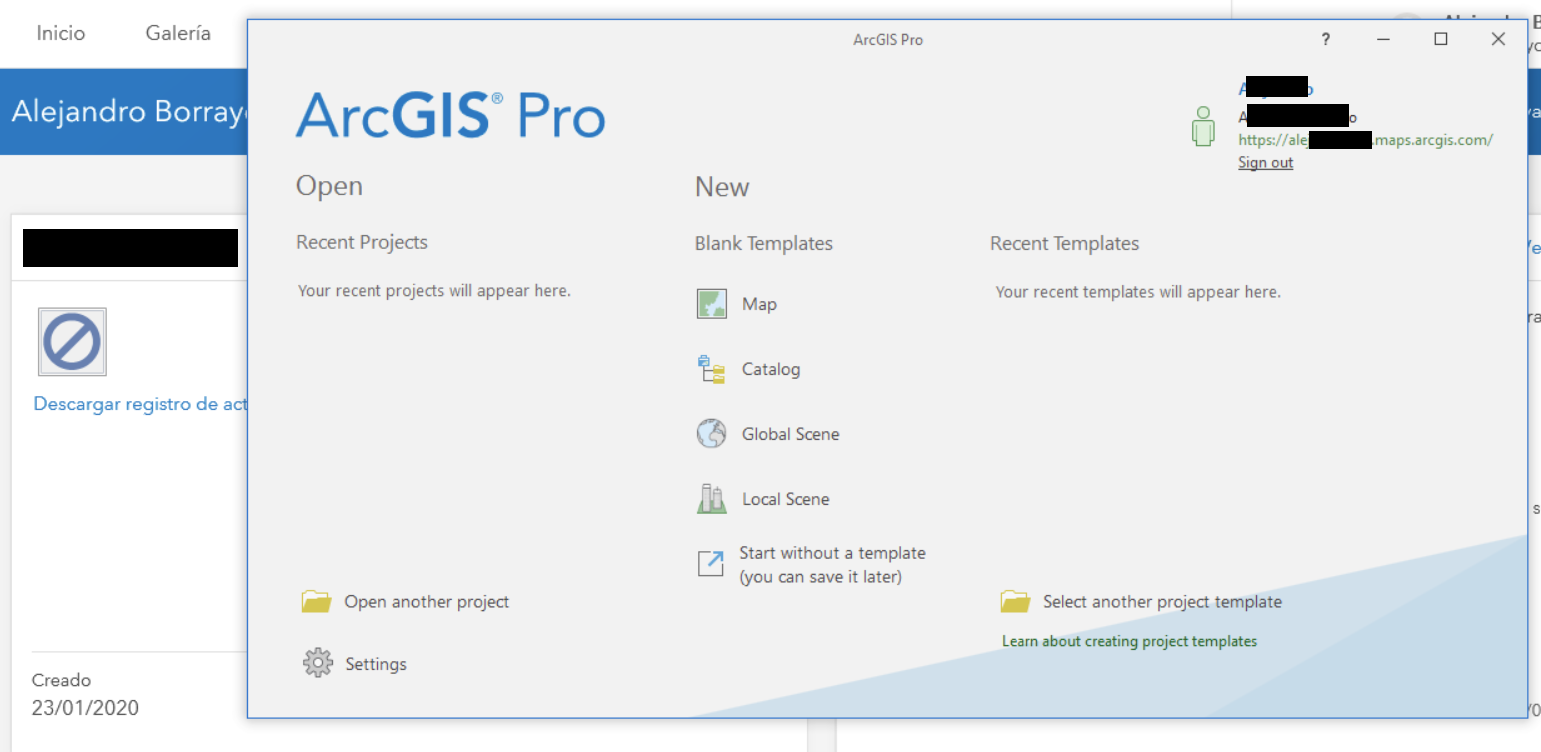
https:\/\/*.arcgis.com<\/A><\/LI>https:\/\/*.arcgisonline.com<\/A><\/LI>https:\/\/*.amazonaws.com<\/A><\/LI>https:\/\/*.virtualearth.net <\/A><\/LI>https:\/\/*.esri.com<\/A><\/LI> m < / EM >< / SPAN >< / LI >< LI >< SPAN style = "font-size :11 pt ;font-family :Calibri,sans-serif ;"> http://*.arcgis.com < / EM >< / SPAN >< / LI >< LI >< SPAN style = "font-size :11 pt ;font-family :Calibri,sans-serif ;"> *.arcgisonline.com < / EM >< / SPAN >< / LI >< LI >< SPAN style = "font-size :11 pt ;font-family :Calibri,sans-serif ;"> *.amazonaws.com < / EM >< / SPAN >< / LI >< LI >< SPAN style = "font-size :11 pt ;font-family :Calibri,sans-serif ;"> *.virtualearth.net (para mapas Bing) < / EM >< / SPAN >< / LI >< LI >< SPAN style = "font-size :11 pt ;font-family :Calibri,sans-serif ;"> *.esri.com < / EM >< / SPAN >< / LI >< UL />< / DIV > < P > < / P > < P > < SPAN style = "display:inline!important float:none;background-color transparent;color:#3d3d3d;font-family Helvetica Neue,Helvetica,Arial,Lucida Grande,sans-serif;font-size15px;font-stylenormal;font-variantnormal;font-weight400 letter-spacingnormal orphans2;text-align:left;text-decoration:none;text-indent=0;text-transform:none;-webkit-text-stroke-width=0 white-space normal word-spacing=0 word-wrap break-word ">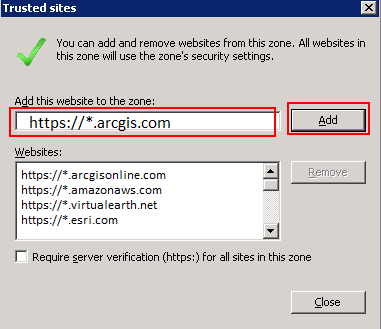 < / SPAN > < P > < / P > < P > < SPAN style = "color:#ff0000;">IMPORTANTE:< / STRONG> < / SPAN > Desmarque a opção "Require server verification (https;)"< / STRONG > < / SPAN > < / SPAN > < P > < / P > < P >*Após concluir, feche o Internet Explorer e execute o programa novamente para realizar o passo 2.< / P > < P > < / P > < P >3 -No Internet Explorer navegue até a URL:https://www.arcgis.com e acesse o site com as credenciais do Google. Se não houver problemas para entrar, vá para o ArcGIS Pro e inicie o programa.<\/SPAN><\/P><\/P>
 <\/SPAN><\/P><\/BODY><\/HTML>