**Update 06.22.26:
I figured out how to easily remove the Templates that are automatically added when publishing feature layers from ArcGIS Pro that have existing symbology style types. I initially started removing the symbology Type by removing the field > configure editing > templates > update sync (to remove the list) > save. Then go back to the feature layer and reconfigure the symbology type attribute one by one again. However I accidently found out that if you skip the re-symbolizing part and just refresh the web map after you've updated the template sync to remove the list, it will keep the symbology and the create feature list will be without a template list (see below). Hope it helps anyone that runs into this in the future. We prefer this shorter list since we deal with 20+ feature layers and each have 10+ subtypes for each feature layer, so you can imagine how much scrolling it would take to navigate the list. I also renamed the subject so it can be found more easily.
Good afternoon,
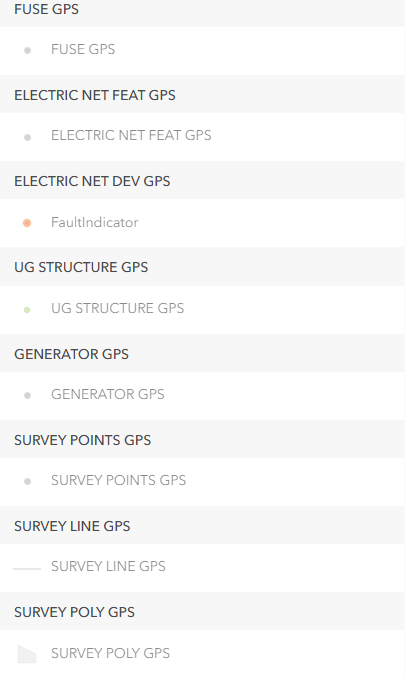
I projected existing AGOL feature layers in ArcGIS Pro to set them to their correct coordinate system, because when we created these feature layers in AGOL we didn't realize they were in WGS84. After a lot of troubleshooting, work-arounds, etc. I finally got around to doing this, however when collecting in Field Maps with these new published feature layers, when selecting the "+" to collect a new feature, it lists every subtype for every feature, which makes the list incredibly long. It used to show 1 greyed out symbol for each feature, which would make it easy to navigate through the list. Now that it shows everything as an expanded list it makes it difficult to navigate. Any way I can enable the collecting list to display only 1 symbol per feature? Thanks!