This article shows 2 approaches to implement a tool to auto-increment the version number of your add-in.
Both approaches achieve the same result and your choice will mostly depend on preferences.
Executable based (C#) Solution
The attached Zip file, UpdateAddInVersion.zip, contains a Visual Studio 2022 solution with the source code for a tool that auto-increments your add-In's version number. This tool updates the last element of the version attribute in the config.daml file every time you build your project.
For example:
- version="1.0" → version="1.1"
- version="1.0.0" → version="1.0.1"
It is designed to work with Module Add-Ins and Managed Configuration that include a config.daml file.
Setup Instructions
Step 1: Download the attached Visual Studio solution Zip file (UpdateAddInVersion.zip)
Step 2: Unzip it somewhere convenient.
Step 3: Open the solution in Visual Studio 2022 and build it
Step 4: Copy all files from the build folder (bin\Debug\net8.0) into a sub directory of the Add-In you want processed. A good convention is to use a folder called BuildTools.
Step 5: Create a “Post-Build event” in your AddIn or Configuration project to run this tool to edit the version attribute in your add-in’s config.daml. Follow these steps to create the post build event:
- Right click the Add-in or Configuration project in the Solution Explorer and select Properties in the context menu.
- Expand the Build folder and select Events.
- In the “Post-Build event” text box, invoke the UpdateAddInVersion.exe from its folder (step 4). In the screenshot below, “BuildTools\UpdateAddInVersion.exe” has been added to the Post-build event text box.
- Visual Studio will now run this tool during the build. The version attribute in the config.daml will be incremented by the UpdateAddInVersion.exe.
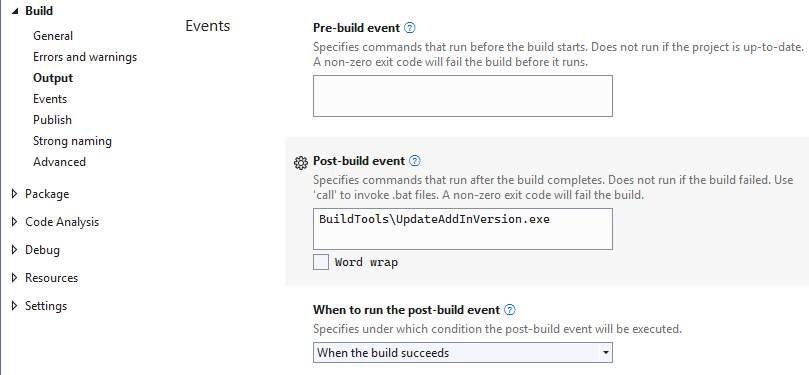
On a successful build, the post build call will auto-increment the last element of the version attribute in the config.daml: so version=”1.0” becomes version=”1.1” and version=”1.0.0” becomes version=”1.0.1”. It will update the last element of the version, no matter how many elements the version has.
Notes:
- The current source of the tool relies on it being in a subfolder of your add-in or configuration:

- You can run it from anywhere as long as the path to the config.daml file is correct – you’ll see an error message or an exception in the Build Output of Visual Studio otherwise.
- The tool is a standalone .NET 8 executable with no other dependencies than .NET 8
MSBuild script solution
The attached AddInVersionTargets.zip file contains a MSBuild script to auto-increments your add-In's version number. By default, this tool updates the minor build number element of the version attribute in the config.daml file every time you build your project so version="1.0" becomes version="1.1".
Setup Instructions
Step 1: Download the attached AddInVersionTargets.zip file
Step 2: Unzip it somewhere convenient (i.e.: C:\BuildTools).
Step 3: Edit your Add-in project file to reference it: right-click on your add-in project and select Edit Project File in the context menu:

At the bottom of the project file, right before the ArcGIS Pro SDK targets import statement, insert the following line:
<Import Project="C:\BuildTools\AddInVersion.targets"/>

Notes:
- As a result, your add-in will have its version tag in config.daml auto-incremented.
- The script expects a version attribute in the form of major.minor.build.revision
- By default, the script will update the minor element of the version (a.k.a. the 2nd digit)
- The script can be changed to update any part of a version number as long as it exists in config.daml, by changing its (optional) IndexElement parameter:
- revision for the 4th digit
- build for the 3rd digit
- minor for the 2nd digit
- major for the 1st digit
This can be achieved by editing the AddInVersion.targets file to add an IndexElement parameter with the appropriate target element (revision in this example):

- As with the Visual Studio solution, the MSBuild script can be changed to adapt to your workflows and is provided as a sample of what can be done.
- This implementation has no other dependency than Visual Studio 2022.
UPDATE: Added a version of the targets file that also updates the date attribute in the DAML file.