Just in case, anyone trying the most basic sample and seeing a corrupt basemap, here's an explanation and the solution.
Steps to reproduce
- Use a recent version of Chrome or Firefox (other browsers not tested)
- Navigate to https://notebooks.esri.com
- Create a new notebook (New -> Python 3)
- Enter the following script code
<SPAN class="keyword token">from</SPAN> arcgis<SPAN class="punctuation token">.</SPAN>gis <SPAN class="keyword token">import</SPAN> <SPAN class="operator token">*</SPAN>
gis <SPAN class="operator token">=</SPAN> GIS<SPAN class="punctuation token">(</SPAN><SPAN class="punctuation token">)</SPAN>
gis<SPAN class="punctuation token">.</SPAN>map<SPAN class="punctuation token">(</SPAN><SPAN class="punctuation token">)</SPAN><SPAN class="line-numbers-rows"><SPAN></SPAN><SPAN></SPAN><SPAN></SPAN></SPAN>
- Run the cell (<Ctrl-Enter>)
- The result looks similar to this:
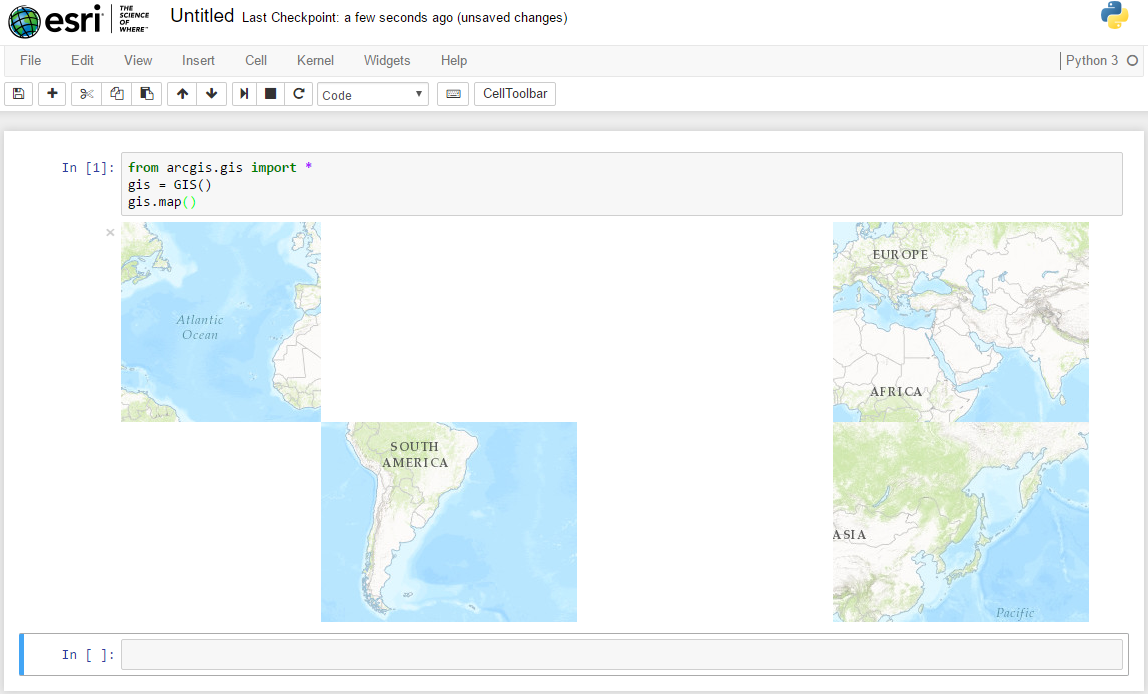
Explanation
The notebook is running on an https (secured) connection. However, as we didn't authenticate to ArcGIS Online, we're getting the tiles (and some .js-code) from an http (non-secured) connection. Chrome and Firefox block that unsecured JavaScript code.
Workaround 1
Instead of using the secured https connection, use http://notebooks.esri.com instead. As everything will be loaded without encryption, Chrome / Firefox are happy with that.
However: If you change your script to an authenticated AGOL-Session, you will send your username / password in plain-text through the net!
Workaround 2
Both Chrome and Firefox have the option to explicitly allow loading unsecure content. In Chrome, there's a small icon on the right, in Firefox, it's right beside the https-indicator.

