This document will show you how you can setup PyScripter to run ArcGIS Pro's Python 3.x version and the ArcGIS API for Python.
Note: the easiest way to install the ArcGIS API for Python is to install ArcGIS Pro. ArcGIS Pro 1.4 and later gives you a Python Package Manager interface that can be used to download and install the ArcGIS API for Python. See the following link for more details on how to install the API:
Install and set up | ArcGIS for Developers
On the server where ArcGIS Pro is installed, follow the below steps to utilize it with PyScripter:
1. Download and install the 64-bit version of PyScripter
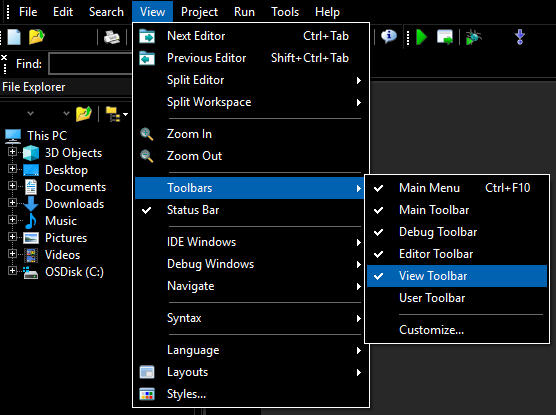
2. Open PyScripter and click View > Toolbars > View Toolbar:
3. On the View Toolbar, click the Python Versions tool (first icon):
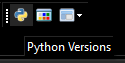
4. Select the option Setup Python Versions
5. Select the green + (Add a new Python version)
6. Browse to the directory where the python.exe for ArcGIS Pro resides. Ex:
C:\Program Files\ArcGIS\Pro\bin\Python\envs\arcgispro-py3
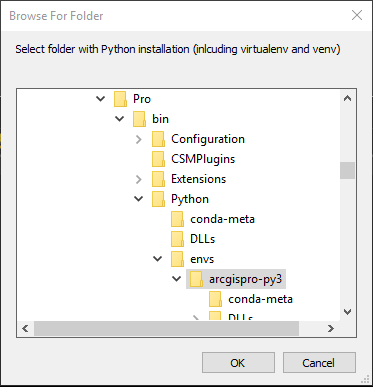
4. Click OK
5. The Conda 3.x should be listed under Unregistered Versions:
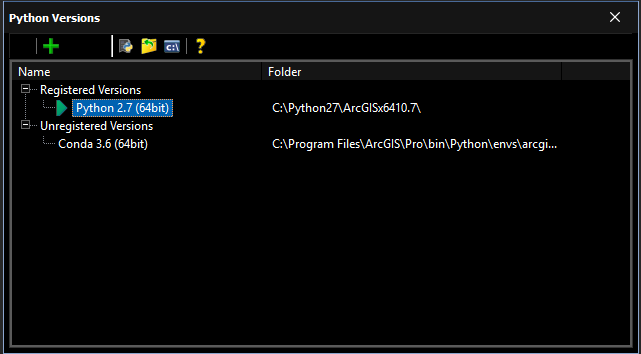
6. To switch to Conda 3.x, click the Python Versions tool and select the newly added version:
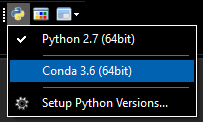
You have the ability to easily switch back and forth between environments.
As a test, you can use the following snippet to test the new python environment is working successfully:
from arcgis.gis import GIS
gis = GIS() # anonymous connection to www.arcgis.com
# Search for 'USA major cities' feature layer collection
search_results = gis.content.search('title: USA Major Cities and owner:esri','Feature Layer')
# Access the first Item that's returned
major_cities_item = search_results[0]
print(major_cities_item)