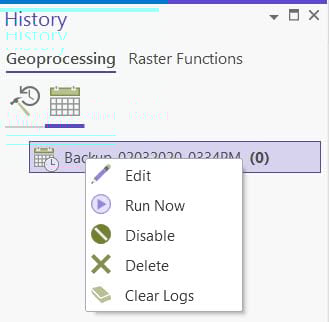
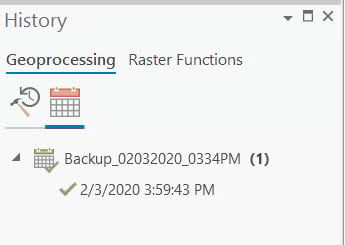
Author: <\/SPAN>Jian Lange<\/A><\/SPAN><\/P>There are many use cases where you need to schedule a geoprocessing model or a script tool to run at specific times and days. Examples include updating data, backing up projects, or performing analysis during off-peak hours. Scheduling a geoprocessing tool allows you to schedule and repeat a tool that you need to run regularly or run a long process at a convenient time. One of our most popular blogs was a post by my colleague Dale Honeycutt in 2013 " <\/SPAN>Scheduling a Python script or model to run at a prescribed time<\/SPAN><\/A> . In fact, the post was so popular that it was <\/SPAN>updated <\/SPAN><\/A>in 2019 to reflect ArcGIS Pro, Windows 10, and Python 3. The suggested approach is to start with a Python script, call a geoprocessing tool or model, and then create a task using the Windows Task Scheduler with the Python script as the task. Here is another <\/SPAN>post<\/SPAN><\/A> from my colleague Bruce Harold suggesting a similar approach to schedule an ETL process using the Windows Task Scheduler, this time without the Python script.<\/SPAN><\/SPAN><\/P><\/P>I am pleased to report that with ArcGIS Pro version 2.5 (coming out this month), you can now schedule a geoprocessing tool including a model tool directly within ArcGIS Pro from the geoprocessing pane!<\/SPAN><\/P>To elaborate further on this topic, I will use a simplified model tool example from the ArcGIS Pro <\/SPAN>Schedule a<\/SPAN><\/A> help topic of <\/SPAN>model<\/SPAN><\/A>. <\/><\/><\/><\/><\/><\/><\/><\/><\/><\/><\/><\/><\/><\/><\/><\/><\/><\/><\/><\/><\/><\/><\/><\/><\/><\/> style="box-sizing: border-box; text-align: center;"><\/DIV>Each tool in the Scheduled section will include a list of the tool's execution history. <\/SPAN>Each time the scheduled tool runs, a new timestamped item will be added below the scheduled tool entry with an icon indicating whether the execution completed successfully or failed:<\/SPAN><\/SPAN><\/P><\/DIV>Note that you can also run scheduled geoprocessing tools from outside ArcGIS Pro because the tools are scheduled in your operating system's scheduler application. <\/SPAN>As long as all changes to the ArcGIS Pro project are saved and the "Sign in automatically" option is selected when using the named user license, ArcGIS Pro does not need to be open and active at the time a tool execution is scheduled. <\/SPAN>The geoprocessing scheduling feature in ArcGIS Pro 2.5 also works with single-use and concurrent use licenses in addition to the named user license.<\/SPAN><\/SPAN><\/P>I have only provided one example of the new approach to scheduling a geoprocessing tool in ArcGIS Pro 2.5. <\/SPAN>There is much more you can do, so try it once you can deploy ArcGIS Pro 2.5.<\/SPAN><\/SPAN><\/P><\/BODY><\/HTML>
There are many use cases where you need to schedule a geoprocessing model or a script tool to run at specific times and days. Examples include updating data, backing up projects, or performing analysis during off-peak hours. Scheduling a geoprocessing tool allows you to schedule and repeat a tool that you need to run regularly or run a long process at a convenient time. One of our most popular blogs was a post by my colleague Dale Honeycutt in 2013 " <\/SPAN>
Signed in members can post, follow updates, and more. New here? Register a free account.
Find useful guides, FAQs, and documents to help you navigate and make the most of Esri Community.