Most issues related to unexpected crashes in ArcGIS Pro and ArcMap are resolved by updating the computer's graphics card drivers.
** If you are using a computer with an integrated GPU, consider increasing the system RAM to compensate for shared memory usage.
The procedure to update the drivers is as follows:
Determine device graphics card
You should check in Device Manager> Display Adapters
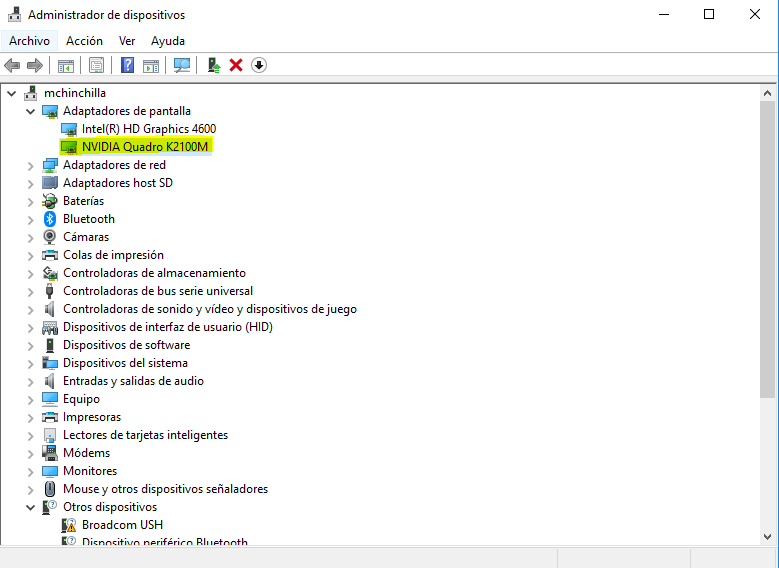
NVIDIA
To install the latest driver for NVIDIA, go to the NVIDIA website and click on Drivers and Downloads> Download the latest drivers here.

Explanatory video (third-party author): https://www.youtube.com/watch?v=zEOUxqLWWWc
AMD
To install the latest driver for AMD, go to the AMD website and click on AMD Drivers + Download Center> DOWNLOAD NOW to automatically detect and install the graphics driver.

Steps to install graphics card driver: https://www.amd.com/es/support/kb/faq/rs-install
Use ArcGIS Pro - ArcMap with the graphics card
It is recommended in the settings to open ArcGIS Pro or ArcMap with the graphics card:
1-Go to the driver and select the application to open as determined with high-performance graphics card:
*Example for NVIDIA graphics card.
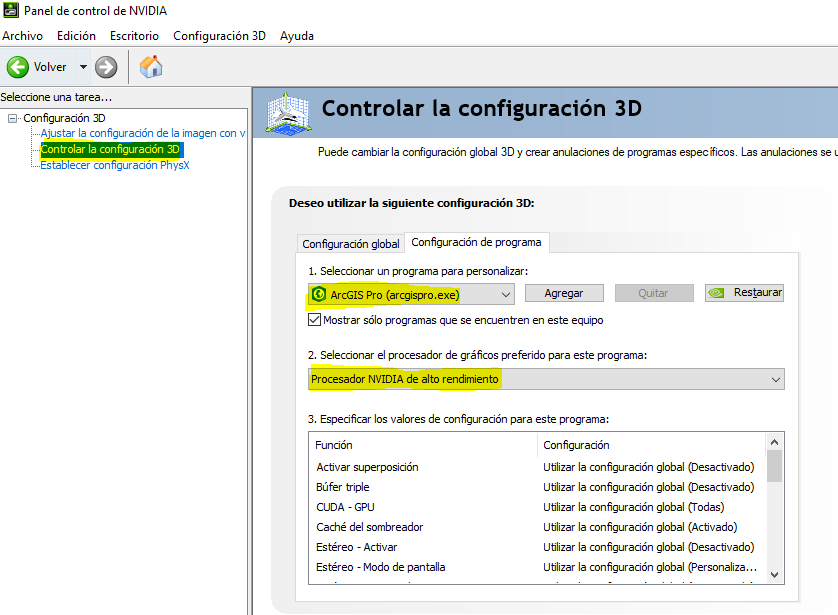
ArcGIS Pro Display Configuration
As a solution to performance problems, change the following setting in the display options in ArcGIS Pro.
1. Navigate to Projects > Options > Display.
2. In the Display:
a. Change the "Rendering quality" to Medium.
b. Change the "Rendering engine" from DirectX to OpenGL.
c. Uncheck the box "Enable hardware antialiasing".
d. Check the box "Clear cache check".
e. Click on the tab "OK". The project closes so that configuration updates can be applied.

ArcMap Display Configuration
If the card is integrated or the graphics card is not high performance, it is recommended to uncheck the following box:
In Customize>ArcMap Options
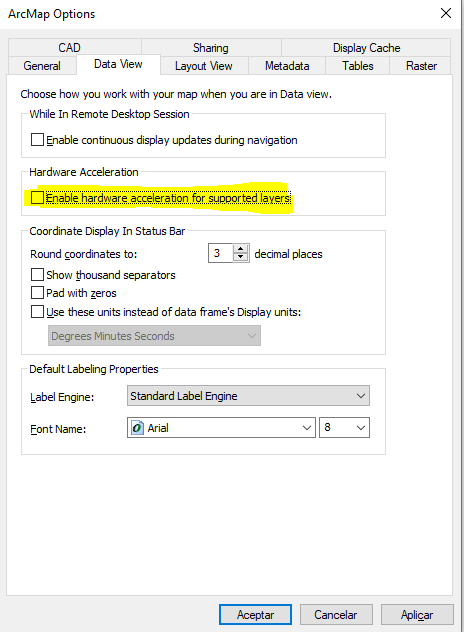
Source: https://support.esri.com/en/technical-article/000019368