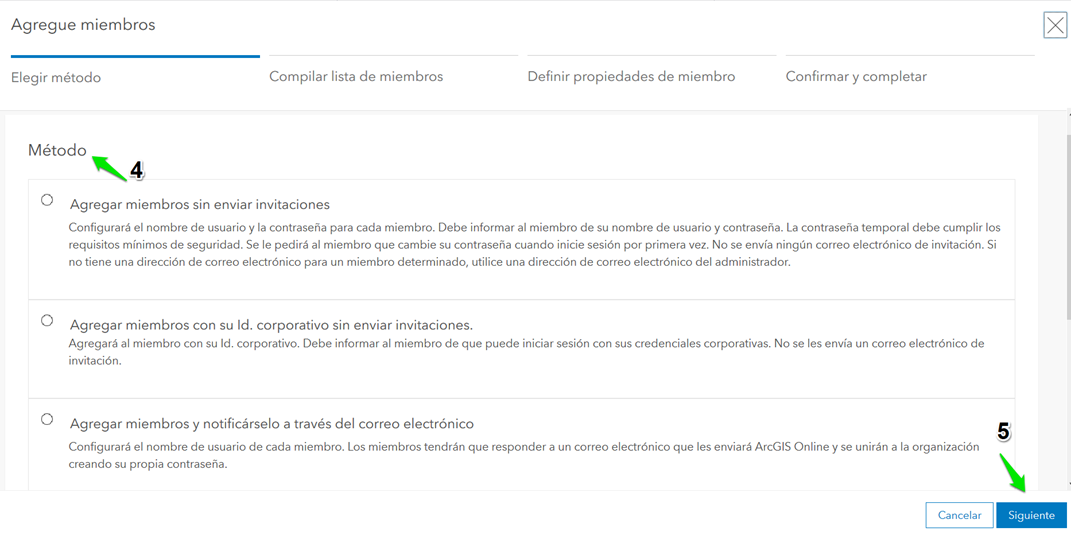
Method: Add members without sending invitations.
www.arcgis.com
Steps to follow:
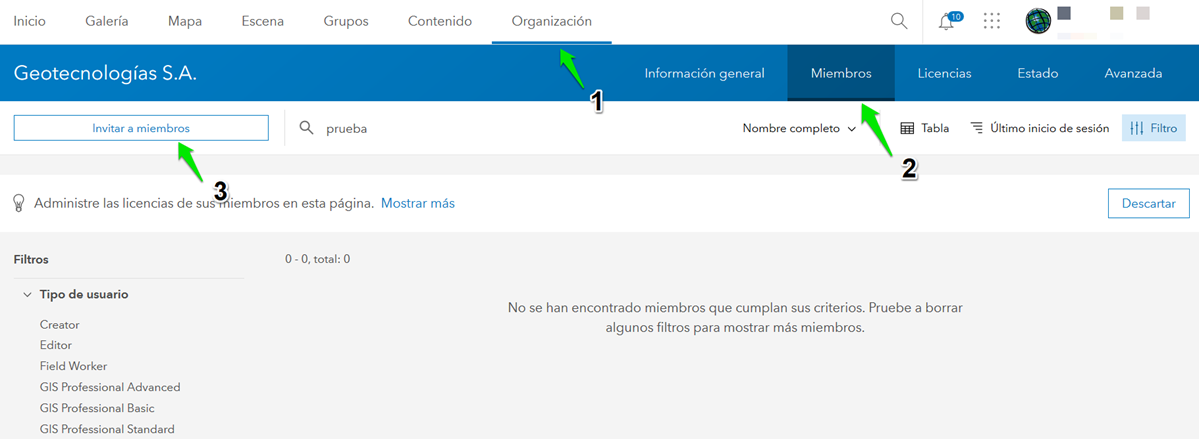
Log in to ArcGIS Online with an administrator user
Go to the Organization option (1) > members (2) > invite members (3)
Choose the method to invite the new member(s) (4) > next (5)
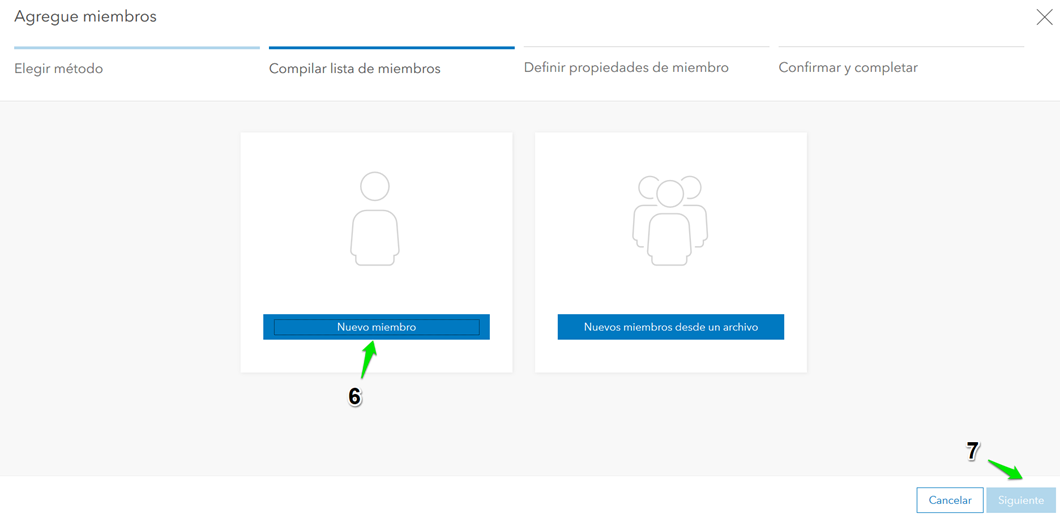
You can select a new member or add multiple members from a file* (6) > next (7)
*Documentation on adding members from a file: https://learn.arcgis.com/es/projects/set-up-an-arcgis-organization/lessons/add-members-to-the-organization.htm
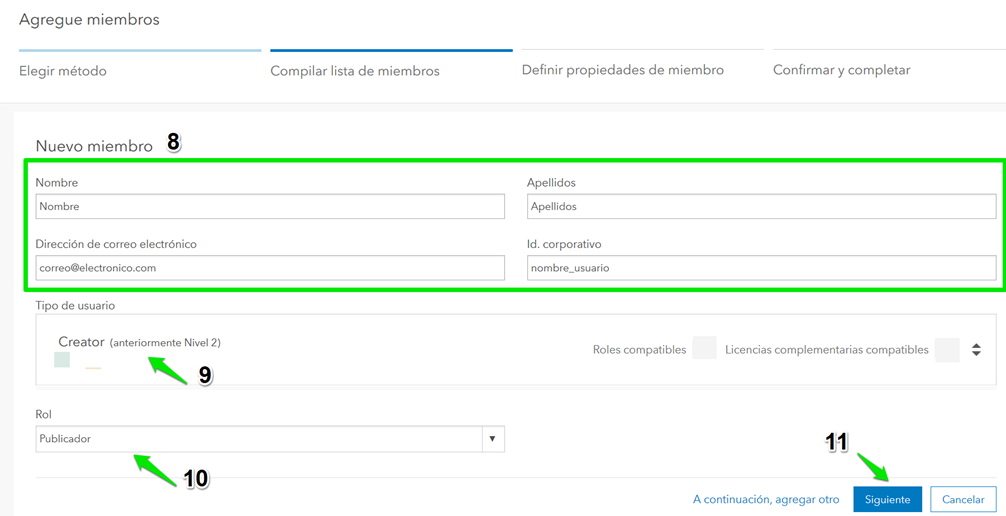
Enter the user data (first name, last name, email, and create the username) (8) > choose the user type* (9) > select the user role* > next (11)
*User types and roles: https://doc.arcgis.com/es/arcgis-online/reference/roles.htm
Verify the entered data (12) > next (13)
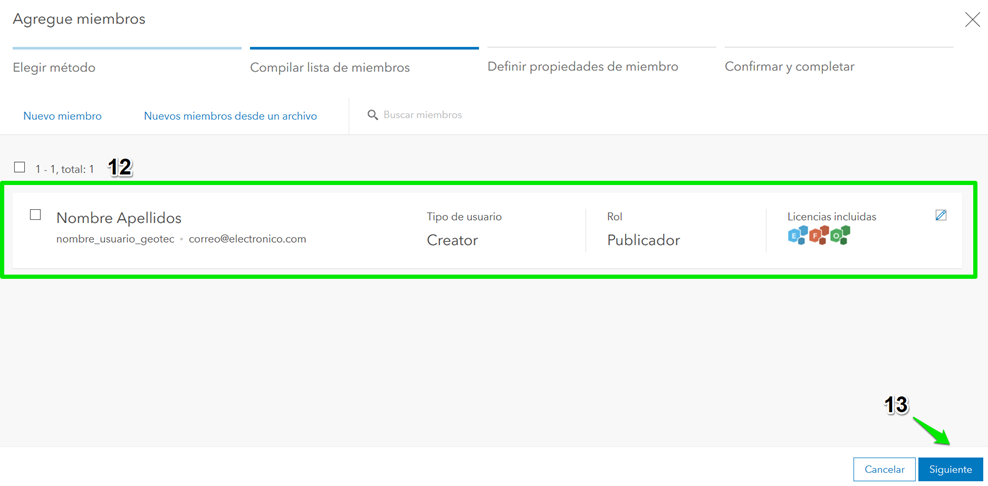
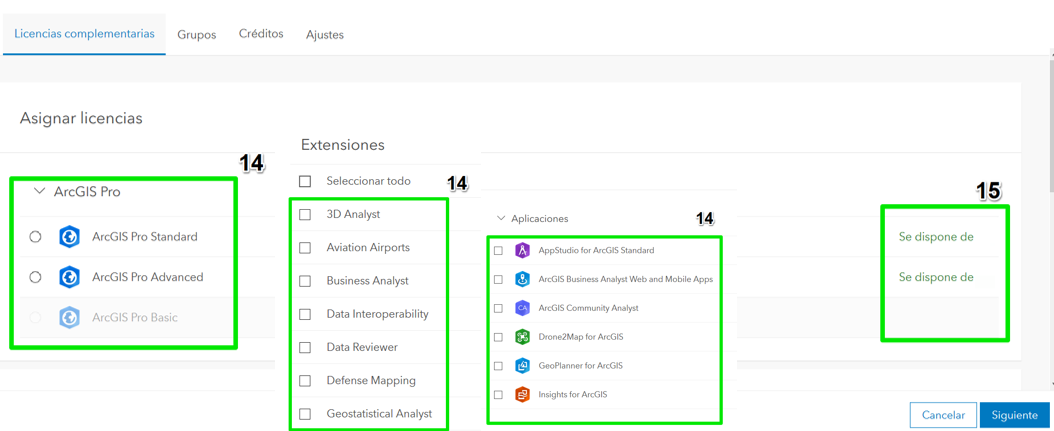
Assign complementary licenses (ArcGIS Pro, extensions, applications) (14) > next (16)
You can check the number of available licenses (15)
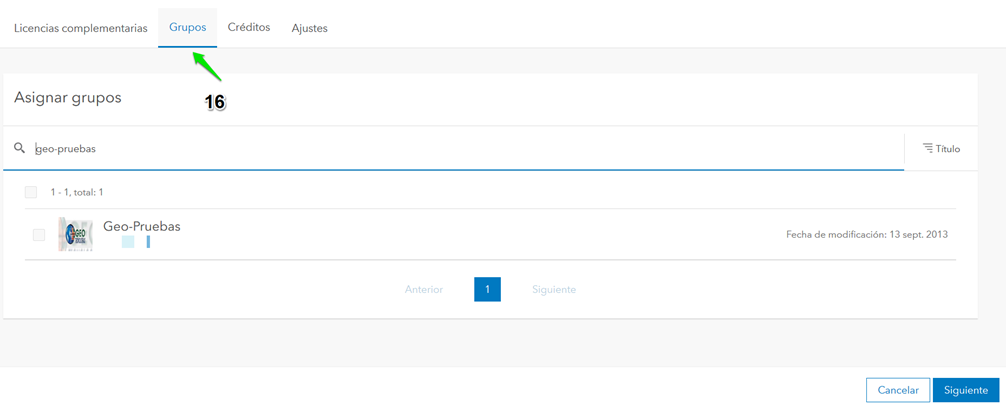
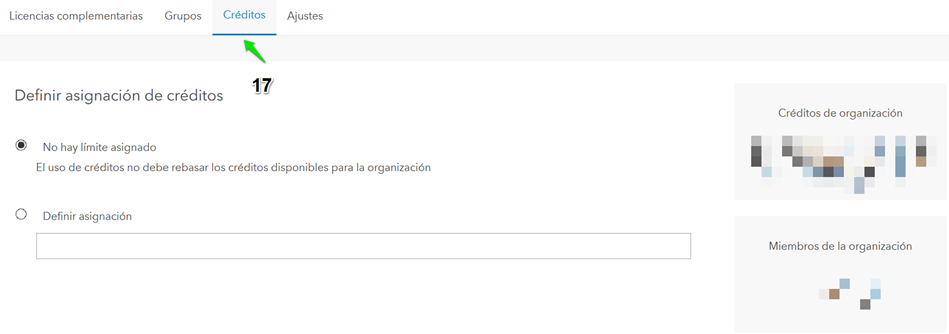
Optional: Assign existing groups to the user (16) > Assign credit limit* to the user (17)
*Documentation to understand credits: https://doc.arcgis.com/es/arcgis-online/reference/credits.htm
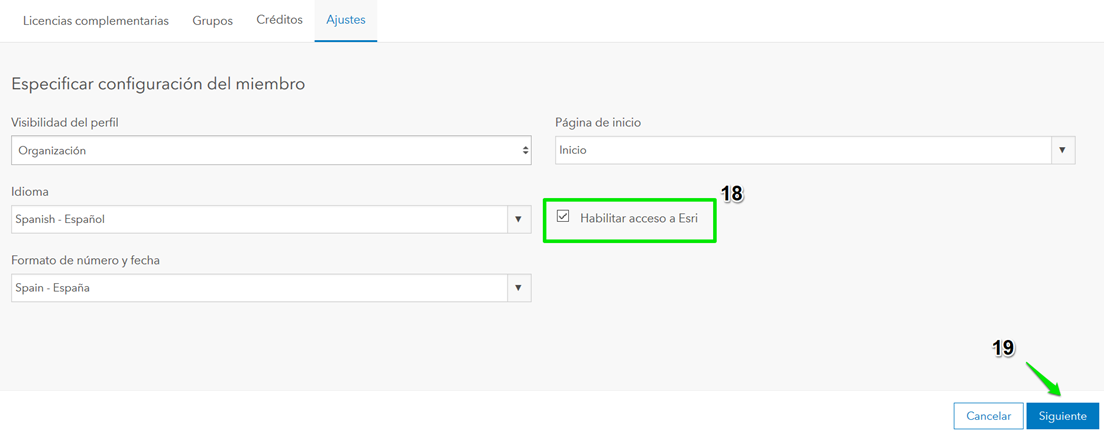
Enable Esri access for the user (18) > next (19)
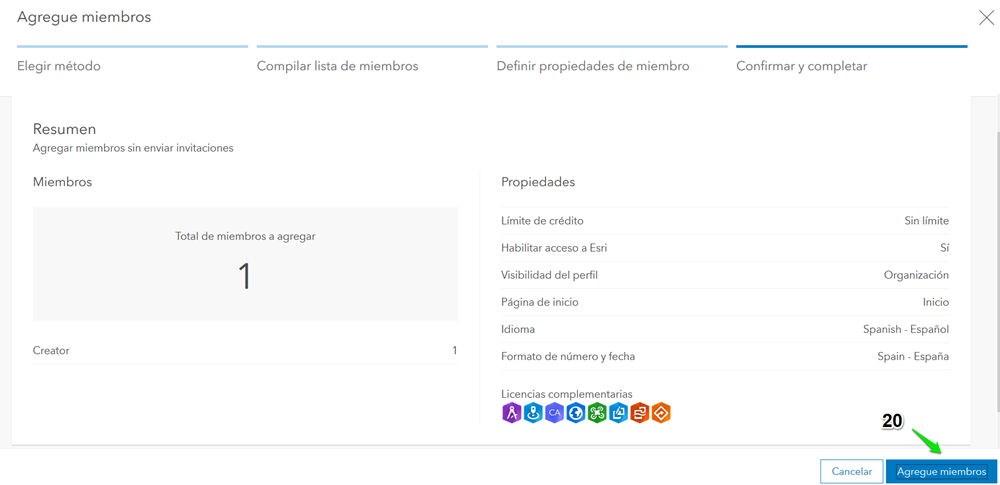
Verify that the configuration is correct > Add members (20)
What’s next?
- The user will log in to ArcGIS Online (www.arcgis.com) with the created username and temporary password.
- Once logged in, the system will prompt them to change their password.