Have you encountered errors or situations that prevent you from advancing in your GIS project and wondered how to solve them? In this section, you will see three of the most common errors or situations that may arise and you will know how easy it is to face them.<\/P>
<\/P>
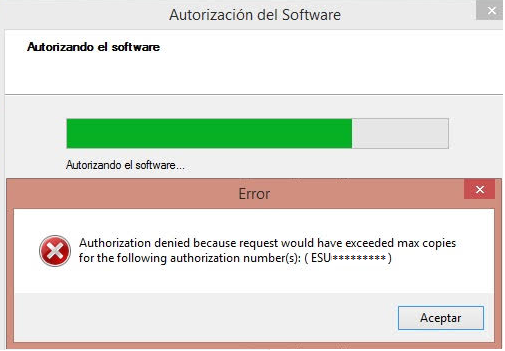
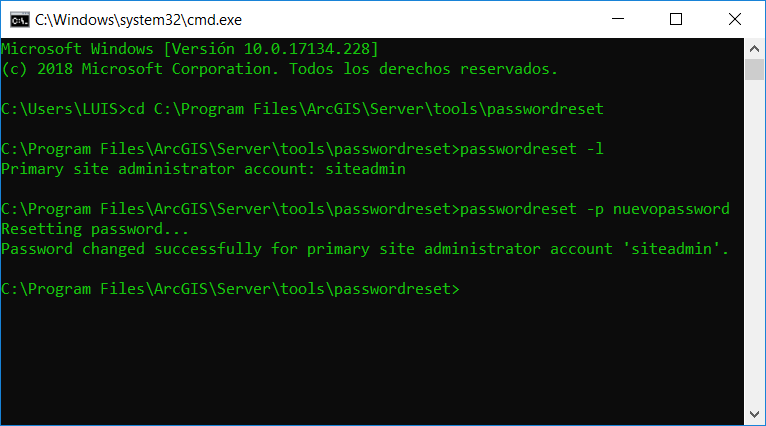
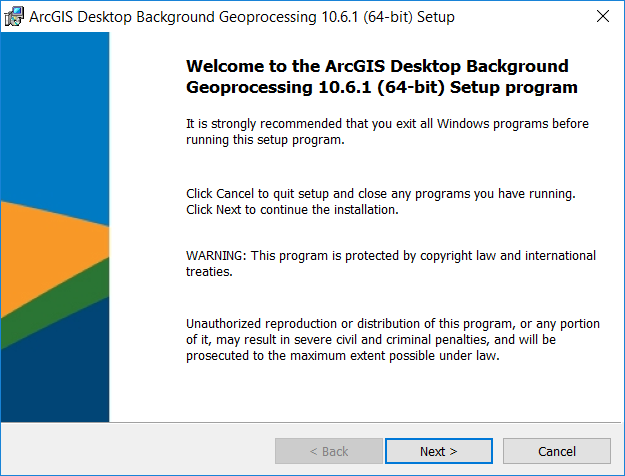
Do you need to use your ArcGIS Desktop single use license on another computer? Did you uninstall or format your PC and now you cannot use your license? <\/STRONG><\/P> <\/STRONG><\/P>This problem is more common than we might imagine. Before uninstalling or formatting the computer, it is necessary to deauthorize the ArcGIS Desktop Single Use license in order to use it again on your same computer or another. If you do not perform this process, ESRI still considers it in use and therefore you cannot use it again. To learn how to correctly deauthorize a license in use, you can review Esri's technical document Performing online deauthorization of ArcGIS Desktop licenses<\/SPAN><\/A><\/EM> or the video ArcGIS Desktop Single Use: Deauthorize license<\/SPAN><\/A><\/EM> published on our Youtube channel.<\/P> <\/P>If at any time you make this mistake, please do not hesitate to contact our support team, who are always ready to assist you.<\/P> <\/P>Technology: ArcGIS Desktop License Management<\/EM><\/STRONG><\/P> <\/P>Have you ever forgotten the username and password of the ArcGIS Server site administrator by mistake? Did you know there is a way to recover these credentials? <\/STRONG><\/P> <\/P>If you do not remember the username and/or password of the main administrator user of the ArcGIS Server site, do not despair because there is a way to recover or change it. Below we explain how to do it.<\/P> <\/P>This user, which belongs to ArcGIS Server (it is not an Operating System user), and which is registered when creating the site for the first time, has administrative functions such as configuring site security or creating users and roles. If you forgot the access credentials, you can use the PasswordReset.bat<\/EM> tool (on Windows) or the passwordreset.sh<\/EM> script (on Linux) from a command line window or terminal. To obtain the username and reset the password, you can check the section Resetting a forgotten password<\/EM>, for the Windows<\/SPAN><\/A><\/SPAN> or Linux<\/SPAN><\/A><\/SPAN>, published in Esri's ArcGIS Server help.<\/P> <\/P>Technology: ArcGIS Server Administration<\/EM><\/STRONG><\/P><\/EM><\/STRONG><\/P> <\/P>Why does ArcMap take so long to return results when running a geoprocessing tool? <\/STRONG><\/P> <\/P>If you want to get more out of data processing using as many system resources as possible, such as RAM, you can use the ArcGIS Desktop Background Geoprocessing (64-bit)<\/EM> add-in.<\/P> <\/P>This utility, available since version 10.1, can be found on the MyEsri<\/SPAN><\/A><\/SPAN> portal. Installing it replaces traditional 32-bit background processing used by default in ArcGIS Desktop with 64-bit foreground processing.<\/P> <\/P>Using 64-bit processing for analysis on systems with large amounts of RAM can help you process large volumes of data that otherwise could not be processed in a 32-bit environment. Since execution occurs in native 64-bit space, more system resources can be used.<\/P> <\/P>This add-in does not require an additional license. For example, if you have an ArcGIS Desktop Standard license, background execution will respect all tools accessible with your Desktop Standard license. For more information, you can check the section 64-bit Background Geoprocessing<\/SPAN><\/A><\/SPAN> published in Esri's ArcGIS Desktop help.<\/P> <\/P>Technology: ArcGIS Desktop Configuration<\/EM><\/STRONG><\/P>
What errors would you like to see in our next edition? We will be waiting for your suggestions.
Signed in members can post, follow updates, and more. New here? Register a free account.
Find useful guides, FAQs, and documents to help you navigate and make the most of Esri Community.