Terminals are a new capability of the utility network that allows you to define what “side” a line or an edge object is connected to on a point or junction object. As an editor, there are many times when after snapping a point to a line, or line to a point, that you will need to use the Modify Terminal Connections pane to this connectivity. You also need to manage this information on a line when it is moved to a new point or the end points are deleted. This can add extra clicks to your editing workflow.
We developed a set of attribute rules that once applied to your Line and Device class, can handle this assignment or unassignment of terminals for you.
Note: These are not designed for edge and junction objects nor do they evaluate what terminals are used in an association.
Let’s take a look at these rules and the toolbox we created to add them to your utility network.
These rules need information from the utility network to work correctly, such as snapping tolerance, the rules table name and terminal details. This prevents us from sharing the rules in the Foundation Solutions or via the arcade expression code repo. We developed a python toolbox, with the attribute rules embedded in it, that will gather the required information from your utility network and apply or alter(update) the rules.
Here is a view of the Geoprocessing tool. Simply specify your utility network and click run.
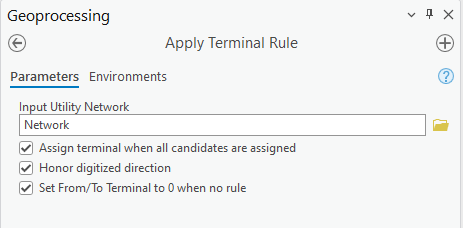
There are also some options that let you control how the rule defines or clears the terminals values.
Assign terminal when all candidates are assigned: This option will assign a valid terminal, lowest terminal ID, when all terminals have been previously assigned to existing lines.
Honor digitized direction: In the case where a line can connect to more than one terminal, and the terminal configuration is directional, use the digitized direction to set the terminal value. For instance, a pipe has rules that allow it to connect to the input(upstream) and output(downstream) of a pump. If you sketch the line and end at the pump, the terminal assigned will be the input terminal. If you sketch the line and start at the pump, the terminal assigned will be the output terminal.
Set From/To Terminal to 0 when no rule: If a line has a terminal assigned, and the snapped point's Asset Group/Type changes, the point is deleted, or the line is moved, this option allows you to reset the terminal if no rules are present as a result of the edit.
Now that you ran the tool, you will see two new rules, one applied to your device class and one for your line class.

The Assign Terminals Line is set up fire on Insert and Update, while the Assign Terminals Device is set up to fire on Insert, Update and Delete.
You are now ready to start editing without having to manage terminal assignments. There are cases you still will have to set a terminal value or you may want to change an assignment, but this should drastically reduce the time needed to use terminals in your utility network.
Happy editing
Mike – ArcGIS Solutions