There's all sorts of ways to get email alerts from ArcGIS server (Configure email notifications—ArcGIS Monitor Administrator | ArcGIS Enterprise, https://community.esri.com/groups/survey123/blog/2017/11/30/a-simple-e-mail-notification-system-for-survey123-for-arcgis , python - Is there any way to get an email when ArcGIS Server services are stopped/down? - Geographic Information Systems… , GeoSystems Monitor Enterprise — Vestra ). This just happens to be what worked for my environment.
While working on another must-get-alert-when-it-happens issue, I realized how solving one problem also solves my "I want to know when ArcGIS Server hiccups problem" as well. I have quite a large GIS server farm, and it's important to me to be able to get in front of GIS server issues before my customers encounter any stop-work issues.
Creating the Powershell scripts that will harvest the events
We need two scripts:
System Events: Looking at System Events with the string "Arc" for the last year, I discovered that I'm interested in all of them except routine ArcGIS has started traffic:
$event <SPAN class="operator token">=</SPAN> get<SPAN class="operator token">-</SPAN>eventlog <SPAN class="operator token">-</SPAN>LogName System <SPAN class="operator token">-</SPAN>Message <SPAN class="operator token">*</SPAN>Arc<SPAN class="operator token">*</SPAN> <SPAN class="operator token">-</SPAN>newest <SPAN class="number token">1</SPAN> <SPAN class="operator token">|</SPAN> Where<SPAN class="operator token">-</SPAN>Object <SPAN class="punctuation token">{</SPAN>$_<SPAN class="punctuation token">.</SPAN>Message <SPAN class="operator token">-</SPAN>ne <SPAN class="string token">"The ArcGIS Server service entered the running state."</SPAN><SPAN class="punctuation token">}</SPAN>
$PCName <SPAN class="operator token">=</SPAN> $env<SPAN class="punctuation token">:</SPAN>COMPUTERNAME
$EmailBody <SPAN class="operator token">=</SPAN> $event <SPAN class="operator token">|</SPAN> format<SPAN class="operator token">-</SPAN>list <SPAN class="operator token">-</SPAN>property <SPAN class="operator token">*</SPAN> <SPAN class="operator token">|</SPAN> out<SPAN class="operator token">-</SPAN>string
$EmailFrom <SPAN class="operator token">=</SPAN> <SPAN class="string token">"$PCName sasquatch@bigfoot.com"</SPAN>
$EmailTo <SPAN class="operator token">=</SPAN> <SPAN class="string token">"you_cant_find@me.com"</SPAN>
$EmailSubject <SPAN class="operator token">=</SPAN> <SPAN class="string token">"ArcGIS Warning!!!!!!!!!!!!"</SPAN>
$SMTPServer <SPAN class="operator token">=</SPAN> <SPAN class="string token">"smtp.server"</SPAN>
Write<SPAN class="operator token">-</SPAN>host <SPAN class="string token">"Sending Email"</SPAN>
Send<SPAN class="operator token">-</SPAN>MailMessage <SPAN class="operator token">-</SPAN>From $EmailFrom <SPAN class="operator token">-</SPAN>To $EmailTo <SPAN class="operator token">-</SPAN>Subject $EmailSubject <SPAN class="operator token">-</SPAN>body $EmailBody <SPAN class="operator token">-</SPAN>SmtpServer $SMTPServer<SPAN class="line-numbers-rows"><SPAN></SPAN><SPAN></SPAN><SPAN></SPAN><SPAN></SPAN><SPAN></SPAN><SPAN></SPAN><SPAN></SPAN><SPAN></SPAN><SPAN></SPAN><SPAN></SPAN></SPAN>Save this as C:\ALERTS\ALERT_ARC_SYSTEM.ps1
Application Events:Looking at Application Events with the string "Arc" for the last year, I discovered that I'm interested in all of them except routine MsiInstaller traffic:
$event <SPAN class="operator token">=</SPAN> get<SPAN class="operator token">-</SPAN>eventlog <SPAN class="operator token">-</SPAN>LogName Application <SPAN class="operator token">-</SPAN>Message <SPAN class="operator token">*</SPAN>Arc<SPAN class="operator token">*</SPAN> <SPAN class="operator token">-</SPAN>newest <SPAN class="number token">1</SPAN> <SPAN class="operator token">|</SPAN> Where<SPAN class="operator token">-</SPAN>Object <SPAN class="punctuation token">{</SPAN>$_<SPAN class="punctuation token">.</SPAN>Source <SPAN class="operator token">-</SPAN>notlike <SPAN class="string token">"MsiInstaller"</SPAN><SPAN class="punctuation token">}</SPAN>
$PCName <SPAN class="operator token">=</SPAN> $env<SPAN class="punctuation token">:</SPAN>COMPUTERNAME
$EmailBody <SPAN class="operator token">=</SPAN> $event <SPAN class="operator token">|</SPAN> format<SPAN class="operator token">-</SPAN>list <SPAN class="operator token">-</SPAN>property <SPAN class="operator token">*</SPAN> <SPAN class="operator token">|</SPAN> out<SPAN class="operator token">-</SPAN>string
$EmailFrom <SPAN class="operator token">=</SPAN> <SPAN class="string token">"$PCName sasquatch@bigfoot.com"</SPAN>
$EmailTo <SPAN class="operator token">=</SPAN> <SPAN class="string token">"you_cant_find@me.com"</SPAN>
$EmailSubject <SPAN class="operator token">=</SPAN> <SPAN class="string token">"ArcGIS Warning!!!!!!!!!!!!"</SPAN>
$SMTPServer <SPAN class="operator token">=</SPAN> <SPAN class="string token">"smtp.server"</SPAN>
Write<SPAN class="operator token">-</SPAN>host <SPAN class="string token">"Sending Email"</SPAN>
Send<SPAN class="operator token">-</SPAN>MailMessage <SPAN class="operator token">-</SPAN>From $EmailFrom <SPAN class="operator token">-</SPAN>To $EmailTo <SPAN class="operator token">-</SPAN>Subject $EmailSubject <SPAN class="operator token">-</SPAN>body $EmailBody <SPAN class="operator token">-</SPAN>SmtpServer $SMTPServer<SPAN class="line-numbers-rows"><SPAN></SPAN><SPAN></SPAN><SPAN></SPAN><SPAN></SPAN><SPAN></SPAN><SPAN></SPAN><SPAN></SPAN><SPAN></SPAN><SPAN></SPAN></SPAN>Save this as Save this as C:\ALERTS\ALERT_ARC_APPLICATION.ps1
The flexibility here is that you can filter whatever types of Events you want to receive an email for. Using Get-EventLog properties, I'm expecting about 1-5 emails per week with the filters I'm using.
Setting up Task Scheduler to monitor the event log
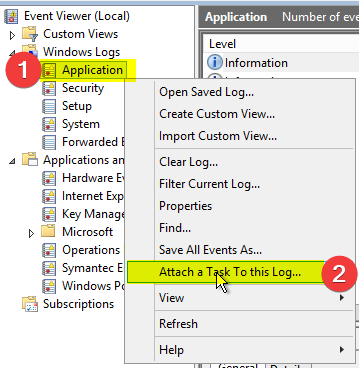
Right-click on the Application Log and select Attach a Task To this Log
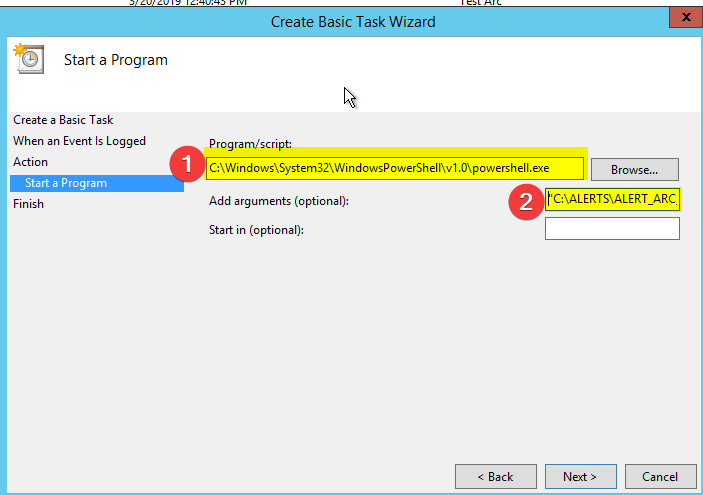
When you get to Action, select the PS script you created for Application Events
Finish the Basic Task Wizard then go into Task Scheduler and set things up to run as a service account, etc.
Testing
From an administrative PS prompt:
PS C<SPAN class="punctuation token">:</SPAN>\Windows\system32<SPAN class="operator token">></SPAN> New<SPAN class="operator token">-</SPAN>EventLog –LogName System –Source <SPAN class="string token">"Test Arc System"</SPAN>
PS C<SPAN class="punctuation token">:</SPAN>\Windows\system32<SPAN class="operator token">></SPAN> Write<SPAN class="operator token">-</SPAN>EventLog –LogName System –Source <SPAN class="string token">"Test Arc System"</SPAN> –EventID <SPAN class="number token">1</SPAN> –Message <SPAN class="string token">"Test Arc System 4"</SPAN>
PS C<SPAN class="punctuation token">:</SPAN>\Windows\system32<SPAN class="operator token">></SPAN> New<SPAN class="operator token">-</SPAN>EventLog –LogName Application –Source <SPAN class="string token">"Test Arc"</SPAN>
PS C<SPAN class="punctuation token">:</SPAN>\Windows\system32<SPAN class="operator token">></SPAN> Write<SPAN class="operator token">-</SPAN>EventLog –LogName Application –Source <SPAN class="string token">"Test Arc"</SPAN> –EventID <SPAN class="number token">1</SPAN> –Message <SPAN class="string token">"Test Arc Application 4"</SPAN>
<SPAN class="line-numbers-rows"><SPAN></SPAN><SPAN></SPAN><SPAN></SPAN><SPAN></SPAN></SPAN>
And you should see:
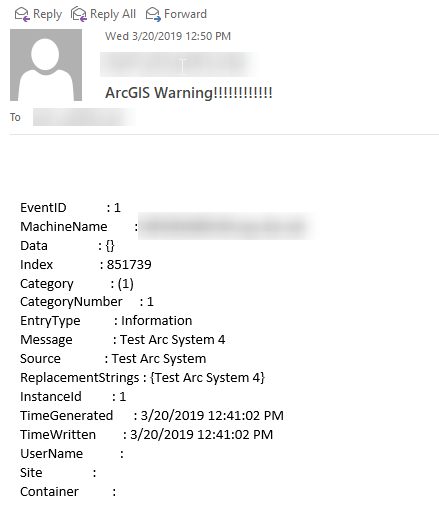
In conclusion, there are many ways to do this, and my Powershell won't get me hired as a Powershell scripter, but this should give you some ideas on how to customize and automate how you're getting ArcGIS Server alerts.
Credit: I was inspired by https://www.ryadel.com/en/event-viewer-send-notification-e-mail-messages-with-powershell/