With the June 2026 update of ArcGIS Online, new data sources are available for the Wildfire Protection Planning infographic. This provides the infographic with more up to date information, but does require you to configure the Wildfire Mitigation Planner Experience Builder to utilize the new data source to resolve the following error message: "This Business Analyst widget is configured with a data source that has been deprecated. Please update to the latest available data sources."
For customers with access to Business Analyst Web Advanced licensing, the infographic can be updated by following these steps:
1. Download the Wildfire Protection Planning 2026 BRPT ZIP file provided in this post and extract it to a local folder.
2. Sign in to your ArcGIS organization.
3. From the app launcher, click the Business Analyst icon to open the ArcGIS Business Analyst Web application.
4. Click on the Reports tab.
5. Click Build reports and then select Build infographics.
6. Click +Add template from file on the upper right.
7. Browse to the extracted ZIP file folder and open the Wildfire Protection Planning 2026 BRPT file.
8. Save the infographic under the default name and click Save. It may take a few moments to upload the BRPT.
9. In your ArcGIS organization’s content, browse to the Wildfire Mitigation Planner Experience Builder item.
10. Click Edit.
11. On the left panel of the Experience Builder project, ensure you are on the Plan Mitigation Page.
12. Under Body > Section > Analyze, click the Business Analyst widget.
13. Expand the Location and Data setting.
14. Under Data source, use the drop-down to select Esri 2026.
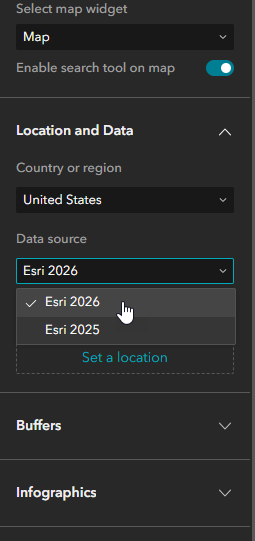
15. Expand the Infographics setting.
16. Click Select an infographic.
17. Expand My Infographics.
18. Select Wildfire Protection Planning 2026.
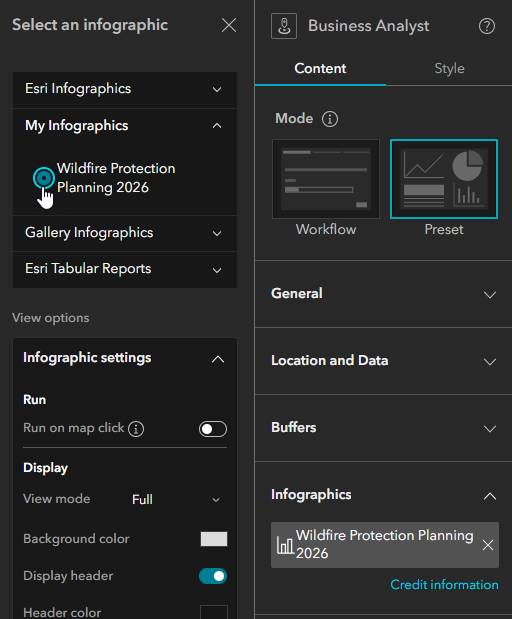
19. In the upper right of Experience Builder, click Save.
20. Click Publish.
You now may run the Wildfire Mitigation Planner and use the infographic as you have in the past. If you wish to update the infographic but don't have Business Analyst Web Advanced licensing, please reach out to Esri Support Services.