EDIT: 7/21/2026 Still happening at version 3.7.1.
BUG ID: https://my.esri.com/#/support/bugs/bugs?bugNumber=BUG-000162782
BUG STATUS: In Product Plan
==================================================================
I'm seeing an error with ArcGIS Pro 3.X where a black box or boxes appears on the screen in the following conditions.
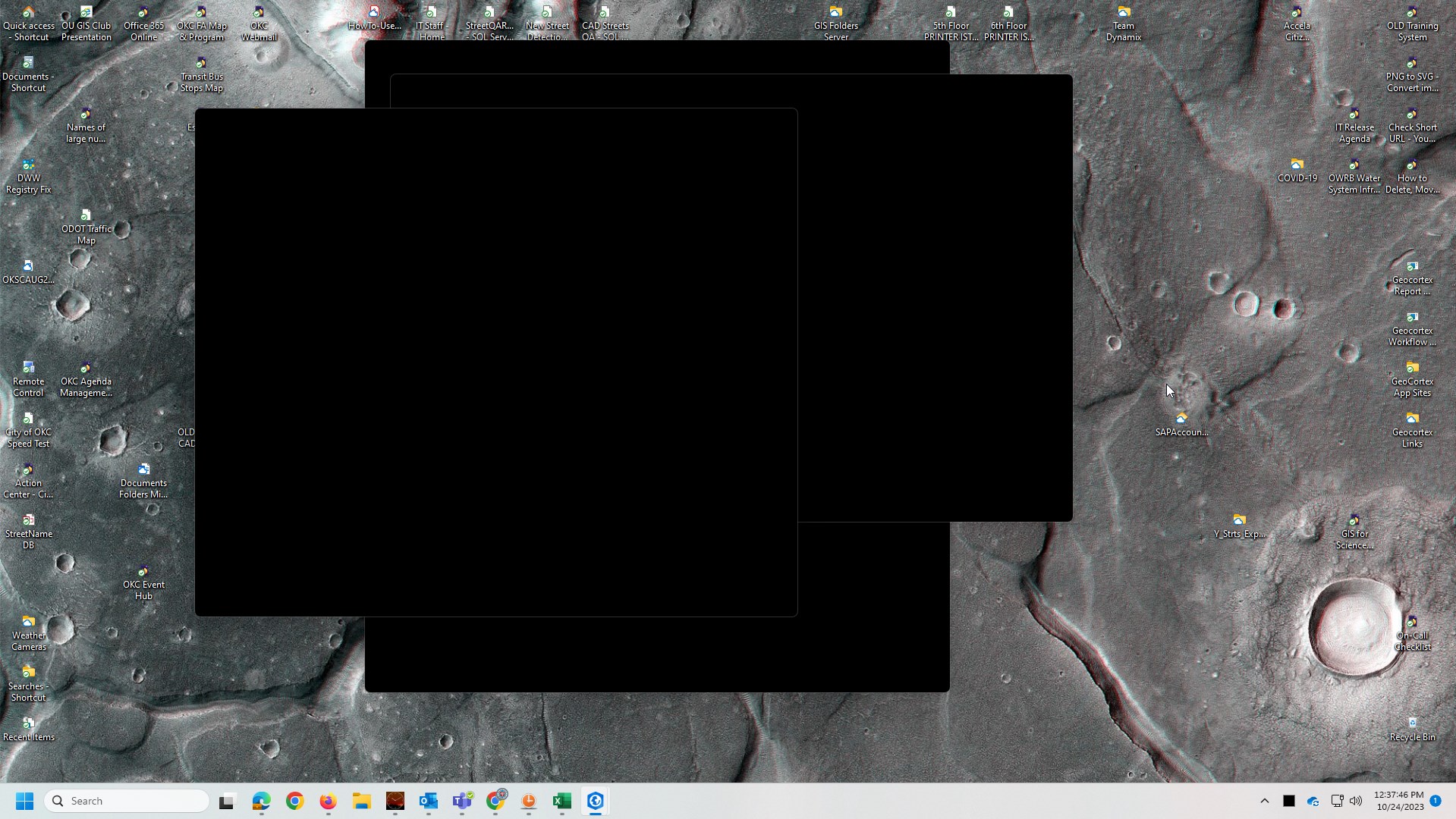
The problem is that when ArcGIS Pro is open but minimized to the task bar, and if there is a map, table, or tool separated from the main ArcGIS Pro window, then that separated window(s) may pop-up as a black rectangle while ArcGIS Pro is still minimized in the Windows taskbar. ESRI has not had other complaints about this. The issue may be that the black box appears while ArcGIS Pro is minimized, so that users may not realize that it is caused by ArcGIS Pro. To clear the black box(es) just restore ArcGIS Pro to full size.
It may look something like this.
If you have seen this black box problem:
- Please comment with what version of ArcGIS Pro you are using.
- Please kudo to raise this higher on ESRI's radar so that they will fix it.
If you haven't seen this problem but would like to help, please do the following test.
Testing Steps
- Open an ArcGIS Pro map that you’ve created.
- Separate a map or table frame (or more than one) from the main ArcGIS Pro window.
- Enlarge the separated frame so that it fills most of a whole monitor.
- Minimize ArcGIS Pro to the Taskbar and leave it minimized. Do not restore it to full size.
- Go on about your business and wait to see if the problem happens while ArcGIS Pro remains minimized. If it does, it might take just a few minutes or a few hours. Just let it run in the background.
- After a while you may notice a gray outline on the screen where the separate frame was. The black box will appear if you click within the gray outline, even though ArcGIS Pro is still minimized.
- To make the black box go away, just restore the ArcGIS pro window from the task bar and then minimize it again or exit ArcGIS Pro.
Please comment and let me know if you see the black box appear in your testing along with what version of ArcGIS Pro you are using.
I'm currently using the latest ArcGIS Pro 3.1.3 on all of my PC's. I have a case open for this problem with ESRI Tech Support but they are having trouble reproducing it. I'm seeing the problem on three different PC's, two Windows 10 PC's from 2017 and one Windows 11 PC from 2022.