January 08, 2026 - The ArcGIS Pro Search Tool has been updated to work in ArcGIS Pro 3.2 including bug fix to support Basic license users and Township, Range and Section(s) mouse selection behavior.
I am releasing the 1.1.6 version of an ArcGIS Pro Search Tool for Riverside County that in this release includes nine (9) of the Search options available in the ArcMap version posted in my Blog here.
The Searches include Search by:
- Street Intersection
- APN (Assessors Parcel Number - Updated 01/08/2026 to give a list of valid Book and Page choices the user can type in to select and then they only need to type the last 3 digits of a single parcel or a from and to range of parcels within the selected Book Page)
- PLUS Case (Planning and Land Use System)
- Assessors Subdivision Name/Number or Assessors Recorders Type Book/Page
- Survey Map Subdivision Name/Number or Survey Map Recorders Type Book/Page.
- Township, Range and Section(s) (Released - 9/28/2022)
- Road Book Page (with the ability to build and batch create PDF files for Road Book Page Layouts when layers are present) (Released - 12/25/2025, Updated 01/08/2026)
Before installing the Add-In, if you have installed any previous version of the Add-In you need to uninstall the prior version first.
Open ArcGIS Pro and open the Project Settings page by doing one of the following:.
Before opening an ArcGIS Pro project click the Setting button in the lower left-hand corner of the screen: 
After opening and ArcGIS Pro project click the Project tab in the upper left-hand corner of the screen: 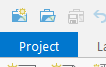
Click the Add-In Manager menu item on the left hand side of the Project Setting page

Click on the RivCoSearchForms Add-In in the list of My Add-Ins
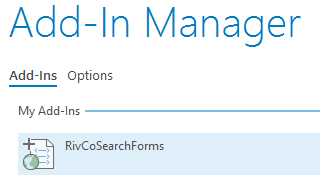
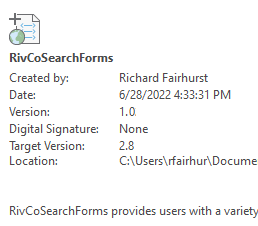
You can verify the version is out of date by reviewing the Date and Version information prior to removing the Add-In
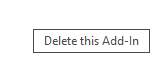
Click on the Delete this Add-In button at the bottom right-hand corner of the screen
The Add-In will still appear in the list of My Add-Ins until you close ArcGIS Pro, but it will say it is Deleted:
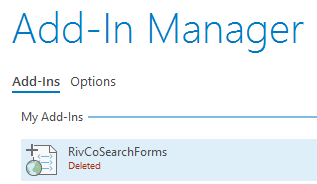
After removing the Add-In you must close ArcGIS Pro before you install the new Add-In..
To Install the Add-In download the attached RivCoSearchForms.zip file. Extract and double-click the RivCoSearchForms.esriAddIInX file. Press the Install Add-In button on the Esri ArcGIS Add-In Installation Utility dialog. The press the OK button on the Installation succeeded notification Esri ArcGIS Add-In Installation Utility dialog.
Open ArcGIS Pro and open or start a project or you can use the "Start without a template" option. An Add-In tab will have been added to your project, which you can use to choose the Search Option you want and press the cat face Search button to open the search dialog.
Open or create a Map or 2D Layout in your project prior to using the cat face search tool.
The search tool will verify that your current active map has the layers the tool requires. If necessary it will add them to the map provided that the tool is able to create a Database Connection to the SQL Server Database Platform using the RCIT-19GISP01 Instance with Operating System authentication using the GDB_PUB Database.
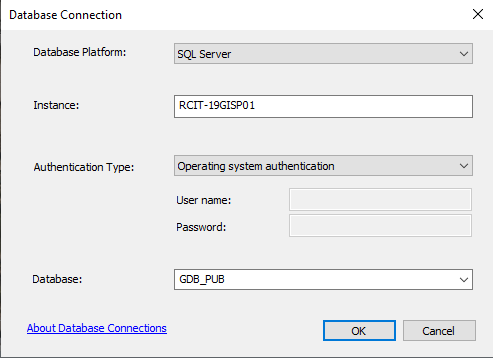
If you cannot directly connect to Riverside County's GIS data server, but have obtained copies of the appropriate Riverside County Feature Classes in your own geodatabase, you can create the necessary layers by adding the following feature classes to your map and renaming the layer it creates with the layer name shown below:
Feature Class Name - Layer Name
CENTERLINE_INTERSECTIONS - Search Intersections
ADDRESS_POINTS - Search Address Points
PARCELS_CONDOS_CREST_VW (or PARCELS_CREST) - Search Parcels
PLUS_ACTIVITIES_MODIFIED (or PLUS_ACTIVITIES) - Search PLUS Cases
RECORDED_MAPS - Search Survey Maps
ROADBOOK_PAGE_INDEX - Search Road Book Page
SECTIONS - Search Sections
ADDING THE SEARCH TOOL ADD-IN BUTTON AND COMBOBOX TO THE QUICK ACCESS TOOLBAR
For easy access to the tool you can add the Search button and combobox for search options to the Quick Access toolbar as a onetime set up. Do the following:
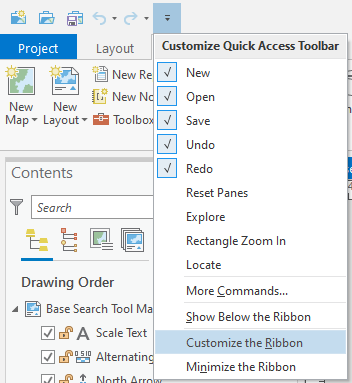
Dropdown the Customize Quick Access Toolbar menu as shown and press the Customize the Ribbon option.
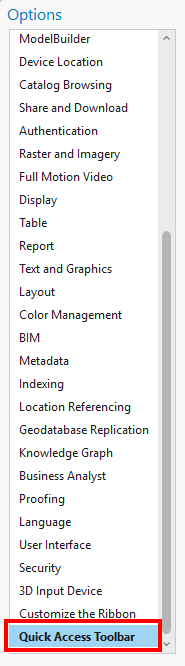
In the Options dialog scroll to the bottom of the list on the left side of the dialog and press the Quick Access Toolbar option.
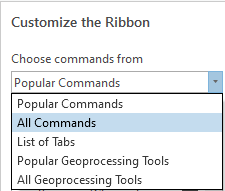
In the Customize the Ribbon combobox in the Options dialog choose All Commands
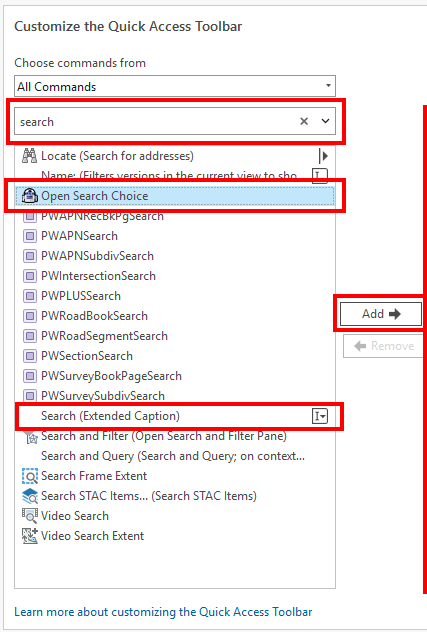
Type search into the textbox dropdown and choose the Open Search Choice button and press the Add button and then choose the Search (Extended Caption) combobox and press the Add button. The icon for the Open Search Choice button has changed from a Cat to R2D2.
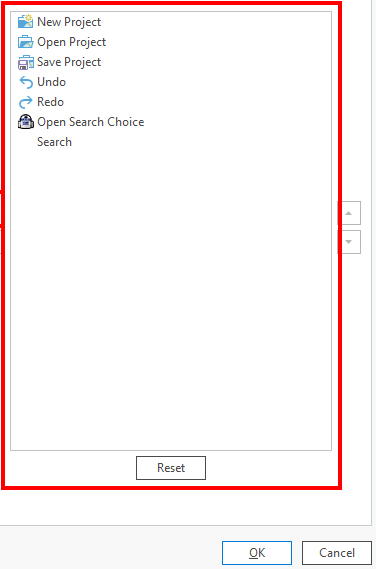
The list of tools should look like the items shown below and press the OK button
The Quick Access Toolbar should now look like this.
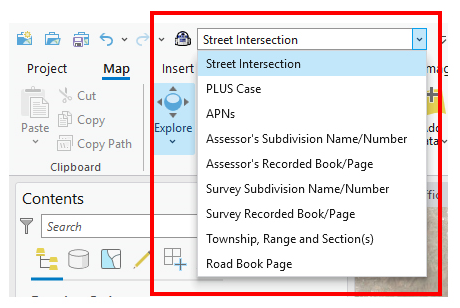
You can also access the Search Tools through the Add-in tab:
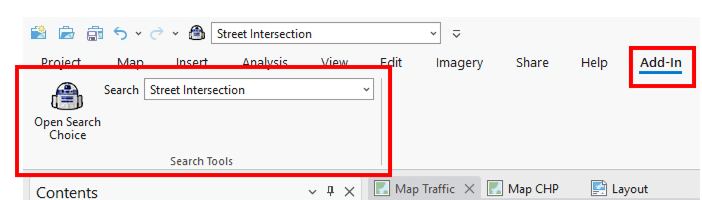
Choose the search you want in the dropdown and press the R2D2 button to launch the search dialog.
If you have any questions, please post them here. This Blog will be updated as I release expanded or updated versions of the Search Tools and the date time of each revision publication will be added to the list at the bottom of this blog post.
Originally published version 1.0 by Richard Fairhurst on September 20, 2022 at 4:07 PM PST.
Updated the Add-In zip file to make improvements to the validations performed in response to user data entry in the APN Search dialog. Published by Richard Fairhurst on September 21, 2022 at 9:30 AM PST.
Updated the Add-In zip file to version 1.1 to add a new Township, Range and Section(s) Search dialog option. Published by Richard Fairhurst on September 28, 2022 at 10:38 AM PST.
Updated the Add-In zip file to version 1.1.1 to change label placement properties of the Standard Label Engine to label each feature part when the Search layers are added to the map. Published by Richard Fairhurst on October 2, 2022 at 4:45 PM PST.
Replaced ArcGIS Pro Search Tool so that it now is for ArcGIS Pro version 3.2 and higher. Changed Open Search Choices button icon from a Cat to R2D2. Published by Richard Fairhurst on August 14, 2025 at 9:00 AM PST.
Bug Fix to prevent crashes for Basic license users and for mouse selection behaviors of the Township, Range and Section(s) search option. Published by Richard Fairhurst December 22, 2025 at 4:40 PM PST.
Enhancement of Search Road Book tool to build Road Book Pages when a Layout has the appropriate layers. Published by Richard Fairhurst December 25, 2025 at 11:30 AM PST.
Enhancement of Search Road Book tool to batch create PDF Files for Road Book Pages when a Layout has the appropriate layers. Published by Richard Fairhurst January 08, 2026 at 10:30 AM PST.
Enhancement of Search APN tool to provide a valid list of Book and Page choices the user can select by typing or scrolling and mouse click. Published by Richard Fairhurst January 08, 2026 at 10:40 PM PST.