During the recent 2025 Developer and Technology Summit, our team had the pleasure of engaging with enthusiastic users of ArcGIS Instant Apps keen on exploring the no-code/low-code app development. In this post let’s explore the pivotal questions and the essential tips and tricks of the app builder.
Navigating the Instant App Homepage
To effectively utilize the Instant Apps homepage for finding the right app based on your specific criteria, you can follow these steps. Locate the Search bar on the left panel of the Instant Apps homepage and enter your specific criteria or keywords related to the type of app you are looking for. The search results will filter the available apps based on your input. Click on the link to the Capabilities chart available on the left panel to access detailed insights into the supported capabilities of each template. If you prefer a guided approach, utilize the Suggestions panel to answer a few questions presented in the panel. Based on your responses, the panel will recommend apps that suit your needs.
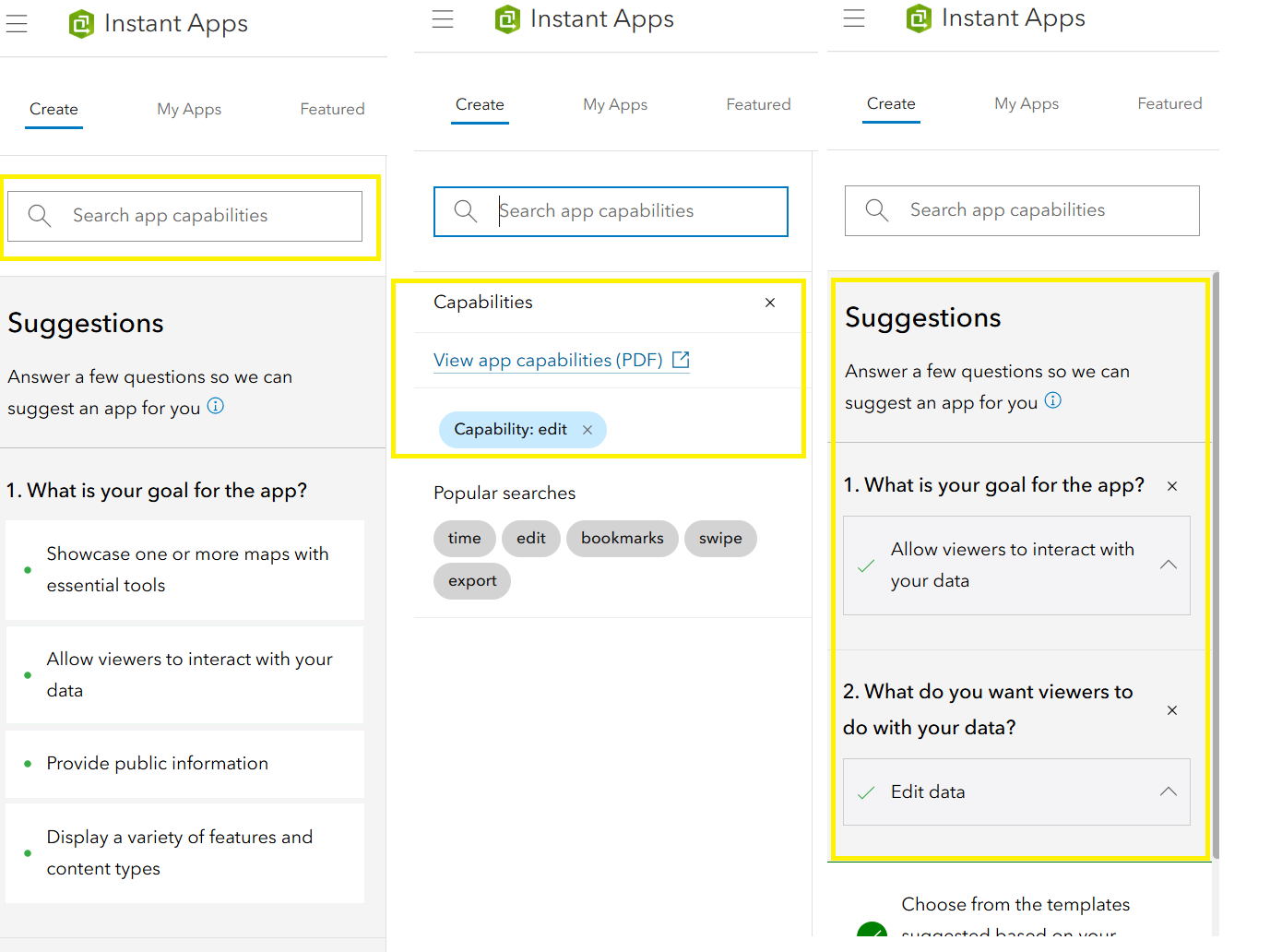
Exploring Instant Apps
Click on the ellipsis icon on each template's card to access the App's description and a list of sample apps for further exploration. You can also choose to click on View item details to access key capabilities, create a web app using the template, and explore various other options available. Users can further explore the Instant Apps Gallery to view various app with unique use cases.
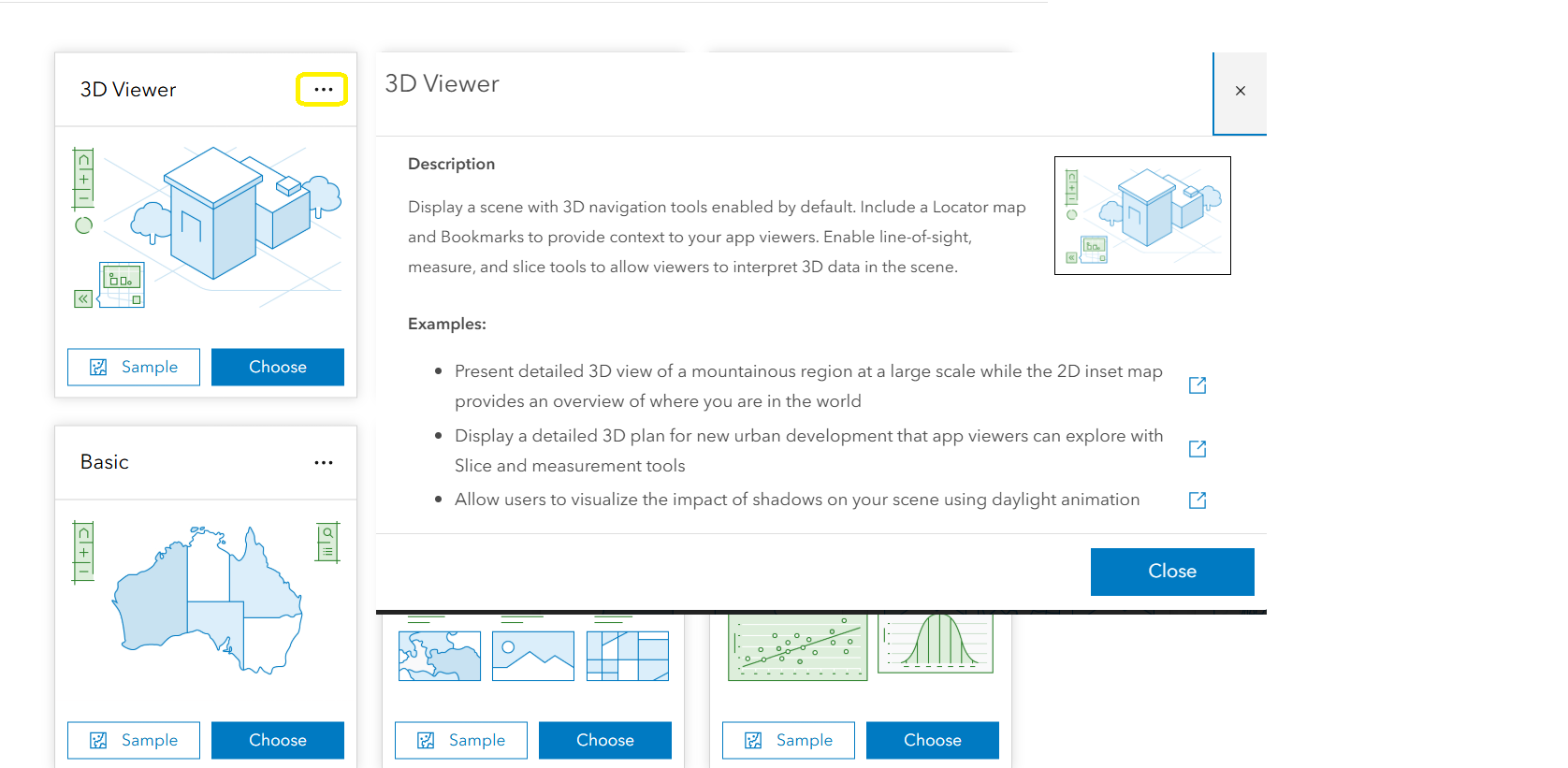
Config Panel Capabilities
Express and Full Setup Options
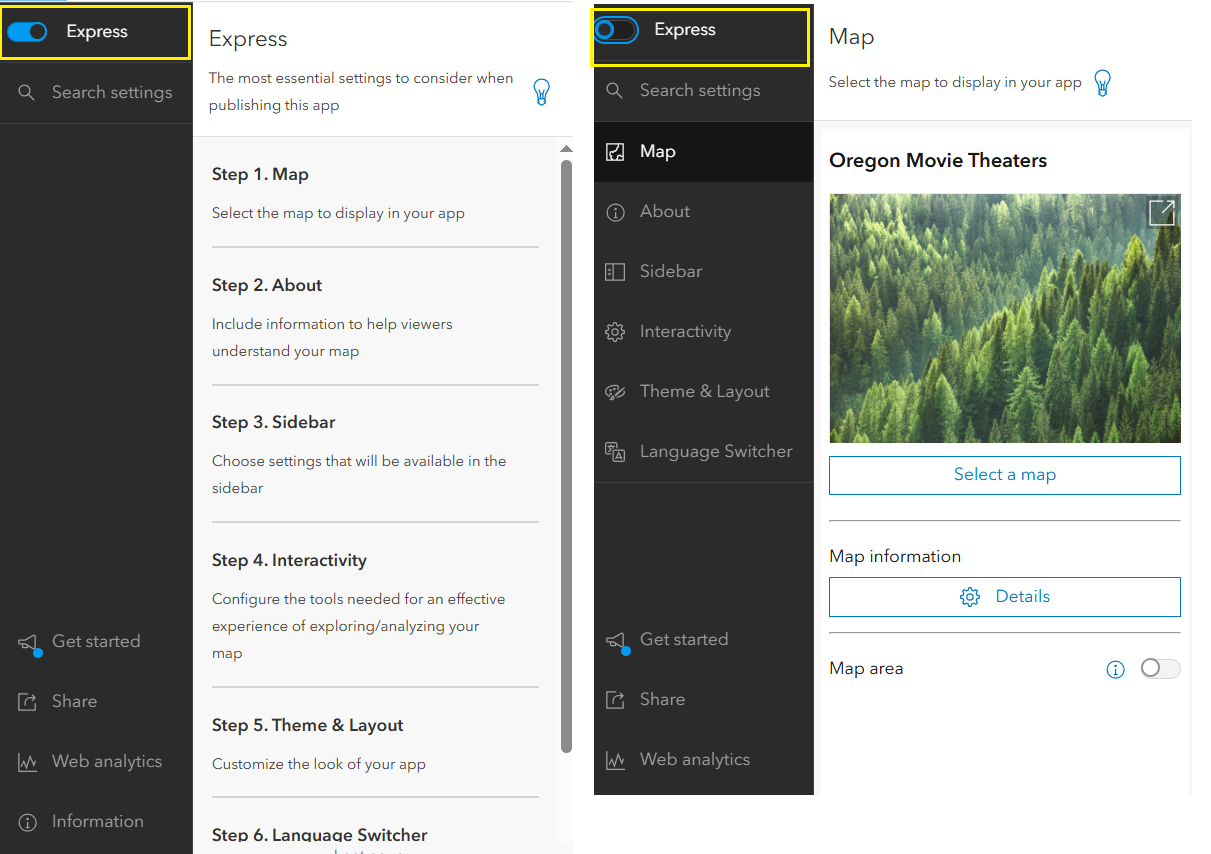
The default setting is Express mode, enabling app authors to quickly configure the app with essential capabilities. Upon toggling the option, the configuration panel transitions to Full Setup mode, providing access to all configuration parameters for a comprehensive app setup.
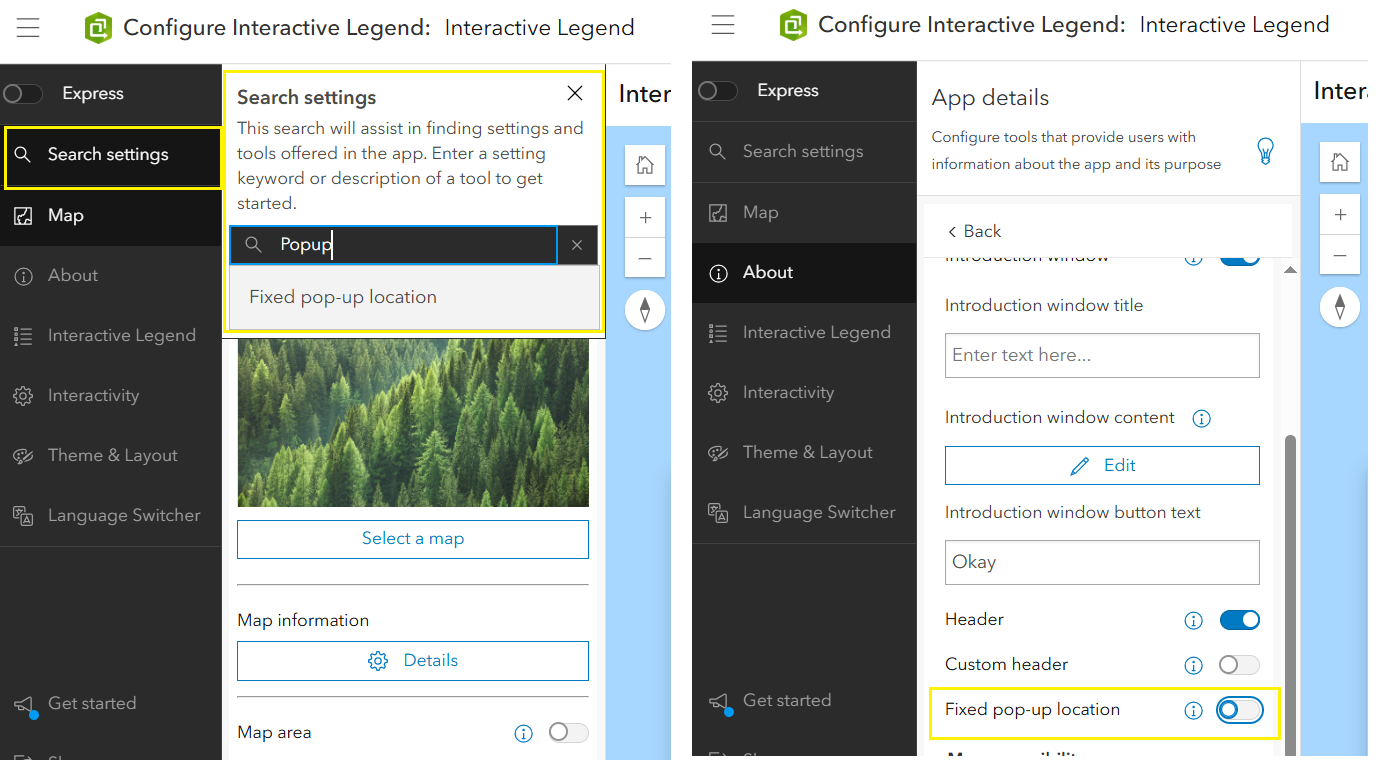
Search Settings
In apps with a wide range of configurable options, the search settings feature proves useful when you want to quickly locate a specific capability. For instance, if you search for "Popup," the search function will promptly navigate you to the relevant tab for easy access.
Introduction Window and Cover Page
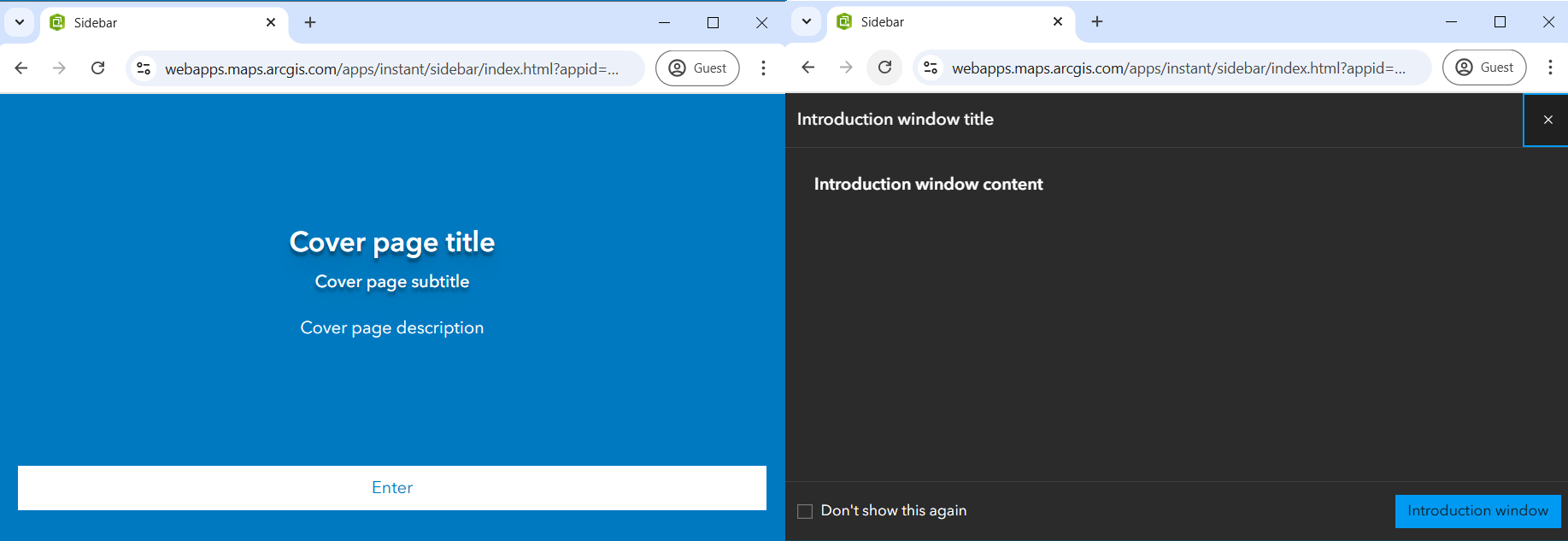
To improve the user experience in your app, utilize the following options available in the About tab. App authors can choose to use both or either of these options and customize the content accordingly:
- Introduction Window:
- App authors can enable this option to provide users with information about the organization or the app.
- Users can dismiss or click on the button in the Introduction window, ensuring seamless access to the app.
- Cover Page:
- App authors can enable this option to offer users a splash screen experience and add desired content.
- Users can proceed by entering or signing in (this feature is only available in select templates) from the Cover page, ensuring seamless access to the app.
Both the Introduction Window and Cover Page options are easily accessible during the app session with a simple click.
Exploring Different Views
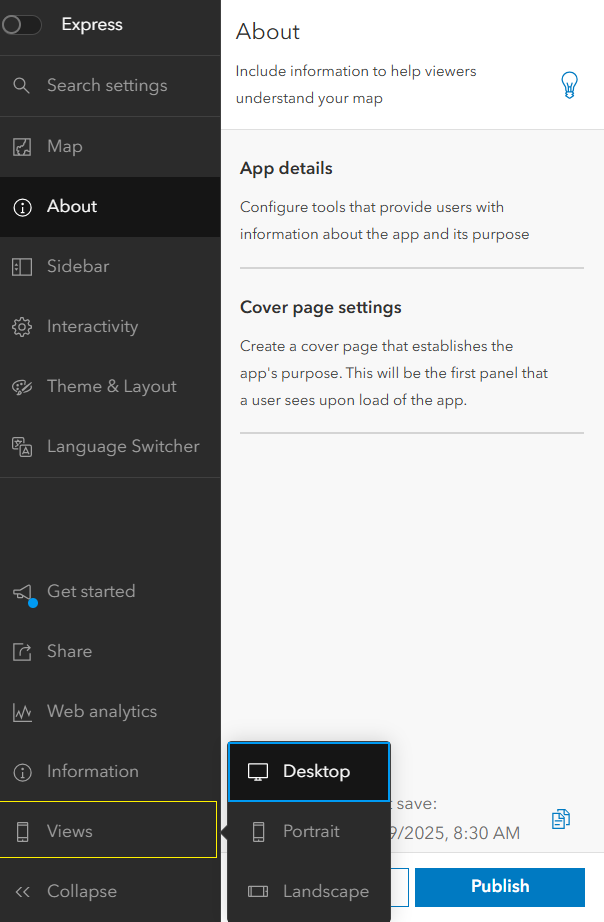
Experiment with different views to visualize how your app appears across various devices through the click of a button. Switch between Desktop, Portrait, and Landscape views effortlessly to view how the app appears on different devices.
Customization with Theme & Layout Tab
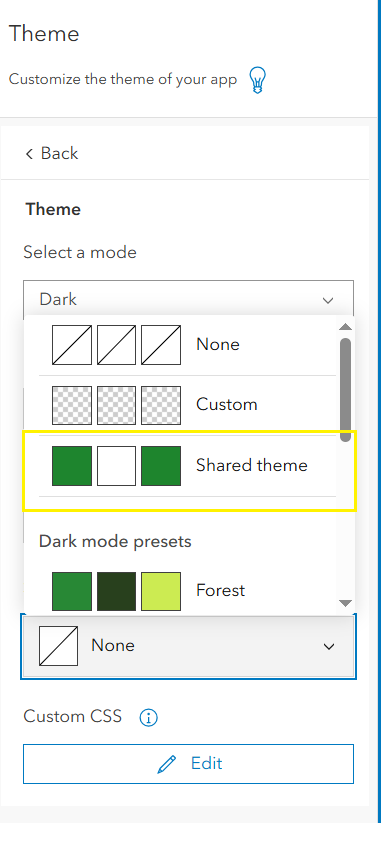
If you have organizationally shared themes that are used consistently across all your apps, you can select the shared theme from the Select a preset theme parameter. This option allows you to easily apply the predefined shared theme to efficiently implement your organization's branding.
Custom CSS
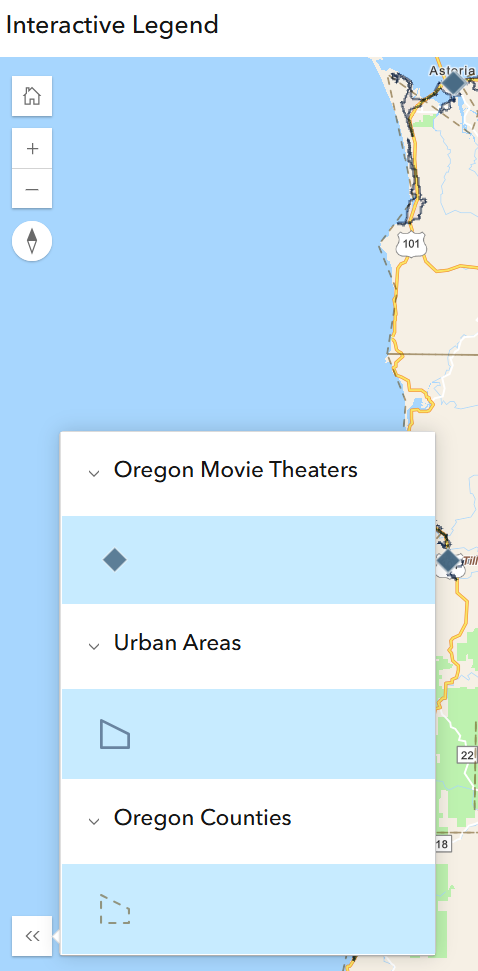
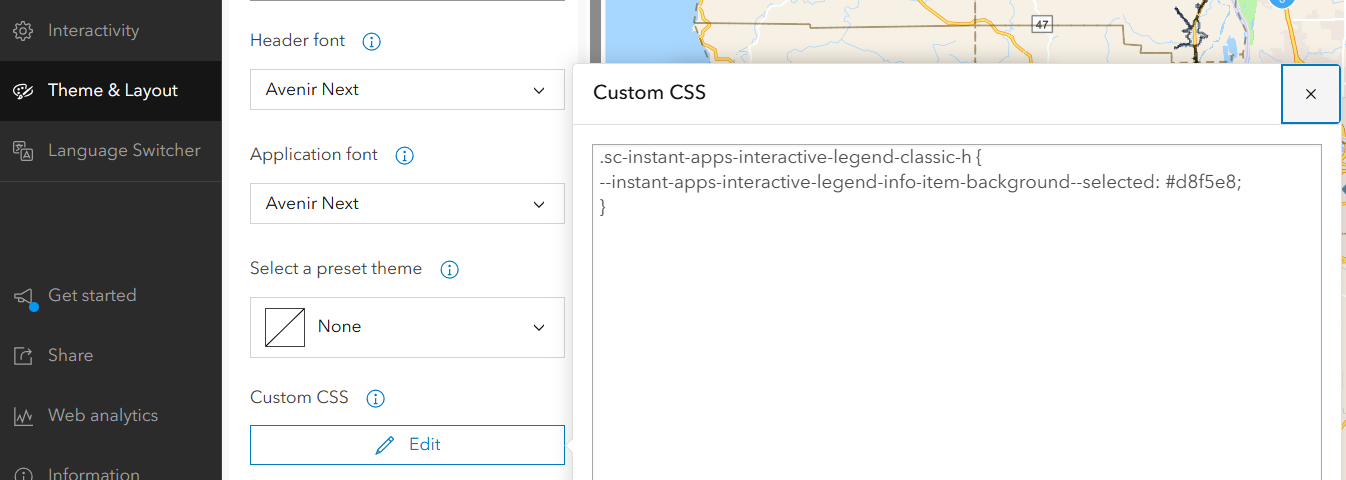
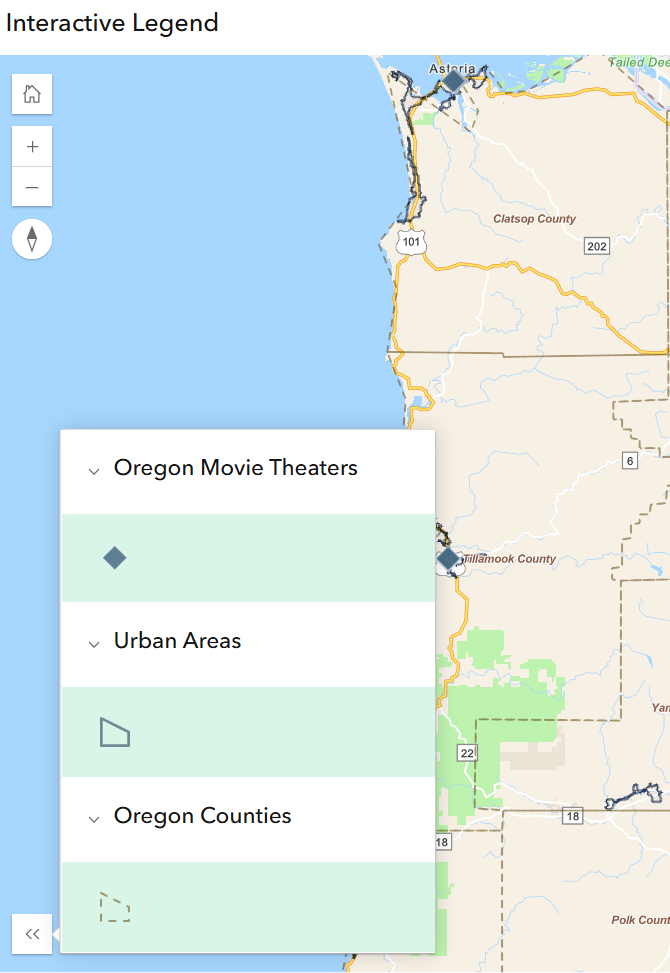
Explore the Custom CSS feature for select templates to customize the app's appearance, like changing the background color of a panel or button. In the Custom CSS section, click the edit button to input the Custom CSS for the element you want to modify. For instance, in the Interactive Legend app, I customized the background color for the feature panel using Custom CSS.
Default color:
Custom CSS
.sc-instant-apps-interactive-legend-classic-h {
--instant-apps-interactive-legend-info-item-background--selected: #d8f5e8;
}
Custom CSS Changes:
By following these tips and tricks, elevate your experience with ArcGIS Instant Apps. Happy app building!